{
    "id": "09f64748-e9ab-4a6e-83e9-3911960b77b5",
    "name": "Manage Alerts",
    "slug": "manage-alerts",
    "status": "published",
    "lab_type": "pta",
    "is_sample": false,
    "duration_in_seconds": 1800,
    "metadata": {
        "courses": [
            "1d0c3874-1dec-4abd-90aa-f5cbf362c035",
            "bdbadde2-fe15-49c9-b700-c0c8873eb04f"
        ],
        "pta_sdn": "545",
        "pta_namespace": "my.ine",
        "learning_paths": [],
        "has_published_parent": true
    },
    "session": null,
    "company": "a491bc32-c056-4946-9169-cc053387bada",
    "created": "2022-11-09T21:13:47.909747Z",
    "modified": "2023-10-03T18:58:25.486315Z",
    "is_beta": false,
    "lab_objectives": [],
    "main_learning_area": "d3f82c70-f4e7-428e-afd7-4b1d28988e18",
    "learning_areas": [
        {
            "id": "d3f82c70-f4e7-428e-afd7-4b1d28988e18",
            "name": "Cloud",
            "slug": "cloud"
        }
    ],
    "categories": [],
    "tags": [],
    "difficulty": null,
    "is_web_access": true,
    "is_lab_experience": false,
    "is_featured": false,
    "cve": null,
    "severity": null,
    "year": null,
    "classification": null,
    "is_trackable": false,
    "cpe_credits": null,
    "is_skill_check": false,
    "external_url": "",
    "solution_video": null,
    "explanation_video": null,
    "description": "The goal of this task is to configure and test an alert for an existing resource. This includes creating an action group and an alert rule; and triggering the alert.",
    "description_html": "<p>The goal of this task is to configure and test an alert for an existing resource. This includes creating an action group and an alert rule; and triggering the alert.</p>",
    "tasks": "",
    "tasks_html": "",
    "published_date": "2020-04-07T18:00:00Z",
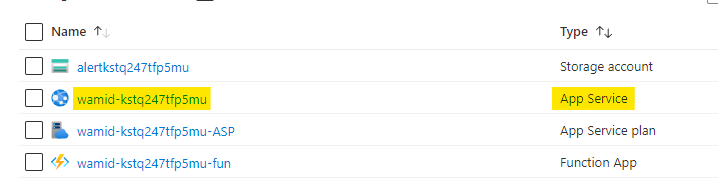
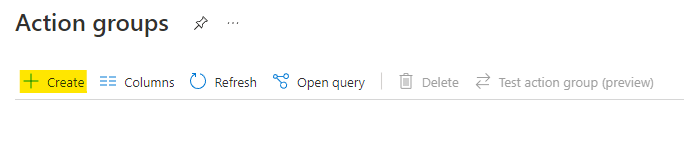
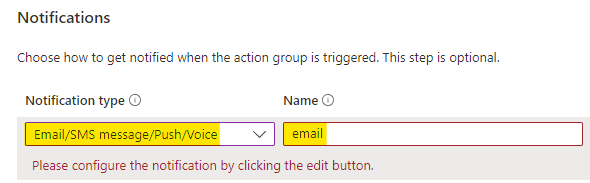
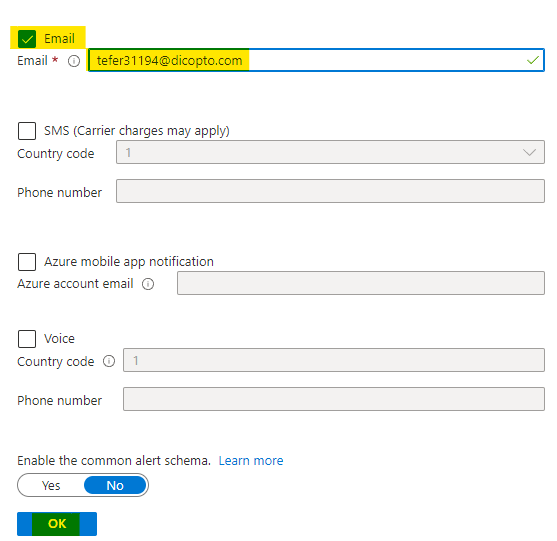
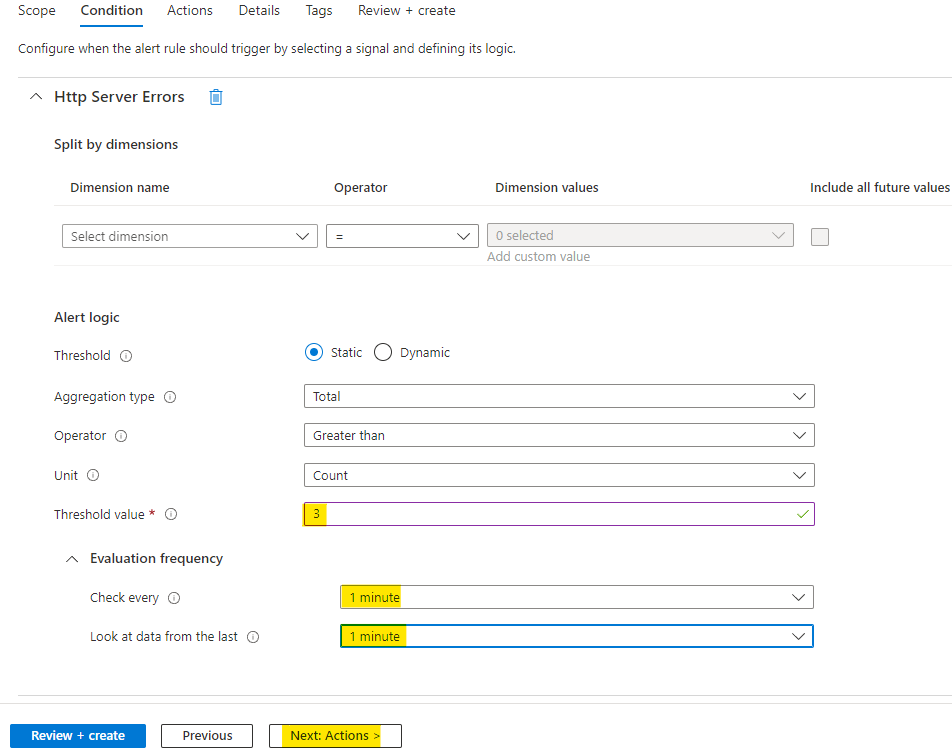
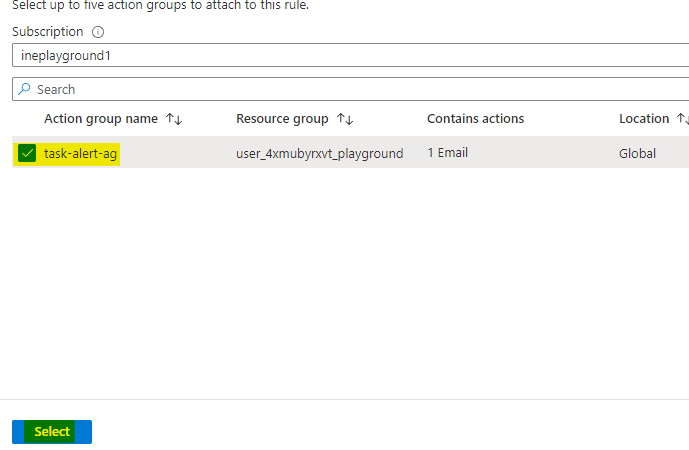
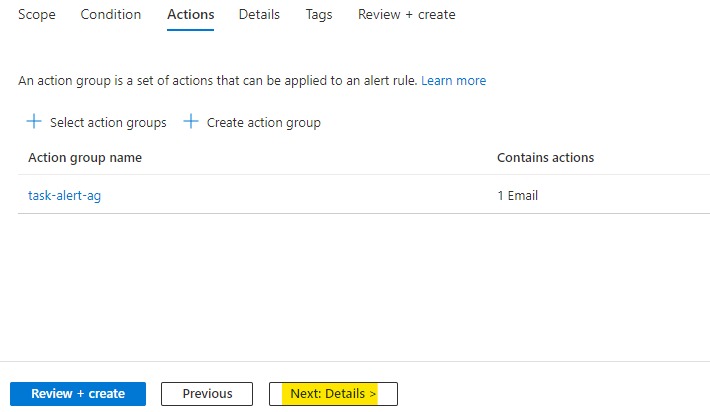
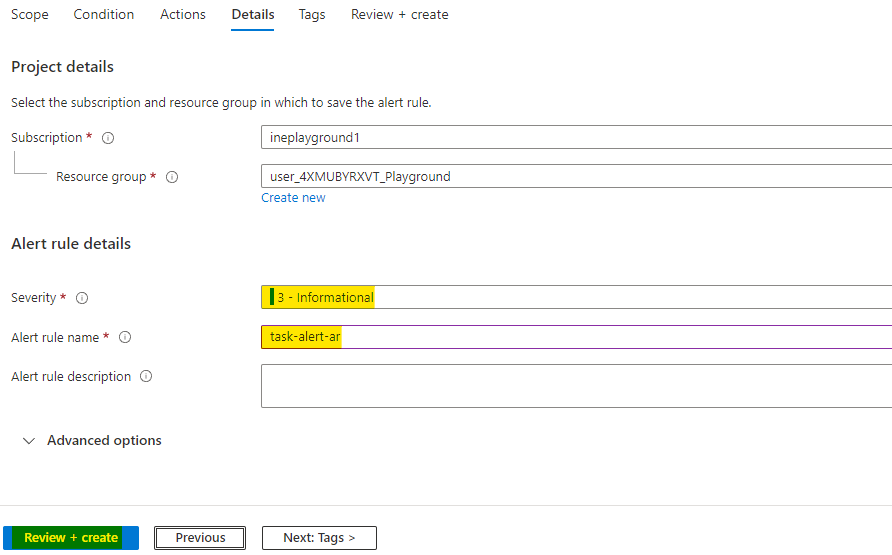
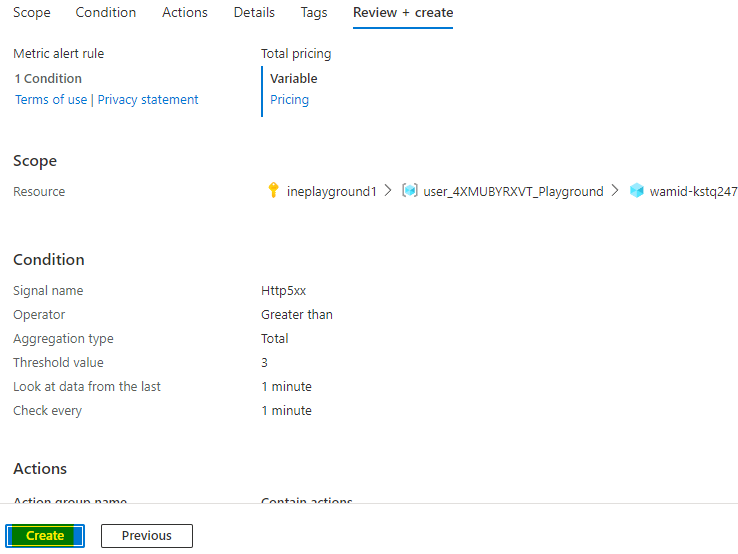
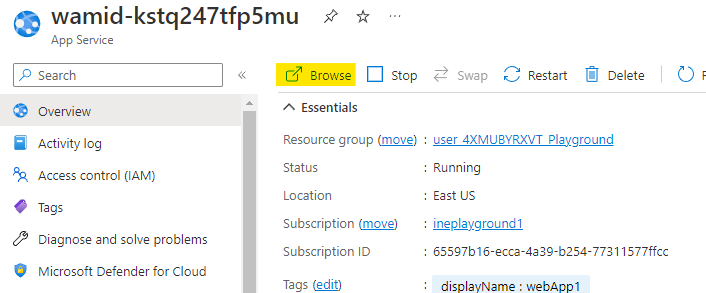
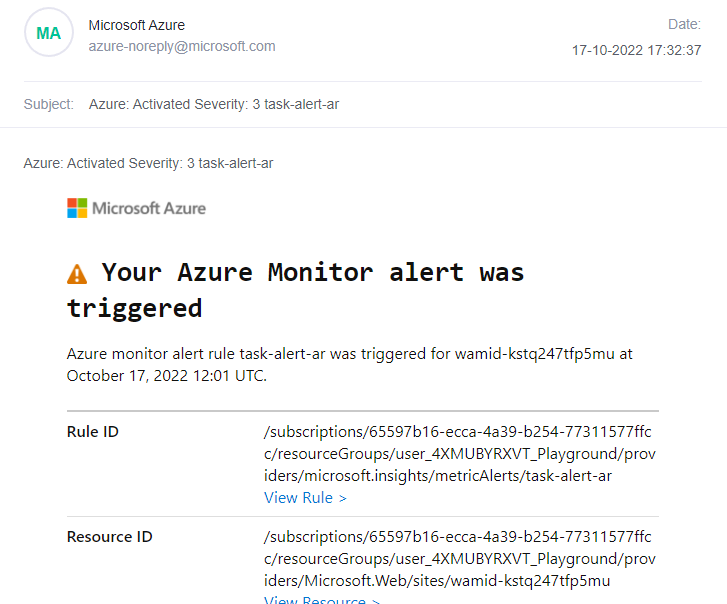
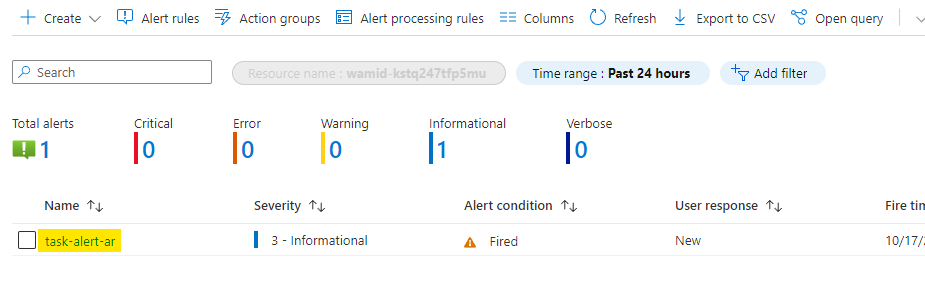
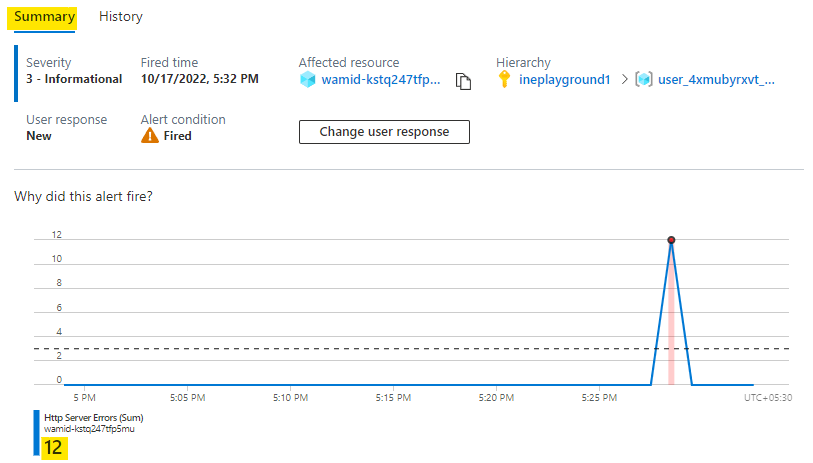
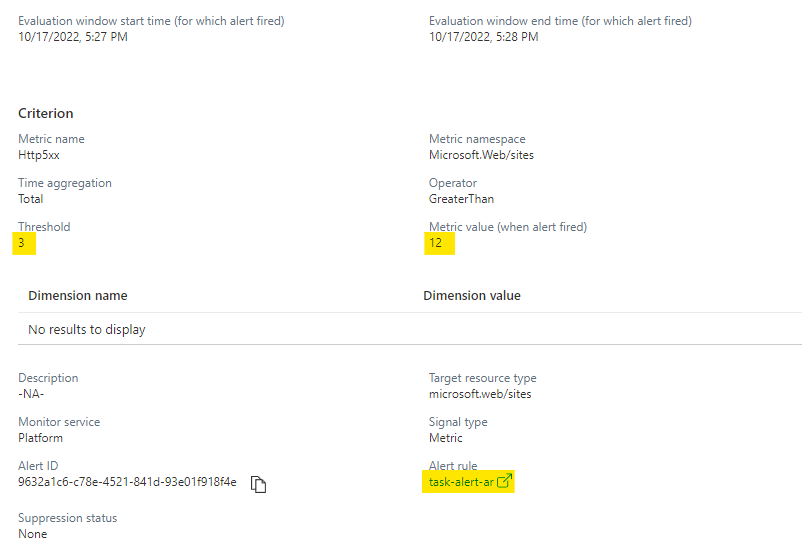
    "solutions": "# Configure an alert rule for a web app\n\nWhen you log in to Azure with the provided credentials, you will find all the required resources in the resource group.\n\n![](https://assets.ine.com/content/labs/azure-course-labs/manage-alerts/1.png)\n\nGo to the app service created in your resource group.\n\n![](https://assets.ine.com/content/labs/azure-course-labs/manage-alerts/2.png)\n\nNavigate to the **Alerts** of your web app and open the **Action group** as highlghted below.\n\n![](https://assets.ine.com/content/labs/azure-course-labs/manage-alerts/3.png)\n\nClick on **Create** to create a new action group.\n\n![](https://assets.ine.com/content/labs/azure-course-labs/manage-alerts/4.png)\n\nName the action group as **task-alert-ag** and click on **Next** to configure the notifications.\n\n![](https://assets.ine.com/content/labs/azure-course-labs/manage-alerts/5.png)\n\nName the notification as **email** and select the type as **Email/SMS message/PUSH/Voice**.\n\n![](https://assets.ine.com/content/labs/azure-course-labs/manage-alerts/6.png)\n\nA new wizard to configure the notification will open.\n\nSelect the email option and provide your email. Click on **OK** to save this notification setting.\n\n![](https://assets.ine.com/content/labs/azure-course-labs/manage-alerts/7.png)\n\nClick on **Review + Create** after configuring the notification.\n\n![](https://assets.ine.com/content/labs/azure-course-labs/manage-alerts/8.png)\n\nClick on **Create** after the validation to create the action group.\n\n![](https://assets.ine.com/content/labs/azure-course-labs/manage-alerts/9.png)\n\nAfter the action group is created, go back to the alerts for your web app. Click on **Create** and select **Alert rule** to create a new alert rule.\n\n![](https://assets.ine.com/content/labs/azure-course-labs/manage-alerts/10.png)\n\nAs you are creating this rule from the web app, scope will be automatically assigned to web app. Click on **Add condition** to create a new condition for alert rule. By default the alert rule creation page open with the condition configuration wizard.\n\n![](https://assets.ine.com/content/labs/azure-course-labs/manage-alerts/11.png)\n\nIn the condition configuration, select the signal as **Http Server Errors**.\n\n![](https://assets.ine.com/content/labs/azure-course-labs/manage-alerts/12.png)\n\nConfigure the alert logic as below:\n\n* Set the aggergation type as **Total** and operator as **Greater than**\n\n* Use unit as **Count** and set the value as **3**\n\nSet the frequencies to **1 Minute**.\n\nClick on **Next** to configure the actions.\n\n![](https://assets.ine.com/content/labs/azure-course-labs/manage-alerts/13.png)\n\nClick on **Select action groups** to select action group for this alert rule.\n\n![](https://assets.ine.com/content/labs/azure-course-labs/manage-alerts/14.png)\n\nSelect the action group you created earlier and click on **Select**.\n\n![](https://assets.ine.com/content/labs/azure-course-labs/manage-alerts/15.png)\n\nAfter the action group is selected, click on **Next** to enter the details for this alert rule.\n\n![](https://assets.ine.com/content/labs/azure-course-labs/manage-alerts/16.png)\n\nSet the severity level to **3** and name the rule as **task-alert-ar**. Click on **Review + Cretae**.\n\n![](https://assets.ine.com/content/labs/azure-course-labs/manage-alerts/17.png)\n\nAfter the validation is done, click on **Create** to create the alert rule.\n\n![](https://assets.ine.com/content/labs/azure-course-labs/manage-alerts/18.png)\n\n# Generate an alert\n\nGo to the overview of the web app and click on **Browse** to open the web app in new tab.\n\n![](https://assets.ine.com/content/labs/azure-course-labs/manage-alerts/19.png)\n\nA demo web app will open in new tab. Click on **Network load** to create some netwrok activities.\n\n![](https://assets.ine.com/content/labs/azure-course-labs/manage-alerts/20.png)\n\nConfigure the load as below:\n\n* Set the number of requests to **100** and response size as **10**.\n\n* Check the generate errors option\n\nClick on **Execute** to create some network load.\n\n![](https://assets.ine.com/content/labs/azure-course-labs/manage-alerts/21.png)\n\nYou will see that in some time there are some request made to the server of our web app. There will be some errors with **500** status. This means that there was a server error in that request.\n\n![](https://assets.ine.com/content/labs/azure-course-labs/manage-alerts/22.png)\n\n# Verify the alert\n\nWait for 5 to 10 minutes and you will get an email of your mail address from microsoft. You will see that the alert was triggered.\n\n![](https://assets.ine.com/content/labs/azure-course-labs/manage-alerts/23.png)\n\nGo back to the alerts of web app and you can see that one alert is triggered. Open this triggered alert.\n\n![](https://assets.ine.com/content/labs/azure-course-labs/manage-alerts/24.png)\n\nYou can check the summart of alert, there were 12 server error at the time of trigger.\n\n![](https://assets.ine.com/content/labs/azure-course-labs/manage-alerts/25.png)\n\nYou can also scroll down to see which alert rule was triggered. What was the reason for which the alert was triggered.\n\n![](https://assets.ine.com/content/labs/azure-course-labs/manage-alerts/26.png)\n\nOur lab is now complete.",
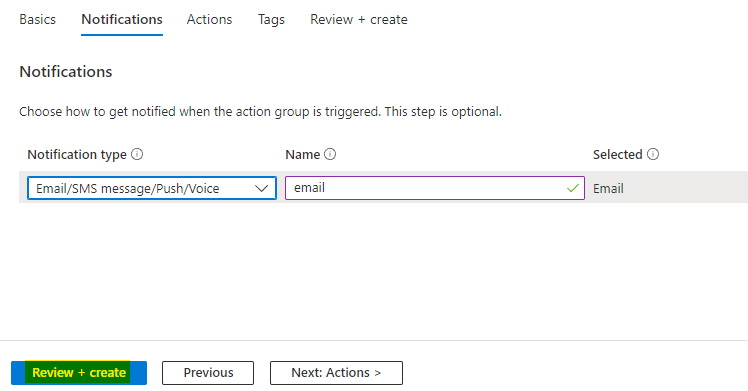
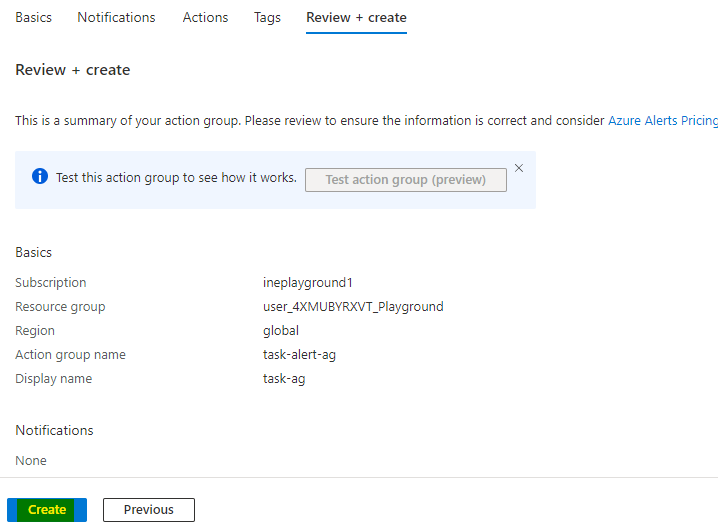
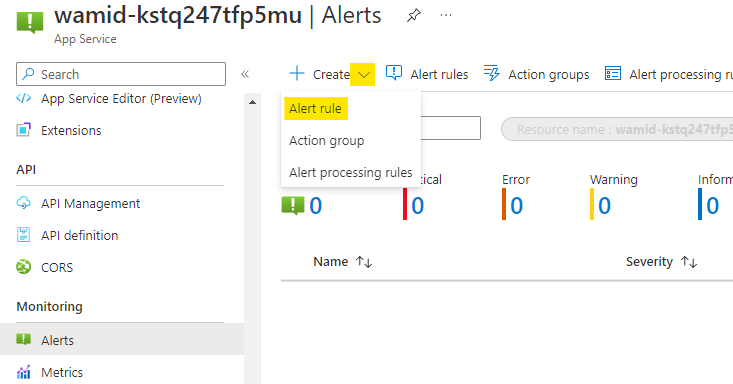
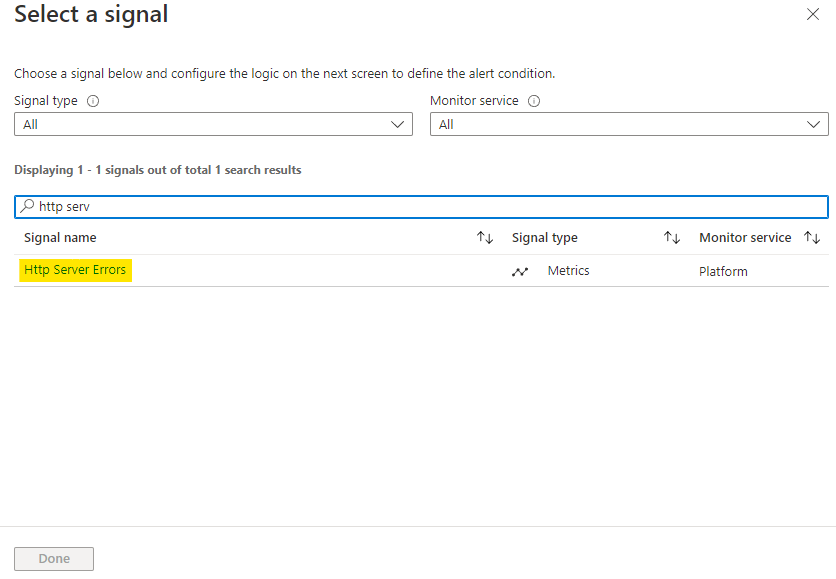
    "solutions_html": "<h1>Configure an alert rule for a web app</h1>\n<p>When you log in to Azure with the provided credentials, you will find all the required resources in the resource group.</p>\n<p><img alt=\"\" src=\"https://assets.ine.com/content/labs/azure-course-labs/manage-alerts/1.png\" /></p>\n<p>Go to the app service created in your resource group.</p>\n<p><img alt=\"\" src=\"https://assets.ine.com/content/labs/azure-course-labs/manage-alerts/2.png\" /></p>\n<p>Navigate to the <strong>Alerts</strong> of your web app and open the <strong>Action group</strong> as highlghted below.</p>\n<p><img alt=\"\" src=\"https://assets.ine.com/content/labs/azure-course-labs/manage-alerts/3.png\" /></p>\n<p>Click on <strong>Create</strong> to create a new action group.</p>\n<p><img alt=\"\" src=\"https://assets.ine.com/content/labs/azure-course-labs/manage-alerts/4.png\" /></p>\n<p>Name the action group as <strong>task-alert-ag</strong> and click on <strong>Next</strong> to configure the notifications.</p>\n<p><img alt=\"\" src=\"https://assets.ine.com/content/labs/azure-course-labs/manage-alerts/5.png\" /></p>\n<p>Name the notification as <strong>email</strong> and select the type as <strong>Email/SMS message/PUSH/Voice</strong>.</p>\n<p><img alt=\"\" src=\"https://assets.ine.com/content/labs/azure-course-labs/manage-alerts/6.png\" /></p>\n<p>A new wizard to configure the notification will open.</p>\n<p>Select the email option and provide your email. Click on <strong>OK</strong> to save this notification setting.</p>\n<p><img alt=\"\" src=\"https://assets.ine.com/content/labs/azure-course-labs/manage-alerts/7.png\" /></p>\n<p>Click on <strong>Review + Create</strong> after configuring the notification.</p>\n<p><img alt=\"\" src=\"https://assets.ine.com/content/labs/azure-course-labs/manage-alerts/8.png\" /></p>\n<p>Click on <strong>Create</strong> after the validation to create the action group.</p>\n<p><img alt=\"\" src=\"https://assets.ine.com/content/labs/azure-course-labs/manage-alerts/9.png\" /></p>\n<p>After the action group is created, go back to the alerts for your web app. Click on <strong>Create</strong> and select <strong>Alert rule</strong> to create a new alert rule.</p>\n<p><img alt=\"\" src=\"https://assets.ine.com/content/labs/azure-course-labs/manage-alerts/10.png\" /></p>\n<p>As you are creating this rule from the web app, scope will be automatically assigned to web app. Click on <strong>Add condition</strong> to create a new condition for alert rule. By default the alert rule creation page open with the condition configuration wizard.</p>\n<p><img alt=\"\" src=\"https://assets.ine.com/content/labs/azure-course-labs/manage-alerts/11.png\" /></p>\n<p>In the condition configuration, select the signal as <strong>Http Server Errors</strong>.</p>\n<p><img alt=\"\" src=\"https://assets.ine.com/content/labs/azure-course-labs/manage-alerts/12.png\" /></p>\n<p>Configure the alert logic as below:</p>\n<ul>\n<li>\n<p>Set the aggergation type as <strong>Total</strong> and operator as <strong>Greater than</strong></p>\n</li>\n<li>\n<p>Use unit as <strong>Count</strong> and set the value as <strong>3</strong></p>\n</li>\n</ul>\n<p>Set the frequencies to <strong>1 Minute</strong>.</p>\n<p>Click on <strong>Next</strong> to configure the actions.</p>\n<p><img alt=\"\" src=\"https://assets.ine.com/content/labs/azure-course-labs/manage-alerts/13.png\" /></p>\n<p>Click on <strong>Select action groups</strong> to select action group for this alert rule.</p>\n<p><img alt=\"\" src=\"https://assets.ine.com/content/labs/azure-course-labs/manage-alerts/14.png\" /></p>\n<p>Select the action group you created earlier and click on <strong>Select</strong>.</p>\n<p><img alt=\"\" src=\"https://assets.ine.com/content/labs/azure-course-labs/manage-alerts/15.png\" /></p>\n<p>After the action group is selected, click on <strong>Next</strong> to enter the details for this alert rule.</p>\n<p><img alt=\"\" src=\"https://assets.ine.com/content/labs/azure-course-labs/manage-alerts/16.png\" /></p>\n<p>Set the severity level to <strong>3</strong> and name the rule as <strong>task-alert-ar</strong>. Click on <strong>Review + Cretae</strong>.</p>\n<p><img alt=\"\" src=\"https://assets.ine.com/content/labs/azure-course-labs/manage-alerts/17.png\" /></p>\n<p>After the validation is done, click on <strong>Create</strong> to create the alert rule.</p>\n<p><img alt=\"\" src=\"https://assets.ine.com/content/labs/azure-course-labs/manage-alerts/18.png\" /></p>\n<h1>Generate an alert</h1>\n<p>Go to the overview of the web app and click on <strong>Browse</strong> to open the web app in new tab.</p>\n<p><img alt=\"\" src=\"https://assets.ine.com/content/labs/azure-course-labs/manage-alerts/19.png\" /></p>\n<p>A demo web app will open in new tab. Click on <strong>Network load</strong> to create some netwrok activities.</p>\n<p><img alt=\"\" src=\"https://assets.ine.com/content/labs/azure-course-labs/manage-alerts/20.png\" /></p>\n<p>Configure the load as below:</p>\n<ul>\n<li>\n<p>Set the number of requests to <strong>100</strong> and response size as <strong>10</strong>.</p>\n</li>\n<li>\n<p>Check the generate errors option</p>\n</li>\n</ul>\n<p>Click on <strong>Execute</strong> to create some network load.</p>\n<p><img alt=\"\" src=\"https://assets.ine.com/content/labs/azure-course-labs/manage-alerts/21.png\" /></p>\n<p>You will see that in some time there are some request made to the server of our web app. There will be some errors with <strong>500</strong> status. This means that there was a server error in that request.</p>\n<p><img alt=\"\" src=\"https://assets.ine.com/content/labs/azure-course-labs/manage-alerts/22.png\" /></p>\n<h1>Verify the alert</h1>\n<p>Wait for 5 to 10 minutes and you will get an email of your mail address from microsoft. You will see that the alert was triggered.</p>\n<p><img alt=\"\" src=\"https://assets.ine.com/content/labs/azure-course-labs/manage-alerts/23.png\" /></p>\n<p>Go back to the alerts of web app and you can see that one alert is triggered. Open this triggered alert.</p>\n<p><img alt=\"\" src=\"https://assets.ine.com/content/labs/azure-course-labs/manage-alerts/24.png\" /></p>\n<p>You can check the summart of alert, there were 12 server error at the time of trigger.</p>\n<p><img alt=\"\" src=\"https://assets.ine.com/content/labs/azure-course-labs/manage-alerts/25.png\" /></p>\n<p>You can also scroll down to see which alert rule was triggered. What was the reason for which the alert was triggered.</p>\n<p><img alt=\"\" src=\"https://assets.ine.com/content/labs/azure-course-labs/manage-alerts/26.png\" /></p>\n<p>Our lab is now complete.</p>",
    "flags": [],
    "min_points_to_pass": null,
    "access_type": "web",
    "user_status": "unstarted",
    "user_lab_status": null,
    "user_status_modified": null,
    "user_flags": [],
    "global_running_session": null
}