{
    "id": "29348b3d-4d55-402e-a8d0-f3e7b2707abf",
    "name": "Monitor Resources with Log Analytics",
    "slug": "monitor-resources-with-log-analytics",
    "status": "published",
    "lab_type": "pta",
    "is_sample": false,
    "duration_in_seconds": 1800,
    "metadata": {
        "courses": [
            "1d0c3874-1dec-4abd-90aa-f5cbf362c035",
            "bdbadde2-fe15-49c9-b700-c0c8873eb04f"
        ],
        "pta_sdn": "425",
        "pta_namespace": "my.ine",
        "learning_paths": [],
        "has_published_parent": true
    },
    "session": null,
    "company": "a491bc32-c056-4946-9169-cc053387bada",
    "created": "2022-10-07T18:33:03.218970Z",
    "modified": "2023-10-03T18:58:29.129923Z",
    "is_beta": false,
    "lab_objectives": [],
    "main_learning_area": "d3f82c70-f4e7-428e-afd7-4b1d28988e18",
    "learning_areas": [
        {
            "id": "d3f82c70-f4e7-428e-afd7-4b1d28988e18",
            "name": "Cloud",
            "slug": "cloud"
        }
    ],
    "categories": [],
    "tags": [],
    "difficulty": null,
    "is_web_access": true,
    "is_lab_experience": false,
    "is_featured": false,
    "cve": null,
    "severity": null,
    "year": null,
    "classification": null,
    "is_trackable": false,
    "cpe_credits": null,
    "is_skill_check": false,
    "external_url": "",
    "solution_video": null,
    "explanation_video": null,
    "description": "Use log analytics workspace to analyze diagnostic and performance data.",
    "description_html": "<p>Use log analytics workspace to analyze diagnostic and performance data.</p>",
    "tasks": "",
    "tasks_html": "",
    "published_date": "2020-04-07T18:00:00Z",
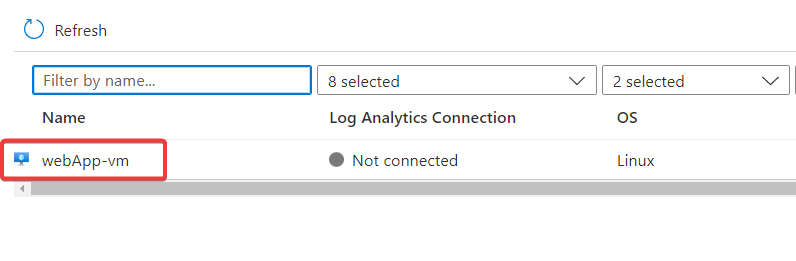
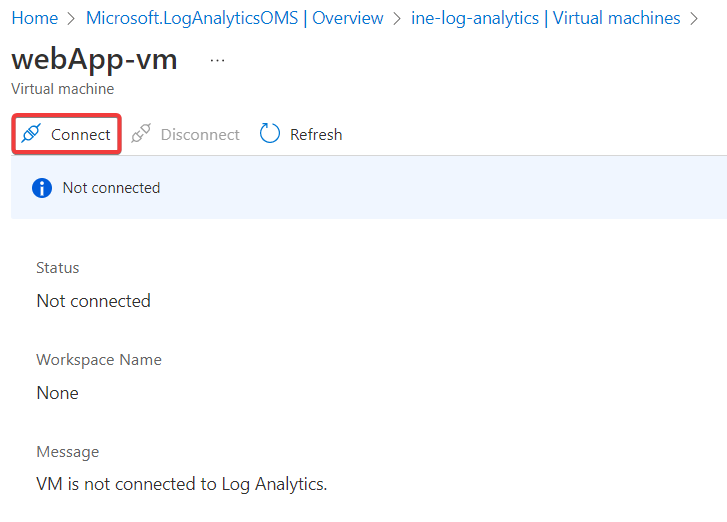
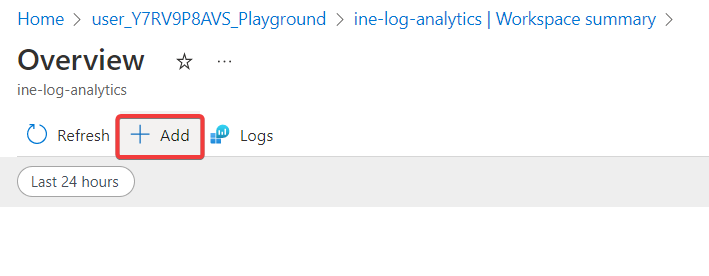
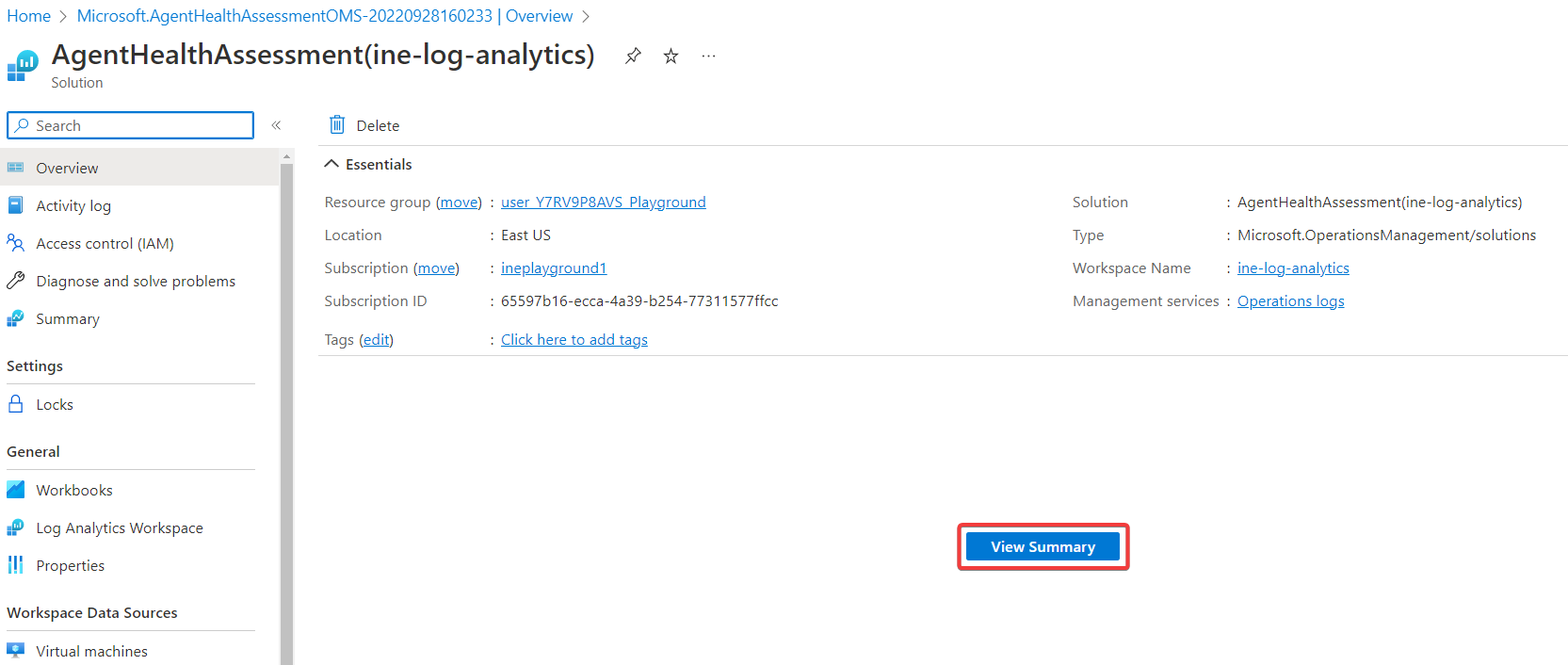
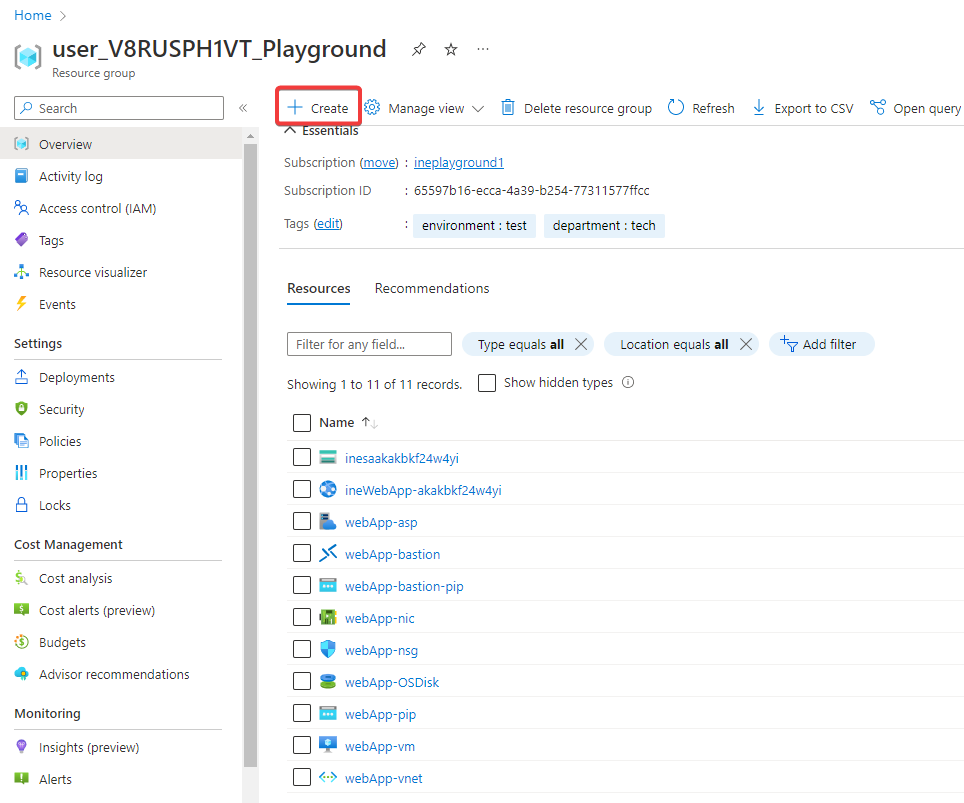
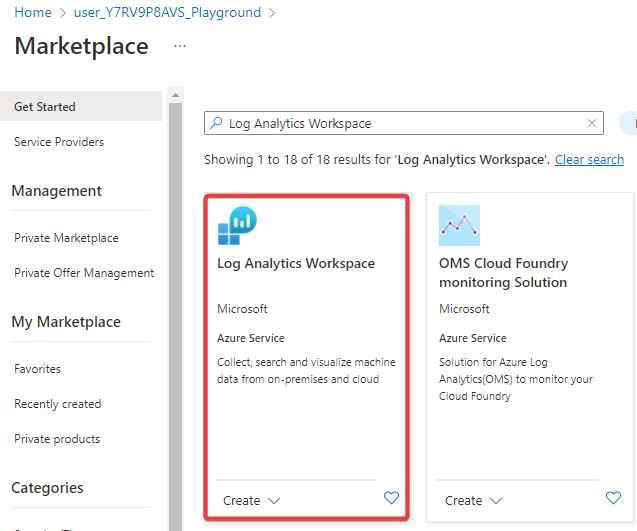
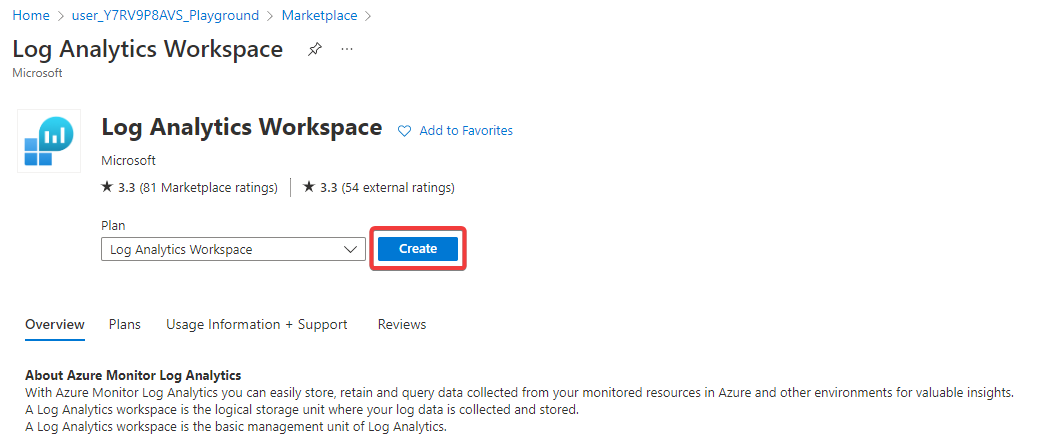
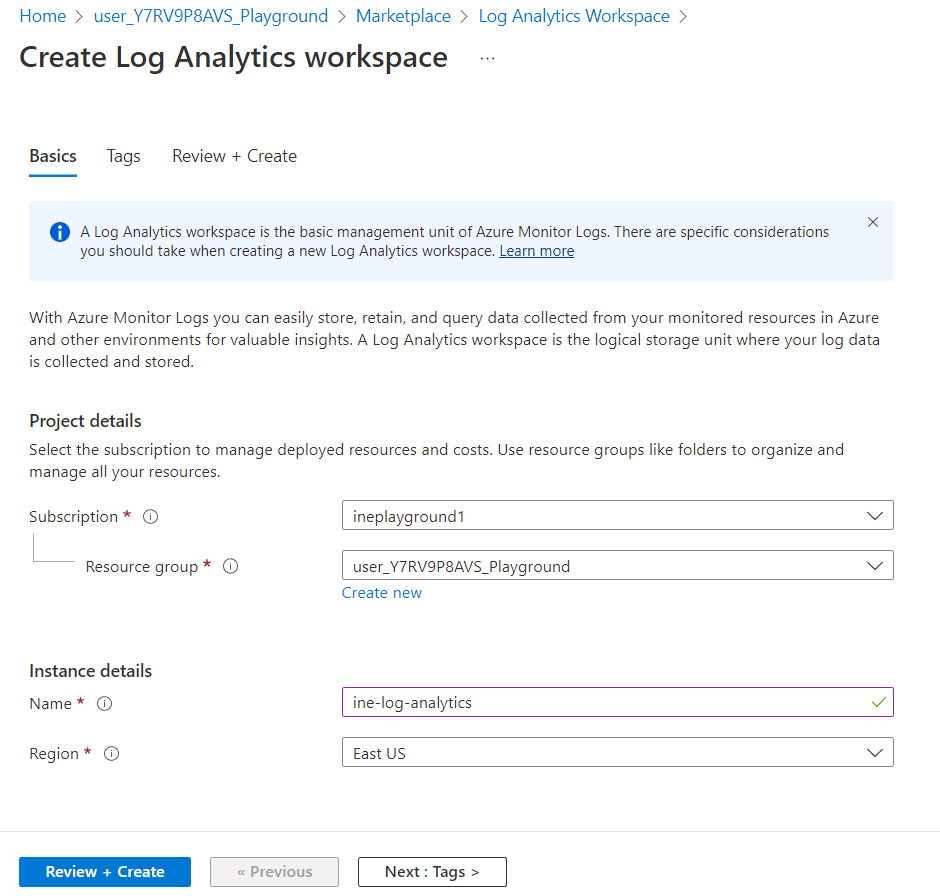
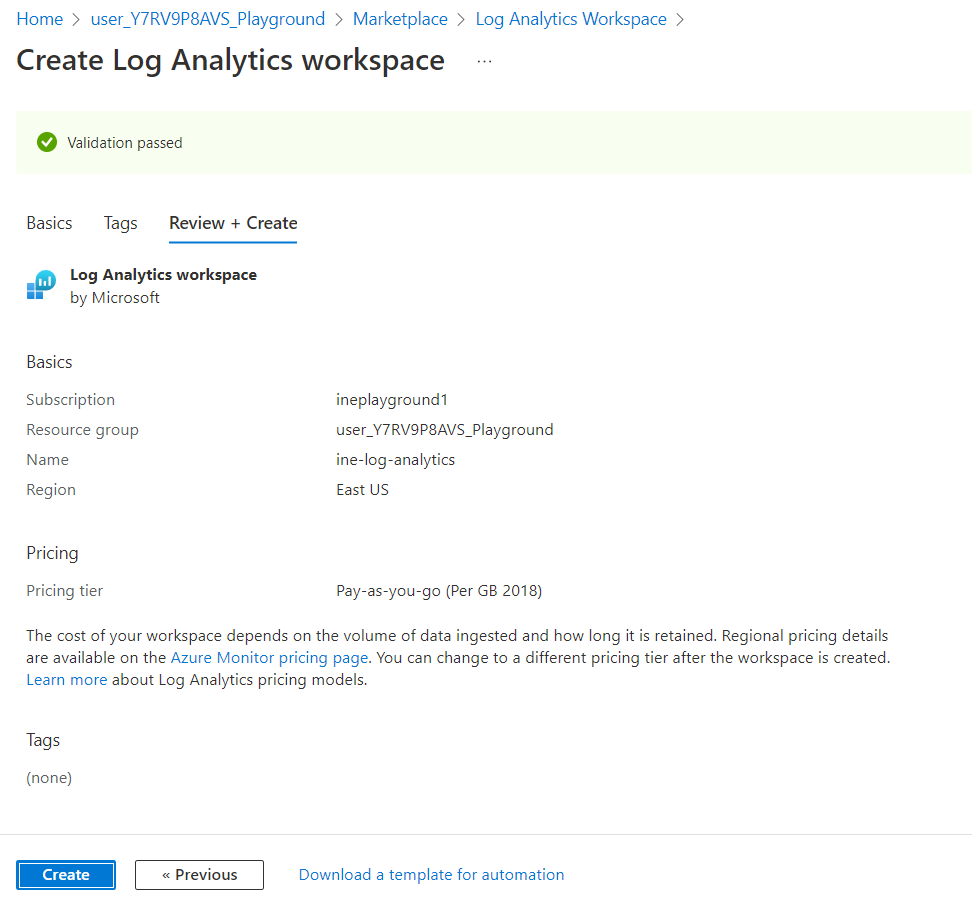
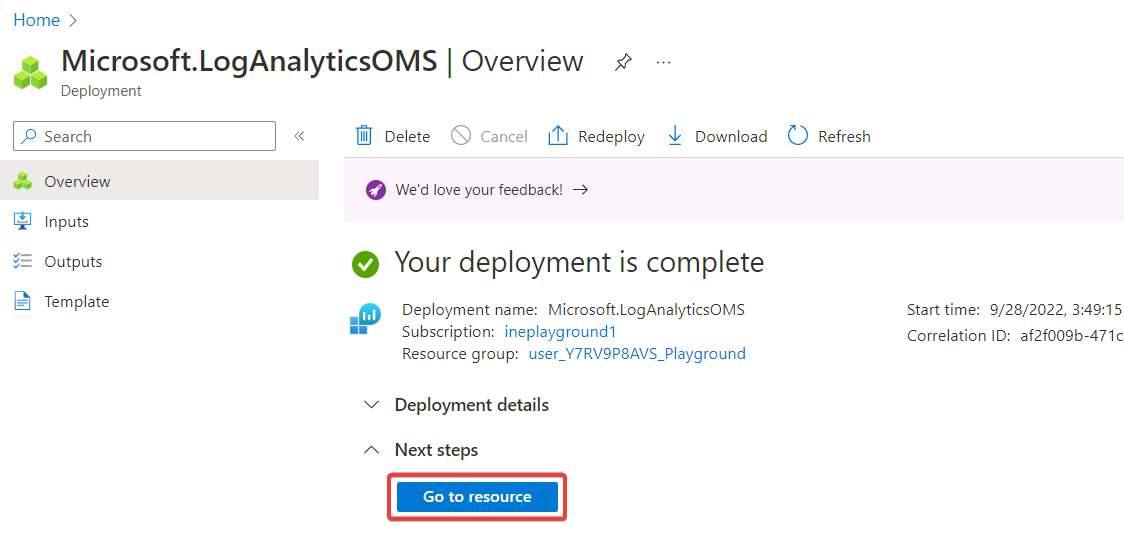
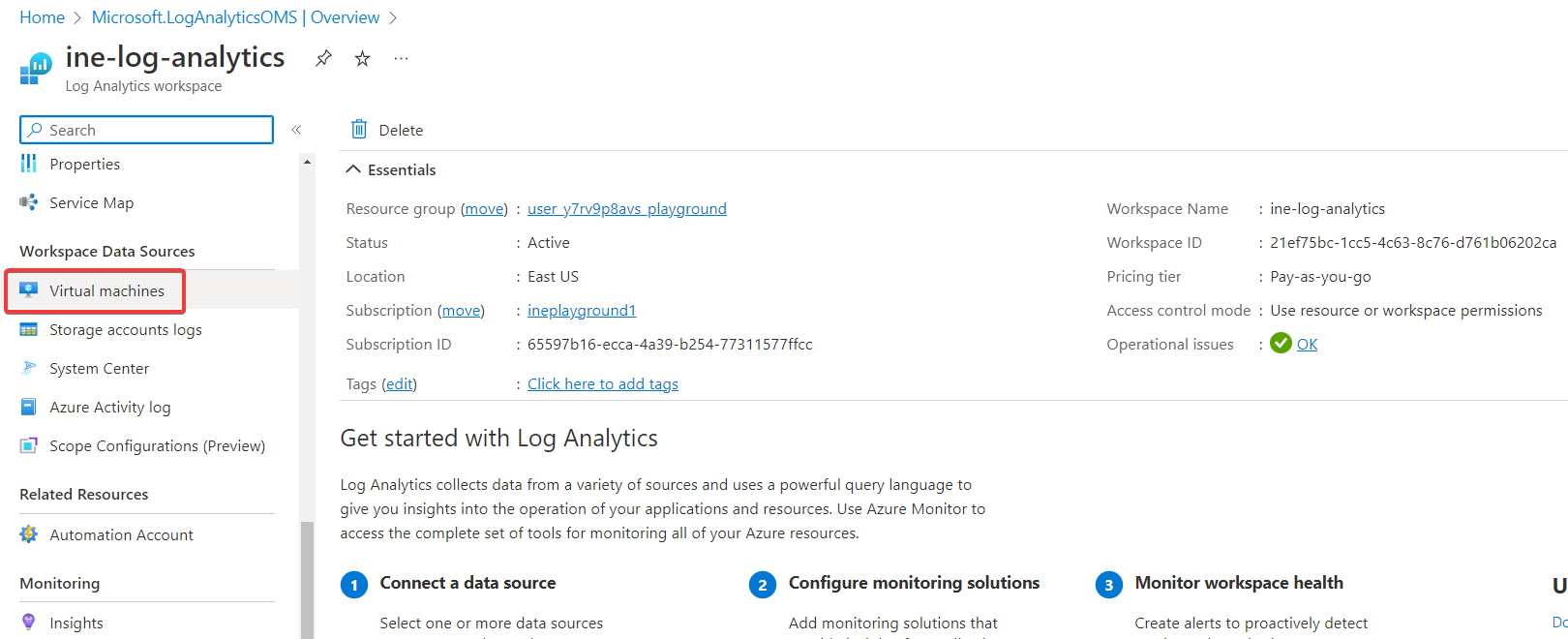
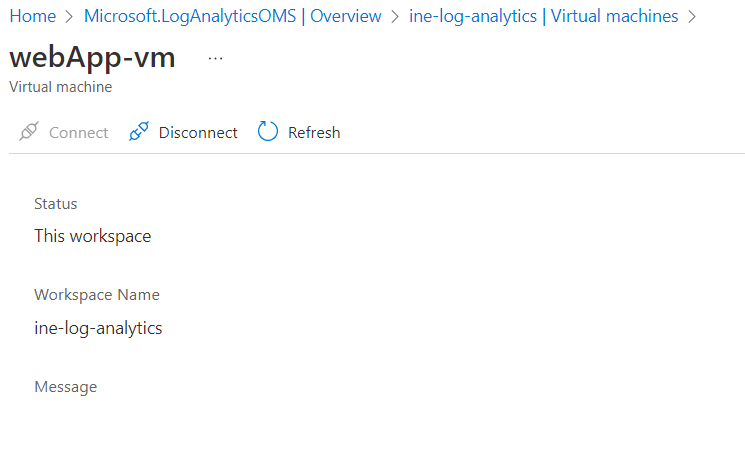
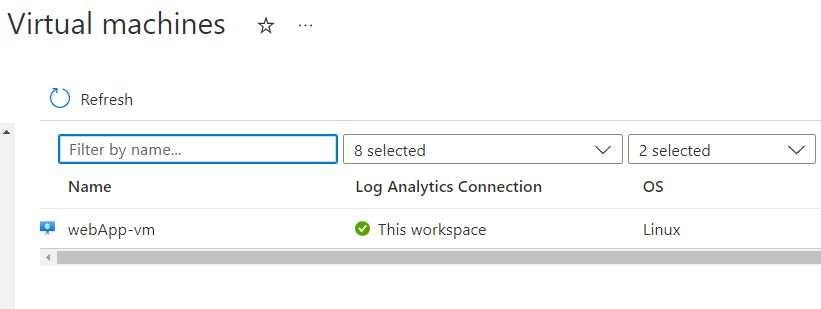
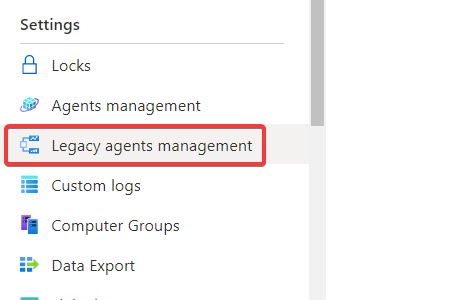
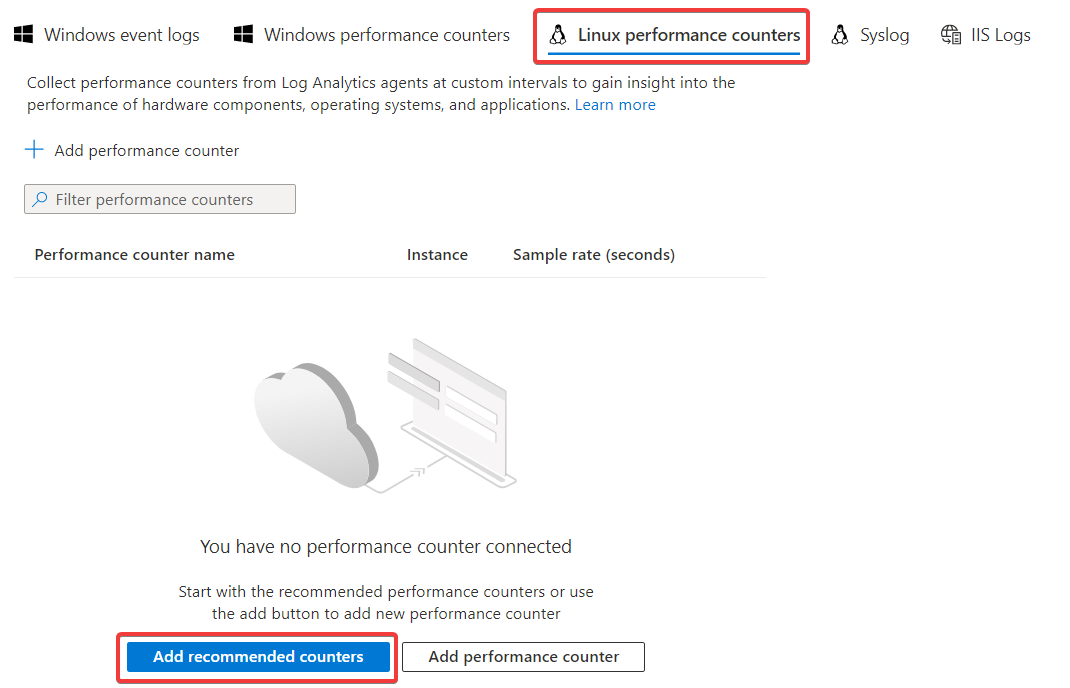
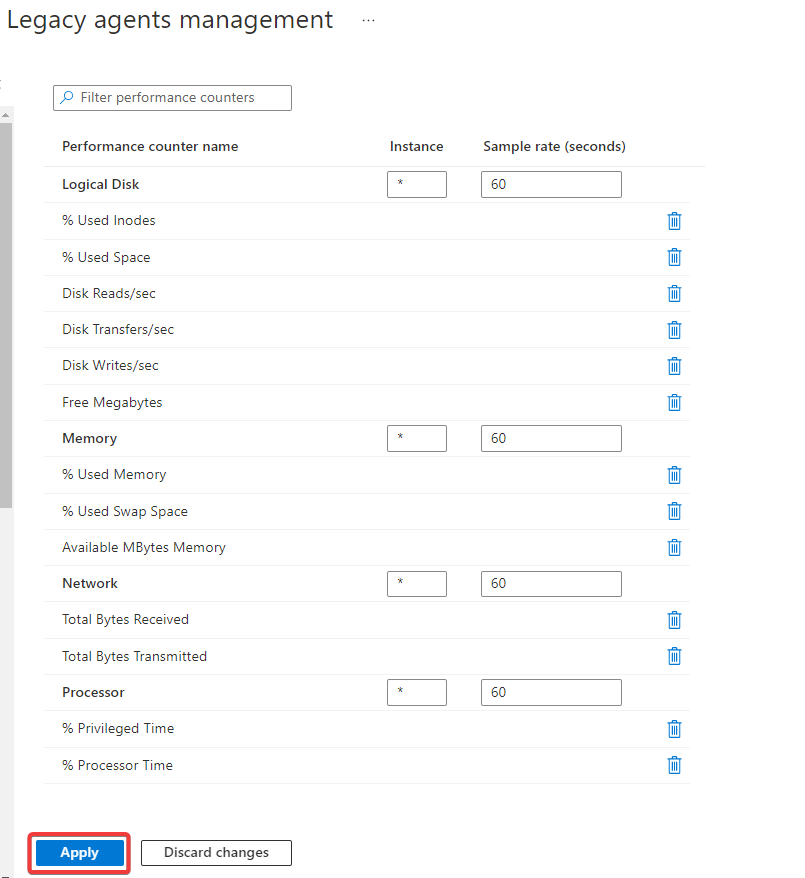
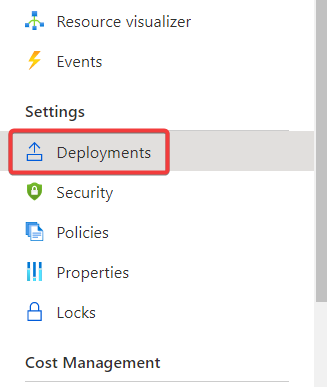
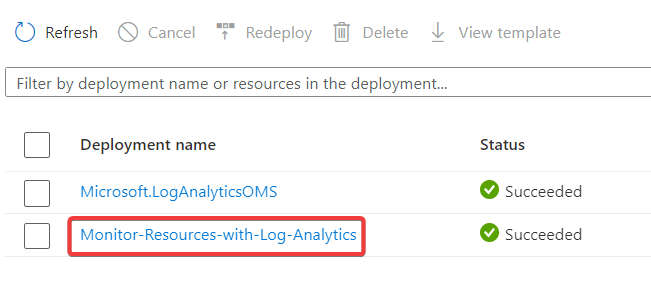
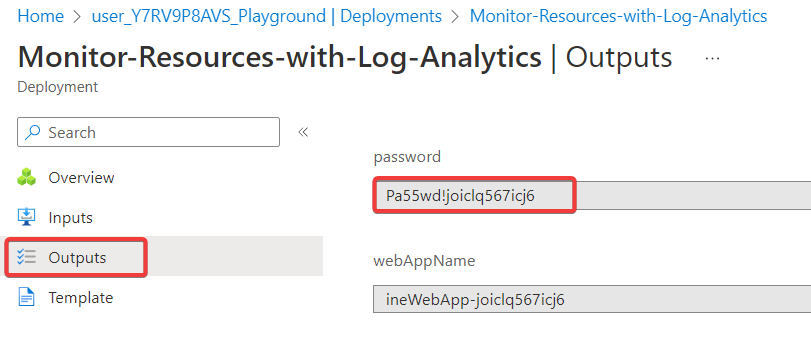
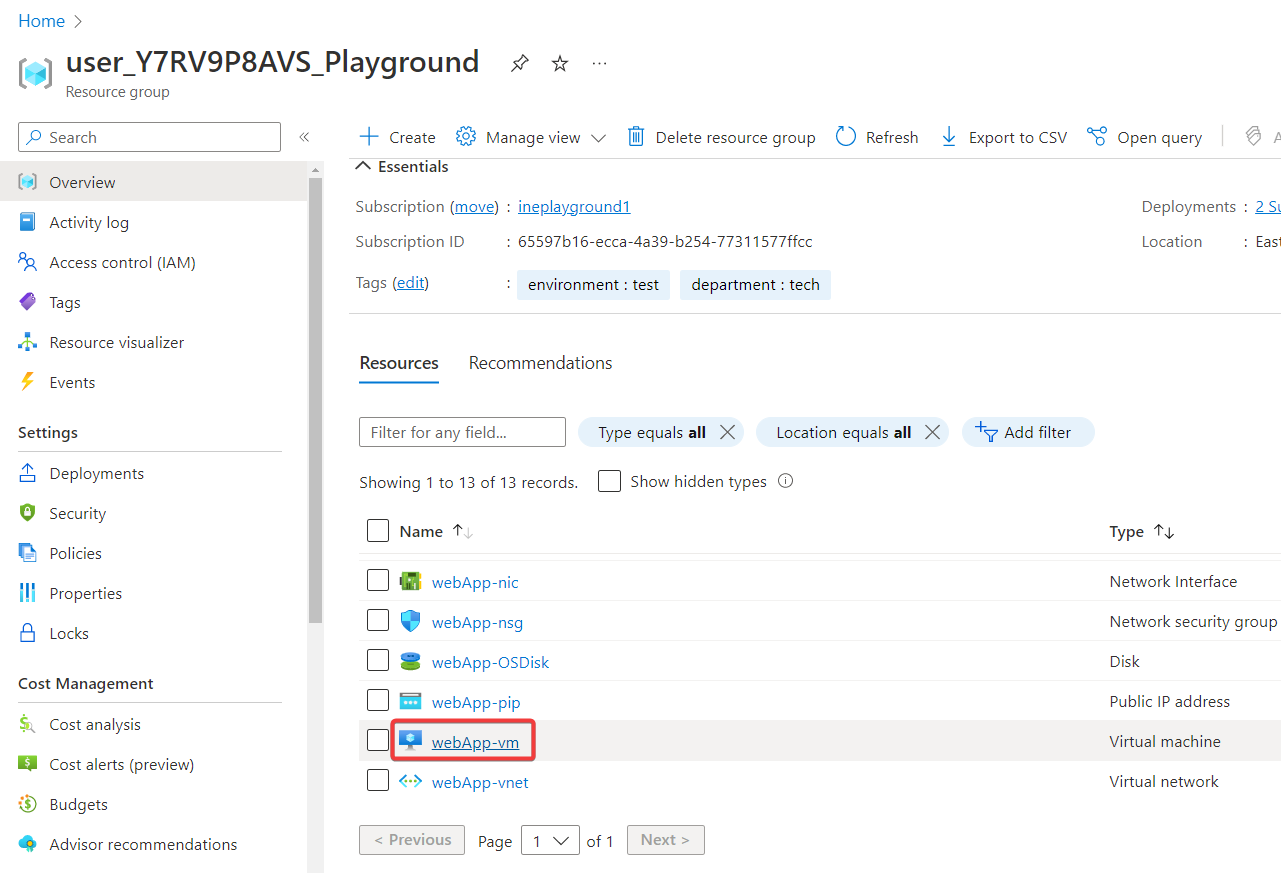
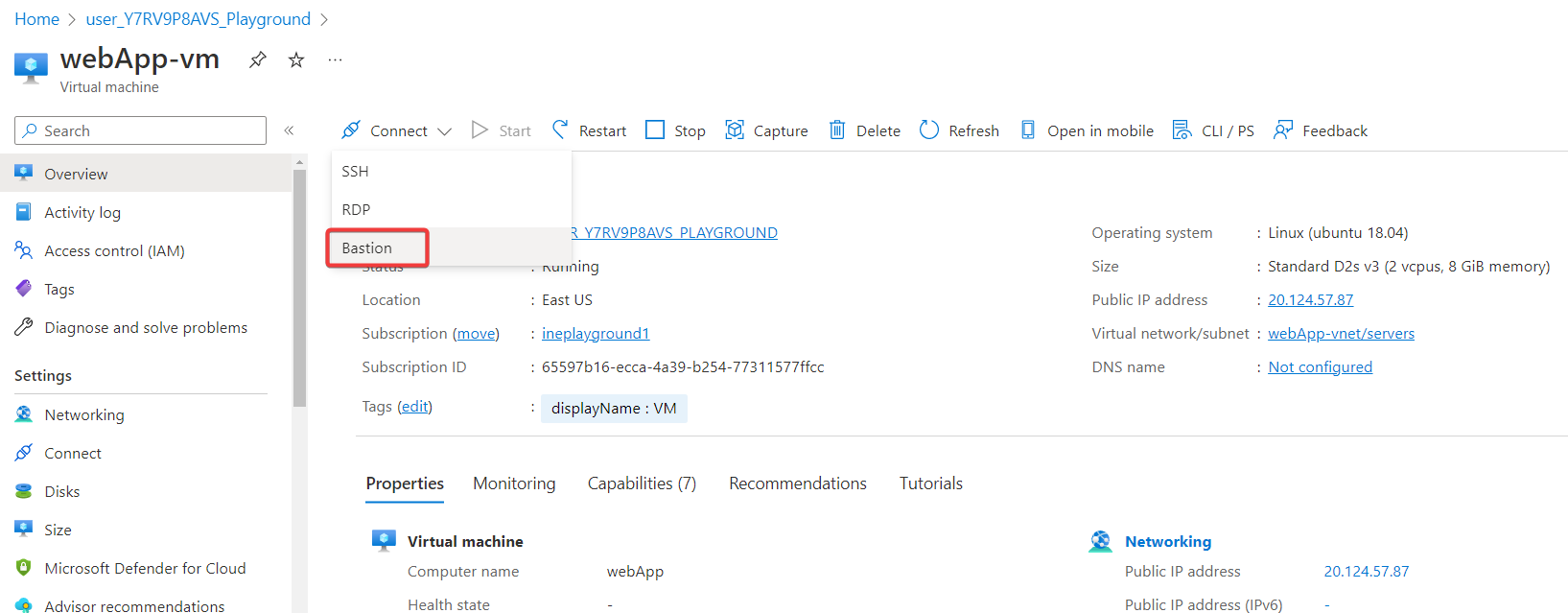
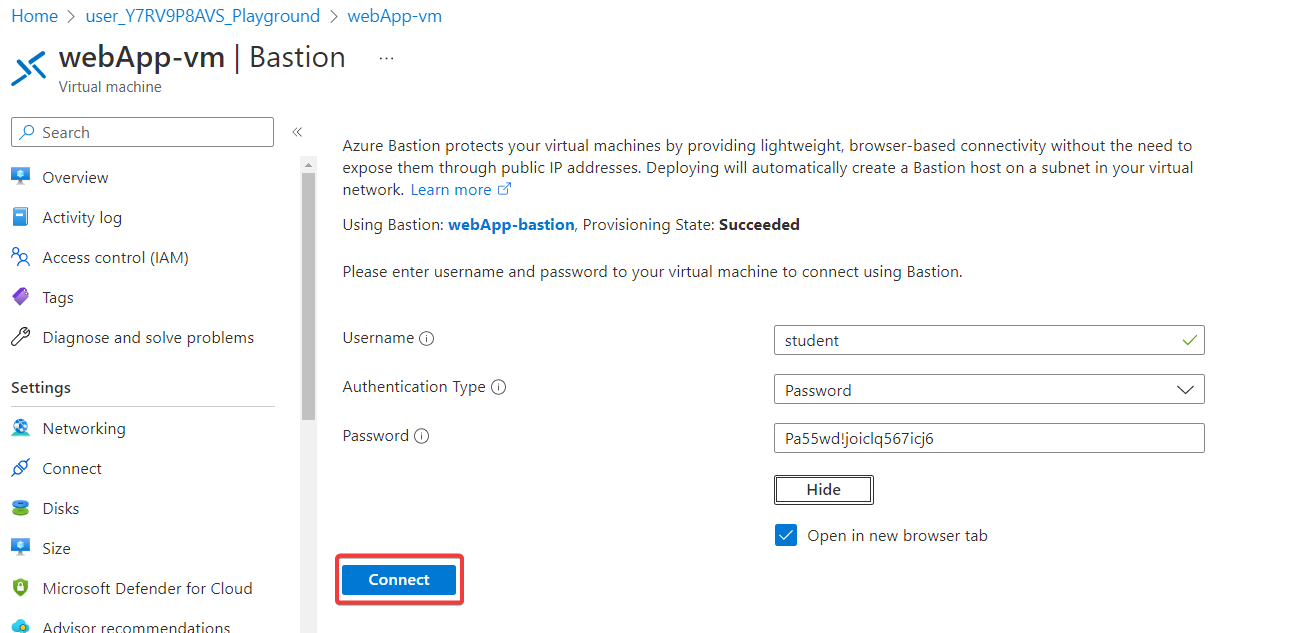
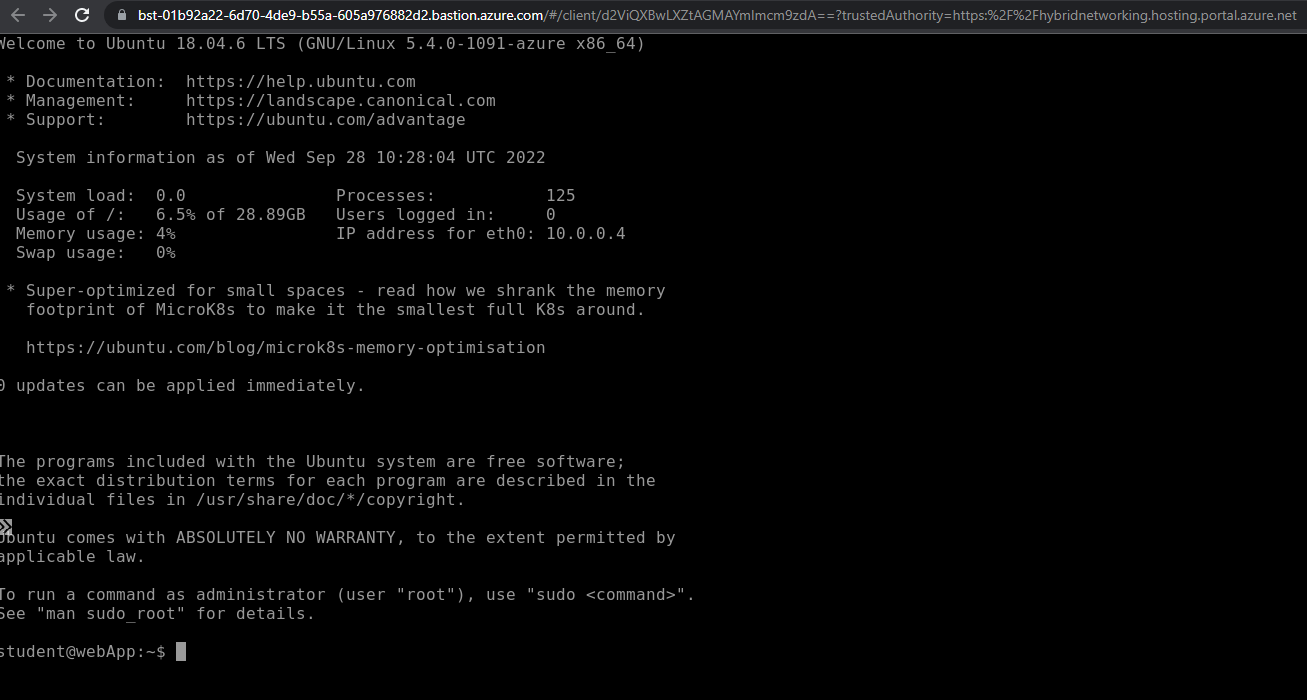
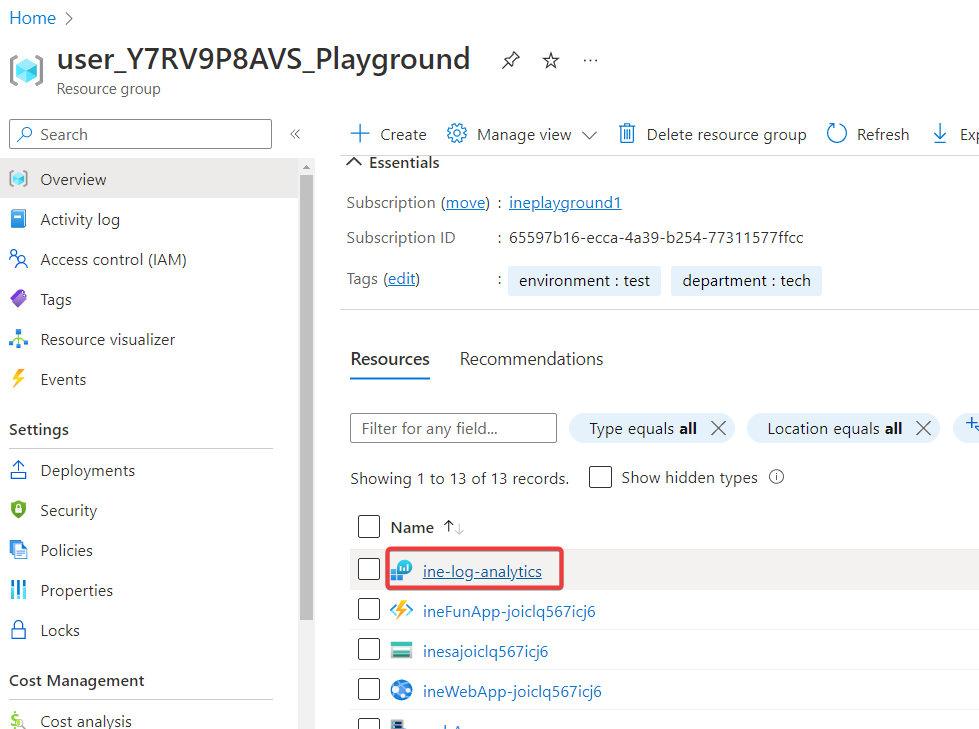
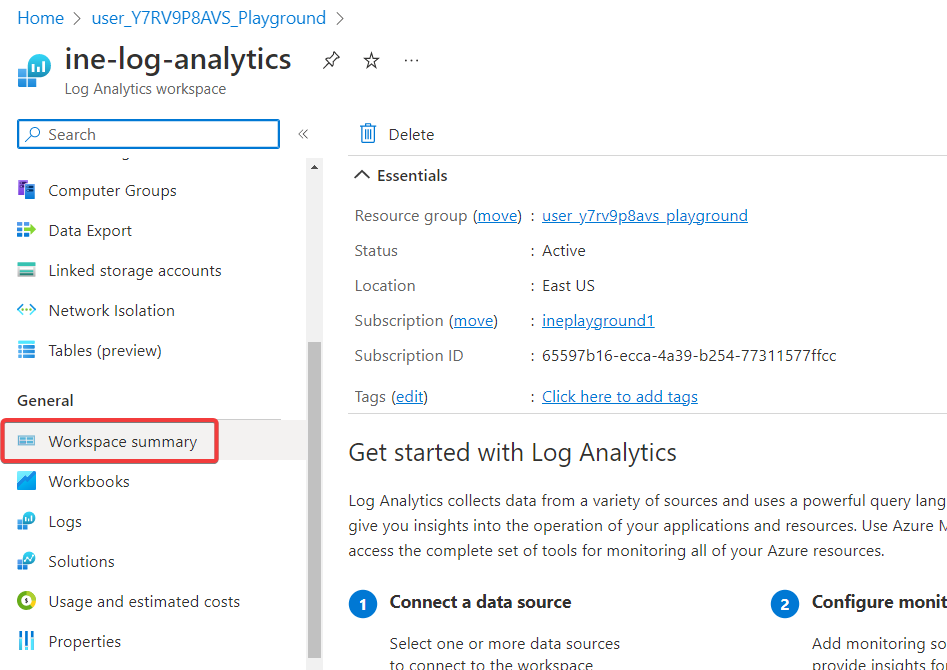
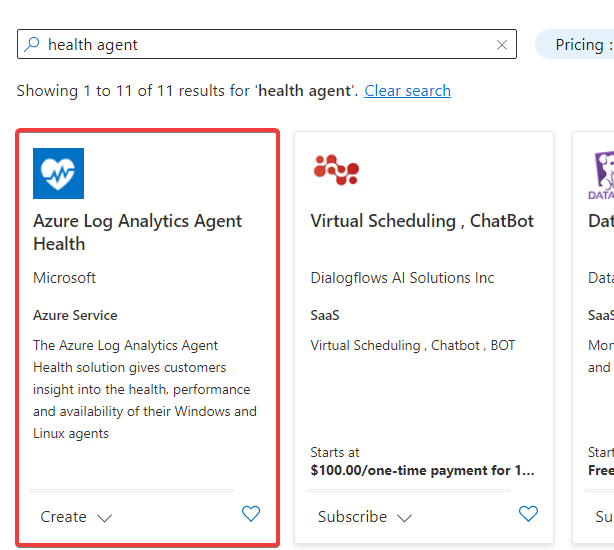
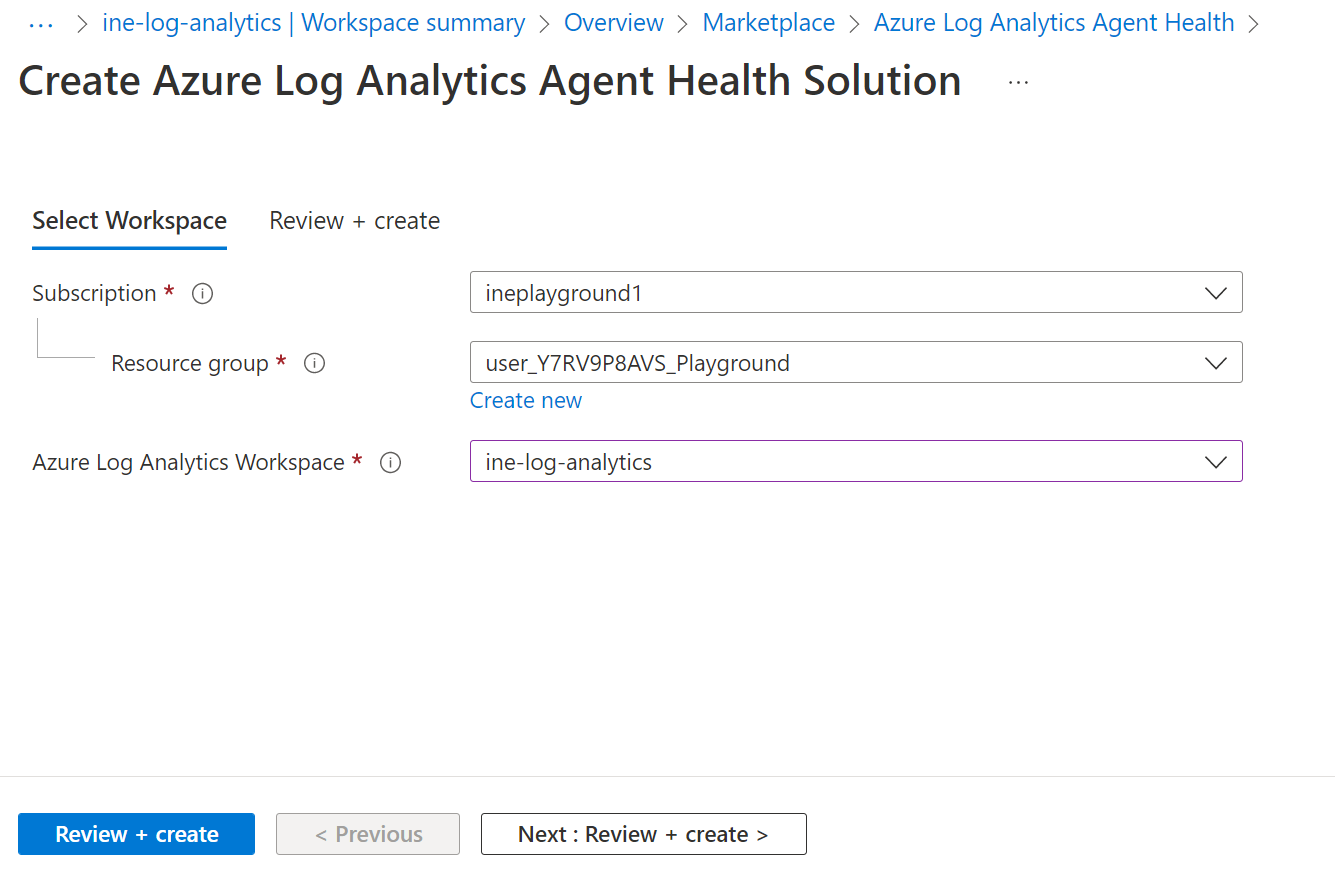
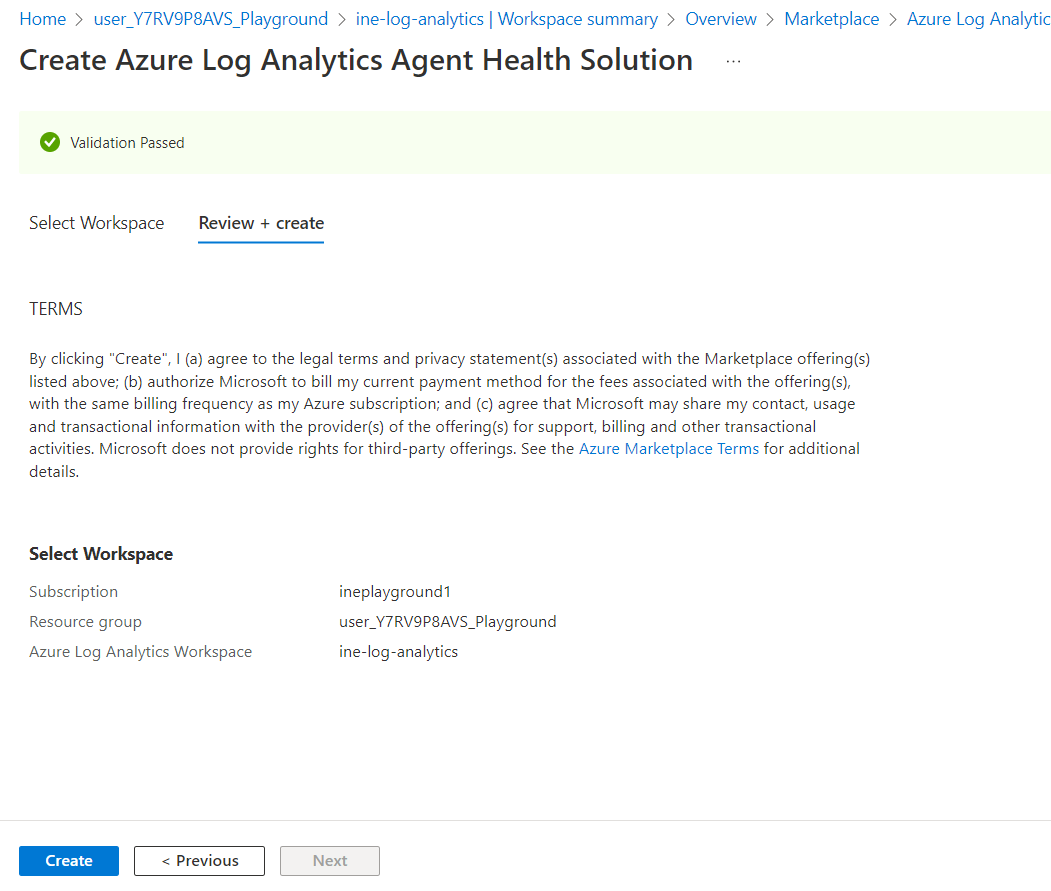
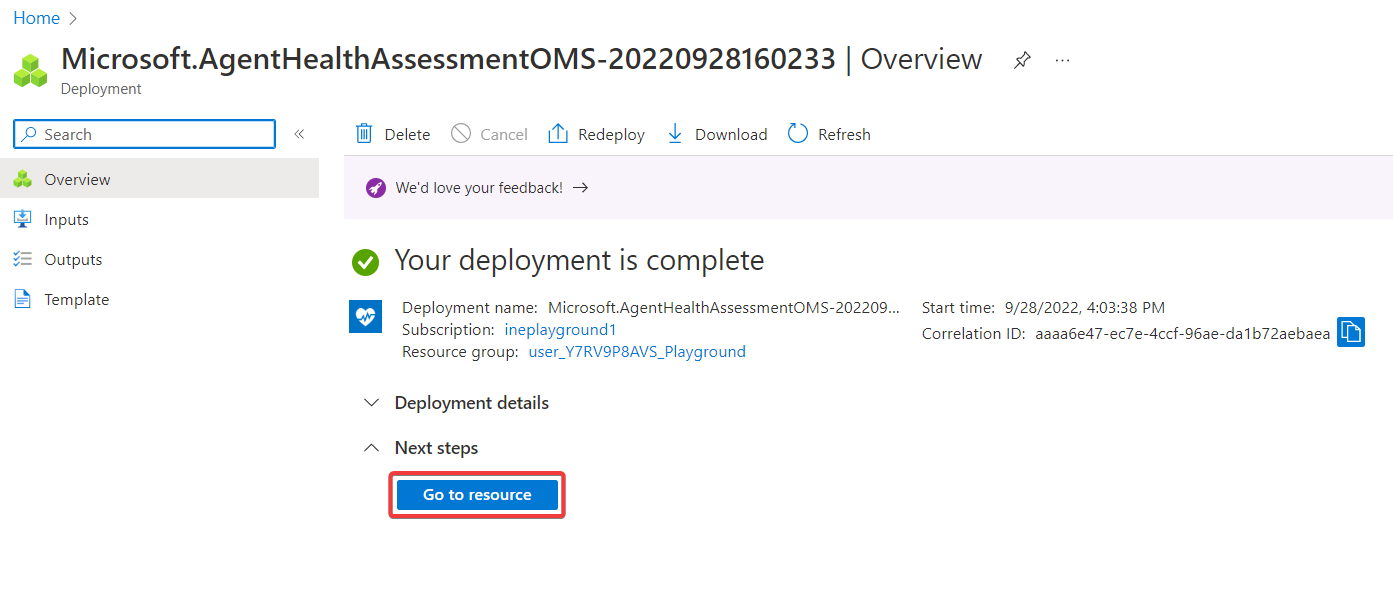
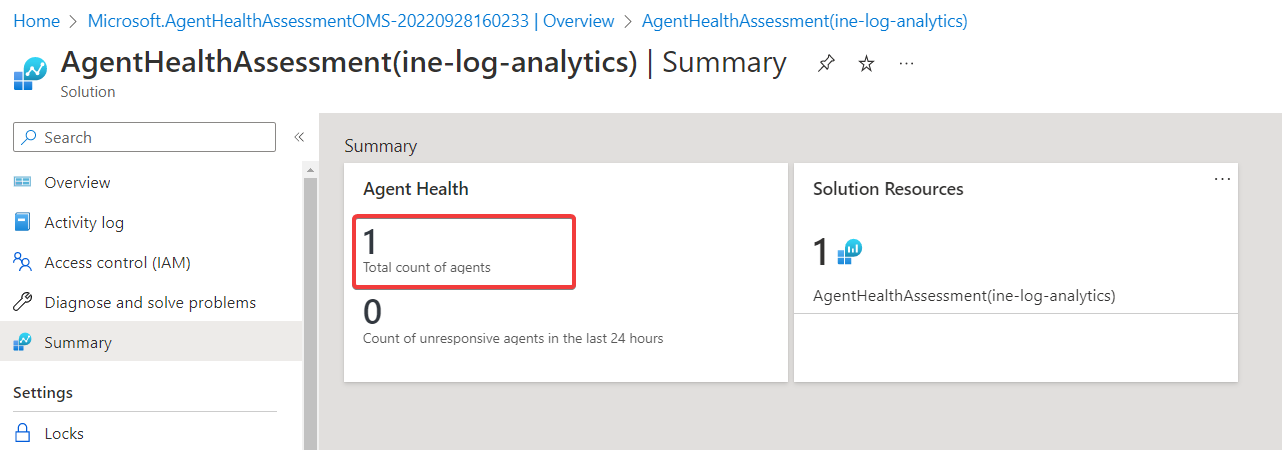
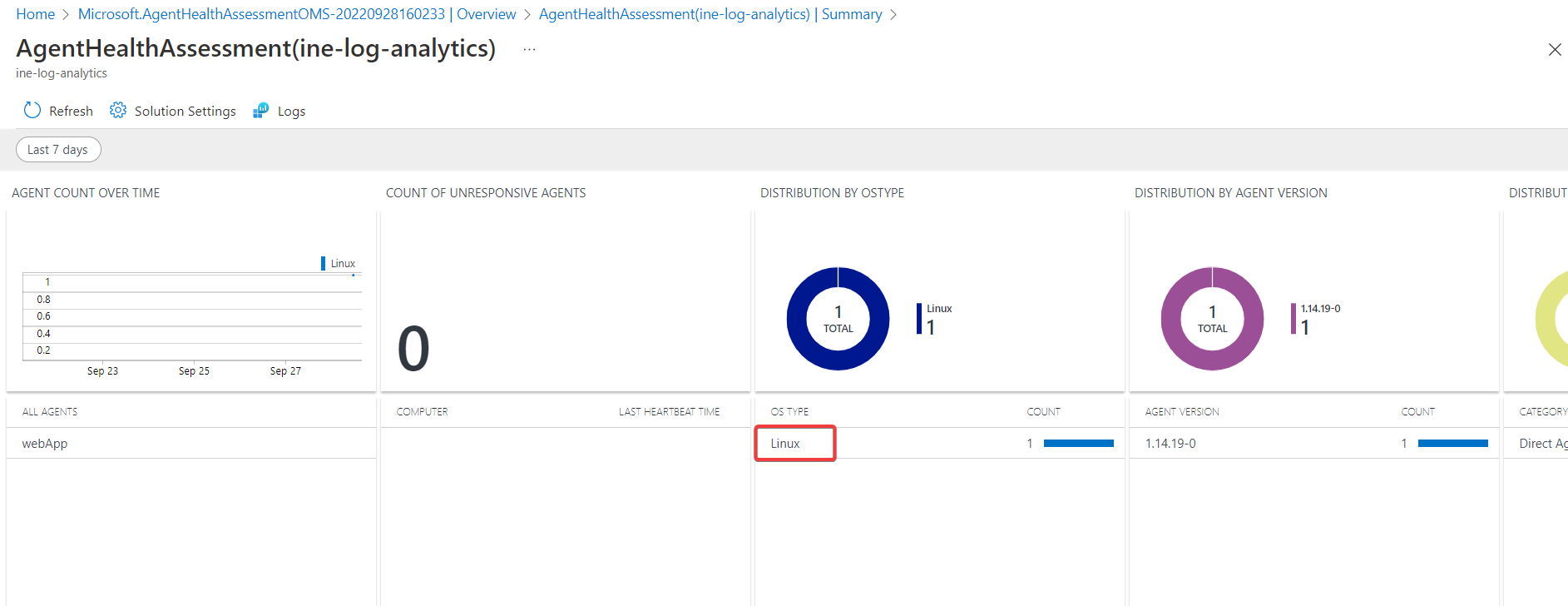
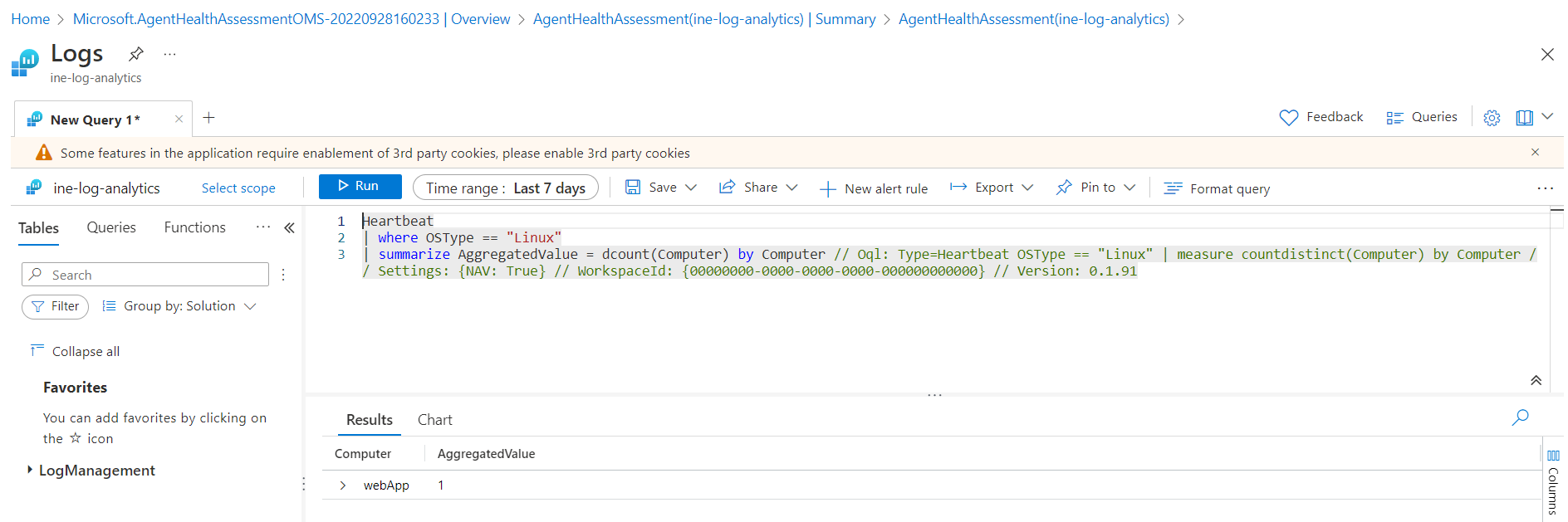
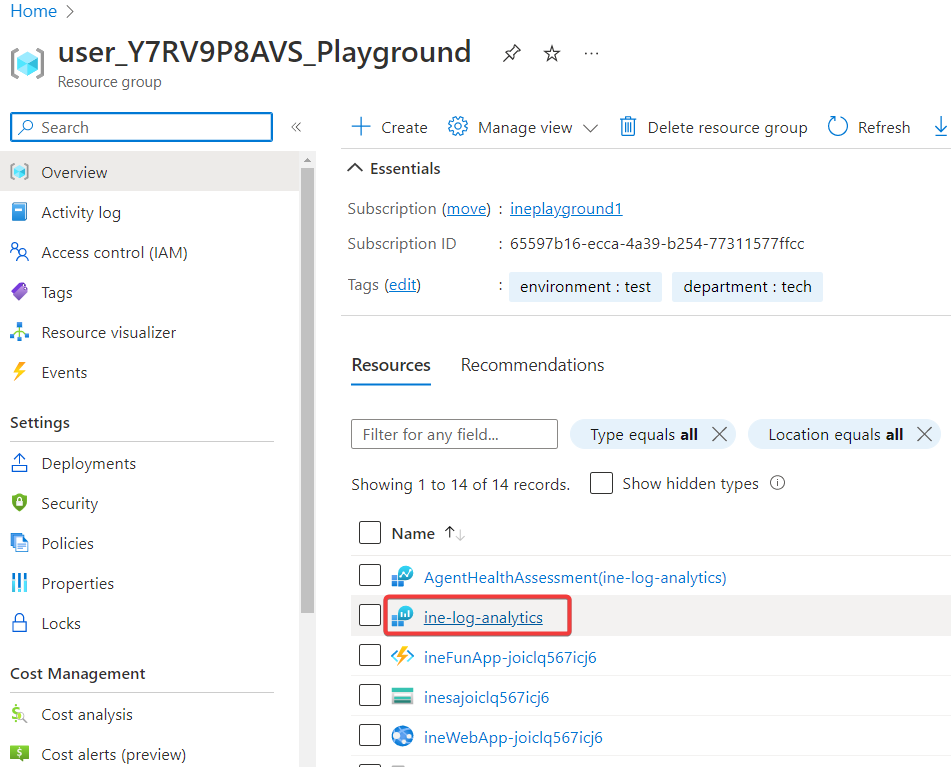
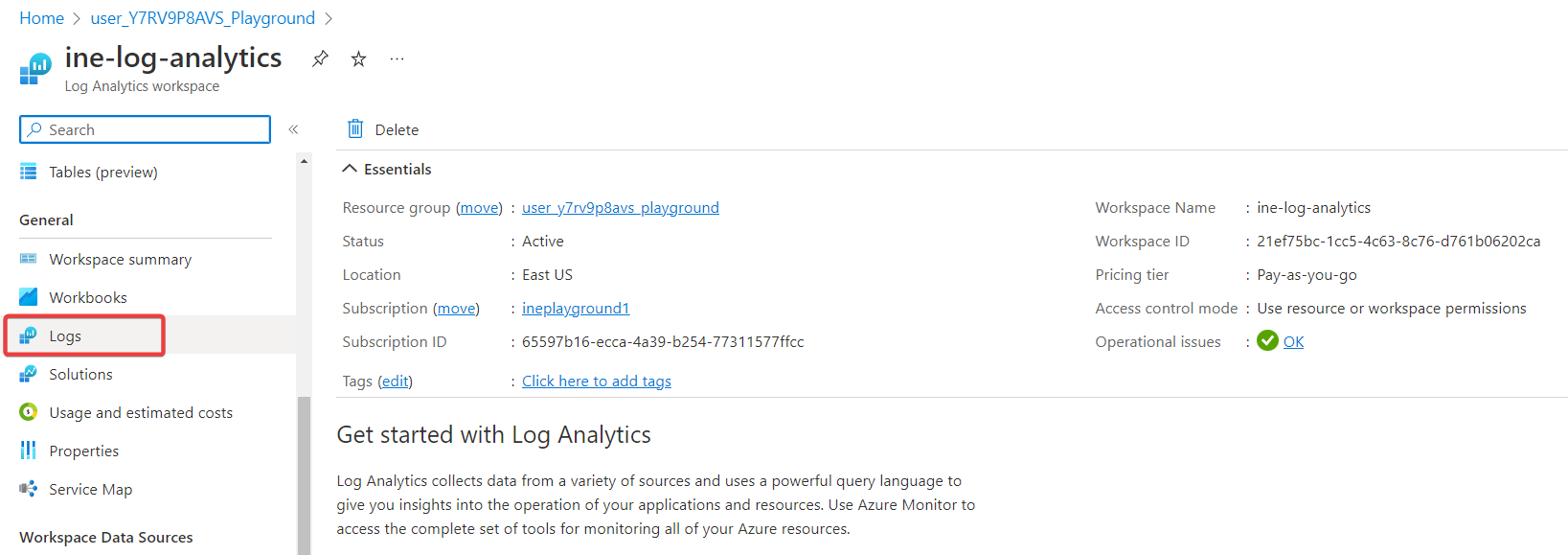
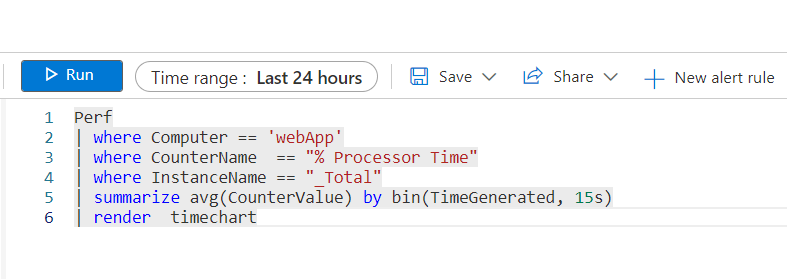
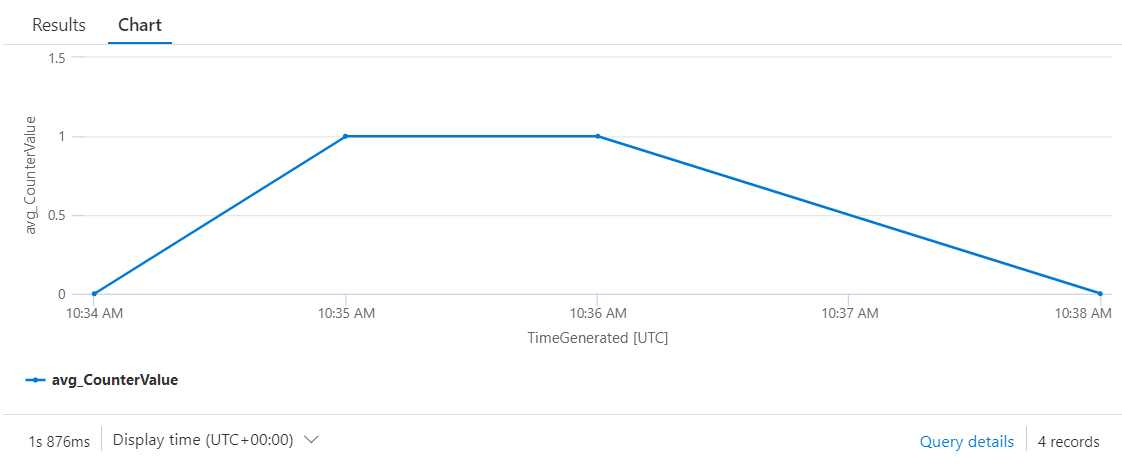
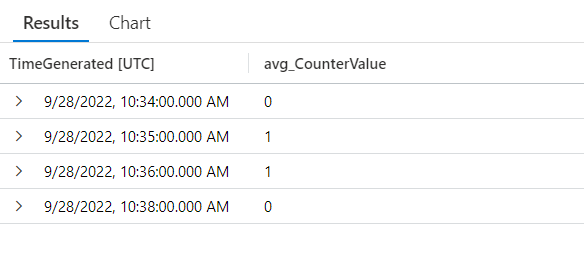
    "solutions": "# Provision resources\n\nWhen you log in to Azure with the provided credentials, you will find all the pre-requisite setups available in the resource group. Now click on **Create**.\n\n![](https://assets.ine.com/content/labs/azure-course-labs/monitor-resources-with-log-analytics/1.png)\n\nSearch for **Log Analytics Workspace** and click on it.\n\n![](https://assets.ine.com/content/labs/azure-course-labs/monitor-resources-with-log-analytics/2.png)\n\nThis page will provide an overview of the Log Analytics Workspace. Now click on **Create**.\n\n![](https://assets.ine.com/content/labs/azure-course-labs/monitor-resources-with-log-analytics/3.png)\n\nSet any unique name to the Log Analytics workspace and click on **Review + Create**.\n\n![](https://assets.ine.com/content/labs/azure-course-labs/monitor-resources-with-log-analytics/4.png)\n\nReview the configurations and click on **Create**.\n\n![](https://assets.ine.com/content/labs/azure-course-labs/monitor-resources-with-log-analytics/5.png)\n\nSuccessfully deployed Log Analytics workspace. Now click on **Go to resource**.\n\n![](https://assets.ine.com/content/labs/azure-course-labs/monitor-resources-with-log-analytics/6.png)\n\nThis page will provide a detailed view of the Log Analytics workspace. Click on **Virtual machines** from the left navigation menu.\n\n![](https://assets.ine.com/content/labs/azure-course-labs/monitor-resources-with-log-analytics/7.png)\n\nClick on **webApp-vm**.\n\n![](https://assets.ine.com/content/labs/azure-course-labs/monitor-resources-with-log-analytics/8.png)\n\nClick on **Connect**.\n\n![](https://assets.ine.com/content/labs/azure-course-labs/monitor-resources-with-log-analytics/9.png)\n\nSuccessfully established connection between virtual machine and log analytics workspace.\n\n![](https://assets.ine.com/content/labs/azure-course-labs/monitor-resources-with-log-analytics/10.png)\n\nNavigate back and notice the Log analytics connection. It is connected to this workspace.\n\n![](https://assets.ine.com/content/labs/azure-course-labs/monitor-resources-with-log-analytics/11.png)\n\nNow click on **Legacy agents management**.\n\n![](https://assets.ine.com/content/labs/azure-course-labs/monitor-resources-with-log-analytics/12.png)\n\nSelect **Linux performance counters** from the top menu and click on **Add recommended counters**.\n\n![](https://assets.ine.com/content/labs/azure-course-labs/monitor-resources-with-log-analytics/13.png)\n\nSet everything as default and click on **Apply**.\n\n![](https://assets.ine.com/content/labs/azure-course-labs/monitor-resources-with-log-analytics/14.png)\n\nConnect with the virtual machine and verify if the agent is configured correctly. To connect with the Virtual machine, you need to find the password from the deployments.\n\nClick on **Deployments**.\n\n![](https://assets.ine.com/content/labs/azure-course-labs/monitor-resources-with-log-analytics/15.png)\n\nClick on **Monitor-Resources-with-Log-Analytics**.\n\n![](https://assets.ine.com/content/labs/azure-course-labs/monitor-resources-with-log-analytics/16.png)\n\n<!-- Enter the username and password and connect with the virtual machine. -->\n\nClick on **Outputs** and copy the password.\n\n![](https://assets.ine.com/content/labs/azure-course-labs/monitor-resources-with-log-analytics/17.png)\n\nNavigate back to the resource group and click on **webApp-vm**.\n\n![](https://assets.ine.com/content/labs/azure-course-labs/monitor-resources-with-log-analytics/18.png)\n\nClick on **Connect** and choose **Bastion**.\n\n![](https://assets.ine.com/content/labs/azure-course-labs/monitor-resources-with-log-analytics/19.png)\n\nEnter the username as **student** and paste the copied password. Now click on **Connect**.\n\n**Note:** Allow all the popups from this page on the browser.\n\n![](https://assets.ine.com/content/labs/azure-course-labs/monitor-resources-with-log-analytics/20.png)\n\nSuccessfully connected to the virtual machine via bastion.\n\n![](https://assets.ine.com/content/labs/azure-course-labs/monitor-resources-with-log-analytics/21.png)\n\nRetrieve the active oms processes with the following command.\n\n```\nps -aux | grep oms\n```\n\n![](https://assets.ine.com/content/labs/azure-course-labs/monitor-resources-with-log-analytics/22.png)\n\nThis confirms that the monitoring agent is configured properly.\n\nNavigate back to the resource group and click on the log analytics workspace.\n\n![](https://assets.ine.com/content/labs/azure-course-labs/monitor-resources-with-log-analytics/23.png)\n\nClick on **Workspace summary** from the left navigation menu.\n\n![](https://assets.ine.com/content/labs/azure-course-labs/monitor-resources-with-log-analytics/24.png)\n\nClick on **Add**.\n\n![](https://assets.ine.com/content/labs/azure-course-labs/monitor-resources-with-log-analytics/25.png)\n\nSearch for a health agent and click on **Azure Log Analytics Agent Health**.\n\n![](https://assets.ine.com/content/labs/azure-course-labs/monitor-resources-with-log-analytics/26.png)\n\nChoose the created log analytics workspace for the configuration and click on **Review + create**.\n\n![](https://assets.ine.com/content/labs/azure-course-labs/monitor-resources-with-log-analytics/27.png)\n\nReview the configuration and click on **Create**.\n\n![](https://assets.ine.com/content/labs/azure-course-labs/monitor-resources-with-log-analytics/28.png)\n\nSuccessfully deployed Azure Log Analytics Agent Health. Now click on **Go to resource**.\n\n![](https://assets.ine.com/content/labs/azure-course-labs/monitor-resources-with-log-analytics/29.png)\n\nClick on **View Summary**.\n\n![](https://assets.ine.com/content/labs/azure-course-labs/monitor-resources-with-log-analytics/30.png)\n\nClick on the agent count to get the detailed summary.\n\n![](https://assets.ine.com/content/labs/azure-course-labs/monitor-resources-with-log-analytics/31.png)\n\nThis page provides a detailed summary of the connected virtual machines. Click on **Linux**.\n\n![](https://assets.ine.com/content/labs/azure-course-labs/monitor-resources-with-log-analytics/32.png)\n\nIt will automatically run a query to get the computers and aggregated value.\n\n![](https://assets.ine.com/content/labs/azure-course-labs/monitor-resources-with-log-analytics/33.png)\n\nNavigate back to resources and click on Log analytics workspace again.\n\n![](https://assets.ine.com/content/labs/azure-course-labs/monitor-resources-with-log-analytics/34.png)\n\nClick on **Logs** from the left navigation menu.\n\n![](https://assets.ine.com/content/labs/azure-course-labs/monitor-resources-with-log-analytics/35.png)\n\nConstruct a log analytics query to verify that the virtual machine is reporting metrics to the log analytics workspace.\n\nCopy and paste the log analytics query. Select the whole query and click on **Run**.\n\n```\nPerf\n| where Computer == 'webApp'\n| where CounterName  == \"% Processor Time\"\n| where InstanceName == \"_Total\"\n| summarize avg(CounterValue) by bin(TimeGenerated, 15s)\n| render  timechart\n```\n\n![](https://assets.ine.com/content/labs/azure-course-labs/monitor-resources-with-log-analytics/36.png)\n\nBy default, it will display the result in the chart which is mentioned in the query.\n\n![](https://assets.ine.com/content/labs/azure-course-labs/monitor-resources-with-log-analytics/37.png)\n\nClick on **Results** to view query results in a table organized by columns and rows.\n\n![](https://assets.ine.com/content/labs/azure-course-labs/monitor-resources-with-log-analytics/38.png)\n\n\nOur lab is now completed.",

    "solutions_html": "<h1>Provision resources</h1>\n<p>When you log in to Azure with the provided credentials, you will find all the pre-requisite setups available in the resource group. Now click on <strong>Create</strong>.</p>\n<p><img alt=\"\" src=\"https://assets.ine.com/content/labs/azure-course-labs/monitor-resources-with-log-analytics/1.png\" /></p>\n<p>Search for <strong>Log Analytics Workspace</strong> and click on it.</p>\n<p><img alt=\"\" src=\"https://assets.ine.com/content/labs/azure-course-labs/monitor-resources-with-log-analytics/2.png\" /></p>\n<p>This page will provide an overview of the Log Analytics Workspace. Now click on <strong>Create</strong>.</p>\n<p><img alt=\"\" src=\"https://assets.ine.com/content/labs/azure-course-labs/monitor-resources-with-log-analytics/3.png\" /></p>\n<p>Set any unique name to the Log Analytics workspace and click on <strong>Review + Create</strong>.</p>\n<p><img alt=\"\" src=\"https://assets.ine.com/content/labs/azure-course-labs/monitor-resources-with-log-analytics/4.png\" /></p>\n<p>Review the configurations and click on <strong>Create</strong>.</p>\n<p><img alt=\"\" src=\"https://assets.ine.com/content/labs/azure-course-labs/monitor-resources-with-log-analytics/5.png\" /></p>\n<p>Successfully deployed Log Analytics workspace. Now click on <strong>Go to resource</strong>.</p>\n<p><img alt=\"\" src=\"https://assets.ine.com/content/labs/azure-course-labs/monitor-resources-with-log-analytics/6.png\" /></p>\n<p>This page will provide a detailed view of the Log Analytics workspace. Click on <strong>Virtual machines</strong> from the left navigation menu.</p>\n<p><img alt=\"\" src=\"https://assets.ine.com/content/labs/azure-course-labs/monitor-resources-with-log-analytics/7.png\" /></p>\n<p>Click on <strong>webApp-vm</strong>.</p>\n<p><img alt=\"\" src=\"https://assets.ine.com/content/labs/azure-course-labs/monitor-resources-with-log-analytics/8.png\" /></p>\n<p>Click on <strong>Connect</strong>.</p>\n<p><img alt=\"\" src=\"https://assets.ine.com/content/labs/azure-course-labs/monitor-resources-with-log-analytics/9.png\" /></p>\n<p>Successfully established connection between virtual machine and log analytics workspace.</p>\n<p><img alt=\"\" src=\"https://assets.ine.com/content/labs/azure-course-labs/monitor-resources-with-log-analytics/10.png\" /></p>\n<p>Navigate back and notice the Log analytics connection. It is connected to this workspace.</p>\n<p><img alt=\"\" src=\"https://assets.ine.com/content/labs/azure-course-labs/monitor-resources-with-log-analytics/11.png\" /></p>\n<p>Now click on <strong>Legacy agents management</strong>.</p>\n<p><img alt=\"\" src=\"https://assets.ine.com/content/labs/azure-course-labs/monitor-resources-with-log-analytics/12.png\" /></p>\n<p>Select <strong>Linux performance counters</strong> from the top menu and click on <strong>Add recommended counters</strong>.</p>\n<p><img alt=\"\" src=\"https://assets.ine.com/content/labs/azure-course-labs/monitor-resources-with-log-analytics/13.png\" /></p>\n<p>Set everything as default and click on <strong>Apply</strong>.</p>\n<p><img alt=\"\" src=\"https://assets.ine.com/content/labs/azure-course-labs/monitor-resources-with-log-analytics/14.png\" /></p>\n<p>Connect with the virtual machine and verify if the agent is configured correctly. To connect with the Virtual machine, you need to find the password from the deployments.</p>\n<p>Click on <strong>Deployments</strong>.</p>\n<p><img alt=\"\" src=\"https://assets.ine.com/content/labs/azure-course-labs/monitor-resources-with-log-analytics/15.png\" /></p>\n<p>Click on <strong>Monitor-Resources-with-Log-Analytics</strong>.</p>\n<p><img alt=\"\" src=\"https://assets.ine.com/content/labs/azure-course-labs/monitor-resources-with-log-analytics/16.png\" /></p>\n<!-- Enter the username and password and connect with the virtual machine. -->\n\n<p>Click on <strong>Outputs</strong> and copy the password.</p>\n<p><img alt=\"\" src=\"https://assets.ine.com/content/labs/azure-course-labs/monitor-resources-with-log-analytics/17.png\" /></p>\n<p>Navigate back to the resource group and click on <strong>webApp-vm</strong>.</p>\n<p><img alt=\"\" src=\"https://assets.ine.com/content/labs/azure-course-labs/monitor-resources-with-log-analytics/18.png\" /></p>\n<p>Click on <strong>Connect</strong> and choose <strong>Bastion</strong>.</p>\n<p><img alt=\"\" src=\"https://assets.ine.com/content/labs/azure-course-labs/monitor-resources-with-log-analytics/19.png\" /></p>\n<p>Enter the username as <strong>student</strong> and paste the copied password. Now click on <strong>Connect</strong>.</p>\n<p><strong>Note:</strong> Allow all the popups from this page on the browser.</p>\n<p><img alt=\"\" src=\"https://assets.ine.com/content/labs/azure-course-labs/monitor-resources-with-log-analytics/20.png\" /></p>\n<p>Successfully connected to the virtual machine via bastion.</p>\n<p><img alt=\"\" src=\"https://assets.ine.com/content/labs/azure-course-labs/monitor-resources-with-log-analytics/21.png\" /></p>\n<p>Retrieve the active oms processes with the following command.</p>\n<pre class=\"codehilite\"><code>ps -aux | grep oms</code></pre>\n\n<p><img alt=\"\" src=\"https://assets.ine.com/content/labs/azure-course-labs/monitor-resources-with-log-analytics/22.png\" /></p>\n<p>This confirms that the monitoring agent is configured properly.</p>\n<p>Navigate back to the resource group and click on the log analytics workspace.</p>\n<p><img alt=\"\" src=\"https://assets.ine.com/content/labs/azure-course-labs/monitor-resources-with-log-analytics/23.png\" /></p>\n<p>Click on <strong>Workspace summary</strong> from the left navigation menu.</p>\n<p><img alt=\"\" src=\"https://assets.ine.com/content/labs/azure-course-labs/monitor-resources-with-log-analytics/24.png\" /></p>\n<p>Click on <strong>Add</strong>.</p>\n<p><img alt=\"\" src=\"https://assets.ine.com/content/labs/azure-course-labs/monitor-resources-with-log-analytics/25.png\" /></p>\n<p>Search for a health agent and click on <strong>Azure Log Analytics Agent Health</strong>.</p>\n<p><img alt=\"\" src=\"https://assets.ine.com/content/labs/azure-course-labs/monitor-resources-with-log-analytics/26.png\" /></p>\n<p>Choose the created log analytics workspace for the configuration and click on <strong>Review + create</strong>.</p>\n<p><img alt=\"\" src=\"https://assets.ine.com/content/labs/azure-course-labs/monitor-resources-with-log-analytics/27.png\" /></p>\n<p>Review the configuration and click on <strong>Create</strong>.</p>\n<p><img alt=\"\" src=\"https://assets.ine.com/content/labs/azure-course-labs/monitor-resources-with-log-analytics/28.png\" /></p>\n<p>Successfully deployed Azure Log Analytics Agent Health. Now click on <strong>Go to resource</strong>.</p>\n<p><img alt=\"\" src=\"https://assets.ine.com/content/labs/azure-course-labs/monitor-resources-with-log-analytics/29.png\" /></p>\n<p>Click on <strong>View Summary</strong>.</p>\n<p><img alt=\"\" src=\"https://assets.ine.com/content/labs/azure-course-labs/monitor-resources-with-log-analytics/30.png\" /></p>\n<p>Click on the agent count to get the detailed summary.</p>\n<p><img alt=\"\" src=\"https://assets.ine.com/content/labs/azure-course-labs/monitor-resources-with-log-analytics/31.png\" /></p>\n<p>This page provides a detailed summary of the connected virtual machines. Click on <strong>Linux</strong>.</p>\n<p><img alt=\"\" src=\"https://assets.ine.com/content/labs/azure-course-labs/monitor-resources-with-log-analytics/32.png\" /></p>\n<p>It will automatically run a query to get the computers and aggregated value.</p>\n<p><img alt=\"\" src=\"https://assets.ine.com/content/labs/azure-course-labs/monitor-resources-with-log-analytics/33.png\" /></p>\n<p>Navigate back to resources and click on Log analytics workspace again.</p>\n<p><img alt=\"\" src=\"https://assets.ine.com/content/labs/azure-course-labs/monitor-resources-with-log-analytics/34.png\" /></p>\n<p>Click on <strong>Logs</strong> from the left navigation menu.</p>\n<p><img alt=\"\" src=\"https://assets.ine.com/content/labs/azure-course-labs/monitor-resources-with-log-analytics/35.png\" /></p>\n<p>Construct a log analytics query to verify that the virtual machine is reporting metrics to the log analytics workspace.</p>\n<p>Copy and paste the log analytics query. Select the whole query and click on <strong>Run</strong>.</p>\n<pre class=\"codehilite\"><code>Perf\n| where Computer == 'webApp'\n| where CounterName  == \"% Processor Time\"\n| where InstanceName == \"_Total\"\n| summarize avg(CounterValue) by bin(TimeGenerated, 15s)\n| render  timechart</code></pre>\n\n<p><img alt=\"\" src=\"https://assets.ine.com/content/labs/azure-course-labs/monitor-resources-with-log-analytics/36.png\" /></p>\n<p>By default, it will display the result in the chart which is mentioned in the query.</p>\n<p><img alt=\"\" src=\"https://assets.ine.com/content/labs/azure-course-labs/monitor-resources-with-log-analytics/37.png\" /></p>\n<p>Click on <strong>Results</strong> to view query results in a table organized by columns and rows.</p>\n<p><img alt=\"\" src=\"https://assets.ine.com/content/labs/azure-course-labs/monitor-resources-with-log-analytics/38.png\" /></p>\n<p>Our lab is now completed.</p>",
    "flags": [],
    "min_points_to_pass": null,
    "access_type": "web",
    "user_status": "unstarted",
    "user_lab_status": null,
    "user_status_modified": null,
    "user_flags": [],
    "global_running_session": null
}