{
    "id": "b49c1661-e931-4817-9e4c-4416692c7bee",
    "name": "Basic ARM Template Deployment",
    "slug": "basic-arm-template-deployment",
    "status": "published",
    "lab_type": "pta",
    "is_sample": false,
    "duration_in_seconds": 1800,
    "metadata": {
        "courses": [
            "1a20bc1a-9d44-4503-95f2-3de135097a2e",
            "0fafa2f2-99f0-42eb-98ff-a5f046da20e1"
        ],
        "pta_sdn": "142",
        "pta_namespace": "my.ine",
        "learning_paths": [],
        "has_published_parent": true
    },
    "session": null,
    "company": "a491bc32-c056-4946-9169-cc053387bada",
    "created": "2022-08-18T21:13:51.046530Z",
    "modified": "2024-06-12T12:36:24.370146Z",
    "is_beta": false,
    "lab_objectives": [],
    "main_learning_area": "d3f82c70-f4e7-428e-afd7-4b1d28988e18",
    "learning_areas": [
        {
            "id": "d3f82c70-f4e7-428e-afd7-4b1d28988e18",
            "name": "Cloud",
            "slug": "cloud"
        }
    ],
    "categories": [],
    "tags": [],
    "difficulty": null,
    "is_web_access": true,
    "is_lab_experience": false,
    "is_featured": false,
    "cve": null,
    "severity": null,
    "year": null,
    "classification": null,
    "is_trackable": false,
    "cpe_credits": null,
    "is_skill_check": false,
    "external_url": "",
    "solution_video": null,
    "explanation_video": null,
    "description": "This lab helps you create a custom template for a virtual machine in Azure Portal, deploy it, and export it from deployed resources.",
    "description_html": "<p>This lab helps you create a custom template for a virtual machine in Azure Portal, deploy it, and export it from deployed resources.</p>",
    "tasks": "# Basic ARM Template Deployment\n\n**Objective** : Basic ARM Template Deployment",
    "tasks_html": "<h1>Basic ARM Template Deployment</h1>\n<p><strong>Objective</strong> : Basic ARM Template Deployment</p>",
    "published_date": "2020-04-07T18:00:00Z",
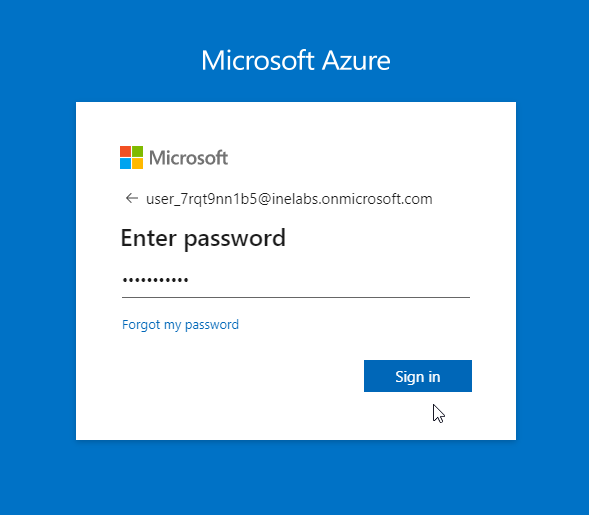
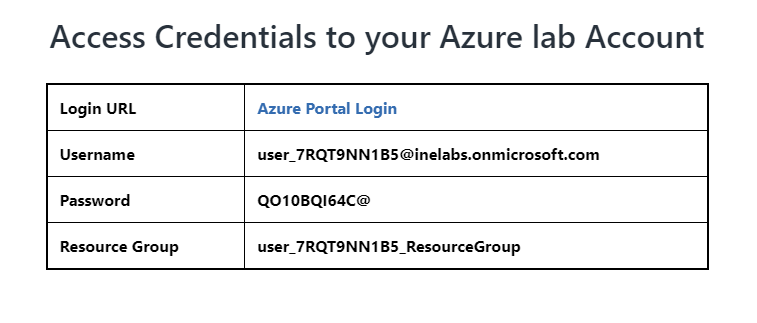
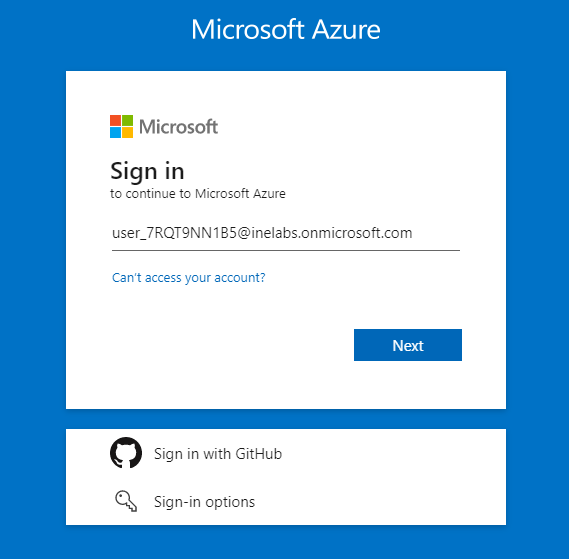
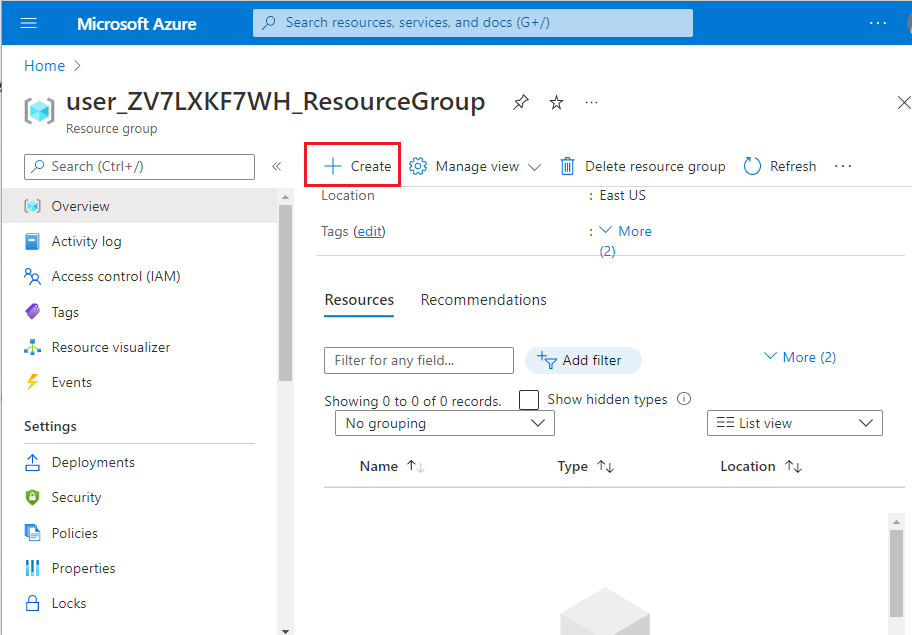
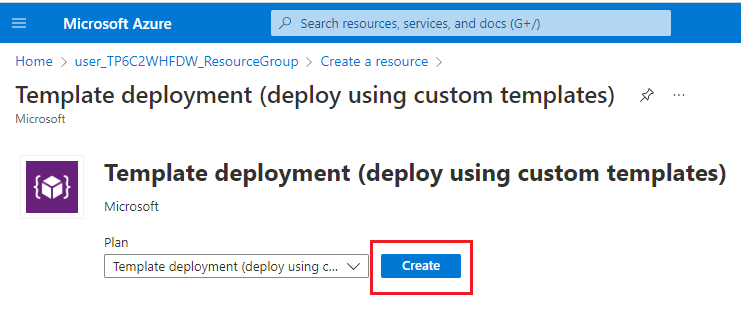
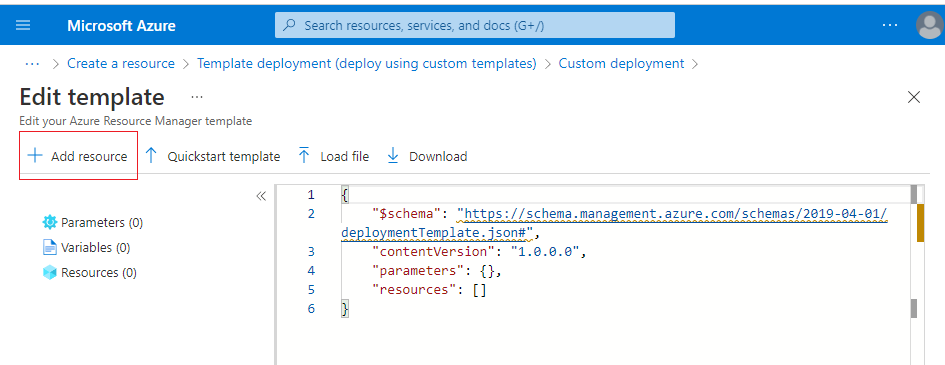
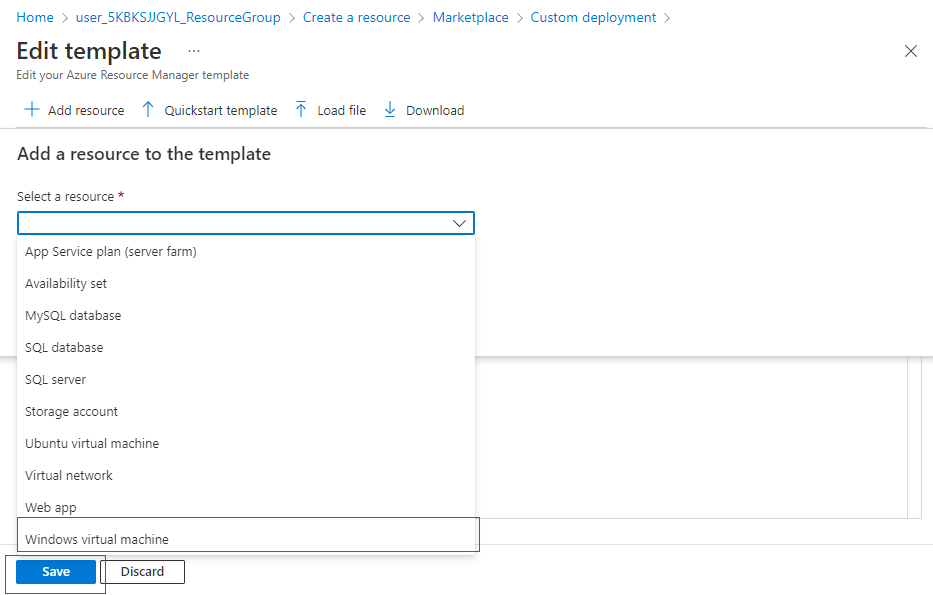
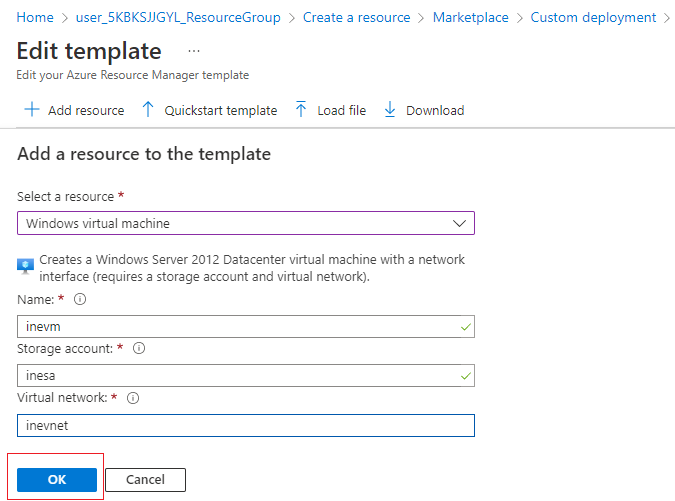
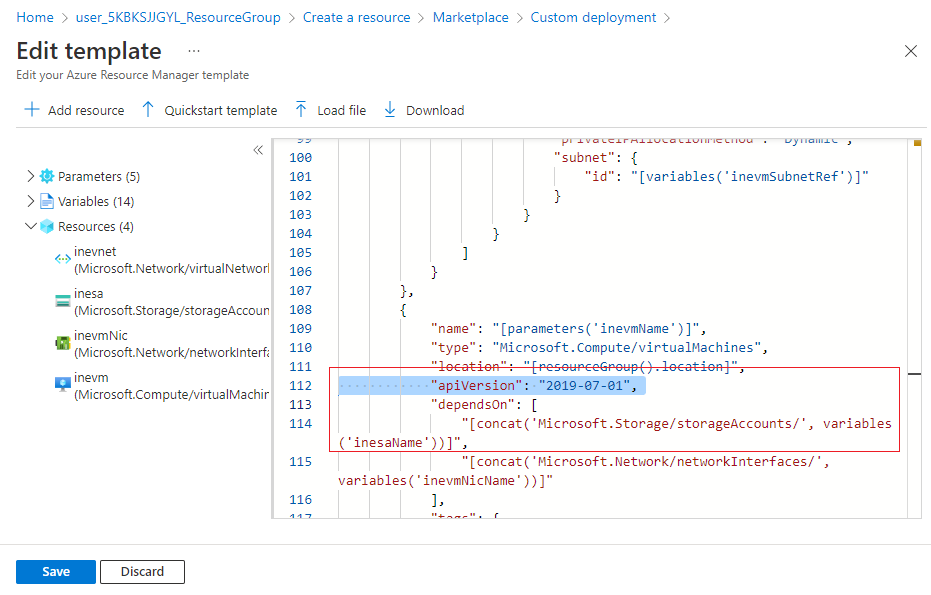
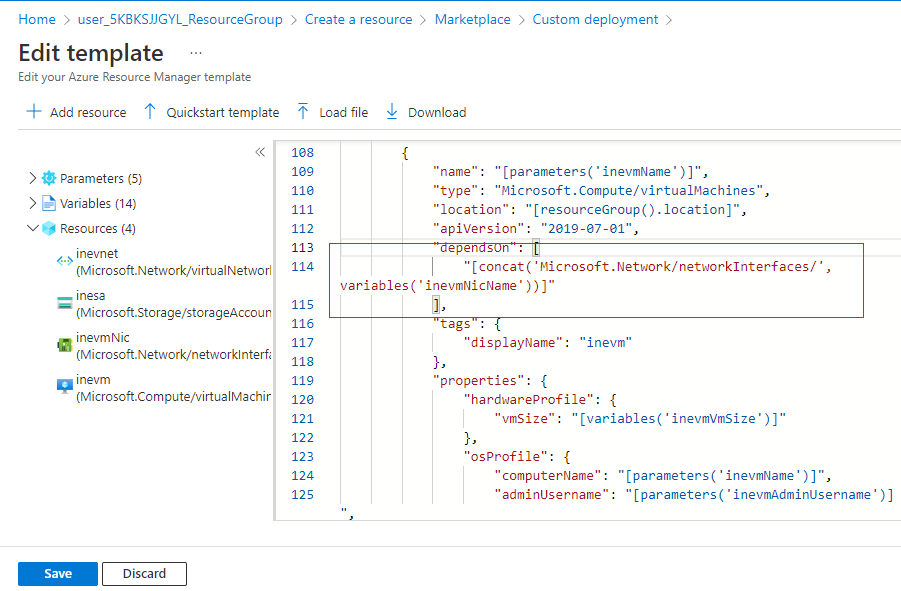
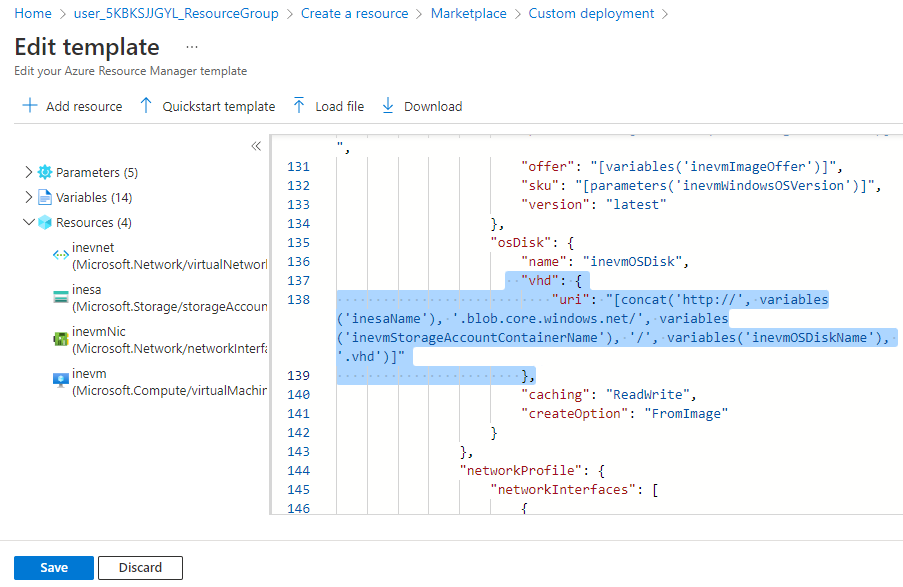
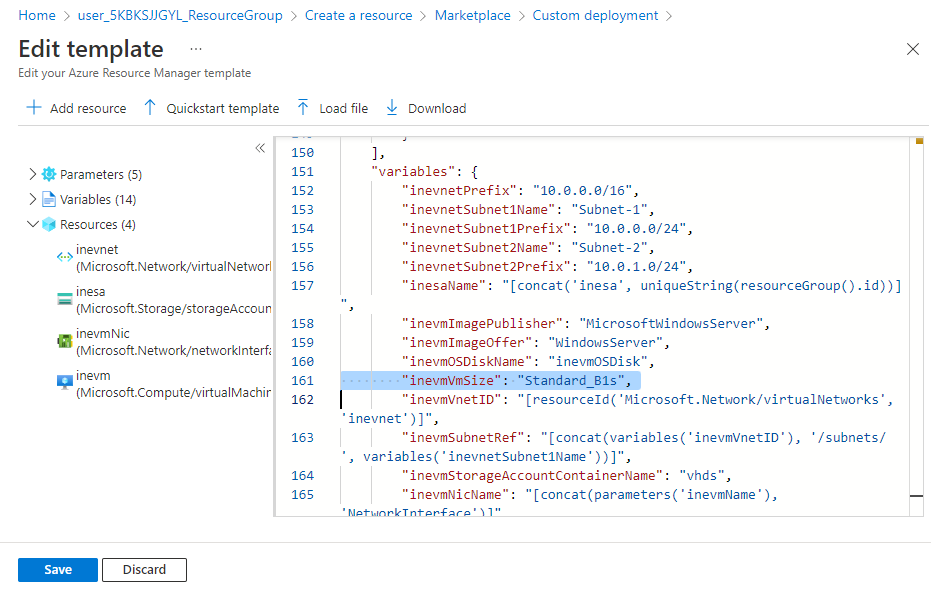
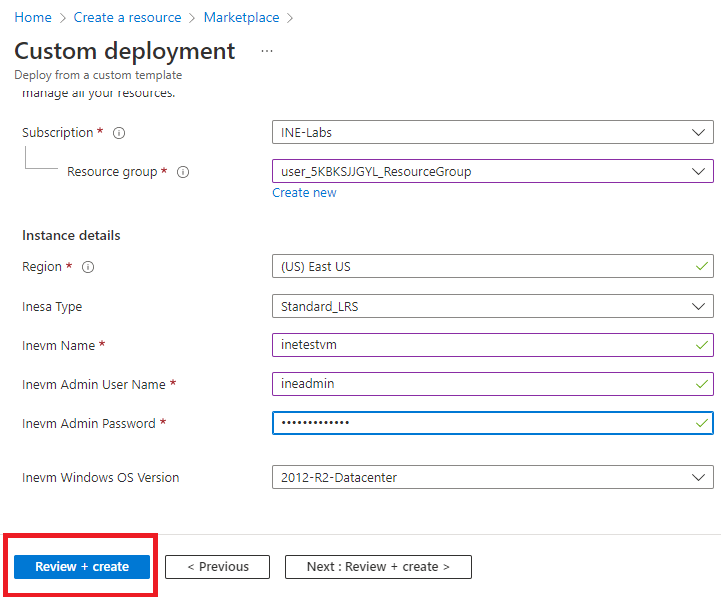
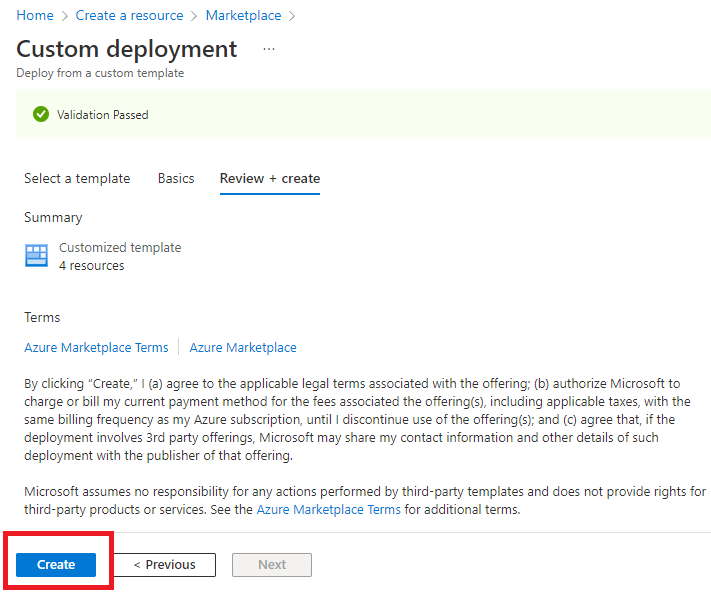
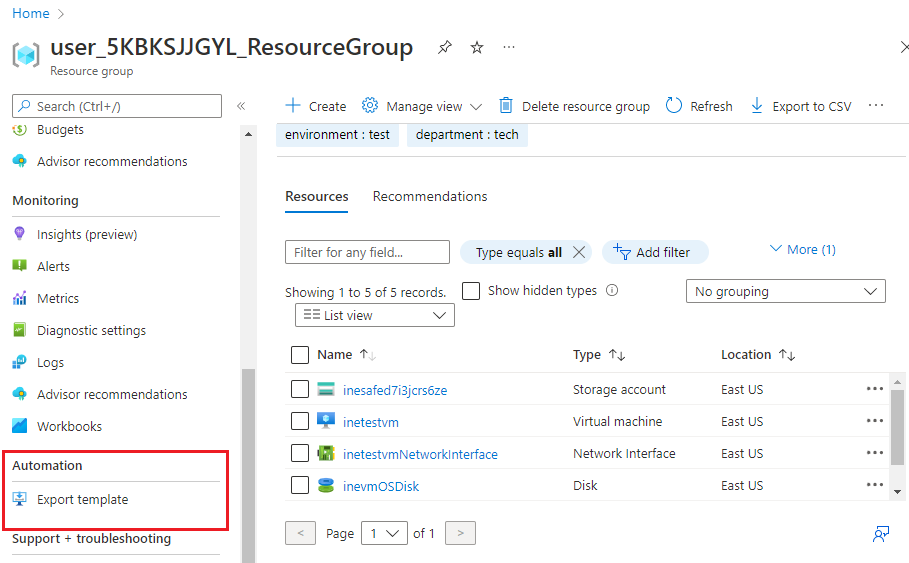
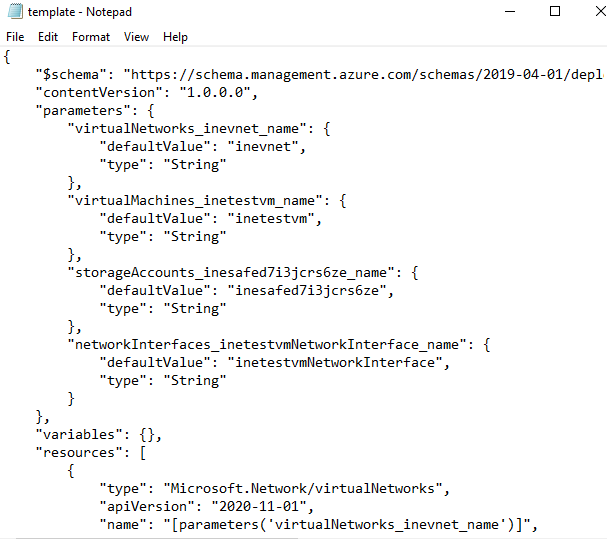
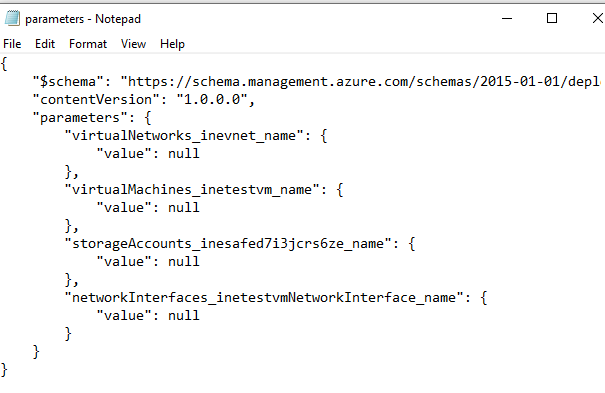
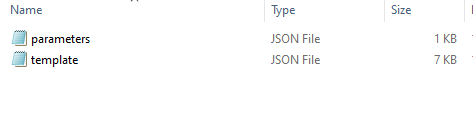
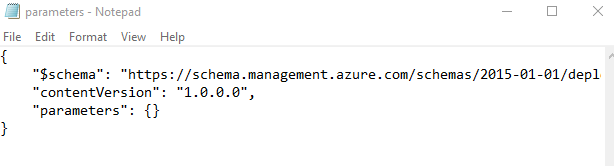
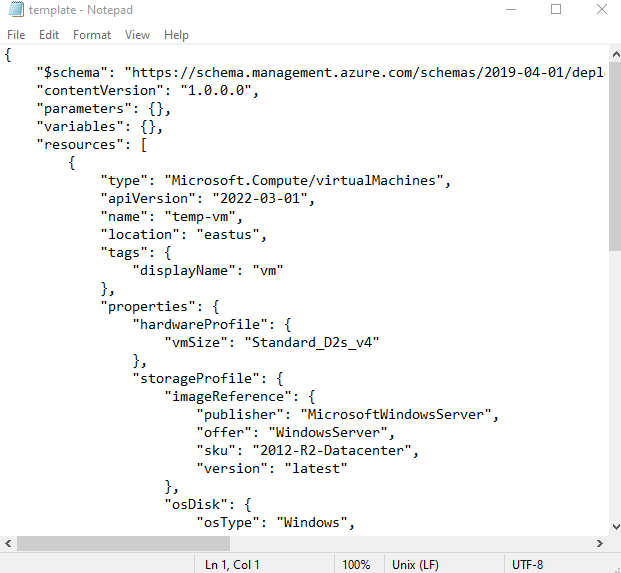
    "solutions": "# Solution\n\n## Create a custom template for Virtual Machine in Azure Portal. Deploy the Virtual Machine using the template . Export the Template from Deployed Resources\n\n\n**Step 1:** Start the lab, agree after reading terms and conditions and check the credential/URL provided on the page.\n\n![](https://assets.ine.com/content/labs/azure-course-labs/basic-arm-template-deployment/basic-arm-template-deployment/1.png)\n\n\n**Step 2:** Open the Login URL link in incognito (Right click on the URL and select Open link in incognito Window option).\n\nThe URL will take you to the Azure Portal login page. Use the provided username and password to login into it.\n\n![](https://assets.ine.com/content/labs/azure-course-labs/basic-arm-template-deployment/basic-arm-template-deployment/2_1.png)\n\nEnter password \n\n![](https://assets.ine.com/content/labs/azure-course-labs/basic-arm-template-deployment/basic-arm-template-deployment/2_2.png)\n\n**Step 3:** An empty resource group  will be visible. Click on Create option to create aVirtual Network, Storage Account and virtual machine\n\n![](https://assets.ine.com/content/labs/azure-course-labs/basic-arm-template-deployment/basic-arm-template-deployment/3.png)\n\n**Step 4:** Create a **Template deployment** as shown below\n\n![](https://assets.ine.com/content/labs/azure-course-labs/basic-arm-template-deployment/basic-arm-template-deployment/4.png)\n\n**Step 5:** A basic template will be visible which does not contain any resources at this point.Click on **Add Resources** \n\n![](https://assets.ine.com/content/labs/azure-course-labs/basic-arm-template-deployment/basic-arm-template-deployment/5.png)\n\nSelect **Windows Virtual Machine** in **Select a Resource**\n\n![](https://assets.ine.com/content/labs/azure-course-labs/basic-arm-template-deployment/basic-arm-template-deployment/6.png)\n\nEnter other details such as Name,Storage Account and Virtual Network. Click on **OK**\n\n![](https://assets.ine.com/content/labs/azure-course-labs/basic-arm-template-deployment/basic-arm-template-deployment/7.png)\n\n**Step 6:** Replace Apiversion as **2019-07-01** given below, to use the latest api version.\n\n![](https://assets.ine.com/content/labs/azure-course-labs/basic-arm-template-deployment/basic-arm-template-deployment/8.png)\n\n**Remove** Storage Accounts from **DependsOn** to use managed disk\n\n![](https://assets.ine.com/content/labs/azure-course-labs/basic-arm-template-deployment/basic-arm-template-deployment/9.png)\n\n**Step 7:** Navigate to Virtual Machine Resource, select and delete some parameters of **osDisk** as shown below\n\n![](https://assets.ine.com/content/labs/azure-course-labs/basic-arm-template-deployment/basic-arm-template-deployment/10.png)\n\nIn Variables, select **VmSize** as **B1s** . Click on **Save**\n\n![](https://assets.ine.com/content/labs/azure-course-labs/basic-arm-template-deployment/basic-arm-template-deployment/11.png)\n\n**Step 8:** Fill in the details and Click on **Review and Create**\n\n![](https://assets.ine.com/content/labs/azure-course-labs/basic-arm-template-deployment/basic-arm-template-deployment/12.png)\n\nAfter successful Validation, Click on **Create**\n\n![](https://assets.ine.com/content/labs/azure-course-labs/basic-arm-template-deployment/basic-arm-template-deployment/13.png)\n\n\n**Step 9:** Check your Resource after successful deployment. Click on **Export Template** .\n\n![](https://assets.ine.com/content/labs/azure-course-labs/basic-arm-template-deployment/basic-arm-template-deployment/14.png)\n\nClick on **Download** option. Template and Parameter files will be Downloaded\n\n![](https://assets.ine.com/content/labs/azure-course-labs/basic-arm-template-deployment/basic-arm-template-deployment/15.png)\n\nThe contents of Template file are similar to given below\n\n![](https://assets.ine.com/content/labs/azure-course-labs/basic-arm-template-deployment/basic-arm-template-deployment/16.png)\n\nContents of the Parameter file are similar to given below\n\n![](https://assets.ine.com/content/labs/azure-course-labs/basic-arm-template-deployment/basic-arm-template-deployment/17.png)\n\nSimilarly, Navigate to your Virtual Machine. Select **Export Template** to download template of the Virtual Machine.\n\n**Note uncheck the Include Parameters Checkbox**.Both the files will be downloaded\n\n![](https://assets.ine.com/content/labs/azure-course-labs/basic-arm-template-deployment/basic-arm-template-deployment/22.png)\n\nAs the parameters were excluded, the parameter files will be NULL as shown below\n\n![](https://assets.ine.com/content/labs/azure-course-labs/basic-arm-template-deployment/basic-arm-template-deployment/23.png)\n\nAnd Similarly, the Template file will be as similar to shown below\n\n![](https://assets.ine.com/content/labs/azure-course-labs/basic-arm-template-deployment/basic-arm-template-deployment/24.png)\n\nDelete the resources using **Delete** option. Navigate to Virtual Machine and Click on delete\n\n![](https://assets.ine.com/content/labs/azure-course-labs/basic-arm-template-deployment/basic-arm-template-deployment/18.png)\n\nNavigate to Virtual Network and Click on Delete\n\n![](https://assets.ine.com/content/labs/azure-course-labs/basic-arm-template-deployment/basic-arm-template-deployment/19.png)\n\nNavigate to Storage Account and Click on Delete\n\n![](https://assets.ine.com/content/labs/azure-course-labs/basic-arm-template-deployment/basic-arm-template-deployment/20.png)\n\n\n# Conclusion \n\nIn this way you can Create a custom template for Virtual Machine in Azure Portal. Deploy the Virtual Machine using the template",

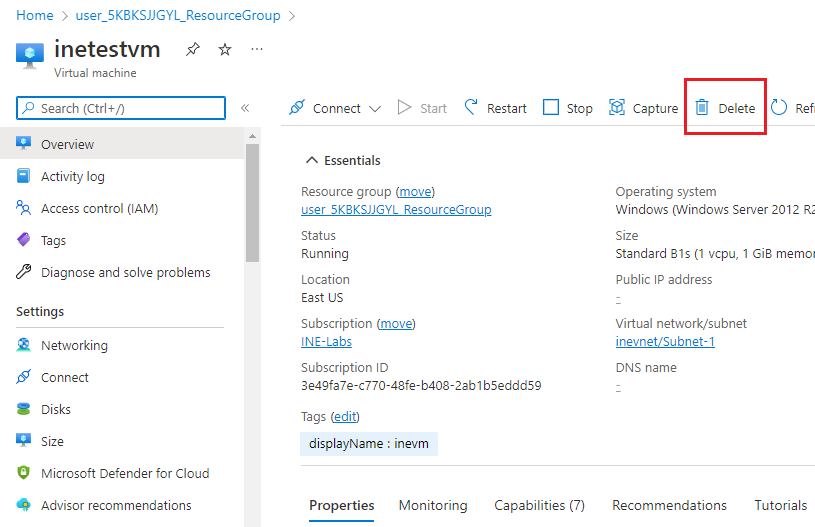
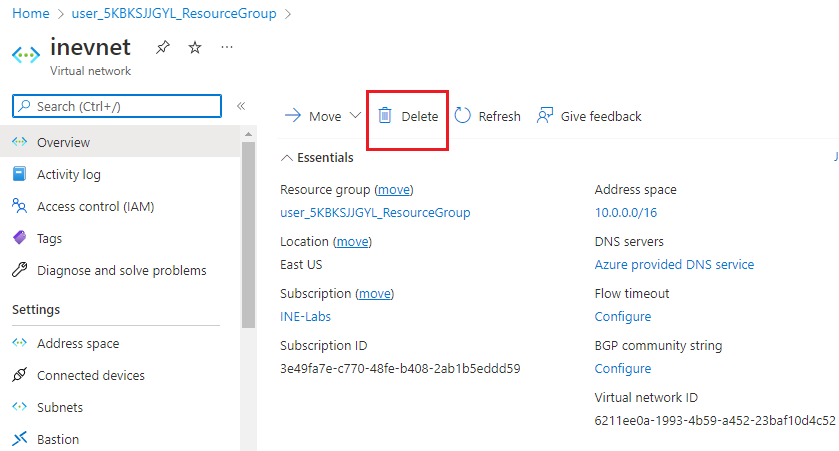
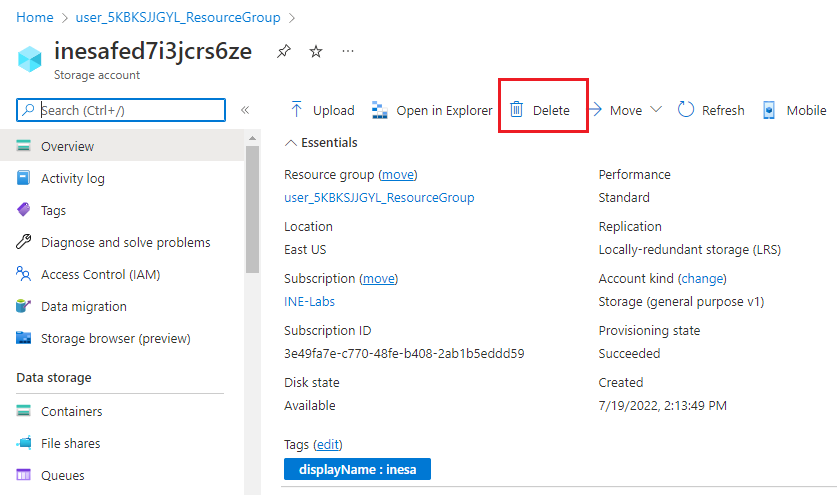
    "solutions_html": "<h1>Solution</h1>\n<h2>Create a custom template for Virtual Machine in Azure Portal. Deploy the Virtual Machine using the template . Export the Template from Deployed Resources</h2>\n<p><strong>Step 1:</strong> Start the lab, agree after reading terms and conditions and check the credential/URL provided on the page.</p>\n<p><img alt=\"\" src=\"https://assets.ine.com/content/labs/azure-course-labs/basic-arm-template-deployment/basic-arm-template-deployment/1.png\" /></p>\n<p><strong>Step 2:</strong> Open the Login URL link in incognito (Right click on the URL and select Open link in incognito Window option).</p>\n<p>The URL will take you to the Azure Portal login page. Use the provided username and password to login into it.</p>\n<p><img alt=\"\" src=\"https://assets.ine.com/content/labs/azure-course-labs/basic-arm-template-deployment/basic-arm-template-deployment/2_1.png\" /></p>\n<p>Enter password </p>\n<p><img alt=\"\" src=\"https://assets.ine.com/content/labs/azure-course-labs/basic-arm-template-deployment/basic-arm-template-deployment/2_2.png\" /></p>\n<p><strong>Step 3:</strong> An empty resource group  will be visible. Click on Create option to create aVirtual Network, Storage Account and virtual machine</p>\n<p><img alt=\"\" src=\"https://assets.ine.com/content/labs/azure-course-labs/basic-arm-template-deployment/basic-arm-template-deployment/3.png\" /></p>\n<p><strong>Step 4:</strong> Create a <strong>Template deployment</strong> as shown below</p>\n<p><img alt=\"\" src=\"https://assets.ine.com/content/labs/azure-course-labs/basic-arm-template-deployment/basic-arm-template-deployment/4.png\" /></p>\n<p><strong>Step 5:</strong> A basic template will be visible which does not contain any resources at this point.Click on <strong>Add Resources</strong> </p>\n<p><img alt=\"\" src=\"https://assets.ine.com/content/labs/azure-course-labs/basic-arm-template-deployment/basic-arm-template-deployment/5.png\" /></p>\n<p>Select <strong>Windows Virtual Machine</strong> in <strong>Select a Resource</strong></p>\n<p><img alt=\"\" src=\"https://assets.ine.com/content/labs/azure-course-labs/basic-arm-template-deployment/basic-arm-template-deployment/6.png\" /></p>\n<p>Enter other details such as Name,Storage Account and Virtual Network. Click on <strong>OK</strong></p>\n<p><img alt=\"\" src=\"https://assets.ine.com/content/labs/azure-course-labs/basic-arm-template-deployment/basic-arm-template-deployment/7.png\" /></p>\n<p><strong>Step 6:</strong> Replace Apiversion as <strong>2019-07-01</strong> given below, to use the latest api version.</p>\n<p><img alt=\"\" src=\"https://assets.ine.com/content/labs/azure-course-labs/basic-arm-template-deployment/basic-arm-template-deployment/8.png\" /></p>\n<p><strong>Remove</strong> Storage Accounts from <strong>DependsOn</strong> to use managed disk</p>\n<p><img alt=\"\" src=\"https://assets.ine.com/content/labs/azure-course-labs/basic-arm-template-deployment/basic-arm-template-deployment/9.png\" /></p>\n<p><strong>Step 7:</strong> Navigate to Virtual Machine Resource, select and delete some parameters of <strong>osDisk</strong> as shown below</p>\n<p><img alt=\"\" src=\"https://assets.ine.com/content/labs/azure-course-labs/basic-arm-template-deployment/basic-arm-template-deployment/10.png\" /></p>\n<p>In Variables, select <strong>VmSize</strong> as <strong>B1s</strong> . Click on <strong>Save</strong></p>\n<p><img alt=\"\" src=\"https://assets.ine.com/content/labs/azure-course-labs/basic-arm-template-deployment/basic-arm-template-deployment/11.png\" /></p>\n<p><strong>Step 8:</strong> Fill in the details and Click on <strong>Review and Create</strong></p>\n<p><img alt=\"\" src=\"https://assets.ine.com/content/labs/azure-course-labs/basic-arm-template-deployment/basic-arm-template-deployment/12.png\" /></p>\n<p>After successful Validation, Click on <strong>Create</strong></p>\n<p><img alt=\"\" src=\"https://assets.ine.com/content/labs/azure-course-labs/basic-arm-template-deployment/basic-arm-template-deployment/13.png\" /></p>\n<p><strong>Step 9:</strong> Check your Resource after successful deployment. Click on <strong>Export Template</strong> .</p>\n<p><img alt=\"\" src=\"https://assets.ine.com/content/labs/azure-course-labs/basic-arm-template-deployment/basic-arm-template-deployment/14.png\" /></p>\n<p>Click on <strong>Download</strong> option. Template and Parameter files will be Downloaded</p>\n<p><img alt=\"\" src=\"https://assets.ine.com/content/labs/azure-course-labs/basic-arm-template-deployment/basic-arm-template-deployment/15.png\" /></p>\n<p>The contents of Template file are similar to given below</p>\n<p><img alt=\"\" src=\"https://assets.ine.com/content/labs/azure-course-labs/basic-arm-template-deployment/basic-arm-template-deployment/16.png\" /></p>\n<p>Contents of the Parameter file are similar to given below</p>\n<p><img alt=\"\" src=\"https://assets.ine.com/content/labs/azure-course-labs/basic-arm-template-deployment/basic-arm-template-deployment/17.png\" /></p>\n<p>Similarly, Navigate to your Virtual Machine. Select <strong>Export Template</strong> to download template of the Virtual Machine.</p>\n<p><strong>Note uncheck the Include Parameters Checkbox</strong>.Both the files will be downloaded</p>\n<p><img alt=\"\" src=\"https://assets.ine.com/content/labs/azure-course-labs/basic-arm-template-deployment/basic-arm-template-deployment/22.png\" /></p>\n<p>As the parameters were excluded, the parameter files will be NULL as shown below</p>\n<p><img alt=\"\" src=\"https://assets.ine.com/content/labs/azure-course-labs/basic-arm-template-deployment/basic-arm-template-deployment/23.png\" /></p>\n<p>And Similarly, the Template file will be as similar to shown below</p>\n<p><img alt=\"\" src=\"https://assets.ine.com/content/labs/azure-course-labs/basic-arm-template-deployment/basic-arm-template-deployment/24.png\" /></p>\n<p>Delete the resources using <strong>Delete</strong> option. Navigate to Virtual Machine and Click on delete</p>\n<p><img alt=\"\" src=\"https://assets.ine.com/content/labs/azure-course-labs/basic-arm-template-deployment/basic-arm-template-deployment/18.png\" /></p>\n<p>Navigate to Virtual Network and Click on Delete</p>\n<p><img alt=\"\" src=\"https://assets.ine.com/content/labs/azure-course-labs/basic-arm-template-deployment/basic-arm-template-deployment/19.png\" /></p>\n<p>Navigate to Storage Account and Click on Delete</p>\n<p><img alt=\"\" src=\"https://assets.ine.com/content/labs/azure-course-labs/basic-arm-template-deployment/basic-arm-template-deployment/20.png\" /></p>\n<h1>Conclusion</h1>\n<p>In this way you can Create a custom template for Virtual Machine in Azure Portal. Deploy the Virtual Machine using the template</p>",
    "flags": [],
    "min_points_to_pass": null,
    "access_type": "web",
    "user_status": "unstarted",
    "user_lab_status": null,
    "user_status_modified": null,
    "user_flags": [],
    "global_running_session": null
}