{
    "id": "5d6f874c-238d-4d0e-ab2f-079b337d2370",
    "name": "Provision a Virtual Machine Scale Set",
    "slug": "provision-a-virtual-machine-scale-set",
    "status": "published",
    "lab_type": "pta",
    "is_sample": false,
    "duration_in_seconds": 1800,
    "metadata": {
        "courses": [
            "1a20bc1a-9d44-4503-95f2-3de135097a2e",
            "5e91cbaa-5820-491c-afaf-0bfbba5719a5"
        ],
        "pta_sdn": "442",
        "pta_namespace": "my.ine",
        "learning_paths": [],
        "has_published_parent": true
    },
    "session": null,
    "company": "a491bc32-c056-4946-9169-cc053387bada",
    "created": "2022-10-14T21:47:31.441487Z",
    "modified": "2023-10-03T18:58:42.581986Z",
    "is_beta": false,
    "lab_objectives": [],
    "main_learning_area": "d3f82c70-f4e7-428e-afd7-4b1d28988e18",
    "learning_areas": [
        {
            "id": "d3f82c70-f4e7-428e-afd7-4b1d28988e18",
            "name": "Cloud",
            "slug": "cloud"
        }
    ],
    "categories": [],
    "tags": [],
    "difficulty": null,
    "is_web_access": true,
    "is_lab_experience": false,
    "is_featured": false,
    "cve": null,
    "severity": null,
    "year": null,
    "classification": null,
    "is_trackable": false,
    "cpe_credits": null,
    "is_skill_check": false,
    "external_url": "",
    "solution_video": null,
    "explanation_video": null,
    "description": "The goal of this task is to deploy a virtual machine scale set with a sample workload, configure autoscale for the scale set, and verify that autoscale is working as expected. This will include deploying a Linux-based scale set with a simple Web app, setting the scale set to scale based on the length of a queue storage instance, and triggering a scale event.",
    "description_html": "<p>The goal of this task is to deploy a virtual machine scale set with a sample workload, configure autoscale for the scale set, and verify that autoscale is working as expected. This will include deploying a Linux-based scale set with a simple Web app, setting the scale set to scale based on the length of a queue storage instance, and triggering a scale event.</p>",
    "tasks": "",
    "tasks_html": "",
    "published_date": "2020-04-07T18:00:00Z",
    "solutions": "## Task 1:  Provision a virtual machine scale set\nFor this requirement you will deploy a Linux-based virtual machine scaleset. You will start with an Azure quickstart template and modify it to load a custom script. Follow the steps to complete this requirement:\n\n-   Use your credentials and login to the Azure portal\n\n![](https://assets.ine.com/content/labs/azure-course-labs/provision-a-virtual-machine-scale-set/1.png)\n\n-   You will see the precreated stroage resource in your resource group. Click to open it.\n\n![](https://assets.ine.com/content/labs/azure-course-labs/provision-a-virtual-machine-scale-set/2.png)\n\n-   Let's check the a Queue named process exists inside the queue or not.\n\n![](https://assets.ine.com/content/labs/azure-course-labs/provision-a-virtual-machine-scale-set/3.png)\n\n-   Now, come back and click on **+ Create**.\n\n![](https://assets.ine.com/content/labs/azure-course-labs/provision-a-virtual-machine-scale-set/4.png)\n\n-   Search for **Template Deployment** in search box.\n\n![](https://assets.ine.com/content/labs/azure-course-labs/provision-a-virtual-machine-scale-set/5.png)\n\n-   Click on Create.\n\n![](https://assets.ine.com/content/labs/azure-course-labs/provision-a-virtual-machine-scale-set/6.png)\n\n-   Now, choose **Quickstart Template**. And then click on the quickstart template dropbox.\n\n![](https://assets.ine.com/content/labs/azure-course-labs/provision-a-virtual-machine-scale-set/7.png)\n\n-   Start searching for it in the search box\n```\nquickstarts/microsoft.compute/vmss-linux-nat  \n```\n\n![](https://assets.ine.com/content/labs/azure-course-labs/provision-a-virtual-machine-scale-set/8.png)\n\n-   Choose the vmss-linux-nat and click on **Select Template** button.\n\n![](https://assets.ine.com/content/labs/azure-course-labs/provision-a-virtual-machine-scale-set/9.png)\n\n-   Click on **Edit template**\n\n![](https://assets.ine.com/content/labs/azure-course-labs/provision-a-virtual-machine-scale-set/10.png)\n\n-   Remove the vmSku default value **Standard_A1**.\n\n![](https://assets.ine.com/content/labs/azure-course-labs/provision-a-virtual-machine-scale-set/11.png)\n\n-   Write **Standard_D2S_V3** in the default value\n\n![](https://assets.ine.com/content/labs/azure-course-labs/provision-a-virtual-machine-scale-set/12.png)\n\n-   Now in the instance count remove the minimum value **5**.\n\n![](https://assets.ine.com/content/labs/azure-course-labs/provision-a-virtual-machine-scale-set/13.png)\n\n-   Write **1** in the minimum value.\n\n![](https://assets.ine.com/content/labs/azure-course-labs/provision-a-virtual-machine-scale-set/14.png)\n\n-   Now, go down to line no.211 there you will see **network profile** element.\n\n![](https://assets.ine.com/content/labs/azure-course-labs/provision-a-virtual-machine-scale-set/15.png)\n\n-   Under the **newtwork profile** element. Add the **extension profile** element in the line no.241. And then click on the **Save** button.\n```\n\"extensionProfile\": {\n      \"extensions\": [\n          {\n          \"name\": \"vmssscript\",\n          \"properties\": {\n              \"publisher\": \"Microsoft.OSTCExtensions\",\n              \"type\": \"CustomScriptForLinux\",\n              \"typeHandlerVersion\": \"1.4\",\n              \"autoUpgradeMinorVersion\": true,\n              \"settings\": {\n              \"fileUris\": [\n                  \"https://inedemoassets.blob.core.windows.net/taskfiles/azure/webserverinstall.sh\"\n              ],\n              \"commandToExecute\": \"sh webserverinstall.sh\"\n              }\n          }\n          }\n      ]\n  }\n```\n![](https://assets.ine.com/content/labs/azure-course-labs/provision-a-virtual-machine-scale-set/16.png)\n\n-   Check the **VmSku**, **Vmss Name:** task-vmss, **Instance Count:** 1, **Admin Username:** student and choose a strong password. Click on **Review+Create.**\n\n![](https://assets.ine.com/content/labs/azure-course-labs/provision-a-virtual-machine-scale-set/17.png)\n\n-   After successful validation click on **Create**.\n\n![](https://assets.ine.com/content/labs/azure-course-labs/provision-a-virtual-machine-scale-set/18.png)\n\n-   Click on **Go to Resource group** if the depolyment is completed.\n\n![](https://assets.ine.com/content/labs/azure-course-labs/provision-a-virtual-machine-scale-set/19.png)\n\n-   Open the **Load balance:** task-vmsslb.\n\n![](https://assets.ine.com/content/labs/azure-course-labs/provision-a-virtual-machine-scale-set/20.png)\n\n-   Navigate to the **Health probes** and click on **Add**.\n\n![](https://assets.ine.com/content/labs/azure-course-labs/provision-a-virtual-machine-scale-set/21.png)\n\n-   Add the following:\n-   **Name:** http\n-   **Protocol:** TCP\n-   **Port:** 80\n-   **Interval:** 5\n-   Click on **Add** by adding the health probe we can check the status of the backend pool instance. Wait untill it is added.\n\n![](https://assets.ine.com/content/labs/azure-course-labs/provision-a-virtual-machine-scale-set/22.png)\n\n-   Now, navigate to **Loading balancing rules** and click on **Add**.\n\n![](https://assets.ine.com/content/labs/azure-course-labs/provision-a-virtual-machine-scale-set/23.png)\n\n-   Add the following:\n-   **Frontend Ip address:** LoadBalancerFrontEnd\n-   **Backend pool**: task-vmssbepool\n-   **Protocol**: TCP\n-   **Port**: 80\n-   **Backend port**: 80\n-   **Health probe**: http\n-   Remaining leave as default and click on **Add** button.\n\n![](https://assets.ine.com/content/labs/azure-course-labs/provision-a-virtual-machine-scale-set/24.png)\n\n-   Now we need to test whether the vmss is connected through the **Load Balancer** or not. Copy the public IP address.\n\n![](https://assets.ine.com/content/labs/azure-course-labs/provision-a-virtual-machine-scale-set/25.png)\n\n-   Open a new browser window and navigate to the public IP address of the load balancer. You should receive the name of the instance that handled the request. As shown in the below image.\n\n![](https://assets.ine.com/content/labs/azure-course-labs/provision-a-virtual-machine-scale-set/26.png)\n\n***Successfully we finsihed our Task 1.***\n\n## Task 2:  Implement autoscale\nIn this requirement you will configure an autoscale rule to scale out when the process queue in the storage account created during the pre-requisite setup exceeds 2 items. You will scale back in when the queue length drops below 2. Add an autoscale condition with two rules:\n\n-   Open the **task-vmss**.\n\n![](https://assets.ine.com/content/labs/azure-course-labs/provision-a-virtual-machine-scale-set/27.png)\n\n-   Navigate to the **Scaling** and click on **Custom auto-scale**.\n\n![](https://assets.ine.com/content/labs/azure-course-labs/provision-a-virtual-machine-scale-set/28.png)\n\n-   Scroll down, in the **Scale mode** choose **Scale based on a metric**. And click on **Add rule**.\n\n![](https://assets.ine.com/content/labs/azure-course-labs/provision-a-virtual-machine-scale-set/29.png)\n\n-   We need to create the **Scale out** rule:\n-   **Metric Source**: Storage Queue\n-   **Resource**: use the precreated storage\n-   **Storage queue**: Process\n\n![](https://assets.ine.com/content/labs/azure-course-labs/provision-a-virtual-machine-scale-set/30.png)\n\n-   Scroll down and fill the following:\n-   **Operator**: Greater than\n-   **Threshold**: 2\n-   **Operation**: Increase count by\n-   **instance count**: 1\n-   Click on **Add**. With the help of this rule our instance count will increase by 1 if the queue has more than 2 items.\n\n![](https://assets.ine.com/content/labs/azure-course-labs/provision-a-virtual-machine-scale-set/31.png)\n\n-   Now you can see the **Scale out** has been added. Click on **Add rule**.\n\n![](https://assets.ine.com/content/labs/azure-course-labs/provision-a-virtual-machine-scale-set/32.png)\n\n-   Now, we will create the **Scale in** rule:\n-   **Metric Source**: Storage Queue\n-   **Resource**: use the precreated storage\n-   **Storage queue**: Process\n\n![](https://assets.ine.com/content/labs/azure-course-labs/provision-a-virtual-machine-scale-set/33.png)\n\n-   Scroll down and fill the following:\n-   **Operator**: Less than\n-   **Threshold**: 2\n-   **Operation**: Decrease count by\n-   **instance count**: 1\n-   Click on **Add** With the help of this rule our instance count will decrease by 1 if the queue has less than 2 items.\n\n![](https://assets.ine.com/content/labs/azure-course-labs/provision-a-virtual-machine-scale-set/34.png)\n\n-   In the **Instance limits** maximum insatnce are **2**. And click on save to apply the changes.\n\n![](https://assets.ine.com/content/labs/azure-course-labs/provision-a-virtual-machine-scale-set/35.png)\n\n***Successfully we finsihed our Task 2.***\n\n# Task3:    Verify autoscale\n-   Navigate to the Azure portal view for the process queue in the storage account that you provisioned in the pre-requisite setup.\n\n![](https://assets.ine.com/content/labs/azure-course-labs/provision-a-virtual-machine-scale-set/37.png)\n\n-   Click on **+ Add message** to add an item.\n\n![](https://assets.ine.com/content/labs/azure-course-labs/provision-a-virtual-machine-scale-set/38.png)\n\n-   Add some message text and click on **OK**.\n\n![](https://assets.ine.com/content/labs/azure-course-labs/provision-a-virtual-machine-scale-set/39.png)\n\n-   Similarly add atleast 3 items. I have added 4 items, you may add more than that.\n\n![](https://assets.ine.com/content/labs/azure-course-labs/provision-a-virtual-machine-scale-set/40.png)\n\n-   Return to the task-vmss blade and you can see it is scaling up from 1 to 2 instances. **Note**: It may take time of 2-3 minutes.\n\n![](https://assets.ine.com/content/labs/azure-course-labs/provision-a-virtual-machine-scale-set/41.png)\n\n-   Navigate to **Scaling** and you can see the instance count is **2**. **Note**: It may take time of 2-3 minutes.\n\n![](https://assets.ine.com/content/labs/azure-course-labs/provision-a-virtual-machine-scale-set/42.png)\n\n-   If you navigate back again to **Overview** then you see 2 instaces. **Note**: It may take time of 2-3 minutes.\n\n![](https://assets.ine.com/content/labs/azure-course-labs/provision-a-virtual-machine-scale-set/43.png)\n\n-   Open the public Ip address of Load Balancer. You may see the differnt instance name or the 1st instance name.\n\n![](https://assets.ine.com/content/labs/azure-course-labs/provision-a-virtual-machine-scale-set/44.png)\n\n-   Refresh page until you see the different instance.\n\n![](https://assets.ine.com/content/labs/azure-course-labs/provision-a-virtual-machine-scale-set/45.png)\n\n-   If you keep on refreshing the page it moves back and forth between the instances.\n\n# Optional:\n-   After the virtual machine scale set has scaled out, return to the process queue in your storage account and delete all of the messages.\n\n![](https://assets.ine.com/content/labs/azure-course-labs/provision-a-virtual-machine-scale-set/46.png)\n\n-   After clearing it should be empty as shown in the image.\n\n![](https://assets.ine.com/content/labs/azure-course-labs/provision-a-virtual-machine-scale-set/47.png)\n\n-   You can see it is scaling down form 2 to 1 instances.\n\n![](https://assets.ine.com/content/labs/azure-course-labs/provision-a-virtual-machine-scale-set/48.png)\n\n-   Navigate to **Scaling** and you can see the instance count is **1**. **Note**: It may take time of 2-3 minutes.\n\n![](https://assets.ine.com/content/labs/azure-course-labs/provision-a-virtual-machine-scale-set/49.png)\n\n-   If you navigate back again to **Overview** then you see 1 instace. **Note**: It may take time of 2-3 minutes.\n\n![](https://assets.ine.com/content/labs/azure-course-labs/provision-a-virtual-machine-scale-set/50.png)\n\n-   Even if you refresh the page for multiple times you should see only one same instance.\n\n![](https://assets.ine.com/content/labs/azure-course-labs/provision-a-virtual-machine-scale-set/51.png)\n\n#   Cleanup\n- Delete all the created resources.",
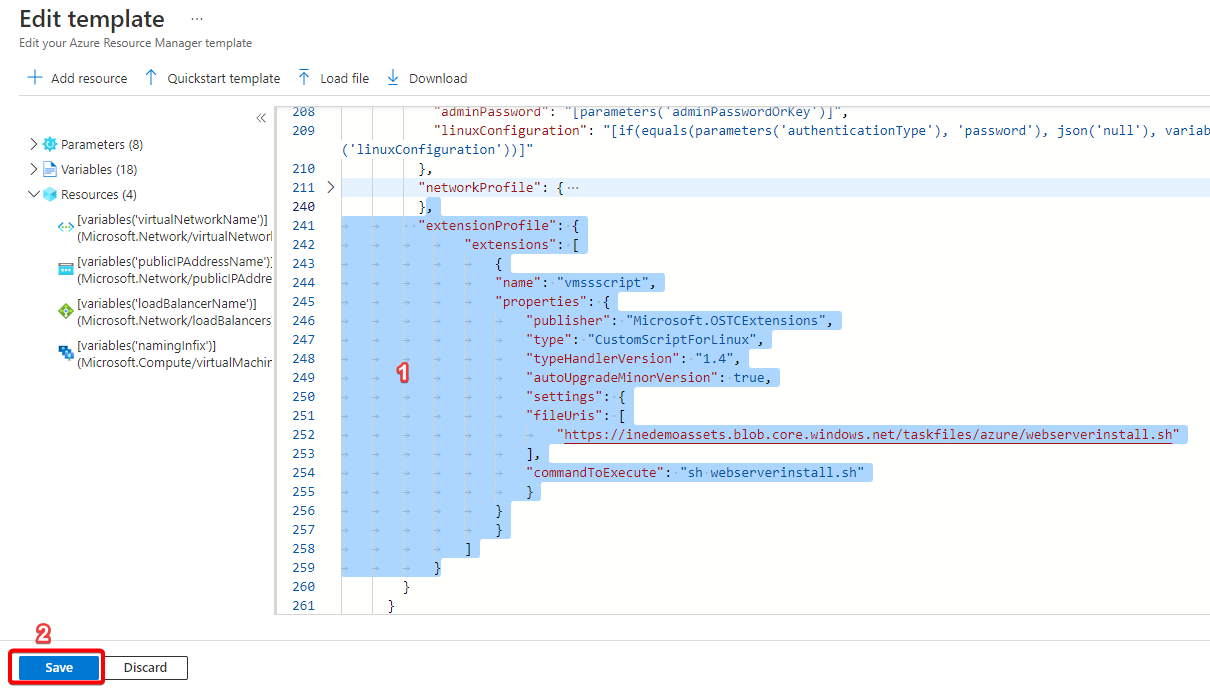
    "solutions_html": "<h2>Task 1:  Provision a virtual machine scale set</h2>\n<p>For this requirement you will deploy a Linux-based virtual machine scaleset. You will start with an Azure quickstart template and modify it to load a custom script. Follow the steps to complete this requirement:</p>\n<ul>\n<li>Use your credentials and login to the Azure portal</li>\n</ul>\n<p><img alt=\"\" src=\"https://assets.ine.com/content/labs/azure-course-labs/provision-a-virtual-machine-scale-set/1.png\" /></p>\n<ul>\n<li>You will see the precreated stroage resource in your resource group. Click to open it.</li>\n</ul>\n<p><img alt=\"\" src=\"https://assets.ine.com/content/labs/azure-course-labs/provision-a-virtual-machine-scale-set/2.png\" /></p>\n<ul>\n<li>Let's check the a Queue named process exists inside the queue or not.</li>\n</ul>\n<p><img alt=\"\" src=\"https://assets.ine.com/content/labs/azure-course-labs/provision-a-virtual-machine-scale-set/3.png\" /></p>\n<ul>\n<li>Now, come back and click on <strong>+ Create</strong>.</li>\n</ul>\n<p><img alt=\"\" src=\"https://assets.ine.com/content/labs/azure-course-labs/provision-a-virtual-machine-scale-set/4.png\" /></p>\n<ul>\n<li>Search for <strong>Template Deployment</strong> in search box.</li>\n</ul>\n<p><img alt=\"\" src=\"https://assets.ine.com/content/labs/azure-course-labs/provision-a-virtual-machine-scale-set/5.png\" /></p>\n<ul>\n<li>Click on Create.</li>\n</ul>\n<p><img alt=\"\" src=\"https://assets.ine.com/content/labs/azure-course-labs/provision-a-virtual-machine-scale-set/6.png\" /></p>\n<ul>\n<li>Now, choose <strong>Quickstart Template</strong>. And then click on the quickstart template dropbox.</li>\n</ul>\n<p><img alt=\"\" src=\"https://assets.ine.com/content/labs/azure-course-labs/provision-a-virtual-machine-scale-set/7.png\" /></p>\n<ul>\n<li>Start searching for it in the search box\n<pre class=\"codehilite\"><code>quickstarts/microsoft.compute/vmss-linux-nat  </code></pre></li>\n</ul>\n<p><img alt=\"\" src=\"https://assets.ine.com/content/labs/azure-course-labs/provision-a-virtual-machine-scale-set/8.png\" /></p>\n<ul>\n<li>Choose the vmss-linux-nat and click on <strong>Select Template</strong> button.</li>\n</ul>\n<p><img alt=\"\" src=\"https://assets.ine.com/content/labs/azure-course-labs/provision-a-virtual-machine-scale-set/9.png\" /></p>\n<ul>\n<li>Click on <strong>Edit template</strong></li>\n</ul>\n<p><img alt=\"\" src=\"https://assets.ine.com/content/labs/azure-course-labs/provision-a-virtual-machine-scale-set/10.png\" /></p>\n<ul>\n<li>Remove the vmSku default value <strong>Standard_A1</strong>.</li>\n</ul>\n<p><img alt=\"\" src=\"https://assets.ine.com/content/labs/azure-course-labs/provision-a-virtual-machine-scale-set/11.png\" /></p>\n<ul>\n<li>Write <strong>Standard_D2S_V3</strong> in the default value</li>\n</ul>\n<p><img alt=\"\" src=\"https://assets.ine.com/content/labs/azure-course-labs/provision-a-virtual-machine-scale-set/12.png\" /></p>\n<ul>\n<li>Now in the instance count remove the minimum value <strong>5</strong>.</li>\n</ul>\n<p><img alt=\"\" src=\"https://assets.ine.com/content/labs/azure-course-labs/provision-a-virtual-machine-scale-set/13.png\" /></p>\n<ul>\n<li>Write <strong>1</strong> in the minimum value.</li>\n</ul>\n<p><img alt=\"\" src=\"https://assets.ine.com/content/labs/azure-course-labs/provision-a-virtual-machine-scale-set/14.png\" /></p>\n<ul>\n<li>Now, go down to line no.211 there you will see <strong>network profile</strong> element.</li>\n</ul>\n<p><img alt=\"\" src=\"https://assets.ine.com/content/labs/azure-course-labs/provision-a-virtual-machine-scale-set/15.png\" /></p>\n<ul>\n<li>\n<p>Under the <strong>newtwork profile</strong> element. Add the <strong>extension profile</strong> element in the line no.241. And then click on the <strong>Save</strong> button.\n<pre class=\"codehilite\"><code>\"extensionProfile\": {\n      \"extensions\": [\n          {\n          \"name\": \"vmssscript\",\n          \"properties\": {\n              \"publisher\": \"Microsoft.OSTCExtensions\",\n              \"type\": \"CustomScriptForLinux\",\n              \"typeHandlerVersion\": \"1.4\",\n              \"autoUpgradeMinorVersion\": true,\n              \"settings\": {\n              \"fileUris\": [\n                  \"https://inedemoassets.blob.core.windows.net/taskfiles/azure/webserverinstall.sh\"\n              ],\n              \"commandToExecute\": \"sh webserverinstall.sh\"\n              }\n          }\n          }\n      ]\n  }</code></pre>\n<img alt=\"\" src=\"https://assets.ine.com/content/labs/azure-course-labs/provision-a-virtual-machine-scale-set/16.png\" /></p>\n</li>\n<li>\n<p>Check the <strong>VmSku</strong>, <strong>Vmss Name:</strong> task-vmss, <strong>Instance Count:</strong> 1, <strong>Admin Username:</strong> student and choose a strong password. Click on <strong>Review+Create.</strong></p>\n</li>\n</ul>\n<p><img alt=\"\" src=\"https://assets.ine.com/content/labs/azure-course-labs/provision-a-virtual-machine-scale-set/17.png\" /></p>\n<ul>\n<li>After successful validation click on <strong>Create</strong>.</li>\n</ul>\n<p><img alt=\"\" src=\"https://assets.ine.com/content/labs/azure-course-labs/provision-a-virtual-machine-scale-set/18.png\" /></p>\n<ul>\n<li>Click on <strong>Go to Resource group</strong> if the depolyment is completed.</li>\n</ul>\n<p><img alt=\"\" src=\"https://assets.ine.com/content/labs/azure-course-labs/provision-a-virtual-machine-scale-set/19.png\" /></p>\n<ul>\n<li>Open the <strong>Load balance:</strong> task-vmsslb.</li>\n</ul>\n<p><img alt=\"\" src=\"https://assets.ine.com/content/labs/azure-course-labs/provision-a-virtual-machine-scale-set/20.png\" /></p>\n<ul>\n<li>Navigate to the <strong>Health probes</strong> and click on <strong>Add</strong>.</li>\n</ul>\n<p><img alt=\"\" src=\"https://assets.ine.com/content/labs/azure-course-labs/provision-a-virtual-machine-scale-set/21.png\" /></p>\n<ul>\n<li>Add the following:</li>\n<li><strong>Name:</strong> http</li>\n<li><strong>Protocol:</strong> TCP</li>\n<li><strong>Port:</strong> 80</li>\n<li><strong>Interval:</strong> 5</li>\n<li>Click on <strong>Add</strong> by adding the health probe we can check the status of the backend pool instance. Wait untill it is added.</li>\n</ul>\n<p><img alt=\"\" src=\"https://assets.ine.com/content/labs/azure-course-labs/provision-a-virtual-machine-scale-set/22.png\" /></p>\n<ul>\n<li>Now, navigate to <strong>Loading balancing rules</strong> and click on <strong>Add</strong>.</li>\n</ul>\n<p><img alt=\"\" src=\"https://assets.ine.com/content/labs/azure-course-labs/provision-a-virtual-machine-scale-set/23.png\" /></p>\n<ul>\n<li>Add the following:</li>\n<li><strong>Frontend Ip address:</strong> LoadBalancerFrontEnd</li>\n<li><strong>Backend pool</strong>: task-vmssbepool</li>\n<li><strong>Protocol</strong>: TCP</li>\n<li><strong>Port</strong>: 80</li>\n<li><strong>Backend port</strong>: 80</li>\n<li><strong>Health probe</strong>: http</li>\n<li>Remaining leave as default and click on <strong>Add</strong> button.</li>\n</ul>\n<p><img alt=\"\" src=\"https://assets.ine.com/content/labs/azure-course-labs/provision-a-virtual-machine-scale-set/24.png\" /></p>\n<ul>\n<li>Now we need to test whether the vmss is connected through the <strong>Load Balancer</strong> or not. Copy the public IP address.</li>\n</ul>\n<p><img alt=\"\" src=\"https://assets.ine.com/content/labs/azure-course-labs/provision-a-virtual-machine-scale-set/25.png\" /></p>\n<ul>\n<li>Open a new browser window and navigate to the public IP address of the load balancer. You should receive the name of the instance that handled the request. As shown in the below image.</li>\n</ul>\n<p><img alt=\"\" src=\"https://assets.ine.com/content/labs/azure-course-labs/provision-a-virtual-machine-scale-set/26.png\" /></p>\n<p><strong><em>Successfully we finsihed our Task 1.</em></strong></p>\n<h2>Task 2:  Implement autoscale</h2>\n<p>In this requirement you will configure an autoscale rule to scale out when the process queue in the storage account created during the pre-requisite setup exceeds 2 items. You will scale back in when the queue length drops below 2. Add an autoscale condition with two rules:</p>\n<ul>\n<li>Open the <strong>task-vmss</strong>.</li>\n</ul>\n<p><img alt=\"\" src=\"https://assets.ine.com/content/labs/azure-course-labs/provision-a-virtual-machine-scale-set/27.png\" /></p>\n<ul>\n<li>Navigate to the <strong>Scaling</strong> and click on <strong>Custom auto-scale</strong>.</li>\n</ul>\n<p><img alt=\"\" src=\"https://assets.ine.com/content/labs/azure-course-labs/provision-a-virtual-machine-scale-set/28.png\" /></p>\n<ul>\n<li>Scroll down, in the <strong>Scale mode</strong> choose <strong>Scale based on a metric</strong>. And click on <strong>Add rule</strong>.</li>\n</ul>\n<p><img alt=\"\" src=\"https://assets.ine.com/content/labs/azure-course-labs/provision-a-virtual-machine-scale-set/29.png\" /></p>\n<ul>\n<li>We need to create the <strong>Scale out</strong> rule:</li>\n<li><strong>Metric Source</strong>: Storage Queue</li>\n<li><strong>Resource</strong>: use the precreated storage</li>\n<li><strong>Storage queue</strong>: Process</li>\n</ul>\n<p><img alt=\"\" src=\"https://assets.ine.com/content/labs/azure-course-labs/provision-a-virtual-machine-scale-set/30.png\" /></p>\n<ul>\n<li>Scroll down and fill the following:</li>\n<li><strong>Operator</strong>: Greater than</li>\n<li><strong>Threshold</strong>: 2</li>\n<li><strong>Operation</strong>: Increase count by</li>\n<li><strong>instance count</strong>: 1</li>\n<li>Click on <strong>Add</strong>. With the help of this rule our instance count will increase by 1 if the queue has more than 2 items.</li>\n</ul>\n<p><img alt=\"\" src=\"https://assets.ine.com/content/labs/azure-course-labs/provision-a-virtual-machine-scale-set/31.png\" /></p>\n<ul>\n<li>Now you can see the <strong>Scale out</strong> has been added. Click on <strong>Add rule</strong>.</li>\n</ul>\n<p><img alt=\"\" src=\"https://assets.ine.com/content/labs/azure-course-labs/provision-a-virtual-machine-scale-set/32.png\" /></p>\n<ul>\n<li>Now, we will create the <strong>Scale in</strong> rule:</li>\n<li><strong>Metric Source</strong>: Storage Queue</li>\n<li><strong>Resource</strong>: use the precreated storage</li>\n<li><strong>Storage queue</strong>: Process</li>\n</ul>\n<p><img alt=\"\" src=\"https://assets.ine.com/content/labs/azure-course-labs/provision-a-virtual-machine-scale-set/33.png\" /></p>\n<ul>\n<li>Scroll down and fill the following:</li>\n<li><strong>Operator</strong>: Less than</li>\n<li><strong>Threshold</strong>: 2</li>\n<li><strong>Operation</strong>: Decrease count by</li>\n<li><strong>instance count</strong>: 1</li>\n<li>Click on <strong>Add</strong> With the help of this rule our instance count will decrease by 1 if the queue has less than 2 items.</li>\n</ul>\n<p><img alt=\"\" src=\"https://assets.ine.com/content/labs/azure-course-labs/provision-a-virtual-machine-scale-set/34.png\" /></p>\n<ul>\n<li>In the <strong>Instance limits</strong> maximum insatnce are <strong>2</strong>. And click on save to apply the changes.</li>\n</ul>\n<p><img alt=\"\" src=\"https://assets.ine.com/content/labs/azure-course-labs/provision-a-virtual-machine-scale-set/35.png\" /></p>\n<p><strong><em>Successfully we finsihed our Task 2.</em></strong></p>\n<h1>Task3:    Verify autoscale</h1>\n<ul>\n<li>Navigate to the Azure portal view for the process queue in the storage account that you provisioned in the pre-requisite setup.</li>\n</ul>\n<p><img alt=\"\" src=\"https://assets.ine.com/content/labs/azure-course-labs/provision-a-virtual-machine-scale-set/37.png\" /></p>\n<ul>\n<li>Click on <strong>+ Add message</strong> to add an item.</li>\n</ul>\n<p><img alt=\"\" src=\"https://assets.ine.com/content/labs/azure-course-labs/provision-a-virtual-machine-scale-set/38.png\" /></p>\n<ul>\n<li>Add some message text and click on <strong>OK</strong>.</li>\n</ul>\n<p><img alt=\"\" src=\"https://assets.ine.com/content/labs/azure-course-labs/provision-a-virtual-machine-scale-set/39.png\" /></p>\n<ul>\n<li>Similarly add atleast 3 items. I have added 4 items, you may add more than that.</li>\n</ul>\n<p><img alt=\"\" src=\"https://assets.ine.com/content/labs/azure-course-labs/provision-a-virtual-machine-scale-set/40.png\" /></p>\n<ul>\n<li>Return to the task-vmss blade and you can see it is scaling up from 1 to 2 instances. <strong>Note</strong>: It may take time of 2-3 minutes.</li>\n</ul>\n<p><img alt=\"\" src=\"https://assets.ine.com/content/labs/azure-course-labs/provision-a-virtual-machine-scale-set/41.png\" /></p>\n<ul>\n<li>Navigate to <strong>Scaling</strong> and you can see the instance count is <strong>2</strong>. <strong>Note</strong>: It may take time of 2-3 minutes.</li>\n</ul>\n<p><img alt=\"\" src=\"https://assets.ine.com/content/labs/azure-course-labs/provision-a-virtual-machine-scale-set/42.png\" /></p>\n<ul>\n<li>If you navigate back again to <strong>Overview</strong> then you see 2 instaces. <strong>Note</strong>: It may take time of 2-3 minutes.</li>\n</ul>\n<p><img alt=\"\" src=\"https://assets.ine.com/content/labs/azure-course-labs/provision-a-virtual-machine-scale-set/43.png\" /></p>\n<ul>\n<li>Open the public Ip address of Load Balancer. You may see the differnt instance name or the 1st instance name.</li>\n</ul>\n<p><img alt=\"\" src=\"https://assets.ine.com/content/labs/azure-course-labs/provision-a-virtual-machine-scale-set/44.png\" /></p>\n<ul>\n<li>Refresh page until you see the different instance.</li>\n</ul>\n<p><img alt=\"\" src=\"https://assets.ine.com/content/labs/azure-course-labs/provision-a-virtual-machine-scale-set/45.png\" /></p>\n<ul>\n<li>If you keep on refreshing the page it moves back and forth between the instances.</li>\n</ul>\n<h1>Optional:</h1>\n<ul>\n<li>After the virtual machine scale set has scaled out, return to the process queue in your storage account and delete all of the messages.</li>\n</ul>\n<p><img alt=\"\" src=\"https://assets.ine.com/content/labs/azure-course-labs/provision-a-virtual-machine-scale-set/46.png\" /></p>\n<ul>\n<li>After clearing it should be empty as shown in the image.</li>\n</ul>\n<p><img alt=\"\" src=\"https://assets.ine.com/content/labs/azure-course-labs/provision-a-virtual-machine-scale-set/47.png\" /></p>\n<ul>\n<li>You can see it is scaling down form 2 to 1 instances.</li>\n</ul>\n<p><img alt=\"\" src=\"https://assets.ine.com/content/labs/azure-course-labs/provision-a-virtual-machine-scale-set/48.png\" /></p>\n<ul>\n<li>Navigate to <strong>Scaling</strong> and you can see the instance count is <strong>1</strong>. <strong>Note</strong>: It may take time of 2-3 minutes.</li>\n</ul>\n<p><img alt=\"\" src=\"https://assets.ine.com/content/labs/azure-course-labs/provision-a-virtual-machine-scale-set/49.png\" /></p>\n<ul>\n<li>If you navigate back again to <strong>Overview</strong> then you see 1 instace. <strong>Note</strong>: It may take time of 2-3 minutes.</li>\n</ul>\n<p><img alt=\"\" src=\"https://assets.ine.com/content/labs/azure-course-labs/provision-a-virtual-machine-scale-set/50.png\" /></p>\n<ul>\n<li>Even if you refresh the page for multiple times you should see only one same instance.</li>\n</ul>\n<p><img alt=\"\" src=\"https://assets.ine.com/content/labs/azure-course-labs/provision-a-virtual-machine-scale-set/51.png\" /></p>\n<h1>Cleanup</h1>\n<ul>\n<li>Delete all the created resources.</li>\n</ul>",
    "flags": [],
    "min_points_to_pass": null,
    "access_type": "web",
    "user_status": "unstarted",
    "user_lab_status": null,
    "user_status_modified": null,
    "user_flags": [],
    "global_running_session": null
}