{
    "id": "b431782a-eb89-422a-bf7e-5e2074c19c71",
    "name": "Provision Web Apps",
    "slug": "provision-web-apps",
    "status": "published",
    "lab_type": "pta",
    "is_sample": false,
    "duration_in_seconds": 1800,
    "metadata": {
        "courses": [
            "1a20bc1a-9d44-4503-95f2-3de135097a2e",
            "dc286467-7a98-4ddc-bba5-e8defebf3420",
            "1684bedc-e75a-42a8-8912-6d5cd3cff45c"
        ],
        "pta_sdn": "142",
        "pta_namespace": "my.ine",
        "learning_paths": [],
        "has_published_parent": true
    },
    "session": null,
    "company": "a491bc32-c056-4946-9169-cc053387bada",
    "created": "2022-08-01T21:17:53.333181Z",
    "modified": "2023-10-03T18:58:58.393150Z",
    "is_beta": false,
    "lab_objectives": [],
    "main_learning_area": "d3f82c70-f4e7-428e-afd7-4b1d28988e18",
    "learning_areas": [
        {
            "id": "d3f82c70-f4e7-428e-afd7-4b1d28988e18",
            "name": "Cloud",
            "slug": "cloud"
        }
    ],
    "categories": [],
    "tags": [],
    "difficulty": null,
    "is_web_access": true,
    "is_lab_experience": false,
    "is_featured": false,
    "cve": null,
    "severity": null,
    "year": null,
    "classification": null,
    "is_trackable": false,
    "cpe_credits": null,
    "is_skill_check": false,
    "external_url": "",
    "solution_video": null,
    "explanation_video": null,
    "description": "Provision web apps via the Azure portal, PowerShell, and an ARM template.",
    "description_html": "<p>Provision web apps via the Azure portal, PowerShell, and an ARM template.</p>",
    "tasks": "",
    "tasks_html": "",
    "published_date": "2020-05-23T04:33:00Z",
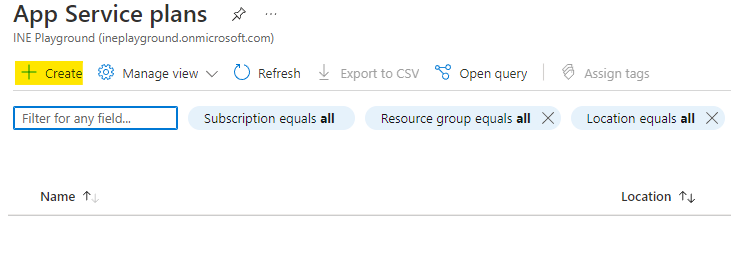
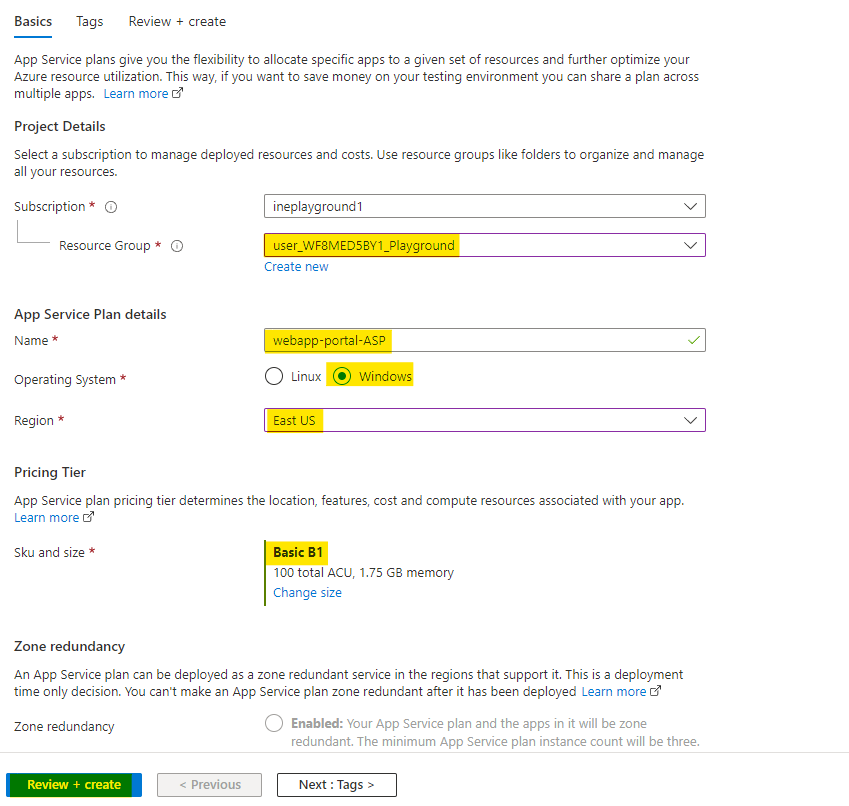
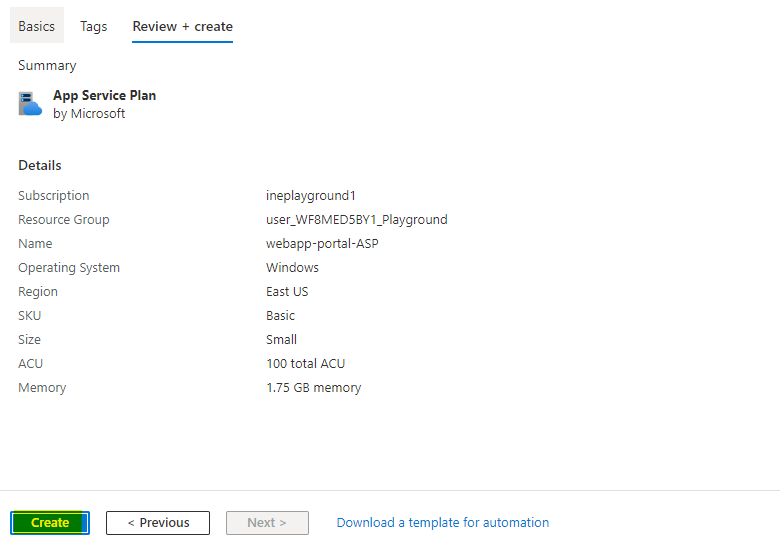
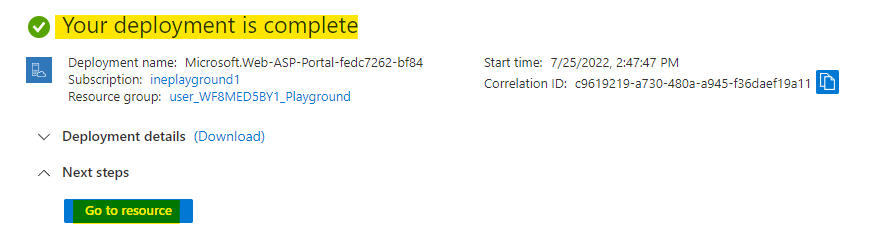
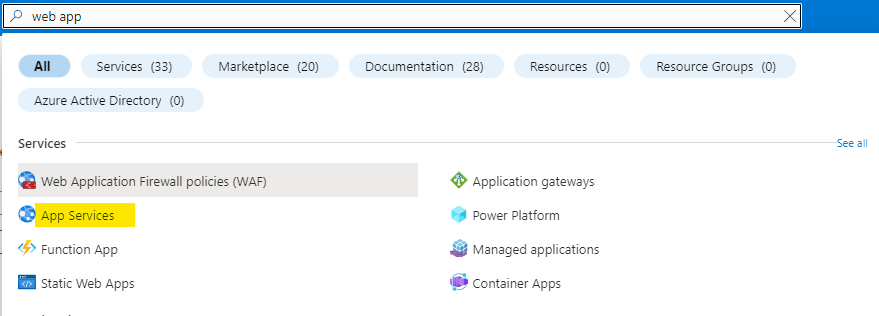
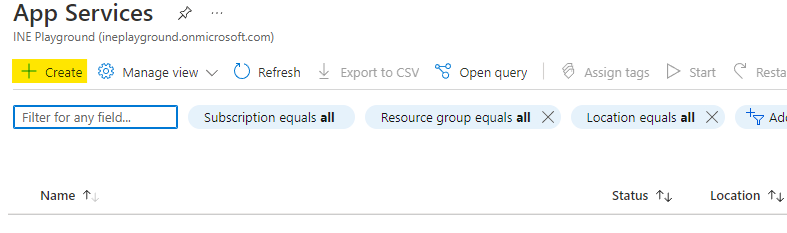
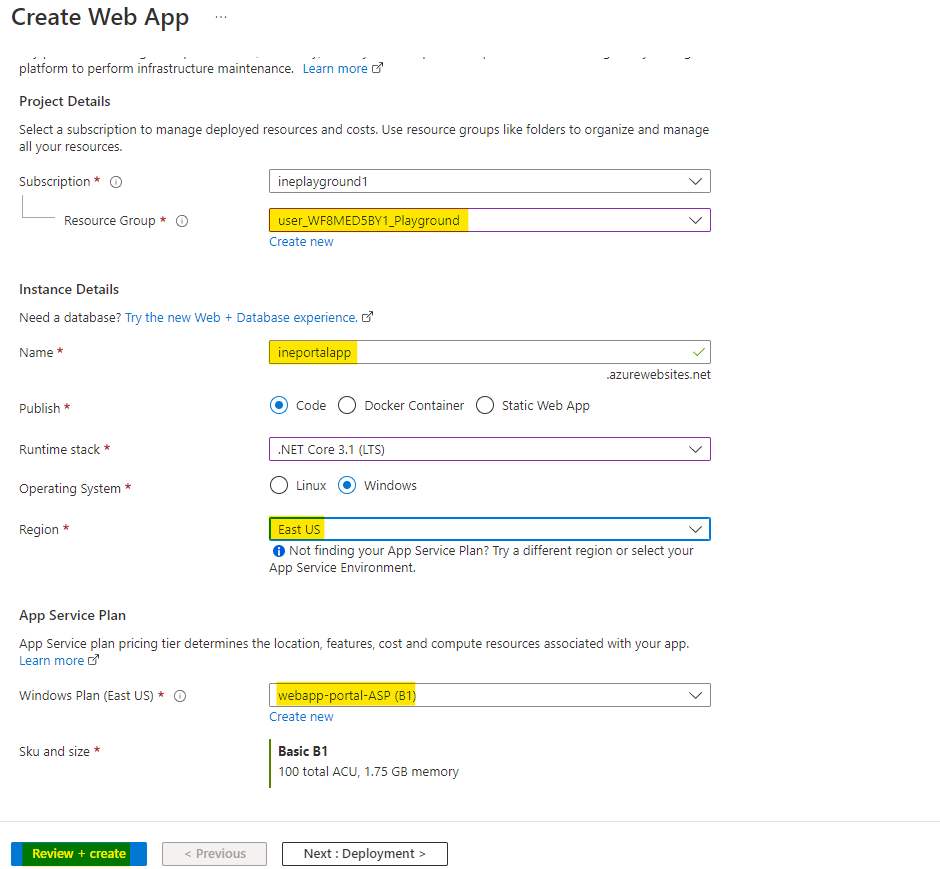
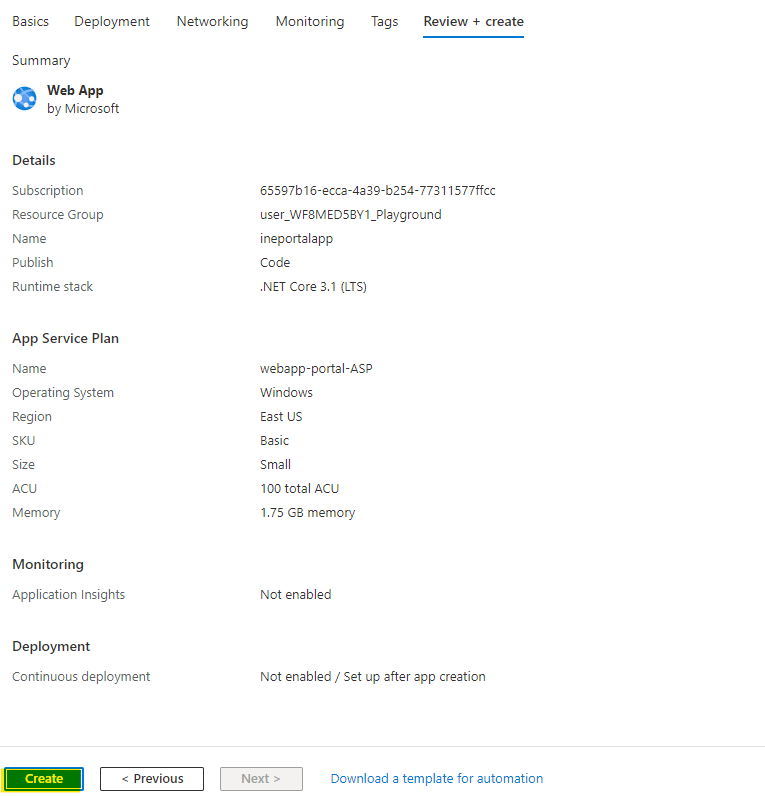
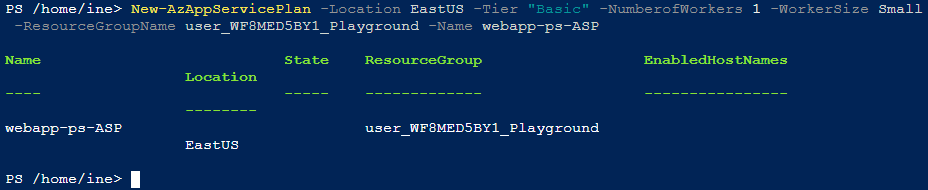
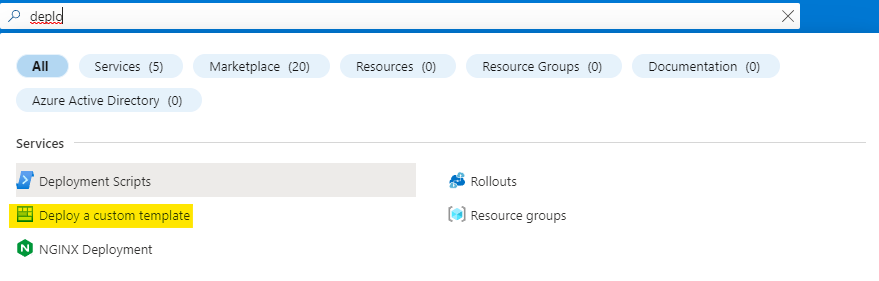
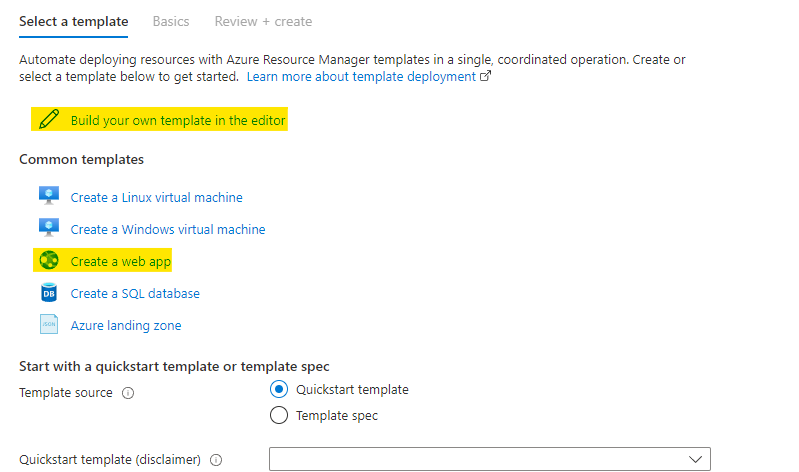
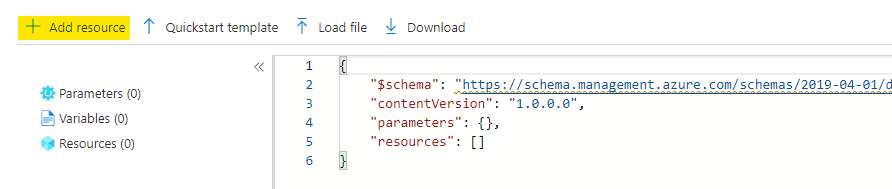
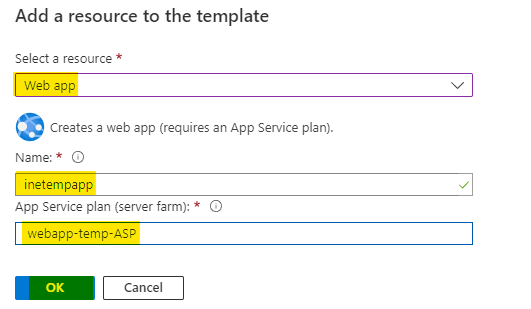
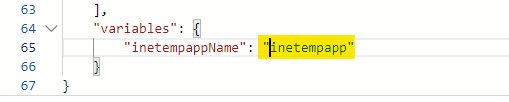
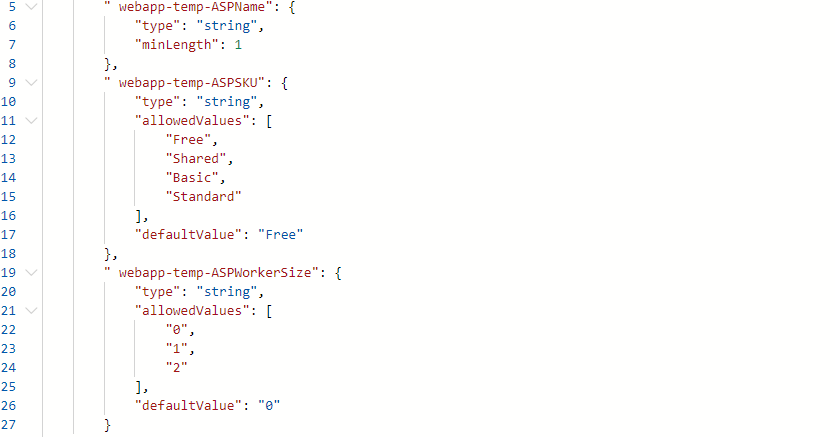
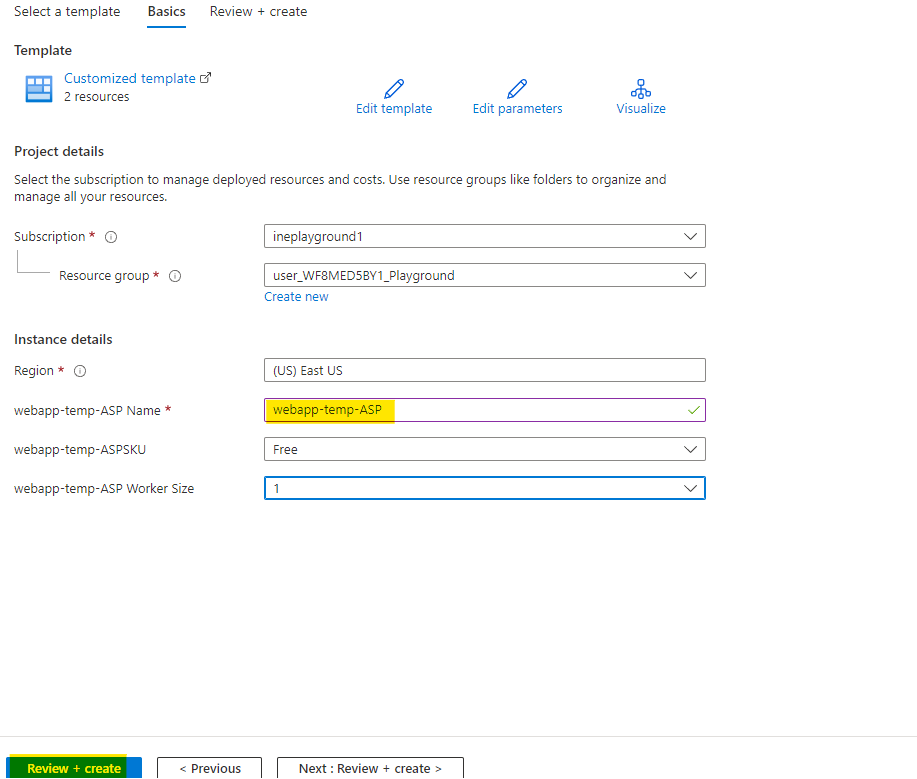
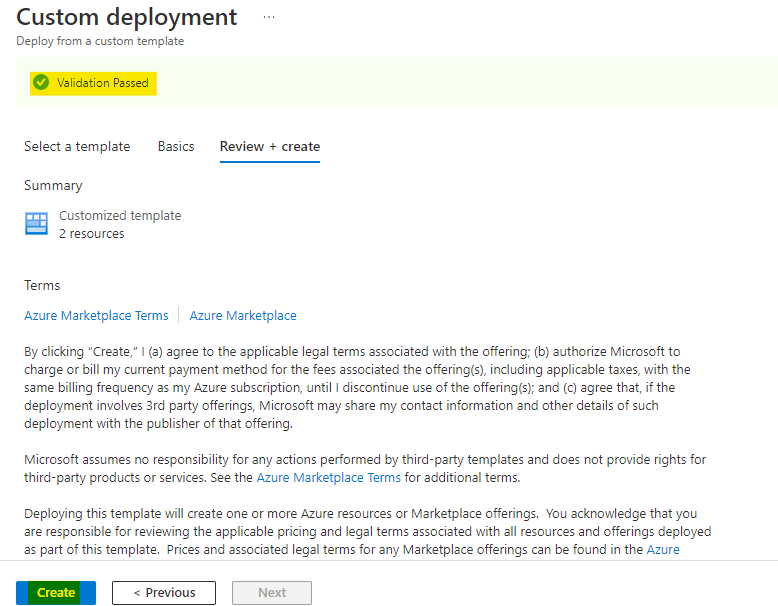
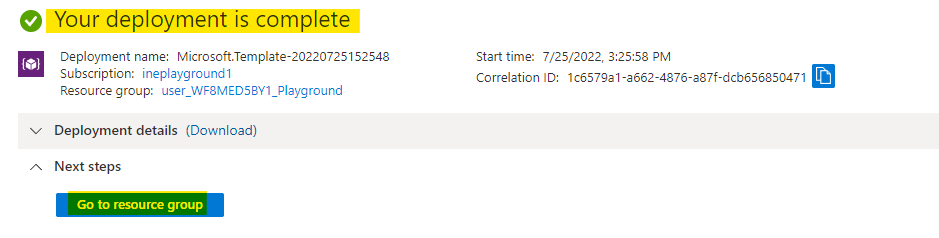
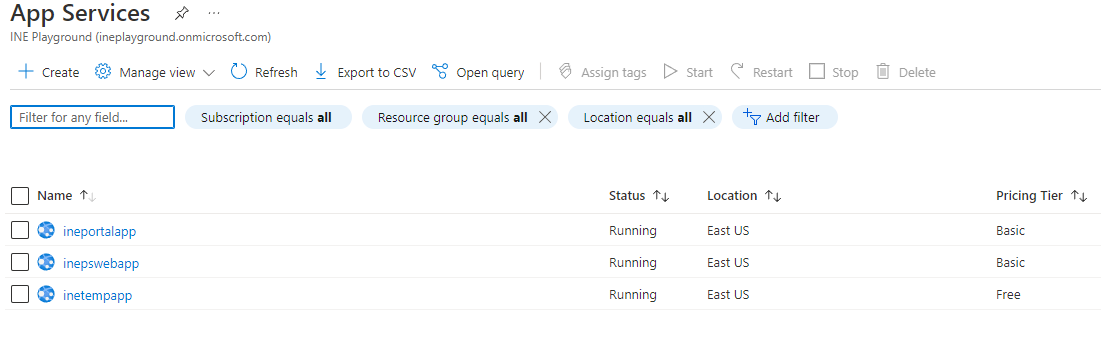
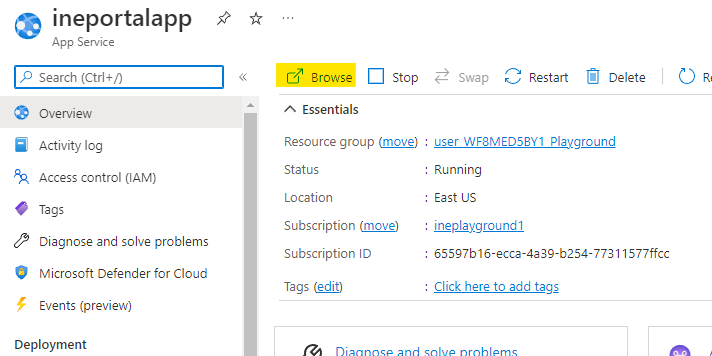
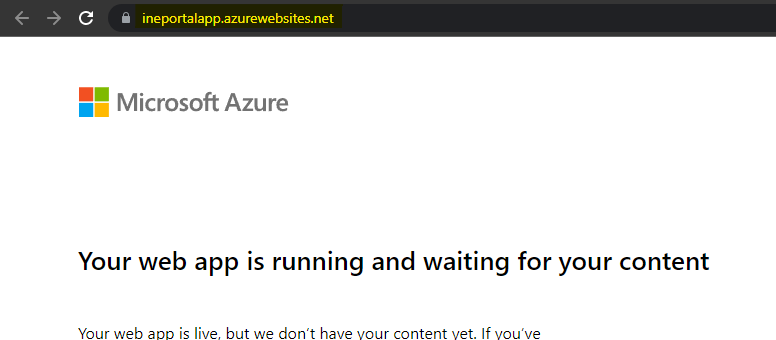
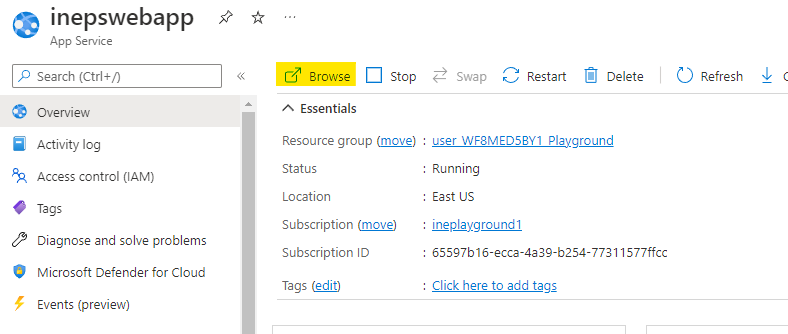
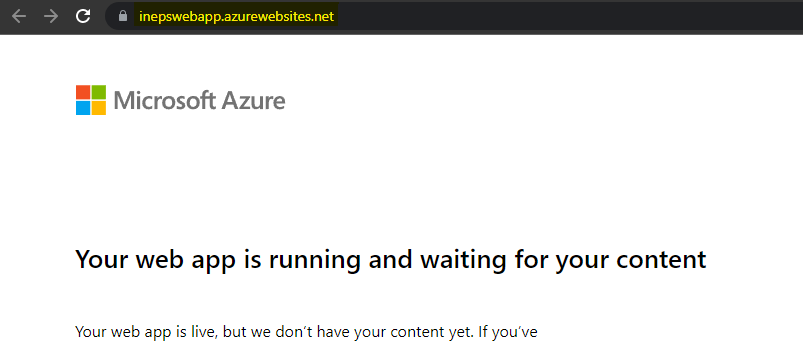
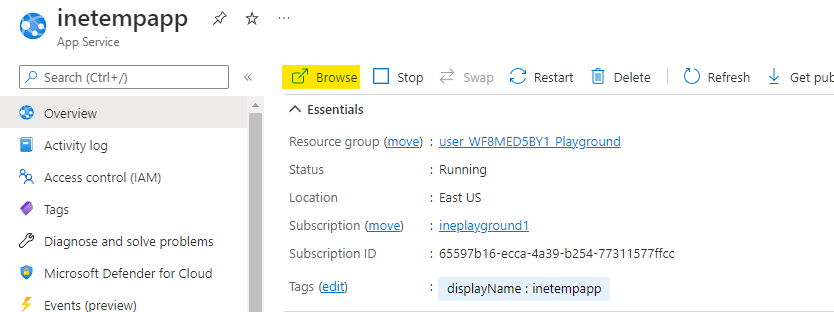
    "solutions": "# Provision a web app via the Azure portal\n\nFirst of all login to your azure portal with the generated credentials. You have to accept the terms and click continue to generate the credentials.\n\n![](https://assets.ine.com/content/labs/azure-course-labs/provision-web-apps/1.png)\n\n**Note:** Your credentials will be different from the one shown in the figure.\n\nAfter logging in to portal using the credentials. You will see an empty resource group, where you can create some resources.\n\n![](https://assets.ine.com/content/labs/azure-course-labs/provision-web-apps/2.png)\n\nSearch for *app service plan* and click on **App Service plans** as highlighted below.\n\n![](https://assets.ine.com/content/labs/azure-course-labs/provision-web-apps/3.png)\n\nClick on **Create** to create new app service plan.\n\n![](https://assets.ine.com/content/labs/azure-course-labs/provision-web-apps/4.png)\n\n* Use your assigned resource group\n* Name the service plan as **webapp-portal-ASP**\n* Use the operating system as **Windows** \n* Create the service plan with **Basic B1** size\n\nClick on **Review+Create** to create the service plan.\n\n![](https://assets.ine.com/content/labs/azure-course-labs/provision-web-apps/5.png)\n\nNow *Azure* will verify your deployment. Click on **Create** to create the app service plan.\n\n\n![](https://assets.ine.com/content/labs/azure-course-labs/provision-web-apps/6.png)\n\nAfter few minutes you will see **Your deployment is complete**, it means everything is deployed correctly.\n\nYou can click on **Go to resource** to go and check the resources you just deployed.\n\n![](https://assets.ine.com/content/labs/azure-course-labs/provision-web-apps/7.png)\n\nSearch for *web app* and click on **App Services** as highlighted below.\n\n\n![](https://assets.ine.com/content/labs/azure-course-labs/provision-web-apps/8.png)\n\nClick on **Create** to create new web app.\n\n![](https://assets.ine.com/content/labs/azure-course-labs/provision-web-apps/9.png)\n\n* Use your assigned resource group\n* Name the web app with a unique name like **ineportalapp**\n* Use the same region as your app service plan\n* Choose the app service plan we just created\n\nClick on **Review+Create** to create the web app.\n\n![](https://assets.ine.com/content/labs/azure-course-labs/provision-web-apps/10.png)\n\nNow *Azure* will verify your deployment. Click on **Create** to create the app service plan.\n\n![](https://assets.ine.com/content/labs/azure-course-labs/provision-web-apps/11.png)\n\nAfter few minutes you will see **Your deployment is complete**, it means everything is deployed correctly.\n\nYou can click on **Go to resource** to go and check the resources you just deployed.\n\n# Provision a web app via PowerShell\n\nOpen your powershell or powershell environment of the cloud shell.\n\nIf you are using the powershell from your computer connect it with your account using the below command.\n\n```\nConnect-AzAccount\n```\n\nNo need to connect when using cloudshell.\n\nUse the below command to create a service plan.\n\n```\nNew-AzAppServicePlan -Location EastUS -Tier \"Basic\" -NumberofWorkers 1 -WorkerSize Small -ResourceGroupName user_WF8MED5BY1_Playground -Name webapp-ps-ASP\n```\n* **New-AzAppServicePlan** will create a new service plan\n* We are using location as **EastUS** \n* Use the tier as **Basic**\n* Set the number of workers as 1 and worksize as small\n* Use the resource group which is assigned to you\n* Give a unique name to the app service plan\n\n![](https://assets.ine.com/content/labs/azure-course-labs/provision-web-apps/12.png)\n\nNow execute the below command to create the web app\n\n```\nNew-AzWebApp -ResourceGroupName user_WF8MED5BY1_Playground -Name inepswebapp -Location EastUs -AppServicePlan webapp-ps-ASP \n```\n* **New-AzWebApp** will create a new web app\n* Use the resource group which is assigned to you\n* Give a unique name for your web app\n* Set the location same as the service plan\n* Use the service plan we created earlier\n\n![](https://assets.ine.com/content/labs/azure-course-labs/provision-web-apps/13.png)\n\nWeb app is now deployed\n\n# Provision a web app via an ARM template\n\nSearch for *Deploy* and click on **Deploy a custom template** as highlighted below.\n\n![](https://assets.ine.com/content/labs/azure-course-labs/provision-web-apps/14.png)\n\nClick on the **Build your own template in the editor** to start creating your own template.\n\nYou can also use the common template for the web app.\n\n![](https://assets.ine.com/content/labs/azure-course-labs/provision-web-apps/15.png)\n\nNow you are at the editor, click on **Add resource** to add resources to your template.\n\n![](https://assets.ine.com/content/labs/azure-course-labs/provision-web-apps/16.png)\n\nSelect the resource as web app.\n\n* Give a unique name for your web app\n* Give a unique name for your app service plan\n\nClick on **OK** to add the resources to your ARM template.\n\n![](https://assets.ine.com/content/labs/azure-course-labs/provision-web-apps/17.png)\n\nScroll down to the variables, ARM script is adding some unique string for your web app name.\n\n![](https://assets.ine.com/content/labs/azure-course-labs/provision-web-apps/18.png)\n\nYou can change it to a name of your choice. But the name should be unique.\n\n![](https://assets.ine.com/content/labs/azure-course-labs/provision-web-apps/19.png)\n\nYou can check all the parameters and make changes if you need to.\n\nClick on **Save** to start the deployment from ARM script.\n\n![](https://assets.ine.com/content/labs/azure-course-labs/provision-web-apps/20.png)\n\nGive  a unique name for the app service plan.\n\nClick on **Review+Create** to create the web app.\n\n![](https://assets.ine.com/content/labs/azure-course-labs/provision-web-apps/21.png)\n\nNow *Azure* will verify your template. After sometime you will see *Validation Passed* that means everything is fine. Click on **Create** to create the resources.\n\n![](https://assets.ine.com/content/labs/azure-course-labs/provision-web-apps/22.png)\n\nAfter few minutes you will see **Your deployment is complete**, it means everything is deployed correctly.\n\nYou can click on **Go to resource group** to go and check the resources you just deployed.\n\n![](https://assets.ine.com/content/labs/azure-course-labs/provision-web-apps/23.png)\n\nNow go back to app services and you can check all three web apps are now deployed.\n\n![](https://assets.ine.com/content/labs/azure-course-labs/provision-web-apps/24.png)\n\nOpen the app created from portal.\n\nClick on **Browse** to open the web app in new tab.\n\n![](https://assets.ine.com/content/labs/azure-course-labs/provision-web-apps/25.png)\n\nYou can see our web app is deployed.\n\n![](https://assets.ine.com/content/labs/azure-course-labs/provision-web-apps/26.png)\n\n\nOpen the app created from powershell.\n\nClick on **Browse** to open the web app in new tab.\n\n![](https://assets.ine.com/content/labs/azure-course-labs/provision-web-apps/27.png)\n\nYou can see our web app is deployed.\n\n![](https://assets.ine.com/content/labs/azure-course-labs/provision-web-apps/28.png)\n\nOpen the app created from ARM script.\n\nClick on **Browse** to open the web app in new tab.\n\n![](https://assets.ine.com/content/labs/azure-course-labs/provision-web-apps/29.png)\n\nThis web app is also deployed.\n\n![](https://assets.ine.com/content/labs/azure-course-labs/provision-web-apps/30.png)\n\n\nThis lab is now complete.",
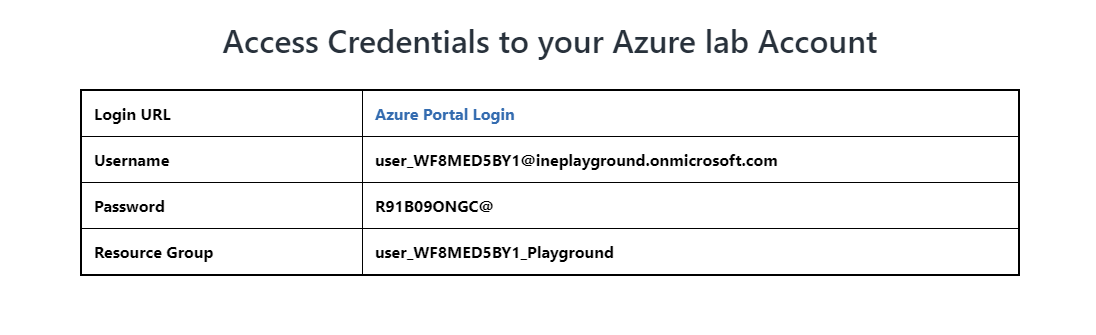
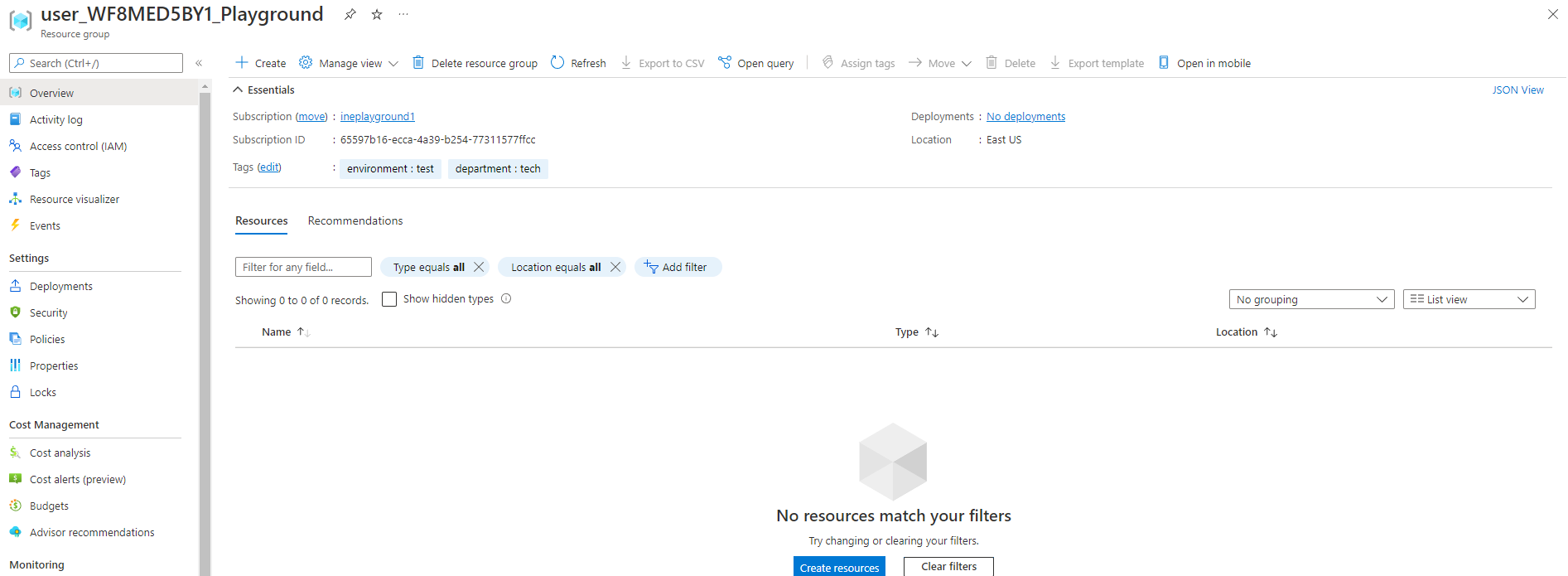
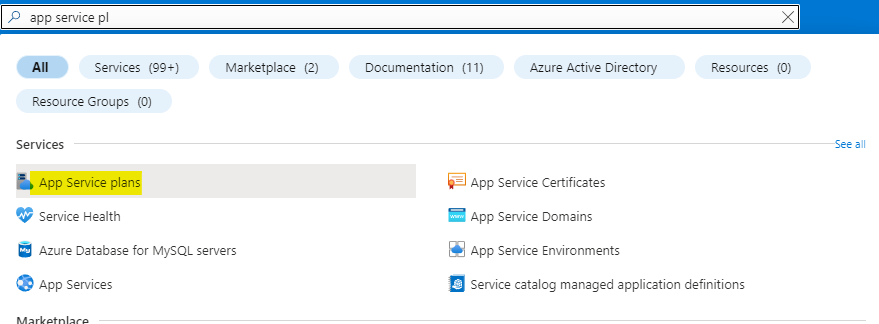


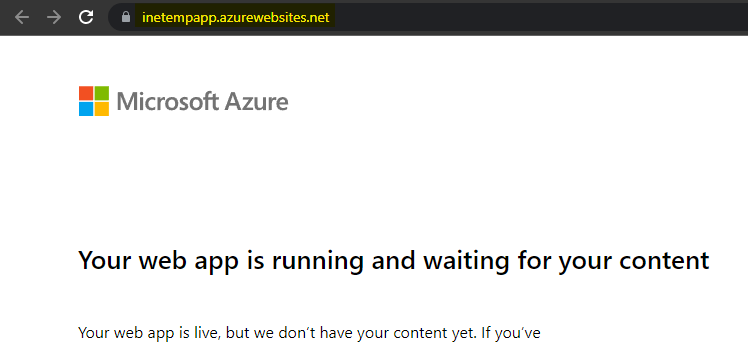
    "solutions_html": "<h1>Provision a web app via the Azure portal</h1>\n<p>First of all login to your azure portal with the generated credentials. You have to accept the terms and click continue to generate the credentials.</p>\n<p><img alt=\"\" src=\"https://assets.ine.com/content/labs/azure-course-labs/provision-web-apps/1.png\" /></p>\n<p><strong>Note:</strong> Your credentials will be different from the one shown in the figure.</p>\n<p>After logging in to portal using the credentials. You will see an empty resource group, where you can create some resources.</p>\n<p><img alt=\"\" src=\"https://assets.ine.com/content/labs/azure-course-labs/provision-web-apps/2.png\" /></p>\n<p>Search for <em>app service plan</em> and click on <strong>App Service plans</strong> as highlighted below.</p>\n<p><img alt=\"\" src=\"https://assets.ine.com/content/labs/azure-course-labs/provision-web-apps/3.png\" /></p>\n<p>Click on <strong>Create</strong> to create new app service plan.</p>\n<p><img alt=\"\" src=\"https://assets.ine.com/content/labs/azure-course-labs/provision-web-apps/4.png\" /></p>\n<ul>\n<li>Use your assigned resource group</li>\n<li>Name the service plan as <strong>webapp-portal-ASP</strong></li>\n<li>Use the operating system as <strong>Windows</strong> </li>\n<li>Create the service plan with <strong>Basic B1</strong> size</li>\n</ul>\n<p>Click on <strong>Review+Create</strong> to create the service plan.</p>\n<p><img alt=\"\" src=\"https://assets.ine.com/content/labs/azure-course-labs/provision-web-apps/5.png\" /></p>\n<p>Now <em>Azure</em> will verify your deployment. Click on <strong>Create</strong> to create the app service plan.</p>\n<p><img alt=\"\" src=\"https://assets.ine.com/content/labs/azure-course-labs/provision-web-apps/6.png\" /></p>\n<p>After few minutes you will see <strong>Your deployment is complete</strong>, it means everything is deployed correctly.</p>\n<p>You can click on <strong>Go to resource</strong> to go and check the resources you just deployed.</p>\n<p><img alt=\"\" src=\"https://assets.ine.com/content/labs/azure-course-labs/provision-web-apps/7.png\" /></p>\n<p>Search for <em>web app</em> and click on <strong>App Services</strong> as highlighted below.</p>\n<p><img alt=\"\" src=\"https://assets.ine.com/content/labs/azure-course-labs/provision-web-apps/8.png\" /></p>\n<p>Click on <strong>Create</strong> to create new web app.</p>\n<p><img alt=\"\" src=\"https://assets.ine.com/content/labs/azure-course-labs/provision-web-apps/9.png\" /></p>\n<ul>\n<li>Use your assigned resource group</li>\n<li>Name the web app with a unique name like <strong>ineportalapp</strong></li>\n<li>Use the same region as your app service plan</li>\n<li>Choose the app service plan we just created</li>\n</ul>\n<p>Click on <strong>Review+Create</strong> to create the web app.</p>\n<p><img alt=\"\" src=\"https://assets.ine.com/content/labs/azure-course-labs/provision-web-apps/10.png\" /></p>\n<p>Now <em>Azure</em> will verify your deployment. Click on <strong>Create</strong> to create the app service plan.</p>\n<p><img alt=\"\" src=\"https://assets.ine.com/content/labs/azure-course-labs/provision-web-apps/11.png\" /></p>\n<p>After few minutes you will see <strong>Your deployment is complete</strong>, it means everything is deployed correctly.</p>\n<p>You can click on <strong>Go to resource</strong> to go and check the resources you just deployed.</p>\n<h1>Provision a web app via PowerShell</h1>\n<p>Open your powershell or powershell environment of the cloud shell.</p>\n<p>If you are using the powershell from your computer connect it with your account using the below command.</p>\n<pre class=\"codehilite\"><code>Connect-AzAccount</code></pre>\n\n<p>No need to connect when using cloudshell.</p>\n<p>Use the below command to create a service plan.</p>\n<p><pre class=\"codehilite\"><code>New-AzAppServicePlan -Location EastUS -Tier \"Basic\" -NumberofWorkers 1 -WorkerSize Small -ResourceGroupName user_WF8MED5BY1_Playground -Name webapp-ps-ASP</code></pre>\n* <strong>New-AzAppServicePlan</strong> will create a new service plan\n* We are using location as <strong>EastUS</strong> \n* Use the tier as <strong>Basic</strong>\n* Set the number of workers as 1 and worksize as small\n* Use the resource group which is assigned to you\n* Give a unique name to the app service plan</p>\n<p><img alt=\"\" src=\"https://assets.ine.com/content/labs/azure-course-labs/provision-web-apps/12.png\" /></p>\n<p>Now execute the below command to create the web app</p>\n<p><pre class=\"codehilite\"><code>New-AzWebApp -ResourceGroupName user_WF8MED5BY1_Playground -Name inepswebapp -Location EastUs -AppServicePlan webapp-ps-ASP </code></pre>\n* <strong>New-AzWebApp</strong> will create a new web app\n* Use the resource group which is assigned to you\n* Give a unique name for your web app\n* Set the location same as the service plan\n* Use the service plan we created earlier</p>\n<p><img alt=\"\" src=\"https://assets.ine.com/content/labs/azure-course-labs/provision-web-apps/13.png\" /></p>\n<p>Web app is now deployed</p>\n<h1>Provision a web app via an ARM template</h1>\n<p>Search for <em>Deploy</em> and click on <strong>Deploy a custom template</strong> as highlighted below.</p>\n<p><img alt=\"\" src=\"https://assets.ine.com/content/labs/azure-course-labs/provision-web-apps/14.png\" /></p>\n<p>Click on the <strong>Build your own template in the editor</strong> to start creating your own template.</p>\n<p>You can also use the common template for the web app.</p>\n<p><img alt=\"\" src=\"https://assets.ine.com/content/labs/azure-course-labs/provision-web-apps/15.png\" /></p>\n<p>Now you are at the editor, click on <strong>Add resource</strong> to add resources to your template.</p>\n<p><img alt=\"\" src=\"https://assets.ine.com/content/labs/azure-course-labs/provision-web-apps/16.png\" /></p>\n<p>Select the resource as web app.</p>\n<ul>\n<li>Give a unique name for your web app</li>\n<li>Give a unique name for your app service plan</li>\n</ul>\n<p>Click on <strong>OK</strong> to add the resources to your ARM template.</p>\n<p><img alt=\"\" src=\"https://assets.ine.com/content/labs/azure-course-labs/provision-web-apps/17.png\" /></p>\n<p>Scroll down to the variables, ARM script is adding some unique string for your web app name.</p>\n<p><img alt=\"\" src=\"https://assets.ine.com/content/labs/azure-course-labs/provision-web-apps/18.png\" /></p>\n<p>You can change it to a name of your choice. But the name should be unique.</p>\n<p><img alt=\"\" src=\"https://assets.ine.com/content/labs/azure-course-labs/provision-web-apps/19.png\" /></p>\n<p>You can check all the parameters and make changes if you need to.</p>\n<p>Click on <strong>Save</strong> to start the deployment from ARM script.</p>\n<p><img alt=\"\" src=\"https://assets.ine.com/content/labs/azure-course-labs/provision-web-apps/20.png\" /></p>\n<p>Give  a unique name for the app service plan.</p>\n<p>Click on <strong>Review+Create</strong> to create the web app.</p>\n<p><img alt=\"\" src=\"https://assets.ine.com/content/labs/azure-course-labs/provision-web-apps/21.png\" /></p>\n<p>Now <em>Azure</em> will verify your template. After sometime you will see <em>Validation Passed</em> that means everything is fine. Click on <strong>Create</strong> to create the resources.</p>\n<p><img alt=\"\" src=\"https://assets.ine.com/content/labs/azure-course-labs/provision-web-apps/22.png\" /></p>\n<p>After few minutes you will see <strong>Your deployment is complete</strong>, it means everything is deployed correctly.</p>\n<p>You can click on <strong>Go to resource group</strong> to go and check the resources you just deployed.</p>\n<p><img alt=\"\" src=\"https://assets.ine.com/content/labs/azure-course-labs/provision-web-apps/23.png\" /></p>\n<p>Now go back to app services and you can check all three web apps are now deployed.</p>\n<p><img alt=\"\" src=\"https://assets.ine.com/content/labs/azure-course-labs/provision-web-apps/24.png\" /></p>\n<p>Open the app created from portal.</p>\n<p>Click on <strong>Browse</strong> to open the web app in new tab.</p>\n<p><img alt=\"\" src=\"https://assets.ine.com/content/labs/azure-course-labs/provision-web-apps/25.png\" /></p>\n<p>You can see our web app is deployed.</p>\n<p><img alt=\"\" src=\"https://assets.ine.com/content/labs/azure-course-labs/provision-web-apps/26.png\" /></p>\n<p>Open the app created from powershell.</p>\n<p>Click on <strong>Browse</strong> to open the web app in new tab.</p>\n<p><img alt=\"\" src=\"https://assets.ine.com/content/labs/azure-course-labs/provision-web-apps/27.png\" /></p>\n<p>You can see our web app is deployed.</p>\n<p><img alt=\"\" src=\"https://assets.ine.com/content/labs/azure-course-labs/provision-web-apps/28.png\" /></p>\n<p>Open the app created from ARM script.</p>\n<p>Click on <strong>Browse</strong> to open the web app in new tab.</p>\n<p><img alt=\"\" src=\"https://assets.ine.com/content/labs/azure-course-labs/provision-web-apps/29.png\" /></p>\n<p>This web app is also deployed.</p>\n<p><img alt=\"\" src=\"https://assets.ine.com/content/labs/azure-course-labs/provision-web-apps/30.png\" /></p>\n<p>This lab is now complete.</p>",
    "flags": [],
    "min_points_to_pass": null,
    "access_type": "web",
    "user_status": "unstarted",
    "user_lab_status": null,
    "user_status_modified": null,
    "user_flags": [],
    "global_running_session": null
}