{
    "id": "e47a3494-526c-4718-81d7-4ef3c57c2f5d",
    "name": "Implement a Container Instance",
    "slug": "implement-a-container-instance",
    "status": "published",
    "lab_type": "pta",
    "is_sample": false,
    "duration_in_seconds": 1800,
    "metadata": {
        "courses": [
            "1a20bc1a-9d44-4503-95f2-3de135097a2e"
        ],
        "pta_sdn": "142",
        "pta_namespace": "my.ine",
        "learning_paths": [],
        "has_published_parent": true
    },
    "session": null,
    "company": "a491bc32-c056-4946-9169-cc053387bada",
    "created": "2022-08-01T21:21:36.681067Z",
    "modified": "2023-10-03T18:59:07.307612Z",
    "is_beta": false,
    "lab_objectives": [],
    "main_learning_area": "d3f82c70-f4e7-428e-afd7-4b1d28988e18",
    "learning_areas": [
        {
            "id": "d3f82c70-f4e7-428e-afd7-4b1d28988e18",
            "name": "Cloud",
            "slug": "cloud"
        }
    ],
    "categories": [],
    "tags": [],
    "difficulty": null,
    "is_web_access": true,
    "is_lab_experience": false,
    "is_featured": false,
    "cve": null,
    "severity": null,
    "year": null,
    "classification": null,
    "is_trackable": false,
    "cpe_credits": null,
    "is_skill_check": false,
    "external_url": "",
    "solution_video": null,
    "explanation_video": null,
    "description": "In this task you will provision a container instance to host a web application. You will then verify that the application works as expected.",
    "description_html": "<p>In this task you will provision a container instance to host a web application. You will then verify that the application works as expected.</p>",
    "tasks": "",
    "tasks_html": "",
    "published_date": "2020-04-07T18:00:00Z",
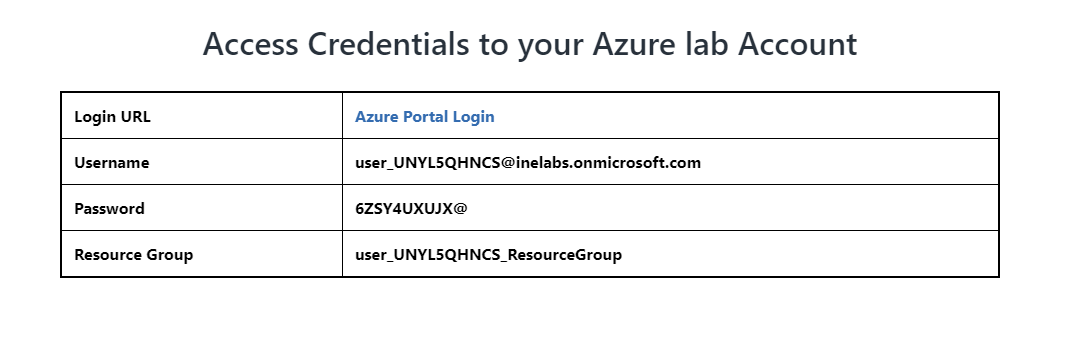
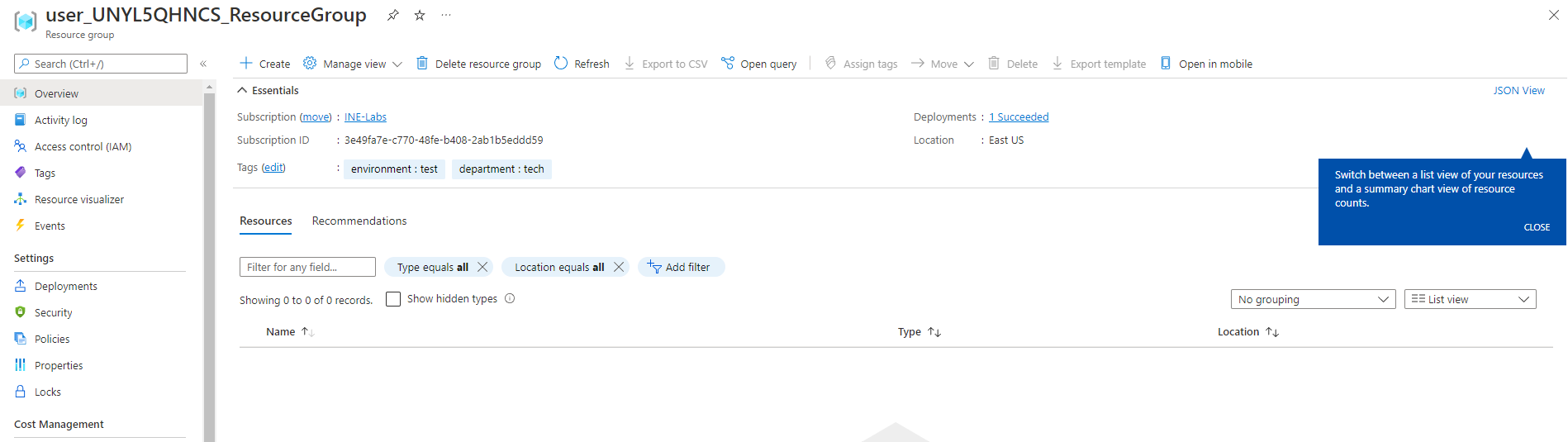
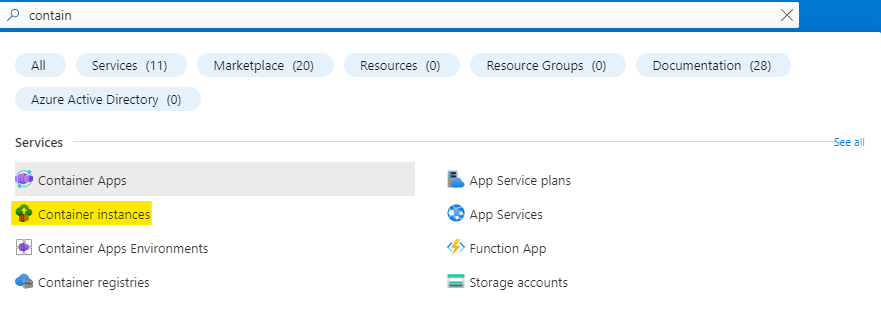
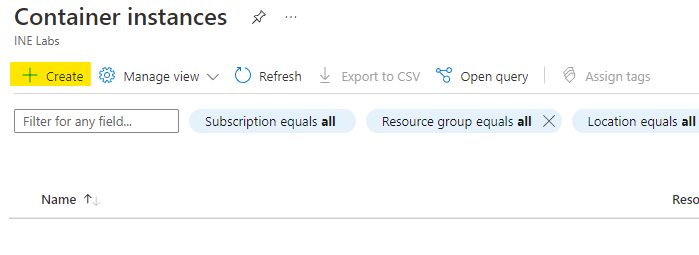
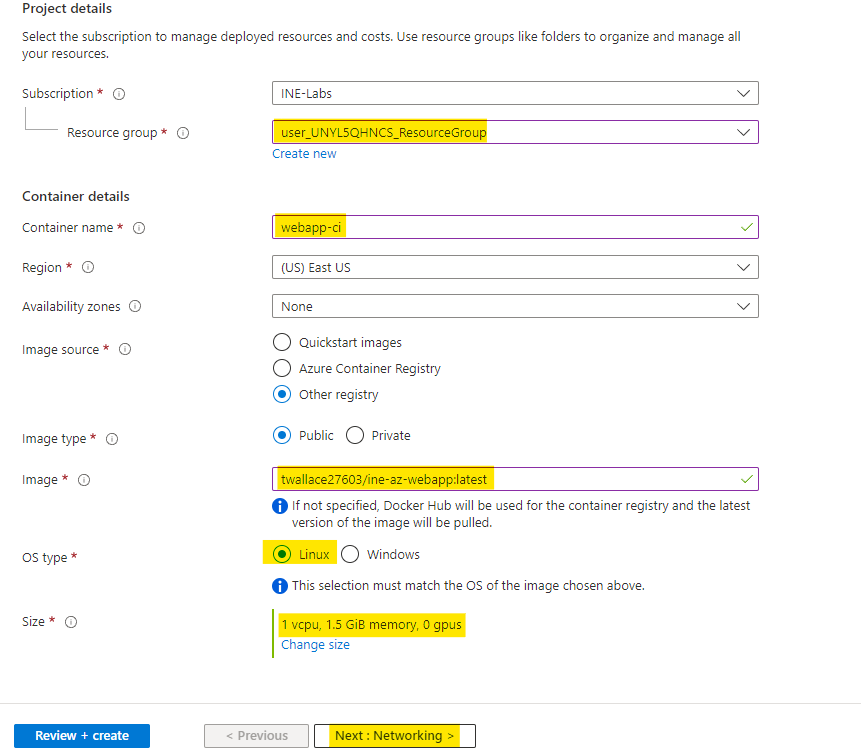
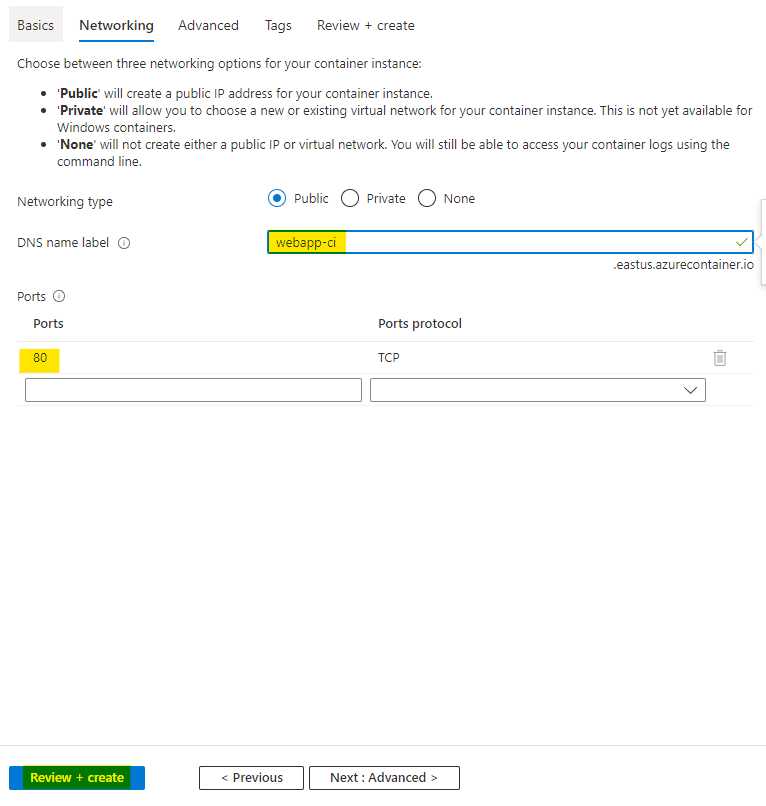
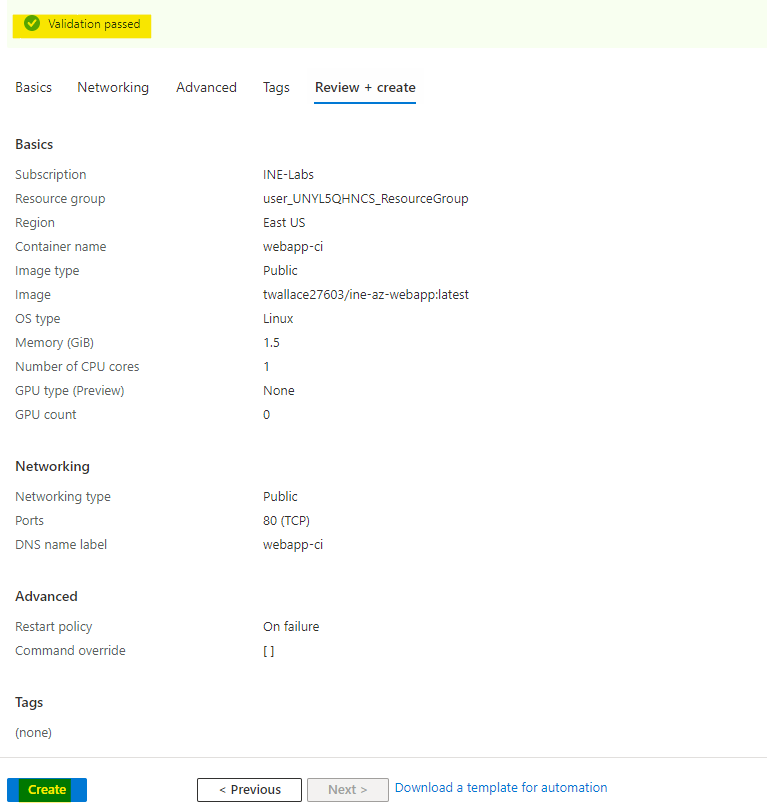
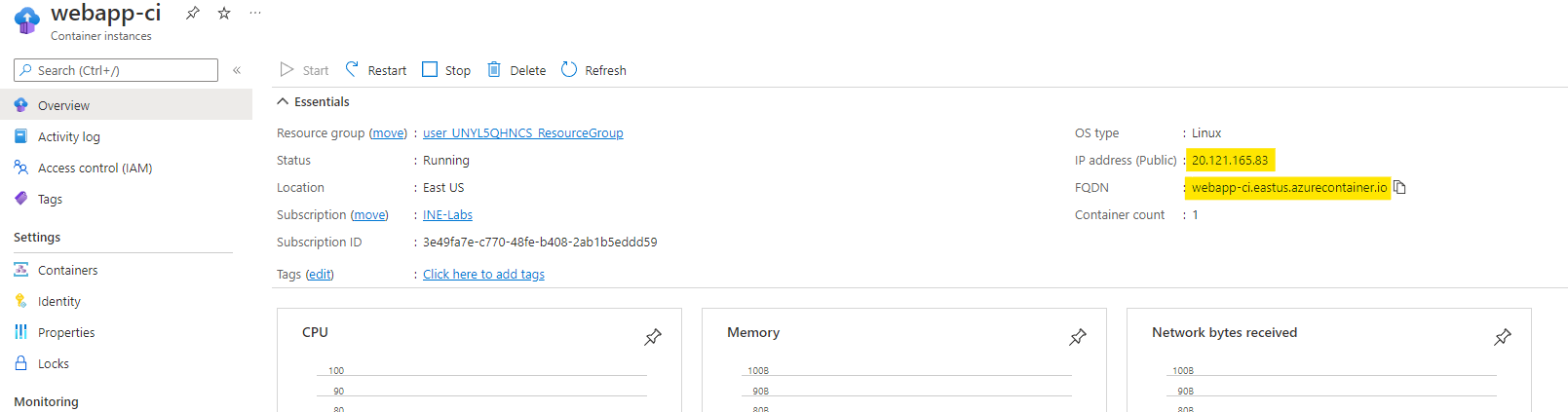
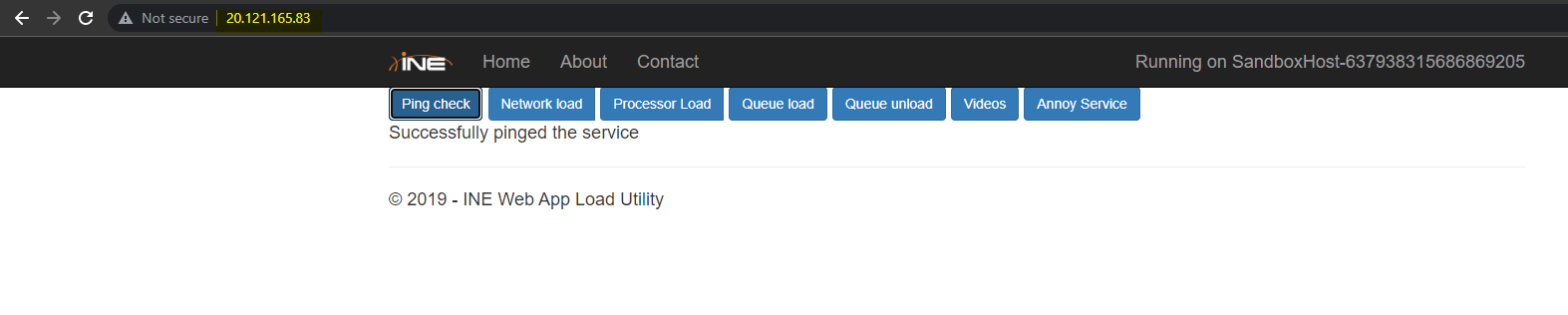
    "solutions": "# Provision a container instance\n\nFirst of all login to your azure portal with the generated credentials. You have to accept the terms and click continue to generate the credentials.\n\n![](https://assets.ine.com/content/labs/azure-course-labs/implement-a-container-instance/1.png)\n\n**Note:** Your credentials will be different from the one shown in the figure.\n\nAfter logging in to portal using the credentials. You will see an empty resource group, where you can create some resources.\n\n![](https://assets.ine.com/content/labs/azure-course-labs/implement-a-container-instance/2.png)\n\nSearch for *Container* and click on **Container instances** as highlighted below.\n\n![](https://assets.ine.com/content/labs/azure-course-labs/implement-a-container-instance/3.png)\n\nClick on the **Create** to start creating a new container instance.\n\n![](https://assets.ine.com/content/labs/azure-course-labs/implement-a-container-instance/4.png)\n\nNow configure your container instance as follows:\n\n* Use the resource group assigned to you\n* Give your container a name as **webapp-ci**\n* Use a region which is near to you\n* Select the image source as other registry\n* Use image type as **Public**\n* Use the below image \n```\n\ttwallace27603/ine-az-webapp:latest\n```\n* Select OS type as **Linux**\n* Set the size as *1 vcpu, 1.5GiB memmory*\n\nNow after doing this configuration, click on **Next** to configure networking.\n\n![](https://assets.ine.com/content/labs/azure-course-labs/implement-a-container-instance/5.png)\n\n* Set the port 80 to be open\n* Give a unique name on **DNS name label**\n\nClick on **Review+Create** to create the container instance.\n\n![](https://assets.ine.com/content/labs/azure-course-labs/implement-a-container-instance/6.png)\n\nNow *Azure* will verify your deployment. After sometime you will see *Validation Passed* that means everything is fine. Click on **Create** to create the container instance.\n\n![](https://assets.ine.com/content/labs/azure-course-labs/implement-a-container-instance/7.png)\n\nAfter few minutes you will see **Your deployment is complete**, it means everything is deployed correctly.\n\nYou can click on **Go to resource** to go and check the resource you just deployed.\n\n![](https://assets.ine.com/content/labs/azure-course-labs/implement-a-container-instance/8.png)\n\n# Verify the container instance\n\nHere at the container instance you can see the public **IP address** and **FQDN** also. FQDN is fully qualified domain name.\n\nYou can use any of them to access the container instance.\n\n![](https://assets.ine.com/content/labs/azure-course-labs/implement-a-container-instance/9.png)\n\nCopy the **IP address** and paste it in your browser. You can see that our container instance is deployed properly.\n\n![](https://assets.ine.com/content/labs/azure-course-labs/implement-a-container-instance/10.png)\n\nCopy the **FQDN** and paste it in your browser. You can see that you can also access the web app from FQDN.\n\n![](https://assets.ine.com/content/labs/azure-course-labs/implement-a-container-instance/11.png)\n\n**Note:** It may take upto 2 minutes after deployment, to actually access the webapp from your browser. So reload the **IP address** or **FQDN** a few times.\n\nThe lab is now complete.",

    "solutions_html": "<h1>Provision a container instance</h1>\n<p>First of all login to your azure portal with the generated credentials. You have to accept the terms and click continue to generate the credentials.</p>\n<p><img alt=\"\" src=\"https://assets.ine.com/content/labs/azure-course-labs/implement-a-container-instance/1.png\" /></p>\n<p><strong>Note:</strong> Your credentials will be different from the one shown in the figure.</p>\n<p>After logging in to portal using the credentials. You will see an empty resource group, where you can create some resources.</p>\n<p><img alt=\"\" src=\"https://assets.ine.com/content/labs/azure-course-labs/implement-a-container-instance/2.png\" /></p>\n<p>Search for <em>Container</em> and click on <strong>Container instances</strong> as highlighted below.</p>\n<p><img alt=\"\" src=\"https://assets.ine.com/content/labs/azure-course-labs/implement-a-container-instance/3.png\" /></p>\n<p>Click on the <strong>Create</strong> to start creating a new container instance.</p>\n<p><img alt=\"\" src=\"https://assets.ine.com/content/labs/azure-course-labs/implement-a-container-instance/4.png\" /></p>\n<p>Now configure your container instance as follows:</p>\n<ul>\n<li>Use the resource group assigned to you</li>\n<li>Give your container a name as <strong>webapp-ci</strong></li>\n<li>Use a region which is near to you</li>\n<li>Select the image source as other registry</li>\n<li>Use image type as <strong>Public</strong></li>\n<li>Use the below image \n<pre class=\"codehilite\"><code>    twallace27603/ine-az-webapp:latest</code></pre></li>\n<li>Select OS type as <strong>Linux</strong></li>\n<li>Set the size as <em>1 vcpu, 1.5GiB memmory</em></li>\n</ul>\n<p>Now after doing this configuration, click on <strong>Next</strong> to configure networking.</p>\n<p><img alt=\"\" src=\"https://assets.ine.com/content/labs/azure-course-labs/implement-a-container-instance/5.png\" /></p>\n<ul>\n<li>Set the port 80 to be open</li>\n<li>Give a unique name on <strong>DNS name label</strong></li>\n</ul>\n<p>Click on <strong>Review+Create</strong> to create the container instance.</p>\n<p><img alt=\"\" src=\"https://assets.ine.com/content/labs/azure-course-labs/implement-a-container-instance/6.png\" /></p>\n<p>Now <em>Azure</em> will verify your deployment. After sometime you will see <em>Validation Passed</em> that means everything is fine. Click on <strong>Create</strong> to create the container instance.</p>\n<p><img alt=\"\" src=\"https://assets.ine.com/content/labs/azure-course-labs/implement-a-container-instance/7.png\" /></p>\n<p>After few minutes you will see <strong>Your deployment is complete</strong>, it means everything is deployed correctly.</p>\n<p>You can click on <strong>Go to resource</strong> to go and check the resource you just deployed.</p>\n<p><img alt=\"\" src=\"https://assets.ine.com/content/labs/azure-course-labs/implement-a-container-instance/8.png\" /></p>\n<h1>Verify the container instance</h1>\n<p>Here at the container instance you can see the public <strong>IP address</strong> and <strong>FQDN</strong> also. FQDN is fully qualified domain name.</p>\n<p>You can use any of them to access the container instance.</p>\n<p><img alt=\"\" src=\"https://assets.ine.com/content/labs/azure-course-labs/implement-a-container-instance/9.png\" /></p>\n<p>Copy the <strong>IP address</strong> and paste it in your browser. You can see that our container instance is deployed properly.</p>\n<p><img alt=\"\" src=\"https://assets.ine.com/content/labs/azure-course-labs/implement-a-container-instance/10.png\" /></p>\n<p>Copy the <strong>FQDN</strong> and paste it in your browser. You can see that you can also access the web app from FQDN.</p>\n<p><img alt=\"\" src=\"https://assets.ine.com/content/labs/azure-course-labs/implement-a-container-instance/11.png\" /></p>\n<p><strong>Note:</strong> It may take upto 2 minutes after deployment, to actually access the webapp from your browser. So reload the <strong>IP address</strong> or <strong>FQDN</strong> a few times.</p>\n<p>The lab is now complete.</p>",
    "flags": [],
    "min_points_to_pass": null,
    "access_type": "web",
    "user_status": "unstarted",
    "user_lab_status": null,
    "user_status_modified": null,
    "user_flags": [],
    "global_running_session": null
}