{
    "id": "d2d041a4-fceb-4103-862d-526bbf21eb48",
    "name": "Configure an Azure Application Gateway",
    "slug": "configure-an-azure-application-gateway",
    "status": "published",
    "lab_type": "pta",
    "is_sample": false,
    "duration_in_seconds": 1800,
    "metadata": {
        "courses": [
            "26f9ad91-c452-41bd-87ea-284a1e3de3f3",
            "9d8d4179-9915-4895-95e6-178f7ca69436"
        ],
        "pta_sdn": "386",
        "pta_namespace": "my.ine",
        "learning_paths": [],
        "has_published_parent": true
    },
    "session": null,
    "company": "a491bc32-c056-4946-9169-cc053387bada",
    "created": "2022-10-07T16:53:45.187839Z",
    "modified": "2023-10-03T18:59:04.166331Z",
    "is_beta": false,
    "lab_objectives": [],
    "main_learning_area": "d3f82c70-f4e7-428e-afd7-4b1d28988e18",
    "learning_areas": [
        {
            "id": "d3f82c70-f4e7-428e-afd7-4b1d28988e18",
            "name": "Cloud",
            "slug": "cloud"
        }
    ],
    "categories": [],
    "tags": [],
    "difficulty": null,
    "is_web_access": true,
    "is_lab_experience": false,
    "is_featured": false,
    "cve": null,
    "severity": null,
    "year": null,
    "classification": null,
    "is_trackable": false,
    "cpe_credits": null,
    "is_skill_check": false,
    "external_url": "",
    "solution_video": null,
    "explanation_video": null,
    "description": "The goal of this task is to provision and configure an Azure application gateway. The gateway will serve as both a public and private endpoint for two servers that host a web application.",
    "description_html": "<p>The goal of this task is to provision and configure an Azure application gateway. The gateway will serve as both a public and private endpoint for two servers that host a web application.</p>",
    "tasks": "",
    "tasks_html": "",
    "published_date": "2020-04-07T18:00:00Z",
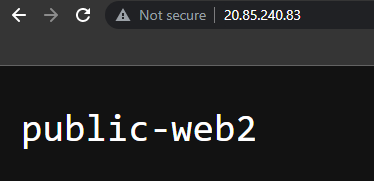
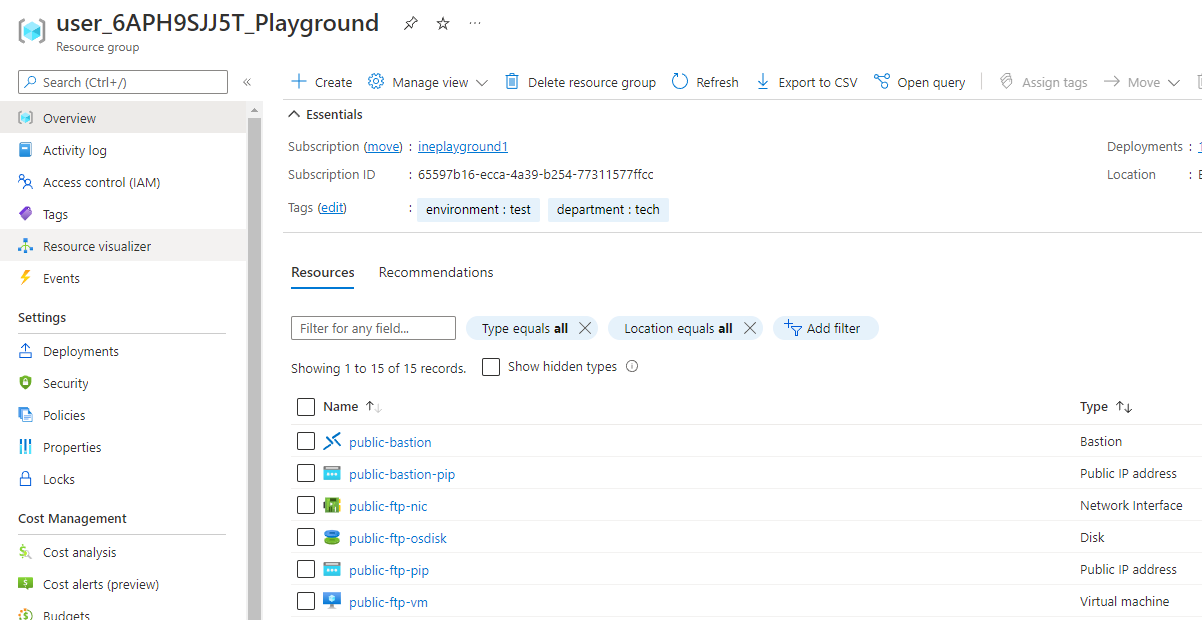
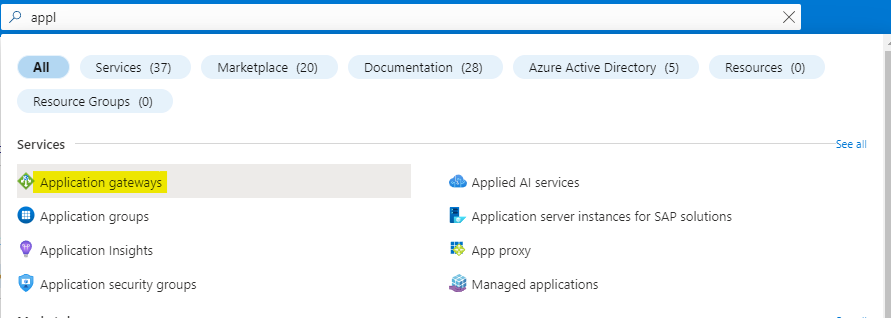
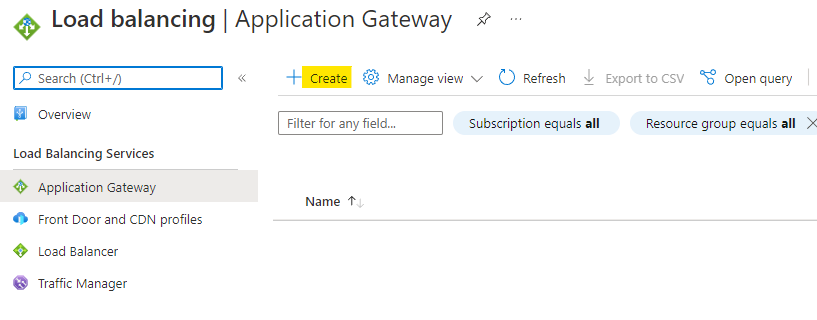
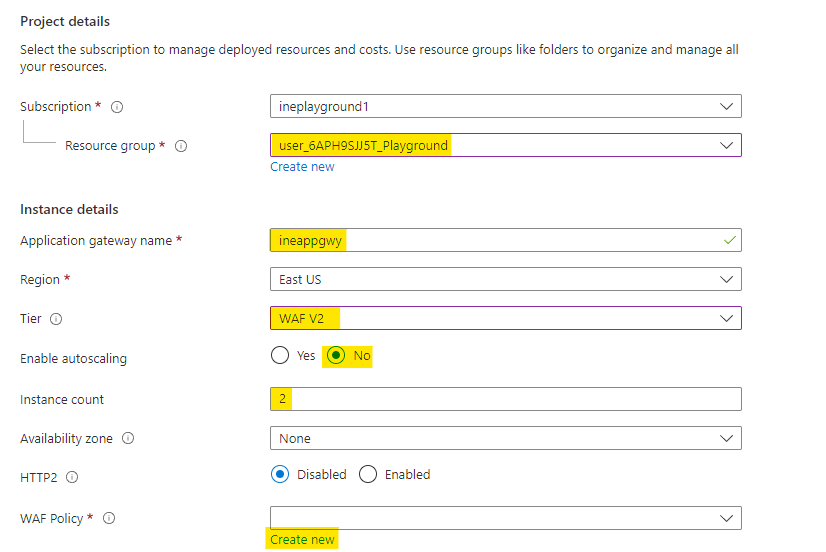
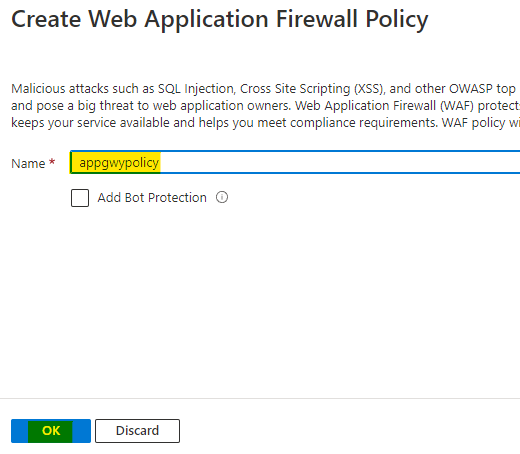
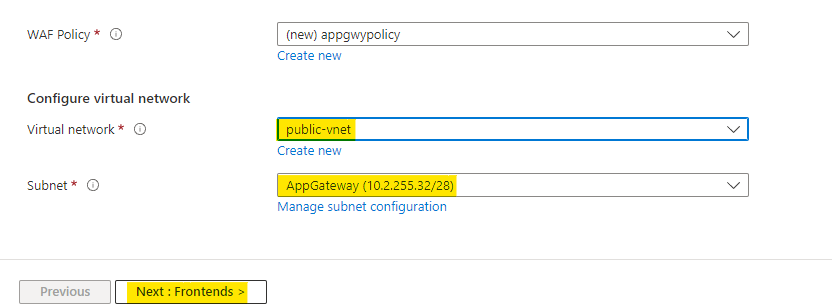
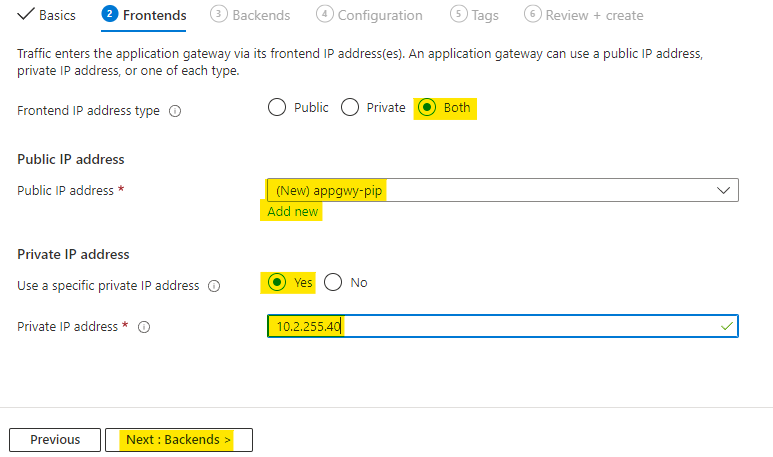
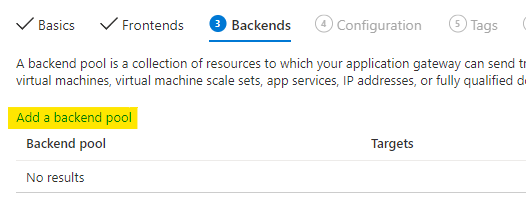
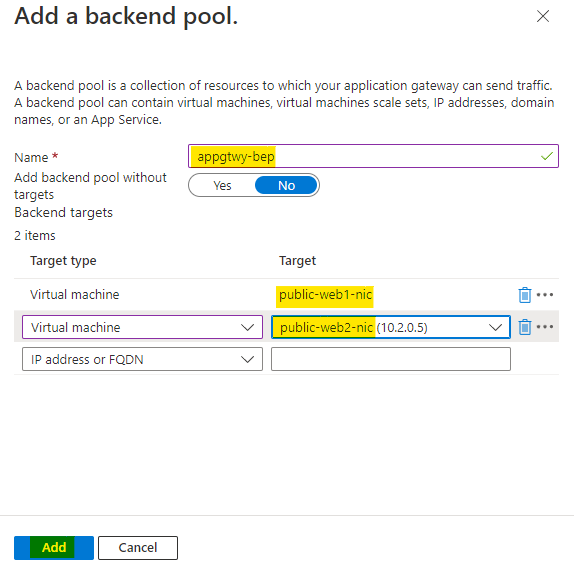
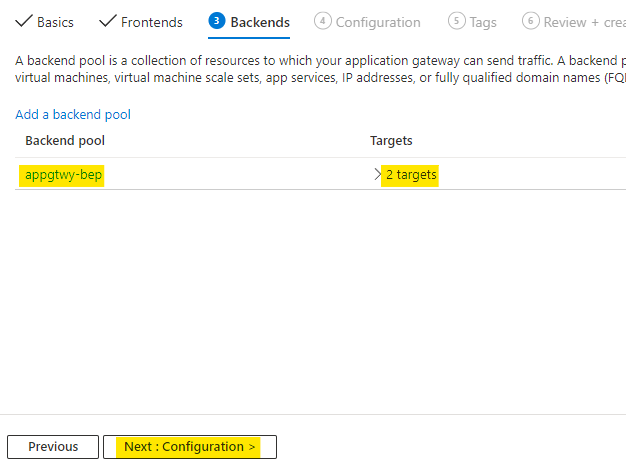
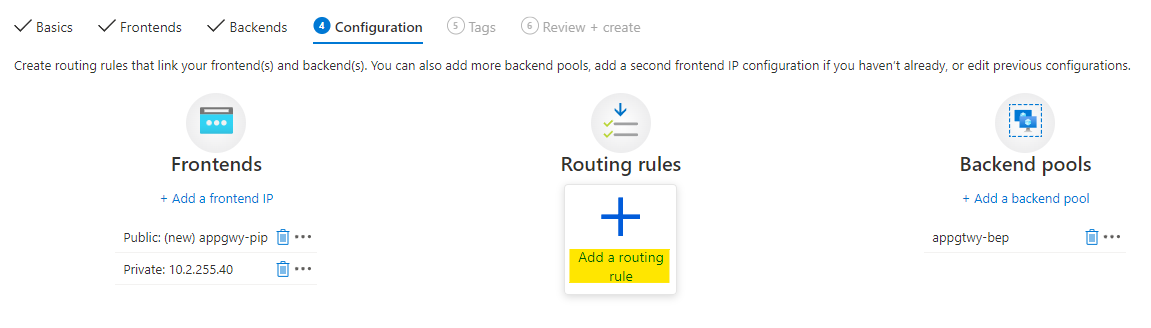
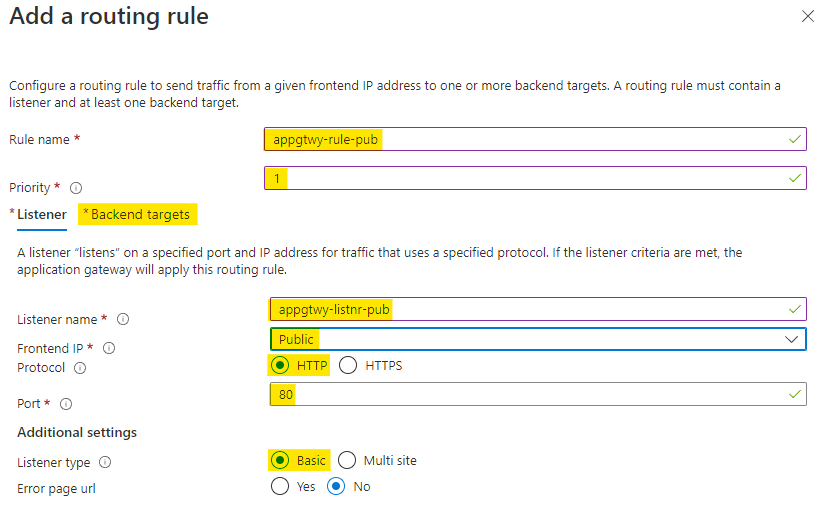
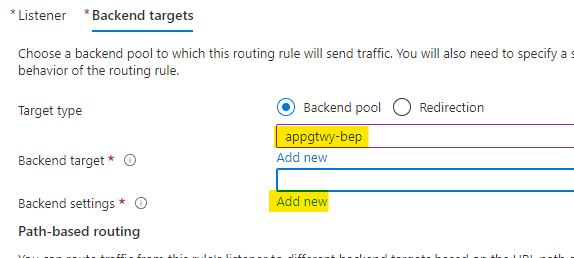
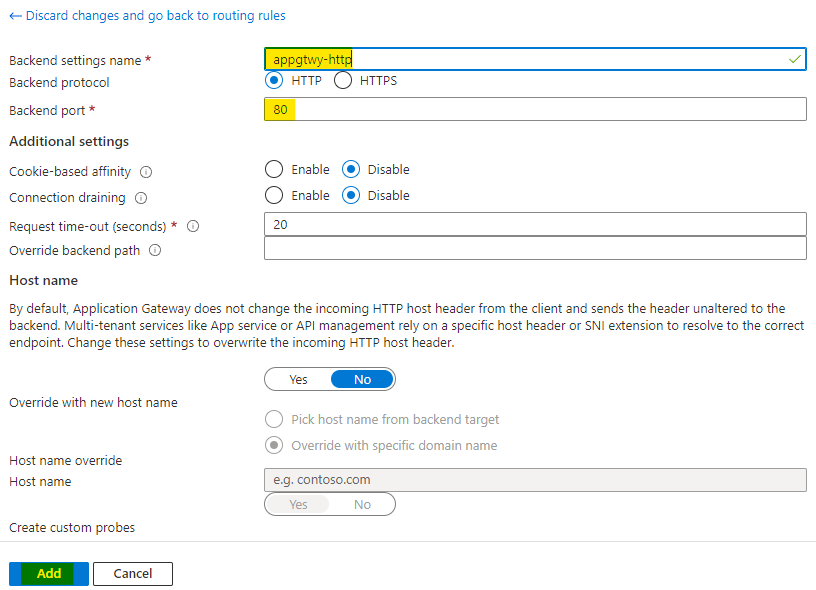
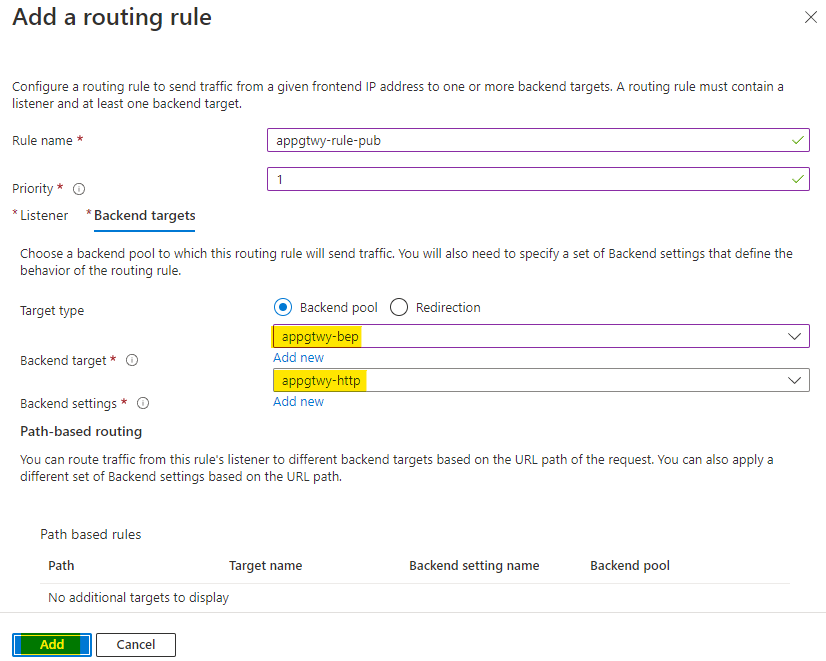
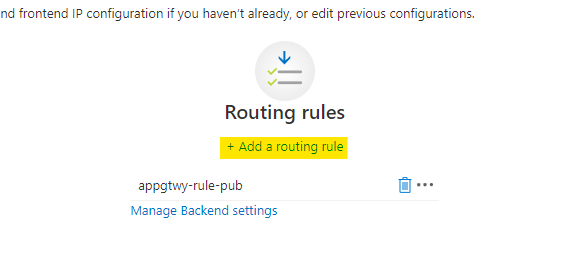
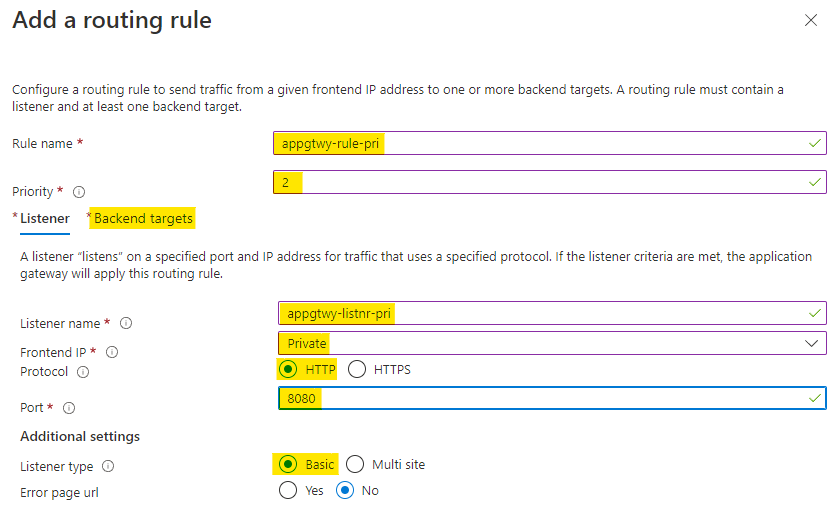
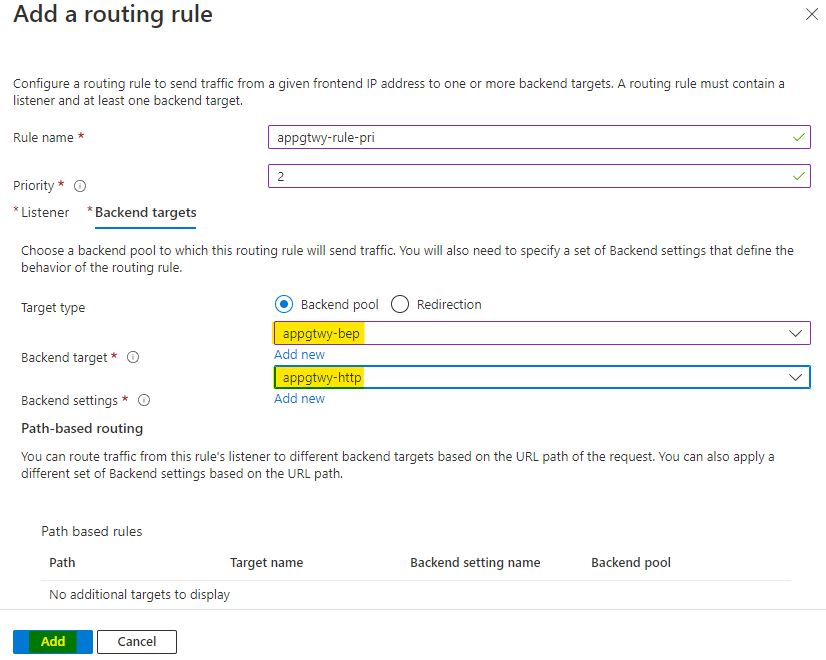
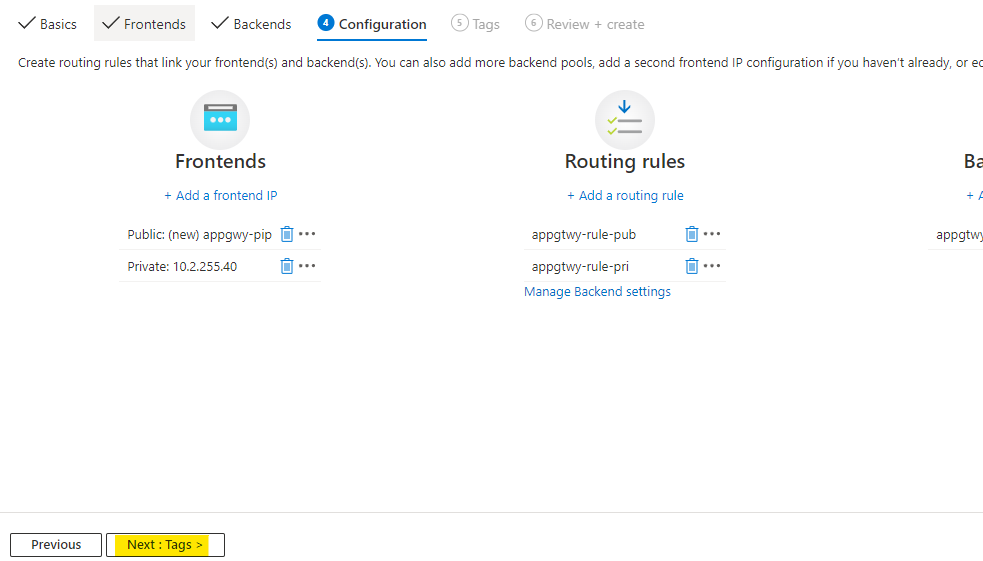
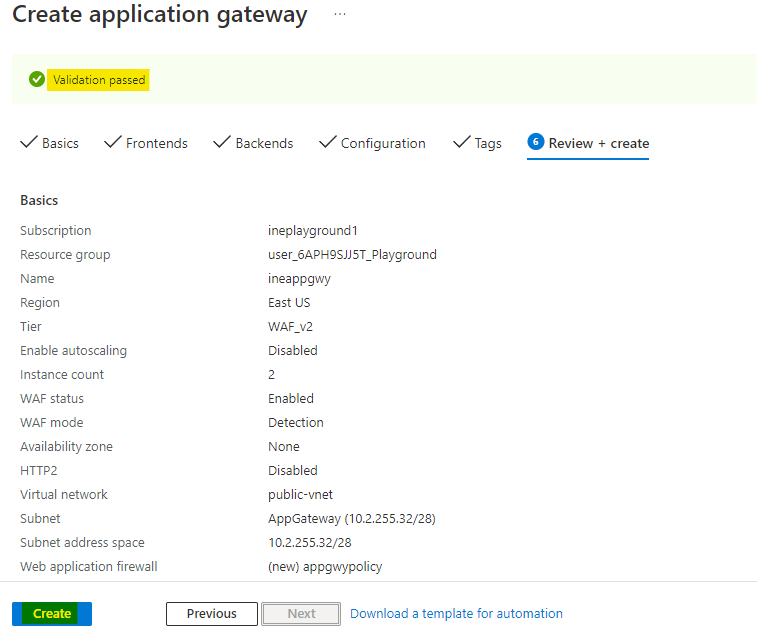
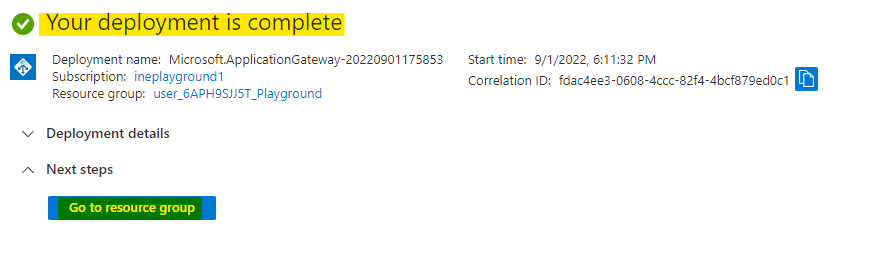
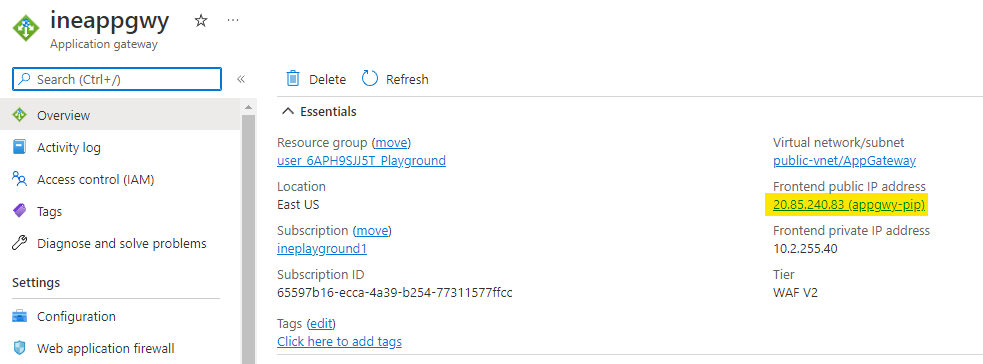
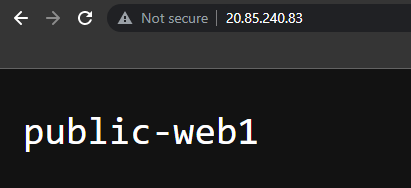
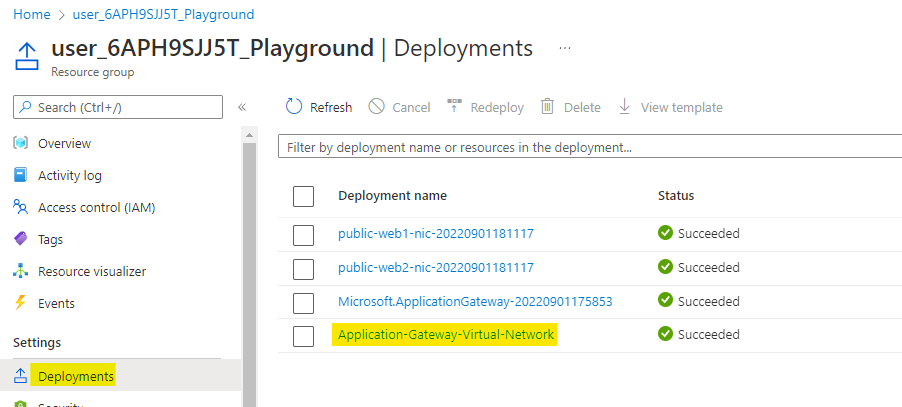
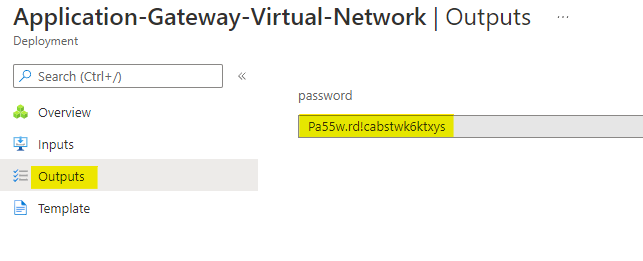
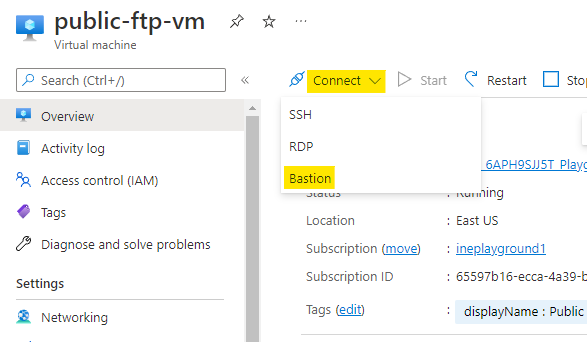
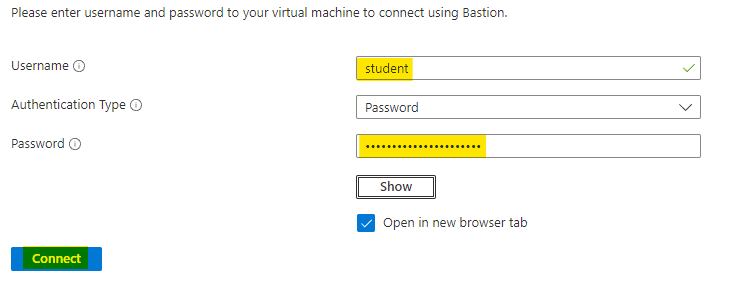
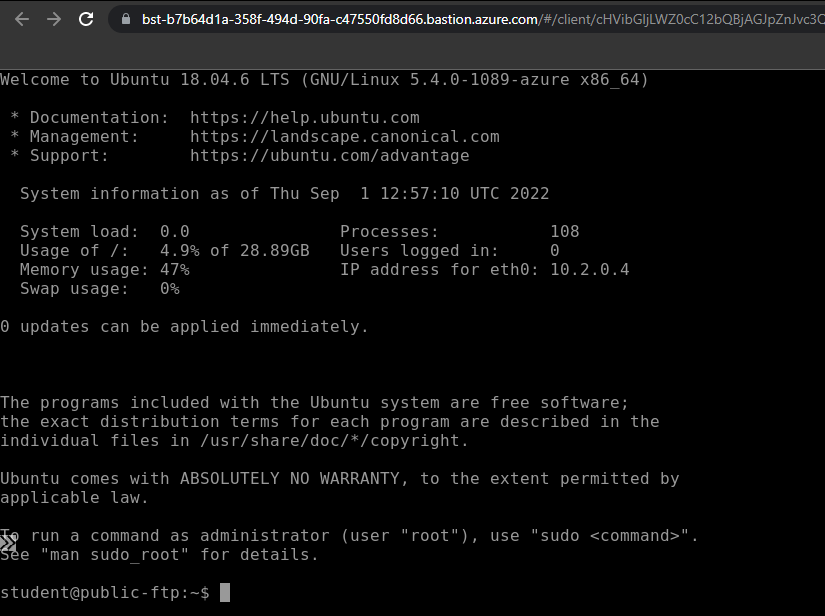
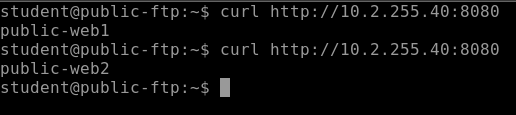
    "solutions": "# Provision and configure an application gateway\n\nWhen you will login to the azure with the provided credentials, you will find some predeployed resources. This is all you will need for this lab.\n\n![](https://assets.ine.com/content/labs/azure-course-labs/configure-an-azure-application-gateway/1.png)\n\nSearch for *Application gateways* and open the **Application gateways** service as highlighted below.\n\n![](https://assets.ine.com/content/labs/azure-course-labs/configure-an-azure-application-gateway/2.png)\n\nClick on **Create** to start creating the application gateway.\n\n![](https://assets.ine.com/content/labs/azure-course-labs/configure-an-azure-application-gateway/3.png)\n\nConfigure the application gateways as below:\n\n* Use the assigned resource group\n\n* Give a unique name to the application gateway\n\n* Use **WAF V2** tier\n\n* Set autoscaling to **No** and instance count to **2**\n\nYou also need a WAF policy for WAF V2 tier, click on **Create new** under the WAF policy.\n\n![](https://assets.ine.com/content/labs/azure-course-labs/configure-an-azure-application-gateway/4.png)\n\nName the policy as **appgwypolicy** and click on **OK** to add the policy.\n\n![](https://assets.ine.com/content/labs/azure-course-labs/configure-an-azure-application-gateway/5.png)\n\nUse the **public-vnet** virtual network and it will automatically set the subnet to **AppGateway**.\n\nClick on **Next** to configure the frontend.\n\n![](https://assets.ine.com/content/labs/azure-course-labs/configure-an-azure-application-gateway/6.png)\n\n* Set the front end IP address type to **Both**\n\n* Create a new public IP address named as **appgwy-pip**\n\n* For private IP address use the specific address as **10.2.255.40**\n\nClick on **Next** to configure the backends.\n\n![](https://assets.ine.com/content/labs/azure-course-labs/configure-an-azure-application-gateway/7.png)\n\nYou will see that there are no backend pools, click on **Add a backend pool** to create one.\n\n![](https://assets.ine.com/content/labs/azure-course-labs/configure-an-azure-application-gateway/8.png)\n\n* Name this backend pool as **appgtwy-bep**\n\n* Add the *public-web1* and *public-web2* VMs as targets\n\nClick on **Add** to add the backend pool.\n\n![](https://assets.ine.com/content/labs/azure-course-labs/configure-an-azure-application-gateway/9.png)\n\nA new backend pool with two target is added. Click on **Next** for the configurations.\n\n![](https://assets.ine.com/content/labs/azure-course-labs/configure-an-azure-application-gateway/10.png)\n\nYou can see that we have backend and frontend, all we need now is routing rules.\n\nClick on **Add a routing rule** as highlighted below.\n\n![](https://assets.ine.com/content/labs/azure-course-labs/configure-an-azure-application-gateway/11.png)\n\n* Name this rule as **appgtwy-rile-pub** and set the priority as **1**\n\n* Name the listener as **appgtwy-listnr-pub**\n\n* Set frondend IP protocol to **Public** and **HTTP**\n\n* Use port **80** and listener type **Basic**\n\nNow go to **Backend targets** as highlighted\n\n![](https://assets.ine.com/content/labs/azure-course-labs/configure-an-azure-application-gateway/12.png)\n\nUse the backend pool you created earlier which is **appgtwy-bep**.\n\nClick on **Add new** under Backend settings to create a new setting. Backend settings was previously known as HTTP settings.\n\n![](https://assets.ine.com/content/labs/azure-course-labs/configure-an-azure-application-gateway/13.png)\n\n* Name the setting as **appgtwy-http** and use **HTTP** protocol\n\n* Use the backend port as **80**\n\nLeave everything else as it is and click on **Add** to add the setting.\n\n![](https://assets.ine.com/content/labs/azure-course-labs/configure-an-azure-application-gateway/14.png)\n\nNow the backend target and settings are set, click on **Add** to add the routing rule.\n\n![](https://assets.ine.com/content/labs/azure-course-labs/configure-an-azure-application-gateway/15.png)\n\nAfter the public rule is added, click on **Add a routing rule** to add one private routing rule.\n\n![](https://assets.ine.com/content/labs/azure-course-labs/configure-an-azure-application-gateway/16.png)\n\n* Name this rule as **appgtwy-rile-pri** and set the priority as **2**\n\n* Name the listener as **appgtwy-listnr-pri**\n\n* Set frondend IP protocol to **Private** and **HTTP**\n\n* Use port **8080** and listener type **Basic**\n\nNow go to **Backend targets** as highlighted\n\n![](https://assets.ine.com/content/labs/azure-course-labs/configure-an-azure-application-gateway/17.png)\n\nUse the backend pool you created earlier which is **appgtwy-bep**.\n\nAlso you will use the same backend setting you created for public rule. Click on **Add** to add the private routing rule.\n\n![](https://assets.ine.com/content/labs/azure-course-labs/configure-an-azure-application-gateway/18.png)\n\nNow backend, frontend, and routing rules are all configured click on **Next** until **Review + Create**.\n\n![](https://assets.ine.com/content/labs/azure-course-labs/configure-an-azure-application-gateway/19.png)\n\nAzure will verify the configuration and it will show **Validation passed** if everything was configured properly. Click on **Create** to provision the application gateway.\n\n![](https://assets.ine.com/content/labs/azure-course-labs/configure-an-azure-application-gateway/20.png)\n\nIt will take few minutes to deploy the application gateway. Check after 5 to 10 minutes. You will see *Your deployment is complete* which means appgateway is provisioned. You can click on **Go to resource group** to check all the resources.\n\n![](https://assets.ine.com/content/labs/azure-course-labs/configure-an-azure-application-gateway/21.png)\n\n# Verify the application gateway\n\nGo to the application gateway you deployed and copy the public IP address of the app gateway.\n\n![](https://assets.ine.com/content/labs/azure-course-labs/configure-an-azure-application-gateway/22.png)\n\nGo and paste this IP address in your browser and you can see the output just like the below images, which means public frontend is working fine.\n\n![](https://assets.ine.com/content/labs/azure-course-labs/configure-an-azure-application-gateway/23.png)\n\n![](https://assets.ine.com/content/labs/azure-course-labs/configure-an-azure-application-gateway/24.png)\n\nNow go to the deployments of your assigned resource group. Go to oldest deployment as highlighted below.\n\n![](https://assets.ine.com/content/labs/azure-course-labs/configure-an-azure-application-gateway/25.png)\n\nHere in the ouput of the deployment, note down the password. This is the password for the deployed VMs.\n\n![](https://assets.ine.com/content/labs/azure-course-labs/configure-an-azure-application-gateway/26.png)\n\nGo to the public-ftp VM and click on **Connect** and choose the **Bastion** option.\n\n![](https://assets.ine.com/content/labs/azure-course-labs/configure-an-azure-application-gateway/27.png)\n\nHere use the **student** username and the password you copied from output of the deployments. Click on **Connect** to connect to the VM.\n\n![](https://assets.ine.com/content/labs/azure-course-labs/configure-an-azure-application-gateway/28.png)\n\nA new window with a SSH connect to the public-ftp VM will open.\n\n![](https://assets.ine.com/content/labs/azure-course-labs/configure-an-azure-application-gateway/29.png)\n\nRun the below command to test the private frontend.\n\n```\ncurl http://10.2.255.40:8080\n```\n\nThis will output the name of VM with webserver, just like the below image.\n\n![](https://assets.ine.com/content/labs/azure-course-labs/configure-an-azure-application-gateway/30.png)\n\nOur lab is now complete.",
    "solutions_html": "<h1>Provision and configure an application gateway</h1>\n<p>When you will login to the azure with the provided credentials, you will find some predeployed resources. This is all you will need for this lab.</p>\n<p><img alt=\"\" src=\"https://assets.ine.com/content/labs/azure-course-labs/configure-an-azure-application-gateway/1.png\" /></p>\n<p>Search for <em>Application gateways</em> and open the <strong>Application gateways</strong> service as highlighted below.</p>\n<p><img alt=\"\" src=\"https://assets.ine.com/content/labs/azure-course-labs/configure-an-azure-application-gateway/2.png\" /></p>\n<p>Click on <strong>Create</strong> to start creating the application gateway.</p>\n<p><img alt=\"\" src=\"https://assets.ine.com/content/labs/azure-course-labs/configure-an-azure-application-gateway/3.png\" /></p>\n<p>Configure the application gateways as below:</p>\n<ul>\n<li>\n<p>Use the assigned resource group</p>\n</li>\n<li>\n<p>Give a unique name to the application gateway</p>\n</li>\n<li>\n<p>Use <strong>WAF V2</strong> tier</p>\n</li>\n<li>\n<p>Set autoscaling to <strong>No</strong> and instance count to <strong>2</strong></p>\n</li>\n</ul>\n<p>You also need a WAF policy for WAF V2 tier, click on <strong>Create new</strong> under the WAF policy.</p>\n<p><img alt=\"\" src=\"https://assets.ine.com/content/labs/azure-course-labs/configure-an-azure-application-gateway/4.png\" /></p>\n<p>Name the policy as <strong>appgwypolicy</strong> and click on <strong>OK</strong> to add the policy.</p>\n<p><img alt=\"\" src=\"https://assets.ine.com/content/labs/azure-course-labs/configure-an-azure-application-gateway/5.png\" /></p>\n<p>Use the <strong>public-vnet</strong> virtual network and it will automatically set the subnet to <strong>AppGateway</strong>.</p>\n<p>Click on <strong>Next</strong> to configure the frontend.</p>\n<p><img alt=\"\" src=\"https://assets.ine.com/content/labs/azure-course-labs/configure-an-azure-application-gateway/6.png\" /></p>\n<ul>\n<li>\n<p>Set the front end IP address type to <strong>Both</strong></p>\n</li>\n<li>\n<p>Create a new public IP address named as <strong>appgwy-pip</strong></p>\n</li>\n<li>\n<p>For private IP address use the specific address as <strong>10.2.255.40</strong></p>\n</li>\n</ul>\n<p>Click on <strong>Next</strong> to configure the backends.</p>\n<p><img alt=\"\" src=\"https://assets.ine.com/content/labs/azure-course-labs/configure-an-azure-application-gateway/7.png\" /></p>\n<p>You will see that there are no backend pools, click on <strong>Add a backend pool</strong> to create one.</p>\n<p><img alt=\"\" src=\"https://assets.ine.com/content/labs/azure-course-labs/configure-an-azure-application-gateway/8.png\" /></p>\n<ul>\n<li>\n<p>Name this backend pool as <strong>appgtwy-bep</strong></p>\n</li>\n<li>\n<p>Add the <em>public-web1</em> and <em>public-web2</em> VMs as targets</p>\n</li>\n</ul>\n<p>Click on <strong>Add</strong> to add the backend pool.</p>\n<p><img alt=\"\" src=\"https://assets.ine.com/content/labs/azure-course-labs/configure-an-azure-application-gateway/9.png\" /></p>\n<p>A new backend pool with two target is added. Click on <strong>Next</strong> for the configurations.</p>\n<p><img alt=\"\" src=\"https://assets.ine.com/content/labs/azure-course-labs/configure-an-azure-application-gateway/10.png\" /></p>\n<p>You can see that we have backend and frontend, all we need now is routing rules.</p>\n<p>Click on <strong>Add a routing rule</strong> as highlighted below.</p>\n<p><img alt=\"\" src=\"https://assets.ine.com/content/labs/azure-course-labs/configure-an-azure-application-gateway/11.png\" /></p>\n<ul>\n<li>\n<p>Name this rule as <strong>appgtwy-rile-pub</strong> and set the priority as <strong>1</strong></p>\n</li>\n<li>\n<p>Name the listener as <strong>appgtwy-listnr-pub</strong></p>\n</li>\n<li>\n<p>Set frondend IP protocol to <strong>Public</strong> and <strong>HTTP</strong></p>\n</li>\n<li>\n<p>Use port <strong>80</strong> and listener type <strong>Basic</strong></p>\n</li>\n</ul>\n<p>Now go to <strong>Backend targets</strong> as highlighted</p>\n<p><img alt=\"\" src=\"https://assets.ine.com/content/labs/azure-course-labs/configure-an-azure-application-gateway/12.png\" /></p>\n<p>Use the backend pool you created earlier which is <strong>appgtwy-bep</strong>.</p>\n<p>Click on <strong>Add new</strong> under Backend settings to create a new setting. Backend settings was previously known as HTTP settings.</p>\n<p><img alt=\"\" src=\"https://assets.ine.com/content/labs/azure-course-labs/configure-an-azure-application-gateway/13.png\" /></p>\n<ul>\n<li>\n<p>Name the setting as <strong>appgtwy-http</strong> and use <strong>HTTP</strong> protocol</p>\n</li>\n<li>\n<p>Use the backend port as <strong>80</strong></p>\n</li>\n</ul>\n<p>Leave everything else as it is and click on <strong>Add</strong> to add the setting.</p>\n<p><img alt=\"\" src=\"https://assets.ine.com/content/labs/azure-course-labs/configure-an-azure-application-gateway/14.png\" /></p>\n<p>Now the backend target and settings are set, click on <strong>Add</strong> to add the routing rule.</p>\n<p><img alt=\"\" src=\"https://assets.ine.com/content/labs/azure-course-labs/configure-an-azure-application-gateway/15.png\" /></p>\n<p>After the public rule is added, click on <strong>Add a routing rule</strong> to add one private routing rule.</p>\n<p><img alt=\"\" src=\"https://assets.ine.com/content/labs/azure-course-labs/configure-an-azure-application-gateway/16.png\" /></p>\n<ul>\n<li>\n<p>Name this rule as <strong>appgtwy-rile-pri</strong> and set the priority as <strong>2</strong></p>\n</li>\n<li>\n<p>Name the listener as <strong>appgtwy-listnr-pri</strong></p>\n</li>\n<li>\n<p>Set frondend IP protocol to <strong>Private</strong> and <strong>HTTP</strong></p>\n</li>\n<li>\n<p>Use port <strong>8080</strong> and listener type <strong>Basic</strong></p>\n</li>\n</ul>\n<p>Now go to <strong>Backend targets</strong> as highlighted</p>\n<p><img alt=\"\" src=\"https://assets.ine.com/content/labs/azure-course-labs/configure-an-azure-application-gateway/17.png\" /></p>\n<p>Use the backend pool you created earlier which is <strong>appgtwy-bep</strong>.</p>\n<p>Also you will use the same backend setting you created for public rule. Click on <strong>Add</strong> to add the private routing rule.</p>\n<p><img alt=\"\" src=\"https://assets.ine.com/content/labs/azure-course-labs/configure-an-azure-application-gateway/18.png\" /></p>\n<p>Now backend, frontend, and routing rules are all configured click on <strong>Next</strong> until <strong>Review + Create</strong>.</p>\n<p><img alt=\"\" src=\"https://assets.ine.com/content/labs/azure-course-labs/configure-an-azure-application-gateway/19.png\" /></p>\n<p>Azure will verify the configuration and it will show <strong>Validation passed</strong> if everything was configured properly. Click on <strong>Create</strong> to provision the application gateway.</p>\n<p><img alt=\"\" src=\"https://assets.ine.com/content/labs/azure-course-labs/configure-an-azure-application-gateway/20.png\" /></p>\n<p>It will take few minutes to deploy the application gateway. Check after 5 to 10 minutes. You will see <em>Your deployment is complete</em> which means appgateway is provisioned. You can click on <strong>Go to resource group</strong> to check all the resources.</p>\n<p><img alt=\"\" src=\"https://assets.ine.com/content/labs/azure-course-labs/configure-an-azure-application-gateway/21.png\" /></p>\n<h1>Verify the application gateway</h1>\n<p>Go to the application gateway you deployed and copy the public IP address of the app gateway.</p>\n<p><img alt=\"\" src=\"https://assets.ine.com/content/labs/azure-course-labs/configure-an-azure-application-gateway/22.png\" /></p>\n<p>Go and paste this IP address in your browser and you can see the output just like the below images, which means public frontend is working fine.</p>\n<p><img alt=\"\" src=\"https://assets.ine.com/content/labs/azure-course-labs/configure-an-azure-application-gateway/23.png\" /></p>\n<p><img alt=\"\" src=\"https://assets.ine.com/content/labs/azure-course-labs/configure-an-azure-application-gateway/24.png\" /></p>\n<p>Now go to the deployments of your assigned resource group. Go to oldest deployment as highlighted below.</p>\n<p><img alt=\"\" src=\"https://assets.ine.com/content/labs/azure-course-labs/configure-an-azure-application-gateway/25.png\" /></p>\n<p>Here in the ouput of the deployment, note down the password. This is the password for the deployed VMs.</p>\n<p><img alt=\"\" src=\"https://assets.ine.com/content/labs/azure-course-labs/configure-an-azure-application-gateway/26.png\" /></p>\n<p>Go to the public-ftp VM and click on <strong>Connect</strong> and choose the <strong>Bastion</strong> option.</p>\n<p><img alt=\"\" src=\"https://assets.ine.com/content/labs/azure-course-labs/configure-an-azure-application-gateway/27.png\" /></p>\n<p>Here use the <strong>student</strong> username and the password you copied from output of the deployments. Click on <strong>Connect</strong> to connect to the VM.</p>\n<p><img alt=\"\" src=\"https://assets.ine.com/content/labs/azure-course-labs/configure-an-azure-application-gateway/28.png\" /></p>\n<p>A new window with a SSH connect to the public-ftp VM will open.</p>\n<p><img alt=\"\" src=\"https://assets.ine.com/content/labs/azure-course-labs/configure-an-azure-application-gateway/29.png\" /></p>\n<p>Run the below command to test the private frontend.</p>\n<pre class=\"codehilite\"><code>curl http://10.2.255.40:8080</code></pre>\n\n<p>This will output the name of VM with webserver, just like the below image.</p>\n<p><img alt=\"\" src=\"https://assets.ine.com/content/labs/azure-course-labs/configure-an-azure-application-gateway/30.png\" /></p>\n<p>Our lab is now complete.</p>",
    "flags": [],
    "min_points_to_pass": null,
    "access_type": "web",
    "user_status": "unstarted",
    "user_lab_status": null,
    "user_status_modified": null,
    "user_flags": [],
    "global_running_session": null
}