{
    "id": "b0676dc9-c8bf-485a-a6f0-71a77d676557",
    "name": "Implement Azure Virtual Network Peering",
    "slug": "implement-azure-virtual-network-peering",
    "status": "published",
    "lab_type": "pta",
    "is_sample": false,
    "duration_in_seconds": 1800,
    "metadata": {
        "courses": [
            "26f9ad91-c452-41bd-87ea-284a1e3de3f3",
            "9d8d4179-9915-4895-95e6-178f7ca69436"
        ],
        "pta_sdn": "321",
        "pta_namespace": "my.ine",
        "learning_paths": [],
        "has_published_parent": true
    },
    "session": null,
    "company": "a491bc32-c056-4946-9169-cc053387bada",
    "created": "2022-09-10T20:12:00.604300Z",
    "modified": "2023-10-03T18:58:57.818229Z",
    "is_beta": false,
    "lab_objectives": [],
    "main_learning_area": "d3f82c70-f4e7-428e-afd7-4b1d28988e18",
    "learning_areas": [
        {
            "id": "d3f82c70-f4e7-428e-afd7-4b1d28988e18",
            "name": "Cloud",
            "slug": "cloud"
        }
    ],
    "categories": [],
    "tags": [],
    "difficulty": null,
    "is_web_access": true,
    "is_lab_experience": false,
    "is_featured": false,
    "cve": null,
    "severity": null,
    "year": null,
    "classification": null,
    "is_trackable": false,
    "cpe_credits": null,
    "is_skill_check": false,
    "external_url": "",
    "solution_video": null,
    "explanation_video": null,
    "description": "The goal of this task is to establish a peering relationship between two existing virtual networks. The task includes verifying the peering relationship by communicating between virtual machines on both networks.",
    "description_html": "<p>The goal of this task is to establish a peering relationship between two existing virtual networks. The task includes verifying the peering relationship by communicating between virtual machines on both networks.</p>",
    "tasks": "",
    "tasks_html": "",
    "published_date": "2020-04-07T18:00:00Z",
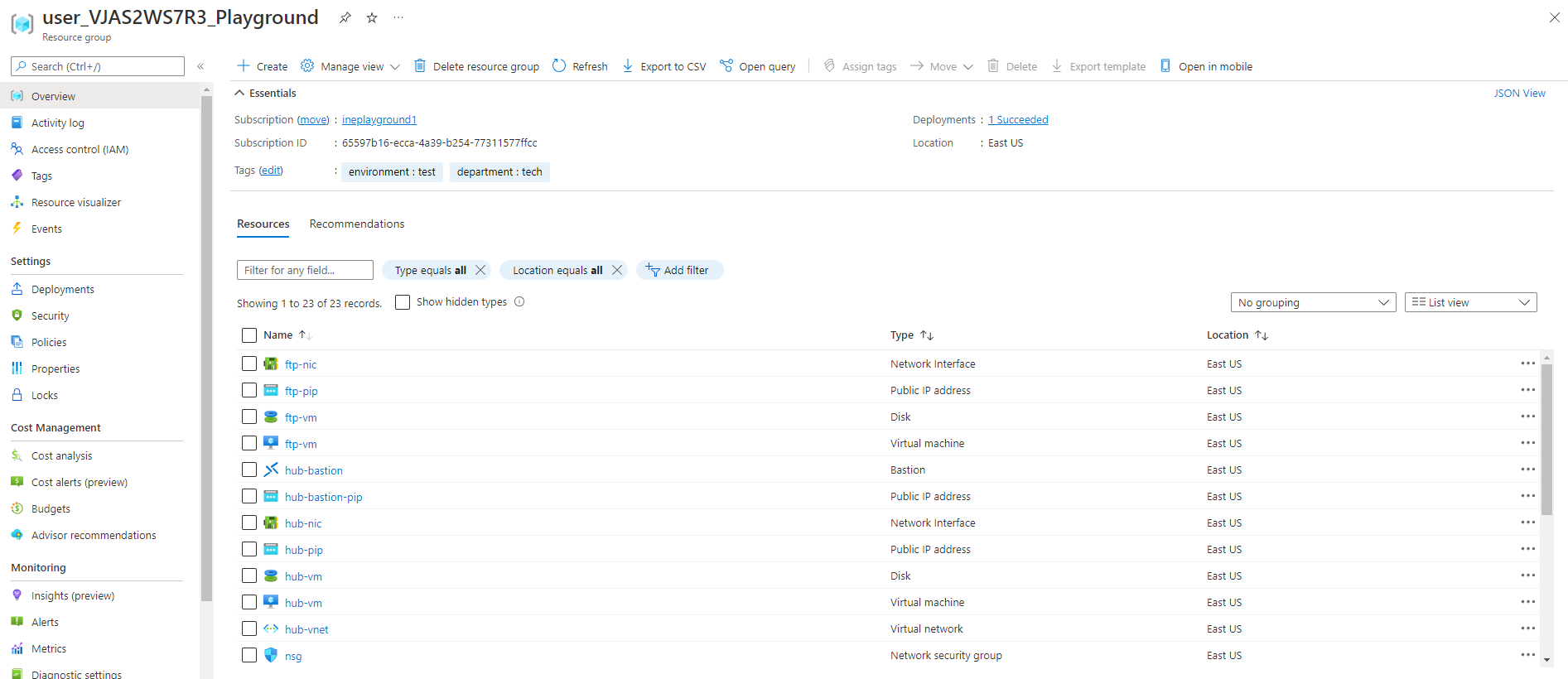
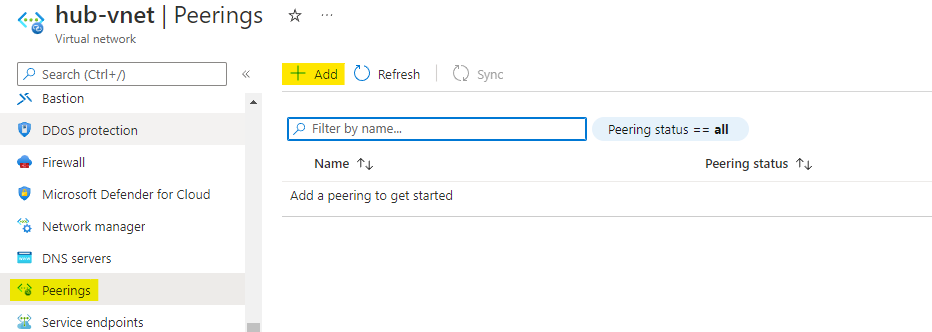
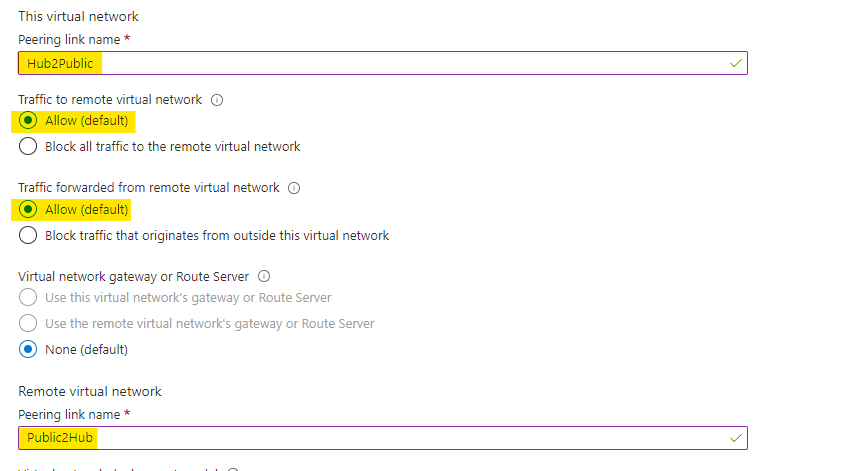
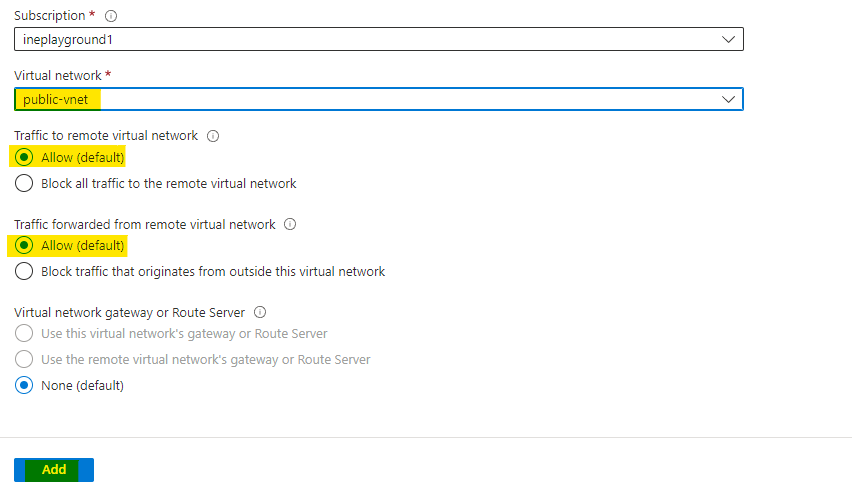
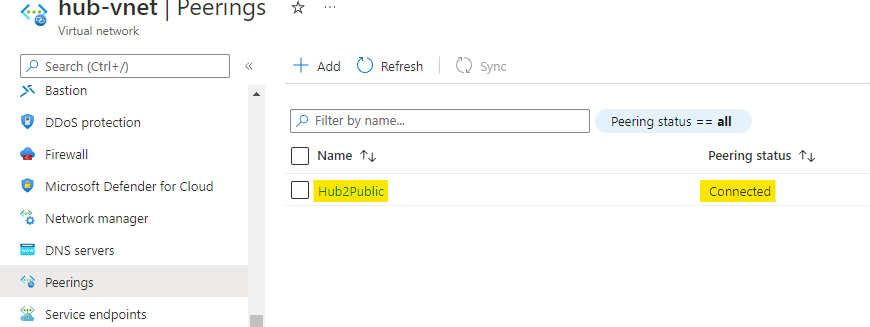
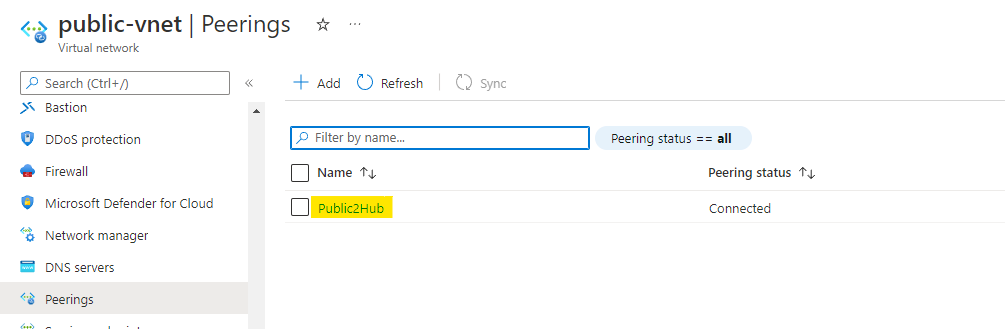
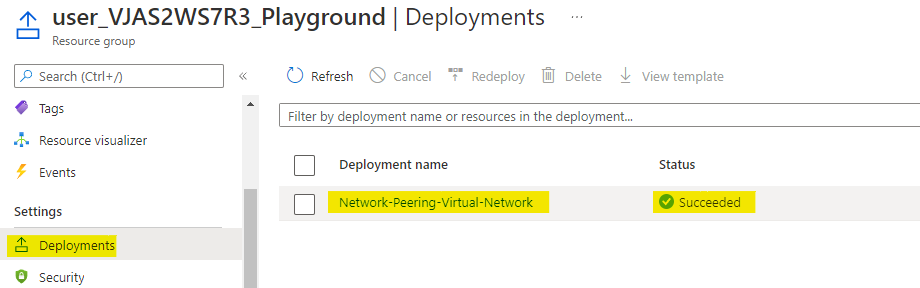
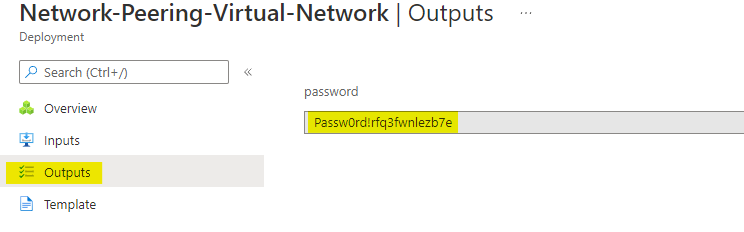
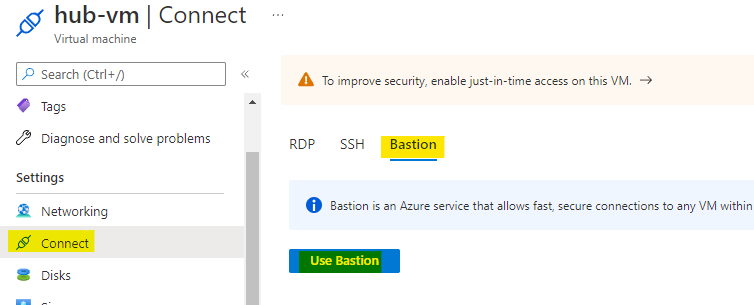
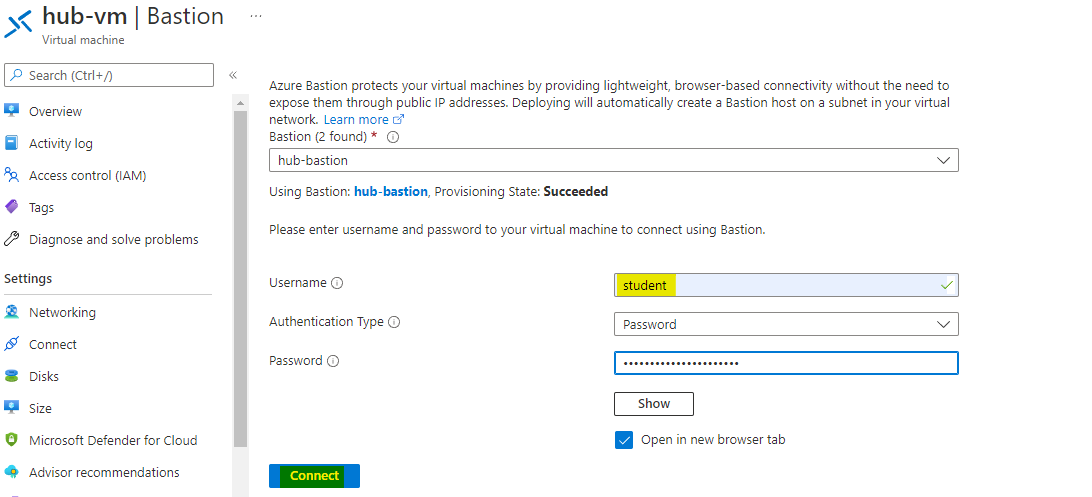
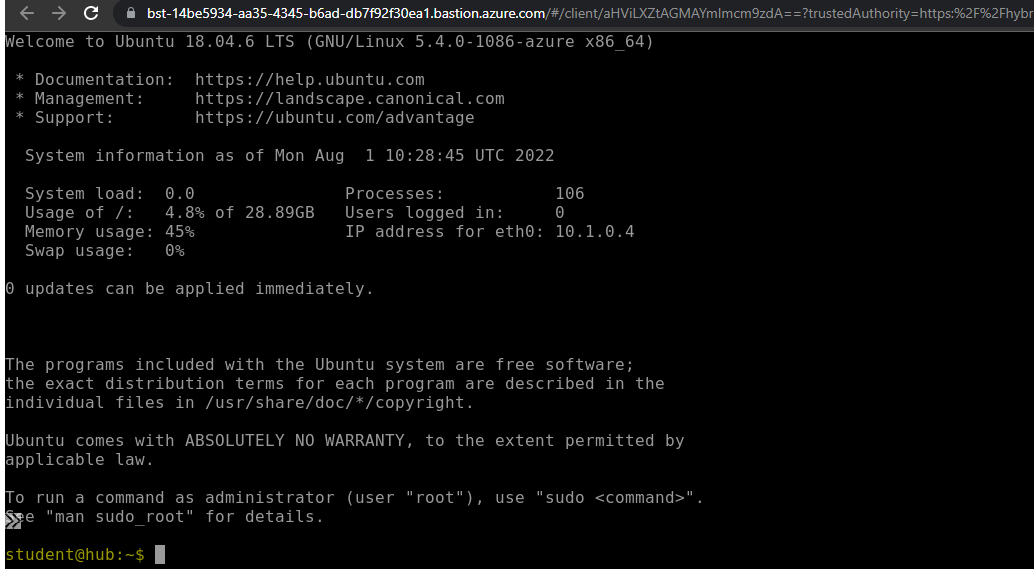
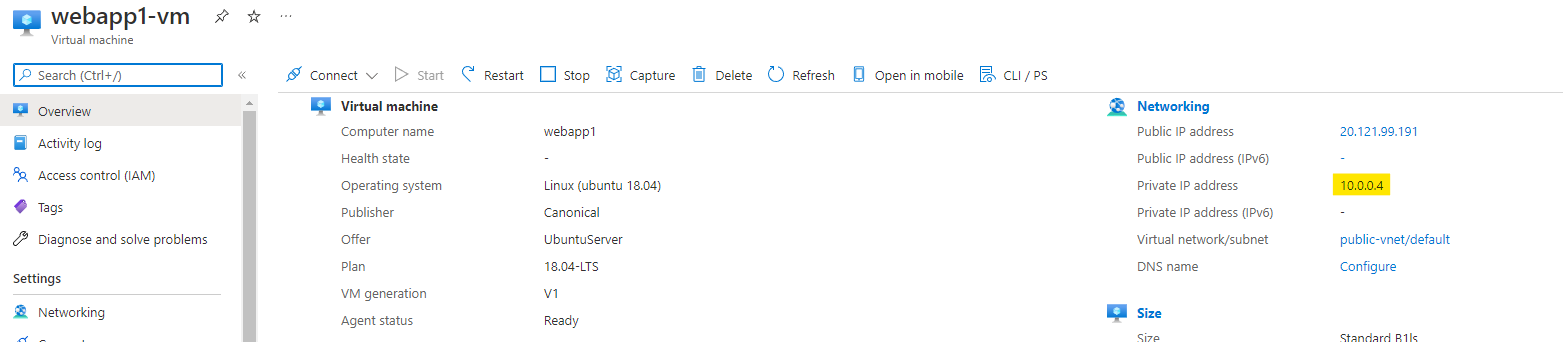
    "solutions": "# Configure network peering\n\nWhen you will login to your azure portal with the generated credentials. You will see that there are some resources pre created for you.\n\nThis all you will need to work with this lab.\n\n![](https://assets.ine.com/content/labs/azure-course-labs/implement-azure-virtual-network-peering/1.png)\n\nWe have to create a peering relationship between the hub and public virtual network.\n\nGo to any of the network, just like I have choosen the **hub-vnet**. It doesn't matter which one you choose as we are going to peer from both the networks.\n\n![](https://assets.ine.com/content/labs/azure-course-labs/implement-azure-virtual-network-peering/2.png)\n\nNow go to the **peerings** option and click on **Add** to add peering relationship.\n\n![](https://assets.ine.com/content/labs/azure-course-labs/implement-azure-virtual-network-peering/3.png)\n\nSet the name of peering from hub to public as **Hub2Public**.\n\nFor public to hub as **Public2Hub**.\n\nYou can name them whatever you want, it's just for our reference.\n\n![](https://assets.ine.com/content/labs/azure-course-labs/implement-azure-virtual-network-peering/4.png)\n\nAs we are doing the peering relationship from hub vnet choose the **public-vnet** to where we want to do this peering. See image below.\n\nClick on **Add** to add this peering relationship.\n\n\n![](https://assets.ine.com/content/labs/azure-course-labs/implement-azure-virtual-network-peering/5.png)\n\nNow if you go and check the peering in **hub-vnet**, you can see the peering relationship is established to **public-vnet**.\n\n\n![](https://assets.ine.com/content/labs/azure-course-labs/implement-azure-virtual-network-peering/6.png)\n\nIn similar fashion peering from public to hub virtual network is also done.\n\n![](https://assets.ine.com/content/labs/azure-course-labs/implement-azure-virtual-network-peering/7.png)\n\n# Verify network peering\n\nWe will need to login to hub virtual machine and make a request to either of the virtual machine which are in public vnet.\n\nFor that first of all we need to get the password for the virtual machines.\n\nGo to the resource group and open the deployments. You will see a deployment is there. Click on it.\n\n![](https://assets.ine.com/content/labs/azure-course-labs/implement-azure-virtual-network-peering/8.png)\n\nGo to the output of the deployment and copy the password for our virtual machines.\n\n![](https://assets.ine.com/content/labs/azure-course-labs/implement-azure-virtual-network-peering/9.png)\n\nGo to the connect option in the hub virtual machine. Click on **Use Bastion** to login into the machine with bastion.\n\n![](https://assets.ine.com/content/labs/azure-course-labs/implement-azure-virtual-network-peering/10.png)\n\nEnter the username as **student** and password we copied earlier from the deployments. Click on **Connect** to connect the virtual machine via a **SSH**.\n\n![](https://assets.ine.com/content/labs/azure-course-labs/implement-azure-virtual-network-peering/11.png)\n\nA new tab will open and you will have the SSH access to the **hub virtual machine** here.\n\n![](https://assets.ine.com/content/labs/azure-course-labs/implement-azure-virtual-network-peering/12.png)\n\nGo to the **webapp1** virtual machine and find out the **private IP address** of the virtual machine.\n\n![](https://assets.ine.com/content/labs/azure-course-labs/implement-azure-virtual-network-peering/13.png)\n\nYou can go and find the **private IP address** of webapp2 vitual machine also.\n\n![](https://assets.ine.com/content/labs/azure-course-labs/implement-azure-virtual-network-peering/14.png)\n\nUse the below commands to request on the web servers of the public virtual network.\n\n```\ncurl PrivateIpAddress\n```\n\nUse the **private IP addresses** of the virutal machine.\n\nIf the peering relationship is done correctly, you will see the response as the name of the virutal machine just like the below image.\n\n![](https://assets.ine.com/content/labs/azure-course-labs/implement-azure-virtual-network-peering/15.png)\n\nThis means that peering relationship is done properly and hub virual network's VM can access the public vnet's VMs.\n\nThis lab is now complete.",

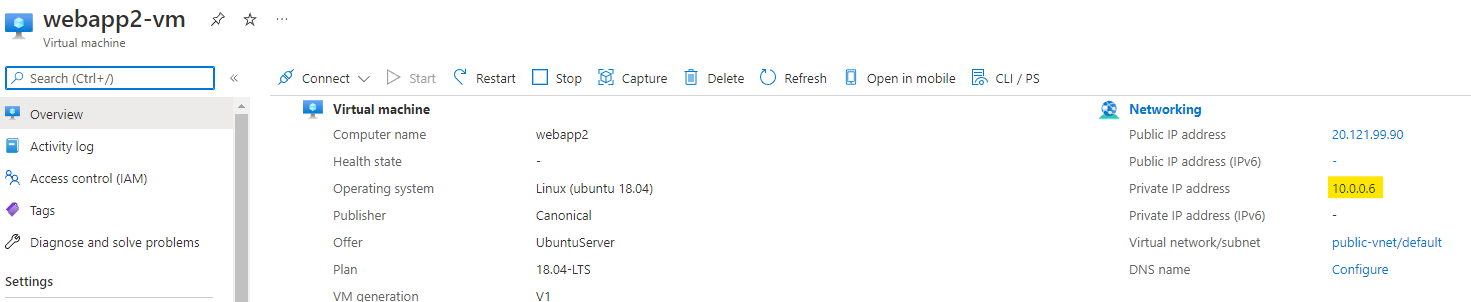
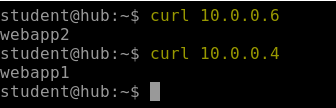
    "solutions_html": "<h1>Configure network peering</h1>\n<p>When you will login to your azure portal with the generated credentials. You will see that there are some resources pre created for you.</p>\n<p>This all you will need to work with this lab.</p>\n<p><img alt=\"\" src=\"https://assets.ine.com/content/labs/azure-course-labs/implement-azure-virtual-network-peering/1.png\" /></p>\n<p>We have to create a peering relationship between the hub and public virtual network.</p>\n<p>Go to any of the network, just like I have choosen the <strong>hub-vnet</strong>. It doesn't matter which one you choose as we are going to peer from both the networks.</p>\n<p><img alt=\"\" src=\"https://assets.ine.com/content/labs/azure-course-labs/implement-azure-virtual-network-peering/2.png\" /></p>\n<p>Now go to the <strong>peerings</strong> option and click on <strong>Add</strong> to add peering relationship.</p>\n<p><img alt=\"\" src=\"https://assets.ine.com/content/labs/azure-course-labs/implement-azure-virtual-network-peering/3.png\" /></p>\n<p>Set the name of peering from hub to public as <strong>Hub2Public</strong>.</p>\n<p>For public to hub as <strong>Public2Hub</strong>.</p>\n<p>You can name them whatever you want, it's just for our reference.</p>\n<p><img alt=\"\" src=\"https://assets.ine.com/content/labs/azure-course-labs/implement-azure-virtual-network-peering/4.png\" /></p>\n<p>As we are doing the peering relationship from hub vnet choose the <strong>public-vnet</strong> to where we want to do this peering. See image below.</p>\n<p>Click on <strong>Add</strong> to add this peering relationship.</p>\n<p><img alt=\"\" src=\"https://assets.ine.com/content/labs/azure-course-labs/implement-azure-virtual-network-peering/5.png\" /></p>\n<p>Now if you go and check the peering in <strong>hub-vnet</strong>, you can see the peering relationship is established to <strong>public-vnet</strong>.</p>\n<p><img alt=\"\" src=\"https://assets.ine.com/content/labs/azure-course-labs/implement-azure-virtual-network-peering/6.png\" /></p>\n<p>In similar fashion peering from public to hub virtual network is also done.</p>\n<p><img alt=\"\" src=\"https://assets.ine.com/content/labs/azure-course-labs/implement-azure-virtual-network-peering/7.png\" /></p>\n<h1>Verify network peering</h1>\n<p>We will need to login to hub virtual machine and make a request to either of the virtual machine which are in public vnet.</p>\n<p>For that first of all we need to get the password for the virtual machines.</p>\n<p>Go to the resource group and open the deployments. You will see a deployment is there. Click on it.</p>\n<p><img alt=\"\" src=\"https://assets.ine.com/content/labs/azure-course-labs/implement-azure-virtual-network-peering/8.png\" /></p>\n<p>Go to the output of the deployment and copy the password for our virtual machines.</p>\n<p><img alt=\"\" src=\"https://assets.ine.com/content/labs/azure-course-labs/implement-azure-virtual-network-peering/9.png\" /></p>\n<p>Go to the connect option in the hub virtual machine. Click on <strong>Use Bastion</strong> to login into the machine with bastion.</p>\n<p><img alt=\"\" src=\"https://assets.ine.com/content/labs/azure-course-labs/implement-azure-virtual-network-peering/10.png\" /></p>\n<p>Enter the username as <strong>student</strong> and password we copied earlier from the deployments. Click on <strong>Connect</strong> to connect the virtual machine via a <strong>SSH</strong>.</p>\n<p><img alt=\"\" src=\"https://assets.ine.com/content/labs/azure-course-labs/implement-azure-virtual-network-peering/11.png\" /></p>\n<p>A new tab will open and you will have the SSH access to the <strong>hub virtual machine</strong> here.</p>\n<p><img alt=\"\" src=\"https://assets.ine.com/content/labs/azure-course-labs/implement-azure-virtual-network-peering/12.png\" /></p>\n<p>Go to the <strong>webapp1</strong> virtual machine and find out the <strong>private IP address</strong> of the virtual machine.</p>\n<p><img alt=\"\" src=\"https://assets.ine.com/content/labs/azure-course-labs/implement-azure-virtual-network-peering/13.png\" /></p>\n<p>You can go and find the <strong>private IP address</strong> of webapp2 vitual machine also.</p>\n<p><img alt=\"\" src=\"https://assets.ine.com/content/labs/azure-course-labs/implement-azure-virtual-network-peering/14.png\" /></p>\n<p>Use the below commands to request on the web servers of the public virtual network.</p>\n<pre class=\"codehilite\"><code>curl PrivateIpAddress</code></pre>\n\n<p>Use the <strong>private IP addresses</strong> of the virutal machine.</p>\n<p>If the peering relationship is done correctly, you will see the response as the name of the virutal machine just like the below image.</p>\n<p><img alt=\"\" src=\"https://assets.ine.com/content/labs/azure-course-labs/implement-azure-virtual-network-peering/15.png\" /></p>\n<p>This means that peering relationship is done properly and hub virual network's VM can access the public vnet's VMs.</p>\n<p>This lab is now complete.</p>",
    "flags": [],
    "min_points_to_pass": null,
    "access_type": "web",
    "user_status": "unstarted",
    "user_lab_status": null,
    "user_status_modified": null,
    "user_flags": [],
    "global_running_session": null
}