{
    "id": "1583e820-7c82-46e0-8b10-2684b0100bd7",
    "name": "Azure SQL Azure AD Authentication",
    "slug": "azure-sql-azure-ad-authentication",
    "status": "published",
    "lab_type": "pta",
    "is_sample": false,
    "duration_in_seconds": 1800,
    "metadata": {
        "courses": [
            "f96d278d-a360-401b-95a5-28f3214cdc89"
        ],
        "pta_sdn": "142",
        "pta_namespace": "my.ine",
        "learning_paths": [],
        "has_published_parent": true
    },
    "session": null,
    "company": "a491bc32-c056-4946-9169-cc053387bada",
    "created": "2022-10-07T18:48:46.011599Z",
    "modified": "2023-10-03T18:56:40.080783Z",
    "is_beta": false,
    "lab_objectives": [],
    "main_learning_area": "d3f82c70-f4e7-428e-afd7-4b1d28988e18",
    "learning_areas": [
        {
            "id": "d3f82c70-f4e7-428e-afd7-4b1d28988e18",
            "name": "Cloud",
            "slug": "cloud"
        }
    ],
    "categories": [],
    "tags": [],
    "difficulty": null,
    "is_web_access": true,
    "is_lab_experience": false,
    "is_featured": false,
    "cve": null,
    "severity": null,
    "year": null,
    "classification": null,
    "is_trackable": false,
    "cpe_credits": null,
    "is_skill_check": false,
    "external_url": "",
    "solution_video": null,
    "explanation_video": null,
    "description": "In this task, you will provision an Azure SQL database and configure it for remote access and Azure AD authentication.",
    "description_html": "<p>In this task, you will provision an Azure SQL database and configure it for remote access and Azure AD authentication.</p>",
    "tasks": "",
    "tasks_html": "",
    "published_date": "2020-06-16T15:57:29Z",
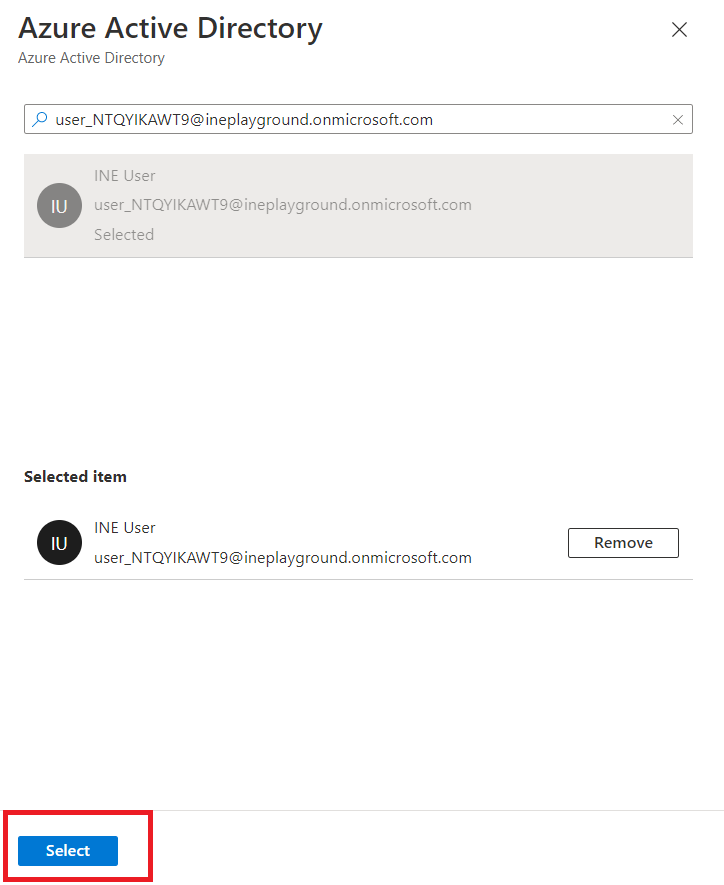
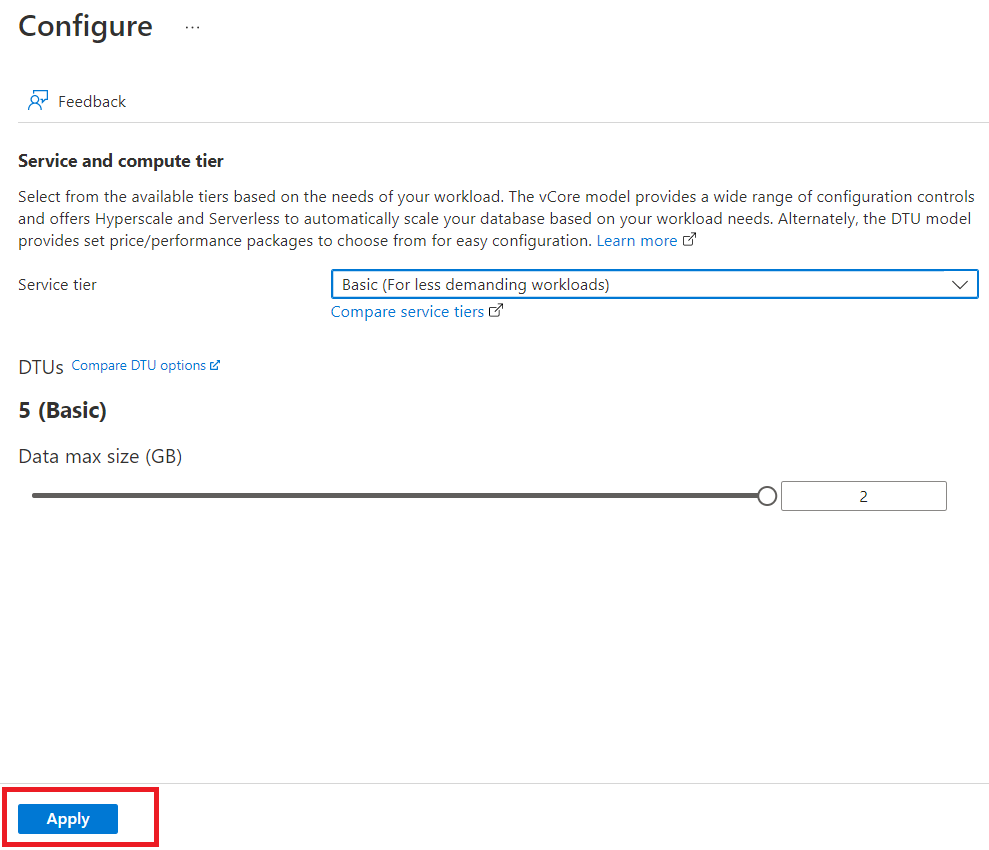
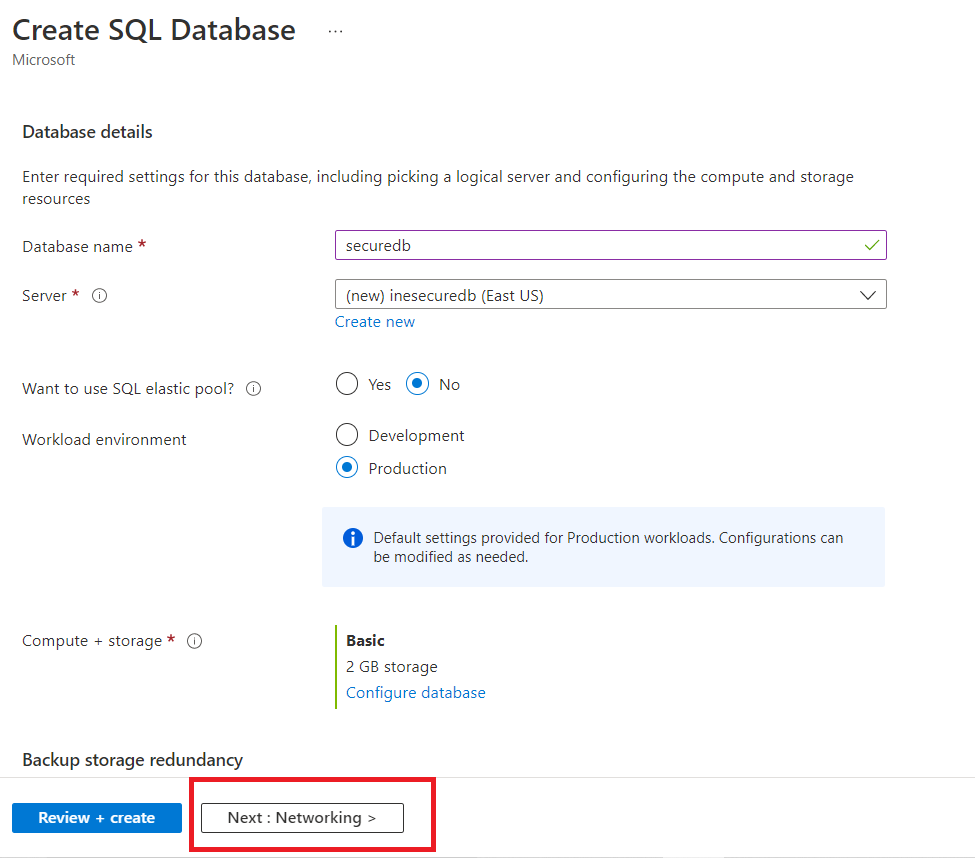
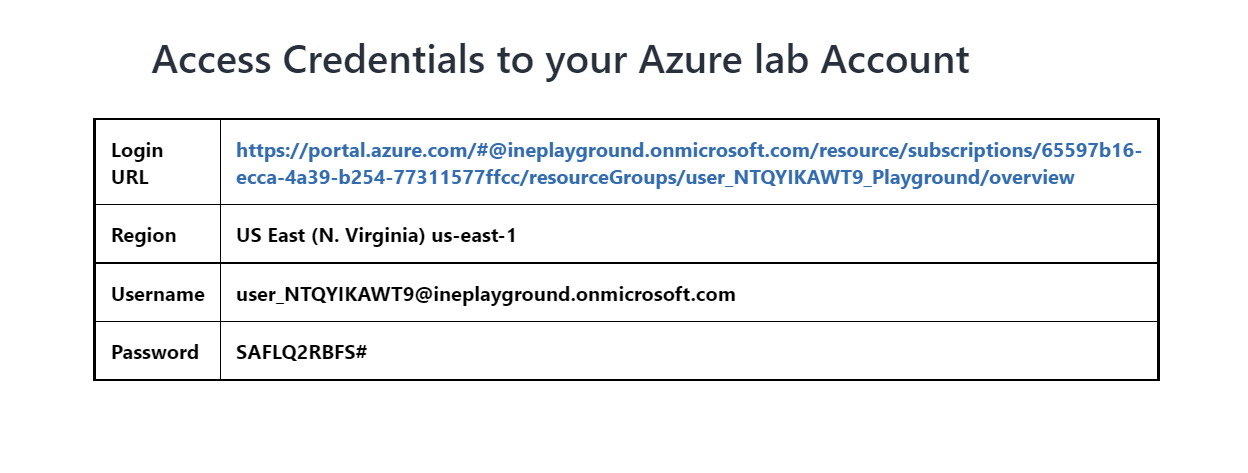
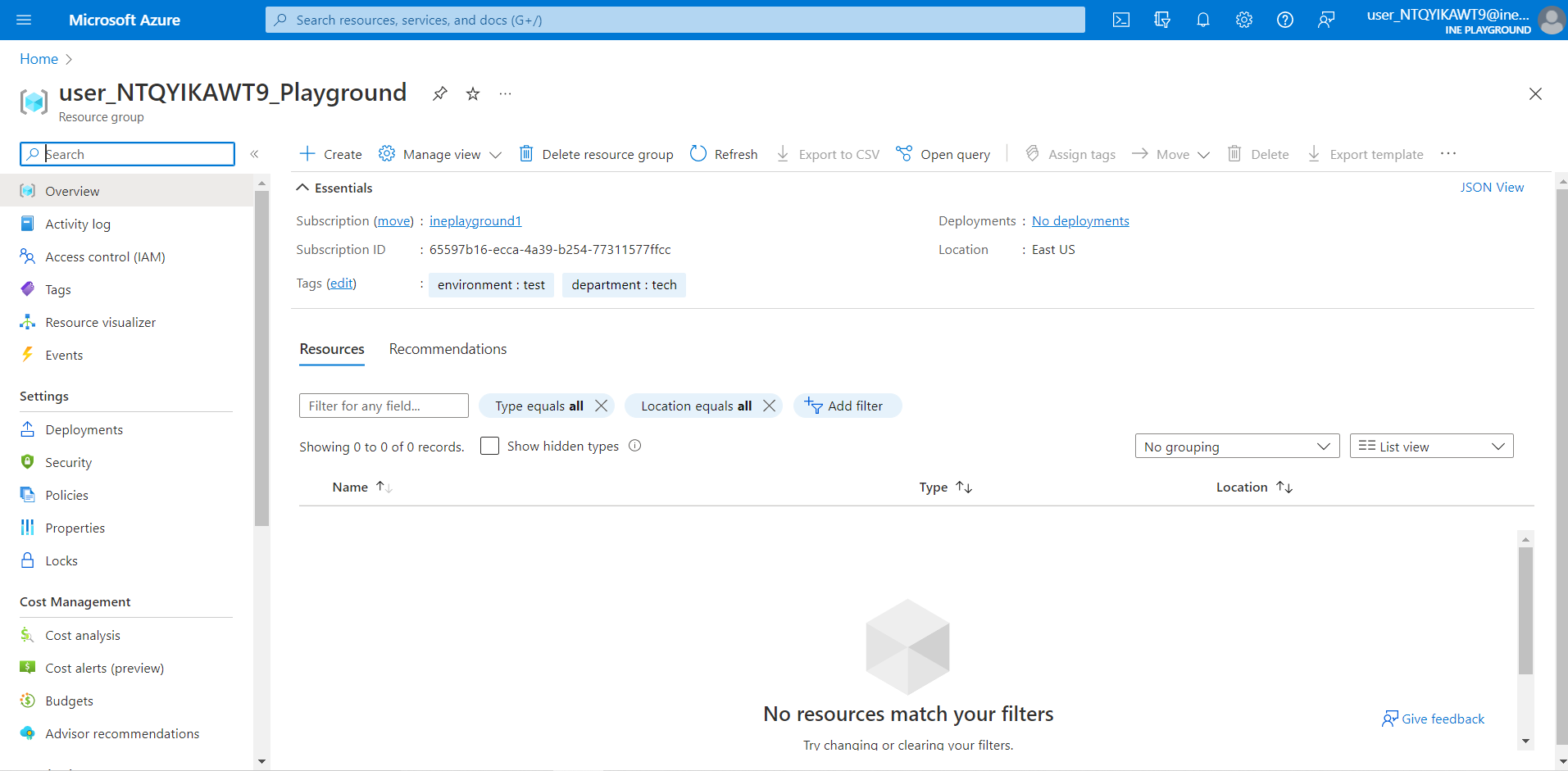
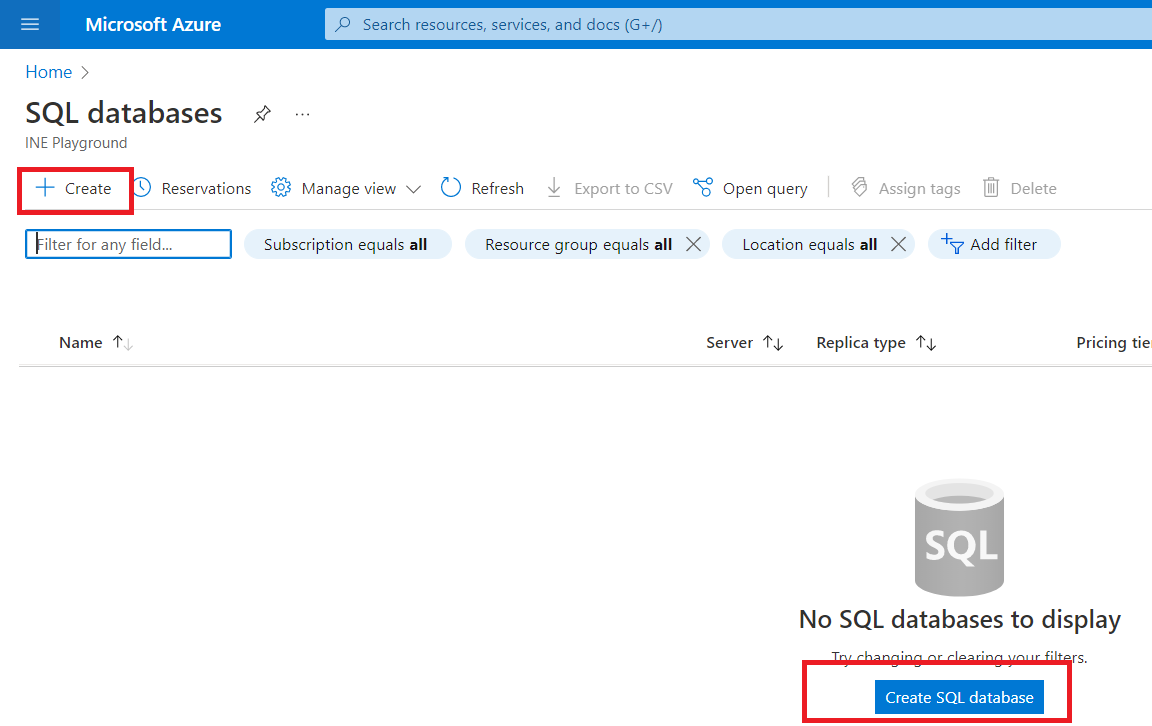
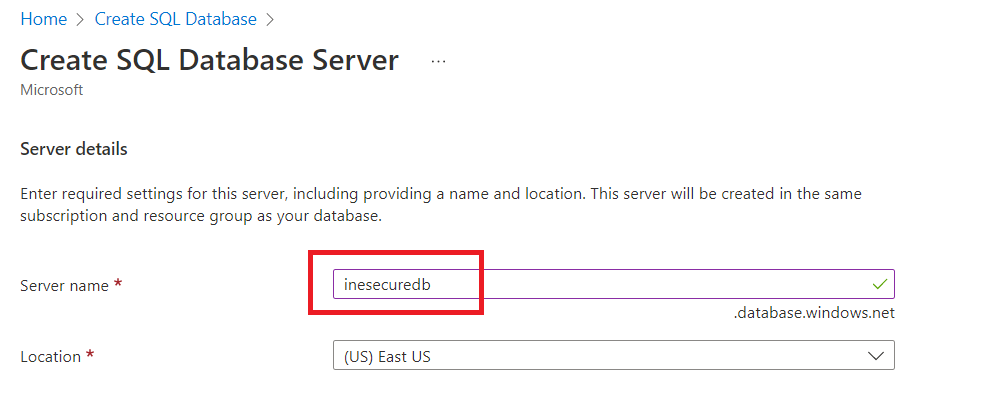
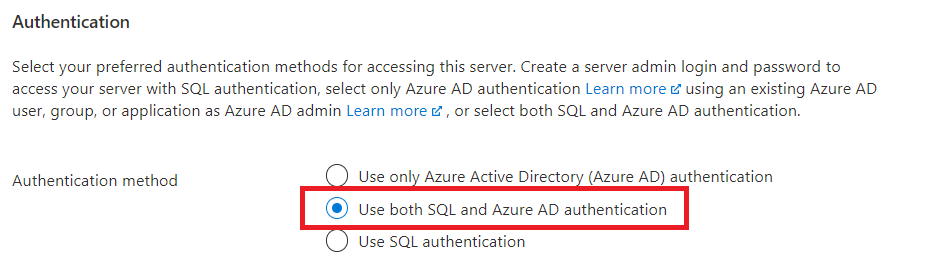
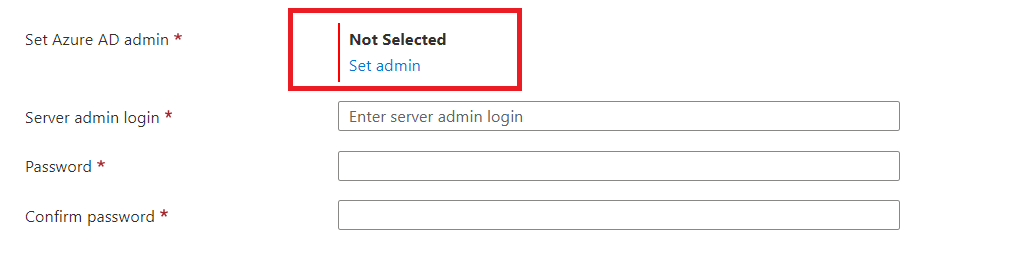
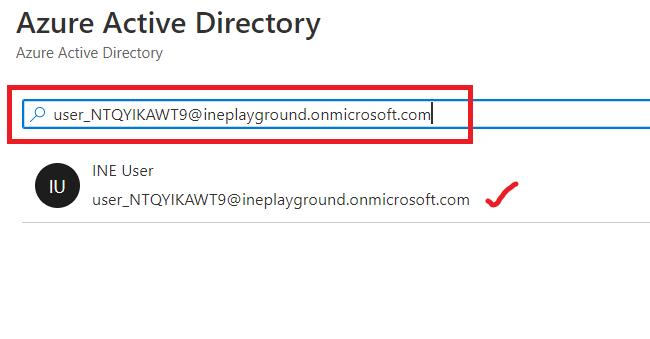
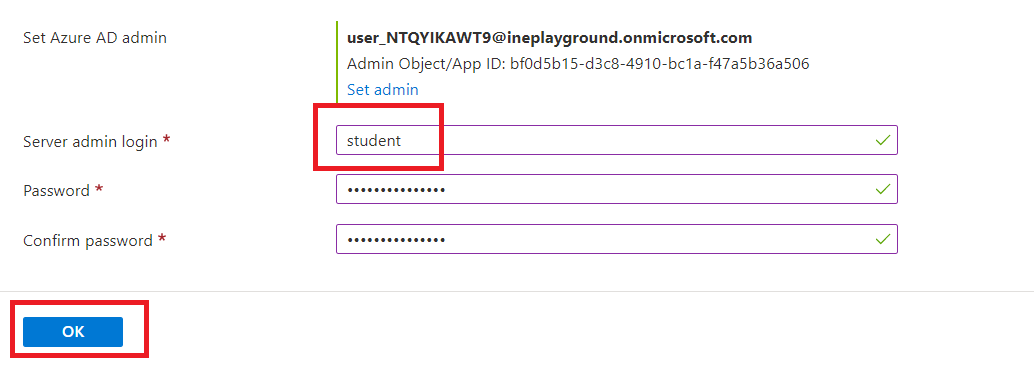
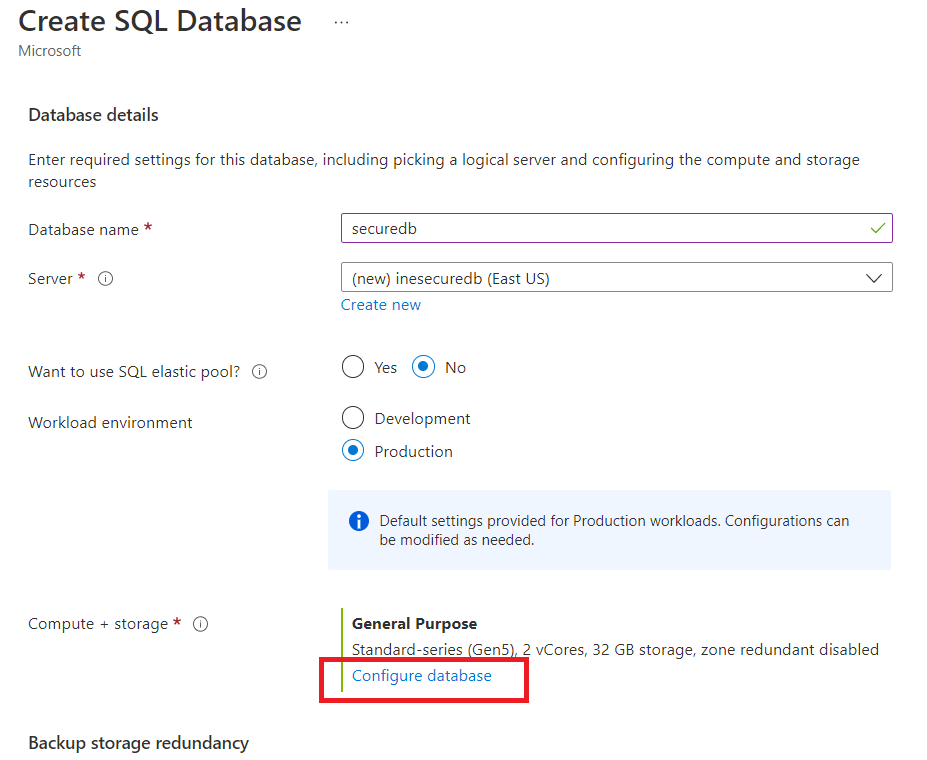
    "solutions": "## Login to the Azure Portal\n\nClick on the login URL and enter the given credentials to log in to the Azure portal.\n\n![](https://assets.ine.com/content/labs/azure-course-labs/azure-sql-azure-ad-authentication/1.png)\n\nNote: Your credentials will be different from the ones shown in the figure.\n\nAfter logging in to the portal using the credentials. You will see an empty resource group, where you can create some resources.\n\n![](https://assets.ine.com/content/labs/azure-course-labs/azure-sql-azure-ad-authentication/2.png)\n\n## Provision an Azure SQL Database\n\nGo to the search box and type **SQL databases**. Click on SQL databases.\n\n![](https://assets.ine.com/content/labs/azure-course-labs/azure-sql-azure-ad-authentication/3.png)\n\nNow, click on \"Create\" or \"Create SQL databases\" to create the database.\n\n![](https://assets.ine.com/content/labs/azure-course-labs/azure-sql-azure-ad-authentication/4.png)\n\nSelect the pre-defined resource group from the drop-down menu and give the database a name e.g., **securedb**.\n\n![](https://assets.ine.com/content/labs/azure-course-labs/azure-sql-azure-ad-authentication/5.png)\n\n## Configure Configure access and authentication for the database server authentication for the database server\n\nNow to create a new server, click on the **Create new** option.\n\n![](https://assets.ine.com/content/labs/azure-course-labs/azure-sql-azure-ad-authentication/6.png)\n\nGive the server a name e.g., **inesecuredb**.\n\n![](https://assets.ine.com/content/labs/azure-course-labs/azure-sql-azure-ad-authentication/7.png)\n\nSelect the **Use both SQL and Azure AD authentication** option.\n\n![](https://assets.ine.com/content/labs/azure-course-labs/azure-sql-azure-ad-authentication/8.png)\n\nTo set the Azure AD admin, click on the \"Set admin\" option.\n\n![](https://assets.ine.com/content/labs/azure-course-labs/azure-sql-azure-ad-authentication/9.png)\n\nNow inside the search box paste the user id with which you logged in to this lab. And select the user as shown in the below image.\n\n**NOTE: Select only that user (the current user) with which you have logged in to the lab.**\n\n![](https://assets.ine.com/content/labs/azure-course-labs/azure-sql-azure-ad-authentication/10.png)\n\nNow, click on **select**.\n\n![](https://assets.ine.com/content/labs/azure-course-labs/azure-sql-azure-ad-authentication/11.png)\n\nNow, give the server admin login name as **student** and give it a password of your choice, e.g.,**\"$trongPasswd123\"**.\n\n**NOTE: Store the login id and password somewhere for future use.**\n\nNow, click on **\"OK\"**.\n\n![](https://assets.ine.com/content/labs/azure-course-labs/azure-sql-azure-ad-authentication/12.png)\n\nNow, click on \"Configure database\" option. \n\n![](https://assets.ine.com/content/labs/azure-course-labs/azure-sql-azure-ad-authentication/13.png)\n\nHere, using the drop down menu select **\"Basic\"** as service tier.\n\n![](https://assets.ine.com/content/labs/azure-course-labs/azure-sql-azure-ad-authentication/14.png)\n\nClick on **\"Apply\"**.\n\n![](https://assets.ine.com/content/labs/azure-course-labs/azure-sql-azure-ad-authentication/15.png)\n\nNow select **\"Next**. \n\n![](https://assets.ine.com/content/labs/azure-course-labs/azure-sql-azure-ad-authentication/16.png)\n\nSelect the connectivity method as **\"Public endpoint\"** and select **\"Yes\"** for both firewall rules (\"Allow Azure services and resources to access this server\" and \" Add current client IP address\").\n\n![](https://assets.ine.com/content/labs/azure-course-labs/azure-sql-azure-ad-authentication/17.png)\n\nNow, go to \"Additional settings\" and select the **\"Sample\"** option for \"Use existing data\" and click on \"OK\" if asked.  \n\n![](https://assets.ine.com/content/labs/azure-course-labs/azure-sql-azure-ad-authentication/18.png)\n\nNow, click on **\"Review + create\"** option.\n\n![](https://assets.ine.com/content/labs/azure-course-labs/azure-sql-azure-ad-authentication/19.png)\n\nClick on the **\"Create\"** button.\n\n![](https://assets.ine.com/content/labs/azure-course-labs/azure-sql-azure-ad-authentication/20.png)\n\nWait for the resources to get deployed and after deployment is complete, click on the \"Go to resources\" option to view the resources.\n\n![](https://assets.ine.com/content/labs/azure-course-labs/azure-sql-azure-ad-authentication/21.PNG)\n\n## Verify Azure AD authentication for the server\n\nInside the search-box, type \"query editor\" and select **\"Query editor\"** option.\n\n![](https://assets.ine.com/content/labs/azure-course-labs/azure-sql-azure-ad-authentication/22.png)\n\nHere, provide the login credentials that we saved previously (e.g., \"student\" and \"$trongPasswd123\" as login id and password, respectively).\n\n![](https://assets.ine.com/content/labs/azure-course-labs/azure-sql-azure-ad-authentication/23.png)\n\nNow inside the editor, write down a query given below and click on the **\"Run\"** button.\n\n```\nSELECT CompanyName FROM [SalesLT].[Customer];\n```\n\n![](https://assets.ine.com/content/labs/azure-course-labs/azure-sql-azure-ad-authentication/24.png)\n\nYou successfully got the result from the above query.\n\n## Now, your lab is complete. You can close the lab.",
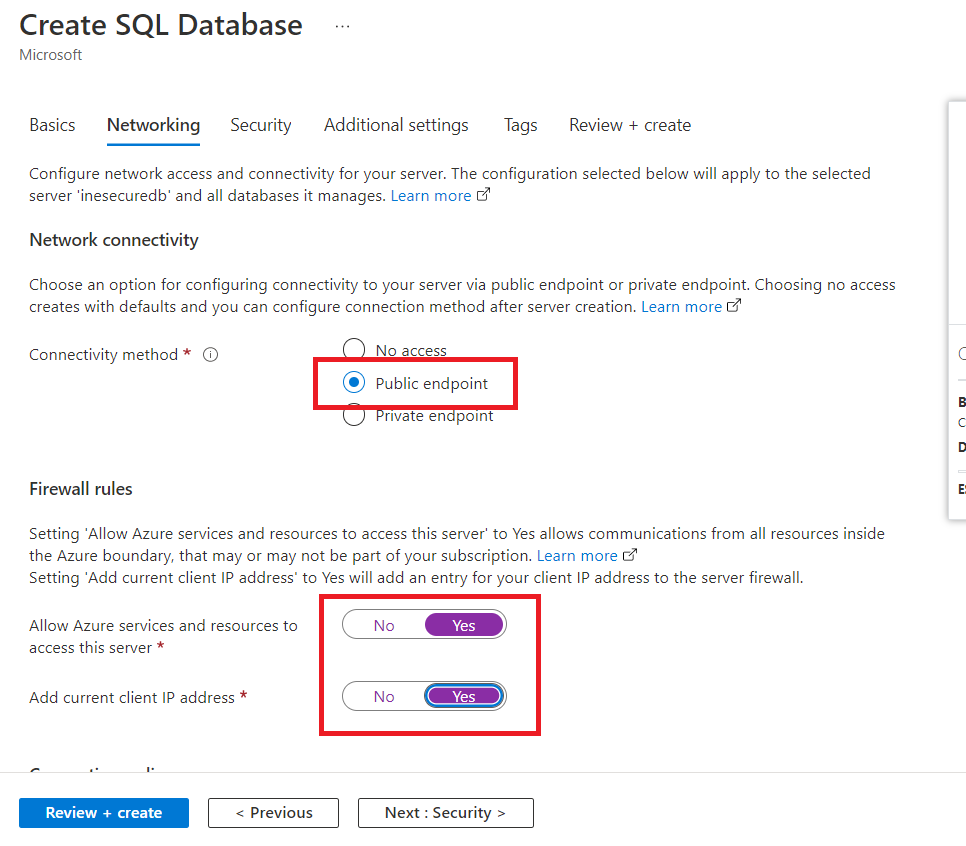
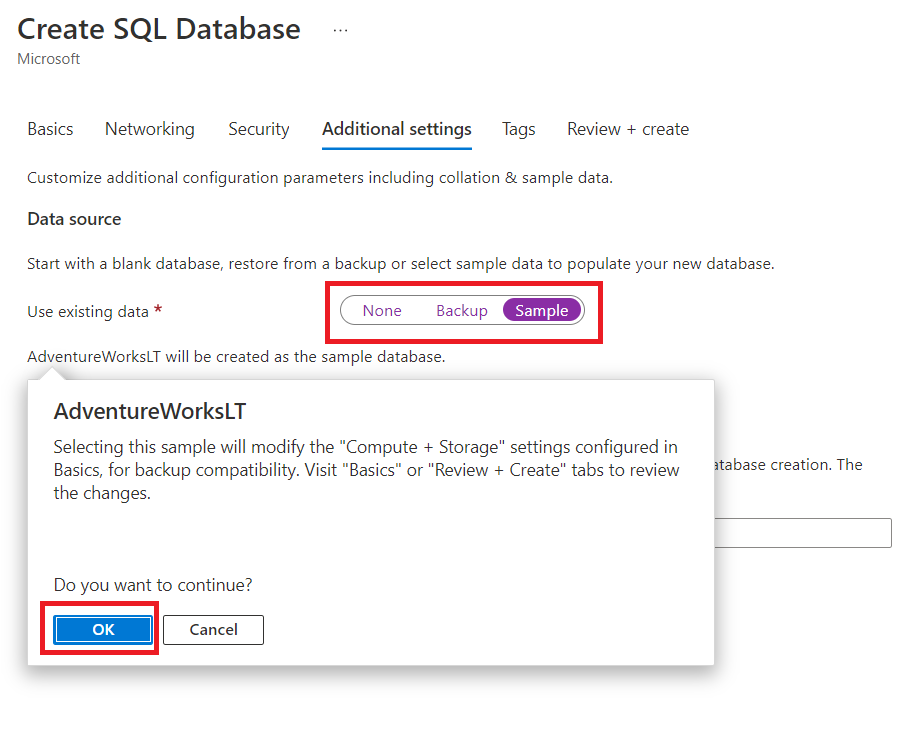
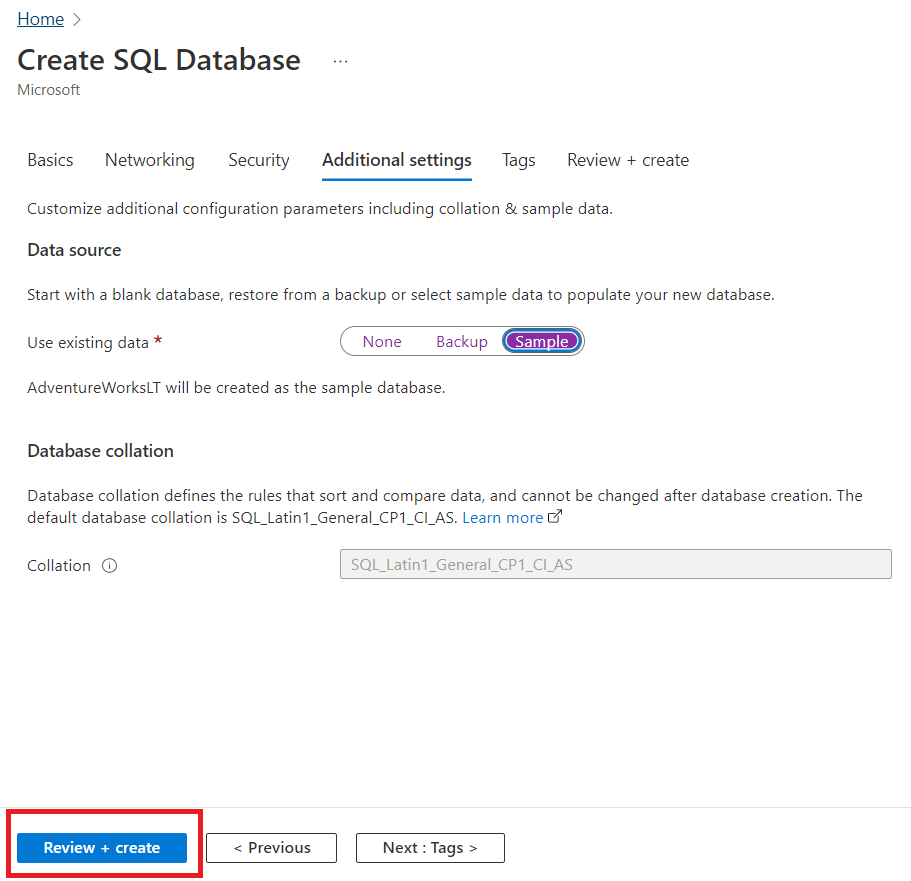
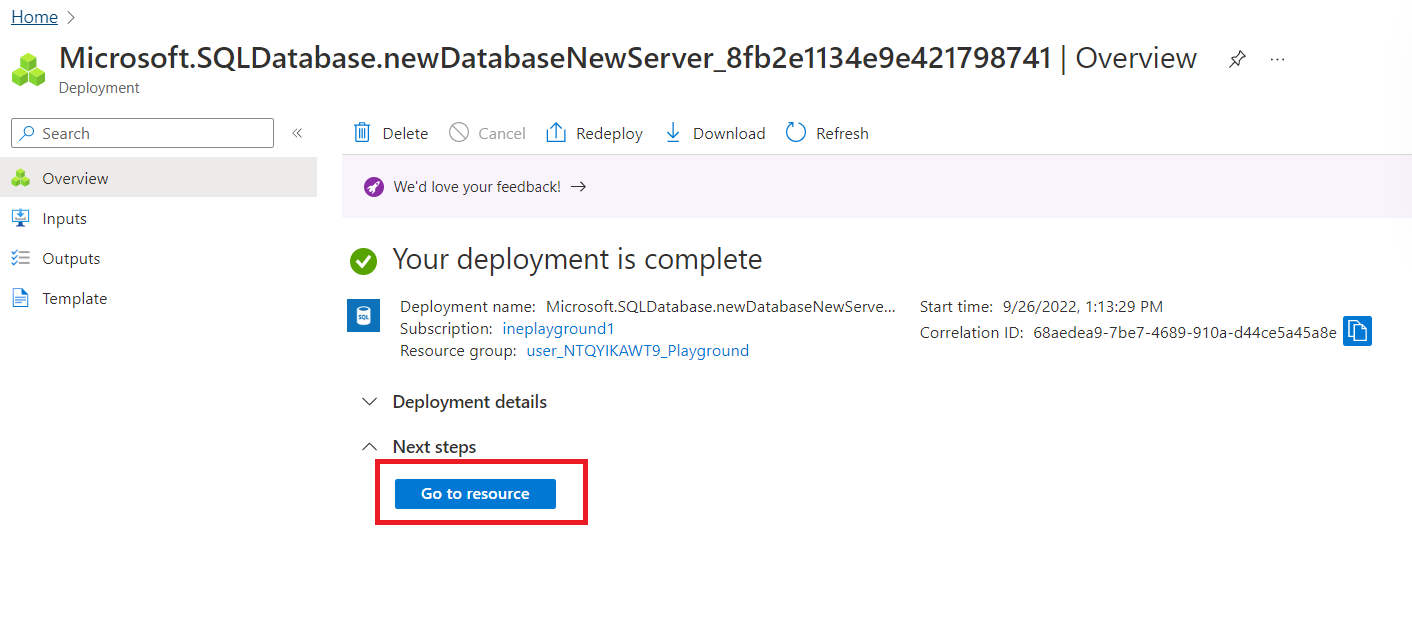
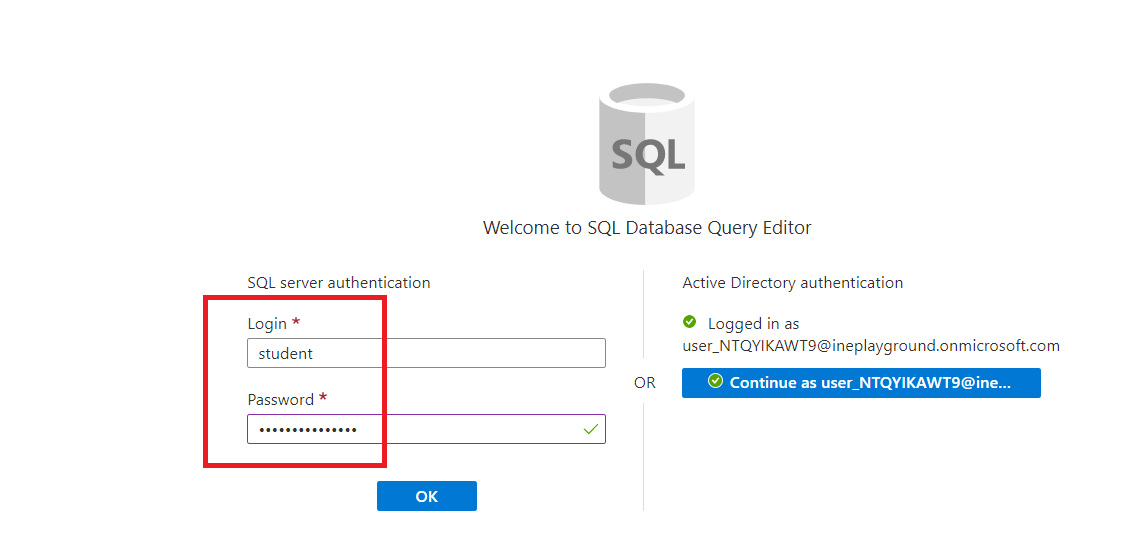
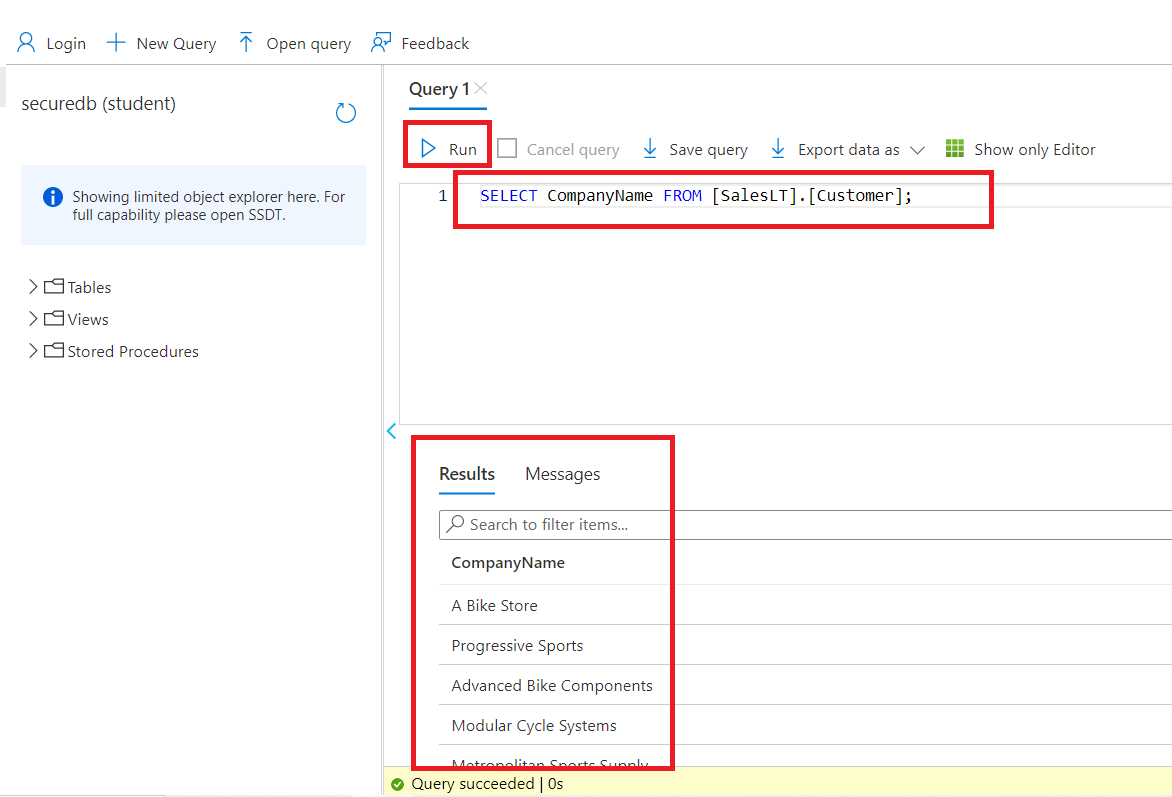
    "solutions_html": "<h2>Login to the Azure Portal</h2>\n<p>Click on the login URL and enter the given credentials to log in to the Azure portal.</p>\n<p><img alt=\"\" src=\"https://assets.ine.com/content/labs/azure-course-labs/azure-sql-azure-ad-authentication/1.png\" /></p>\n<p>Note: Your credentials will be different from the ones shown in the figure.</p>\n<p>After logging in to the portal using the credentials. You will see an empty resource group, where you can create some resources.</p>\n<p><img alt=\"\" src=\"https://assets.ine.com/content/labs/azure-course-labs/azure-sql-azure-ad-authentication/2.png\" /></p>\n<h2>Provision an Azure SQL Database</h2>\n<p>Go to the search box and type <strong>SQL databases</strong>. Click on SQL databases.</p>\n<p><img alt=\"\" src=\"https://assets.ine.com/content/labs/azure-course-labs/azure-sql-azure-ad-authentication/3.png\" /></p>\n<p>Now, click on \"Create\" or \"Create SQL databases\" to create the database.</p>\n<p><img alt=\"\" src=\"https://assets.ine.com/content/labs/azure-course-labs/azure-sql-azure-ad-authentication/4.png\" /></p>\n<p>Select the pre-defined resource group from the drop-down menu and give the database a name e.g., <strong>securedb</strong>.</p>\n<p><img alt=\"\" src=\"https://assets.ine.com/content/labs/azure-course-labs/azure-sql-azure-ad-authentication/5.png\" /></p>\n<h2>Configure Configure access and authentication for the database server authentication for the database server</h2>\n<p>Now to create a new server, click on the <strong>Create new</strong> option.</p>\n<p><img alt=\"\" src=\"https://assets.ine.com/content/labs/azure-course-labs/azure-sql-azure-ad-authentication/6.png\" /></p>\n<p>Give the server a name e.g., <strong>inesecuredb</strong>.</p>\n<p><img alt=\"\" src=\"https://assets.ine.com/content/labs/azure-course-labs/azure-sql-azure-ad-authentication/7.png\" /></p>\n<p>Select the <strong>Use both SQL and Azure AD authentication</strong> option.</p>\n<p><img alt=\"\" src=\"https://assets.ine.com/content/labs/azure-course-labs/azure-sql-azure-ad-authentication/8.png\" /></p>\n<p>To set the Azure AD admin, click on the \"Set admin\" option.</p>\n<p><img alt=\"\" src=\"https://assets.ine.com/content/labs/azure-course-labs/azure-sql-azure-ad-authentication/9.png\" /></p>\n<p>Now inside the search box paste the user id with which you logged in to this lab. And select the user as shown in the below image.</p>\n<p><strong>NOTE: Select only that user (the current user) with which you have logged in to the lab.</strong></p>\n<p><img alt=\"\" src=\"https://assets.ine.com/content/labs/azure-course-labs/azure-sql-azure-ad-authentication/10.png\" /></p>\n<p>Now, click on <strong>select</strong>.</p>\n<p><img alt=\"\" src=\"https://assets.ine.com/content/labs/azure-course-labs/azure-sql-azure-ad-authentication/11.png\" /></p>\n<p>Now, give the server admin login name as <strong>student</strong> and give it a password of your choice, e.g.,<strong>\"$trongPasswd123\"</strong>.</p>\n<p><strong>NOTE: Store the login id and password somewhere for future use.</strong></p>\n<p>Now, click on <strong>\"OK\"</strong>.</p>\n<p><img alt=\"\" src=\"https://assets.ine.com/content/labs/azure-course-labs/azure-sql-azure-ad-authentication/12.png\" /></p>\n<p>Now, click on \"Configure database\" option. </p>\n<p><img alt=\"\" src=\"https://assets.ine.com/content/labs/azure-course-labs/azure-sql-azure-ad-authentication/13.png\" /></p>\n<p>Here, using the drop down menu select <strong>\"Basic\"</strong> as service tier.</p>\n<p><img alt=\"\" src=\"https://assets.ine.com/content/labs/azure-course-labs/azure-sql-azure-ad-authentication/14.png\" /></p>\n<p>Click on <strong>\"Apply\"</strong>.</p>\n<p><img alt=\"\" src=\"https://assets.ine.com/content/labs/azure-course-labs/azure-sql-azure-ad-authentication/15.png\" /></p>\n<p>Now select <strong>\"Next</strong>. </p>\n<p><img alt=\"\" src=\"https://assets.ine.com/content/labs/azure-course-labs/azure-sql-azure-ad-authentication/16.png\" /></p>\n<p>Select the connectivity method as <strong>\"Public endpoint\"</strong> and select <strong>\"Yes\"</strong> for both firewall rules (\"Allow Azure services and resources to access this server\" and \" Add current client IP address\").</p>\n<p><img alt=\"\" src=\"https://assets.ine.com/content/labs/azure-course-labs/azure-sql-azure-ad-authentication/17.png\" /></p>\n<p>Now, go to \"Additional settings\" and select the <strong>\"Sample\"</strong> option for \"Use existing data\" and click on \"OK\" if asked.  </p>\n<p><img alt=\"\" src=\"https://assets.ine.com/content/labs/azure-course-labs/azure-sql-azure-ad-authentication/18.png\" /></p>\n<p>Now, click on <strong>\"Review + create\"</strong> option.</p>\n<p><img alt=\"\" src=\"https://assets.ine.com/content/labs/azure-course-labs/azure-sql-azure-ad-authentication/19.png\" /></p>\n<p>Click on the <strong>\"Create\"</strong> button.</p>\n<p><img alt=\"\" src=\"https://assets.ine.com/content/labs/azure-course-labs/azure-sql-azure-ad-authentication/20.png\" /></p>\n<p>Wait for the resources to get deployed and after deployment is complete, click on the \"Go to resources\" option to view the resources.</p>\n<p><img alt=\"\" src=\"https://assets.ine.com/content/labs/azure-course-labs/azure-sql-azure-ad-authentication/21.PNG\" /></p>\n<h2>Verify Azure AD authentication for the server</h2>\n<p>Inside the search-box, type \"query editor\" and select <strong>\"Query editor\"</strong> option.</p>\n<p><img alt=\"\" src=\"https://assets.ine.com/content/labs/azure-course-labs/azure-sql-azure-ad-authentication/22.png\" /></p>\n<p>Here, provide the login credentials that we saved previously (e.g., \"student\" and \"$trongPasswd123\" as login id and password, respectively).</p>\n<p><img alt=\"\" src=\"https://assets.ine.com/content/labs/azure-course-labs/azure-sql-azure-ad-authentication/23.png\" /></p>\n<p>Now inside the editor, write down a query given below and click on the <strong>\"Run\"</strong> button.</p>\n<pre class=\"codehilite\"><code>SELECT CompanyName FROM [SalesLT].[Customer];</code></pre>\n\n<p><img alt=\"\" src=\"https://assets.ine.com/content/labs/azure-course-labs/azure-sql-azure-ad-authentication/24.png\" /></p>\n<p>You successfully got the result from the above query.</p>\n<h2>Now, your lab is complete. You can close the lab.</h2>",
    "flags": [],
    "min_points_to_pass": null,
    "access_type": "web",
    "user_status": "unstarted",
    "user_lab_status": null,
    "user_status_modified": null,
    "user_flags": [],
    "global_running_session": null
}