
GameDevSoft is a software development company which is mainly known for game development. An employee in the main office was seen using his colleague's computer and had plugged in a USB on that computer too. When he was confronted about this incident, he said that he was helping fix an issue and that he never plugged any USB to this computer!
\nEvidence given: WindowsRegistry folder [located at C:\\DFP\\Labs\\Module6\\Lab16\\WindowsRegistry] includes:
\nIn this task, you are required to analyze the Windows Registry files to locate USB artifacts and then, report back how many USBs were truly used on the system. In your report also include other USB device details such as the vendor name, product name, version number, serial number, friendly names, mount points, drive letters, etc.
\nTo complete this task, use RegRipper [located at C:\\DFP\\Tools\\Others\\RegRipper2.8-master] to analyze the Windows \"SYSTEM\" registry file.
\n[Note:] USB details are usually stored in the USBSTOR registry key
\nSYSTEM\\CurrentControlSet\\Enum\\USBSTOR
\nIn this task you are required to complete the USB forensic analysis you started and prove that the USB devices that were connected to this machine were used by a specific user. You are also required to identify when the USB device was used.
\nTo complete this task, use RegRipper to analyze the Windows \"NTUSER.DAT\" registry file, which was acquired from the suspect user account.
\n[Note:] mounted device details could be found here:
\nNTUSER.DAT\\Microsoft\\Windows\\CurrentVersion\\Explorer\\MountPoints2
", "published_date": "2020-10-20T15:32:26Z", "solutions": "# SOLUTIONS\n\n## Task 1: Analyzing Windows Registry Artifacts to Locate used USB Devices\n\nThe good thing about analyzing Windows Registry Artifacts using RegRipper is that it is so easy. RegRipper performs a lot of analysis activities in the background though! We will be using the GUI version named rr.exe, but there is also a CLI version. \u00f0\u0178\u02dc\u0160\n\nLet's start RegRipper and load the SYSTEM registry file. All you need to do is double-click on the rr.exe file found in the RegRipper2.8-master directory. After running the application, make sure you select the file you want to analyze by pressing the \"Browse\" button and selecting the \"SYSTEM\" file. Then, press the other \"Browse\" button to specify where you want to store the results of the analysis that RegRipper will be doing for you. Finally, make sure that you select \"system\" from the drop-down profile list, even if it does not show in the list, just use the keyboard arrows to select it. With that done, you should have something like the following:\n\n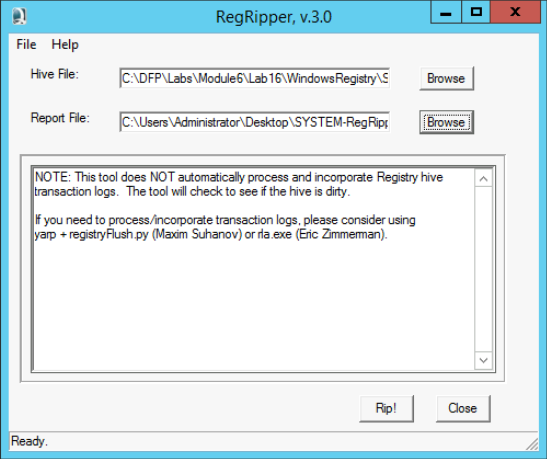\n\nNow all you need to do is press the \"Rip It\" button.\n\nRegRipper will do all the analysis, and then you will get a message saying that all is done. When you reach that point, you can move on to the second part of the analysis, that you must do yourself.\n\nAs previously mentioned, the USB details are usually stored in the USBSTOR registry key, which is located in the SYSTEM registry file in the following path:\n\n**SYSTEM\\\\CurrentControlSet\\\\Enum\\\\USBSTOR**\n\nOpen the SYSTEM-RegReport.txt file using Notepad++ and search for the USBSTOR keyword and find the line where it shows the \"ControlSet001\\\\Enum\\\\USBStor\". Remember that it will not always start with \"ControlSet001\". As you may recall from our Registry Forensic analysis, this depends on the Control Set we are working with. For this case, it was ControlSet001. Now, I assume you found the following results:\n\nDisk&Ven_Imation&Prod_Nano_Pro&Rev_PMAP [Tue Jun 21 01:53:14 2016]\n\n\u00e2\u20ac\u2039 S/N: 07B20C03C80830A9&0 [Tue Jun 21 01:53:14 2016]\n\n\u00e2\u20ac\u2039 Device Parameters LastWrite: [Tue Jun 21 01:53:14 2016]\n\n\u00e2\u20ac\u2039 Properties LastWrite : [Tue Jun 21 01:53:15 2016]\n\n\u00e2\u20ac\u2039 FriendlyName : Imation Nano Pro USB Device\n\nDisk&Ven_Lexar&Prod_JumpDrive&Rev_1100 [Tue Jun 21 02:01:59 2016]\n\n\u00e2\u20ac\u2039 S/N: AAI6UXDKZDV8E9OU&0 [Tue Jun 21 02:01:59 2016]\n\n\u00e2\u20ac\u2039 Device Parameters LastWrite: [Tue Jun 21 02:01:59 2016]\n\n\u00e2\u20ac\u2039 Properties LastWrite : [Tue Jun 21 02:02:00 2016]\n\n\u00e2\u20ac\u2039 FriendlyName : Lexar JumpDrive USB Device**\n\nBased on the results, we might have two entries here. Let's continue our analysis by analyzing the entries we found here and see what the vendors, product names, etc. are. The format used in a USBSTOR is shown above:\n\nDISK&Ven_{Name}&Prod_{Name}&Rev_{Value}\n\nSo, for the first entry, we have:\n\n- Vendor: **Imation**\n- Product: **Nano_Pro**\n- Revision number: **PMAP**\n- Serial No.: **07B20C03C80830A9&0**\n- Friendly Name: **Imation Nano Pro USB Device**\n- First time connected: **Tue Jun 21 01:53:14 2016**\n- Last time used: **Tue Jun 21 01:53:15 2016**\n\nWhile, for the second entry we have:\n\n- Vendor: **Lexar**\n- Product: **JumpDrive**\n- Revision No.: **1100**\n- Serial No.: **AAI6UXDKZDV8E9OU&0**\n- Friendly Name: **Lexar JumpDrive USB Device**\n- First time connected: **Tue Jun 21 02:01:59 2016**\n- Last time used: **Tue Jun 21 02:02:00 2016**\n\nBy the way, from the results we got, it is clear that each device was used exactly 1 second after it was first connected to the system.\n\nNow, we need to check the drive letter of the USBs that have been used on this system. This can be done by going to the location below:\n\n**SYSTEM\\\\MountedDevices**\n\nSo, in the results of RegRipper, search for the \"**MountedDevices**\" keyword. I assume you found the entries below. \n\n**MountedDevices**\n\nLastWrite time = Tue Jun 21 02:01:59 2016Z\n\n\\DosDevices\\\\C:\n\nDrive Signature = 3a db 0d ca\n\n\\\\??\\\\Volume{32138f1e-3788-11e6-8250-806e6f6e6963}\n\nDrive Signature = 3a db 0d ca\n\n\\??\\\\Volume{32138f1f-3788-11e6-8250-806e6f6e6963}\n\nDrive Signature = 3a db 0d ca\n\nDevice: _??_USBSTOR\\#Disk&Ven_Lexar&Prod_JumpDrive&Rev_1100\\#AAI6UXDKZDV8E9OU&0\\#{53f56307-b6bf-11d0-94f2-00a0c91efb8b}\n\n\\\\DosDevices\\\\E:\n\n\\\\??\\\\Volume{**fb7f93ec-37a4-11e6-8254-080027d269d7**}\n\nDevice: \\\\??\\\\SCSI\\#CdRom&Ven_VBOX&Prod_CD-ROM\\#4&8f5d389&0&010000\\#{53f5630d-b6bf-11d0-94f2-00a0c91efb8b}\n\n\\\\??\\\\Volume{32138f23-3788-11e6-8250-806e6f6e6963}\n\n\\\\DosDevices\\\\D:\n\nDevice: _??_USBSTOR\\#Disk&Ven_Imation&Prod_Nano_Pro&Rev_PMAP\\#07B20C03C80830A9&0\\#{53f56307-b6bf-11d0-94f2-00a0c91efb8b}\n\n\\\\??\\\\Volume{**fb7f938e-37a4-11e6-8254-080027d269d7**}\n\n----------------------------------------\n\nmountdev2 v.20140721\n\n(System) Return contents of System hive MountedDevices key\n\nMountedDevices\n\nLastWrite time = Tue Jun 21 02:01:59 2016Z\n\nVolume Disk Sig Offset\n\n------- -------- --------\n\n\\\\??\\\\Volume{32138f1e-3788-11e6-8250-806e6f6e6963} 3a db 0d ca 0\n\n\\\\??\\\\Volume{32138f1f-3788-11e6-8250-806e6f6e6963} 3a db 0d ca 0\n\n\\\\DosDevices\\\\C: 3a db 0d ca 0\n\n\\\\??\\\\Volume{32138f1e-3788-11e6-8250-806e6f6e6963}\n\nTue Jun 21 08:14:37 2016\n\n\\\\??\\\\Volume{32138f1f-3788-11e6-8250-806e6f6e6963}\n\nTue Jun 21 08:14:37 2016\n\nDevice: \\\\??\\\\SCSI\\#CdRom&Ven_VBOX&Prod_CD-ROM\\#4&8f5d389&0&010000\\#{53f5630d-b6bf-11d0-94f2-00a0c91efb8b}\n\n\\\\??\\\\Volume{32138f23-3788-11e6-8250-806e6f6e6963}\n\n\\\\DosDevices\\\\D:\n\nDevice: _??_USBSTOR\\#Disk&Ven_Imation&Prod_Nano_Pro&Rev_PMAP\\#07B20C03C80830A9&0\\#{53f56307-b6bf-11d0-94f2-00a0c91efb8b}\n\n\\\\??\\\\Volume{**fb7f938e-37a4-11e6-8254-080027d269d7**}\n\nDevice: _??_USBSTOR\\#Disk&Ven_Lexar&Prod_JumpDrive&Rev_1100\\#AAI6UXDKZDV8E9OU&0\\#{53f56307-b6bf-11d0-94f2-00a0c91efb8b}\n\n\\\\DosDevices\\\\E:\n\n\\\\??\\\\Volume{**fb7f93ec-37a4-11e6-8254-080027d269d7**}\n\nNow, I want you to go back and check the Volume GUIDs that are written in bold. So, it seems that the device that was used had the Volume GUID **fb7f93ec-37a4-11e6-8254-080027d269d7**. By inspecting this volume GUID, it seems that it was used with both USB drives, and it was mounted using the drive letter \"**E:**.\" Also, it seems that the \"**Lexar JumpDrive USB Device**\" was the last to be used on this system. We have two proofs to this fact. The first is the entry in the registry that still shows it was attached to it. The second is that if you go back to the last time it was used, you will find that it was used at \"**Tue Jun 21 02:02:00 2016**\" while the other USB was last used at \"**Tue Jun 21 01:53:15 2016**\". It seems that our fellow was using more than one USBs because the time between each usage is less than 7 minutes.\n\n## Task 2: Profiling the User to the used USB Device\n\nNow that we have found what USB devices were connected to this computer, we now need to check which user was using them. Since in our case we only have one user, we will just go through the single NTUSER.DAT file. Again, start RegRipper but this time make sure to load the \"**NTUSER.DAT**\" registry file, save your report to something like \"**NTUSER-RegReport.txt**,\" select the \"**ntuser**\" profile and then click on the \"**Rip It**\" button.\n\nAs a basic reminder, the mounted device details can be found in the registry path below:\n\n**NTUSER.DAT\\\\Microsoft\\\\Windows\\\\CurrentVersion\\\\Explorer\\\\MountPoints2**\n\nNow, based on the GUID we found in the previous task, which was \"**fb7f93ec-37a4-11e6-8254-080027d269d7**.\" Let's see if we can locate an entry for this volume under this user's registry keys. Search for the keyword \"**MountPoints2**\" in the file NTUSER-RegReport.txt using Notepad++. I assume you found the following results.\n\nMountPoints2\n\nSoftware\\\\Microsoft\\\\Windows\\\\CurrentVersion\\\\Explorer\\\\MountPoints2\n\nLastWrite Time Tue Jun 21 02:02:04 2016 (UTC)\n\nRemote Drives:\n\nVolumes:\n\nTue Jun 21 08:38:46 2016 (UTC)\n\n{32138f1f-3788-11e6-8250-806e6f6e6963}\n\n**Tue Jun 21 02:02:04 2016 (UTC)**\n\n**{fb7f93ec-37a4-11e6-8254-080027d269d7}**\n\n**Tue Jun 21 01:59:52 2016 (UTC)**\n\n**{fb7f938e-37a4-11e6-8254-080027d269d7}**\n\nTue Jun 21 01:59:48 2016 (UTC)\n\n{32138f23-3788-11e6-8250-806e6f6e6963}\n\nI highlighted the ones we are interested in **bold**.\n\nIf we now pull all the details together, we can conclude that:\n\n1. The USB device named \"**Imation Nano Pro USB Device**\" was:\n\n- First installed at: Tue Jun 21 01:53:14 2016 **<- found from task \\#1**\n- Last connected at: Tue Jun 21 01:53:15 2016 **<- found from task \\#1**\n- Used by the user at: **Tue Jun 21 01:59:52 2016 (UTC)** **<- found from user MountPoints2**\n\n \n\n2. While the USB device named \"**Lexar JumpDrive USB Device**\" was:\n\n- First installed at: Tue Jun 21 02:01:59 2016 **<- found from task \\#1**\n- Last connected at: Tue Jun 21 02:02:00 2016 **<- found from task \\#1**\n- Used by the user at: **Tue Jun 21 02:02:04 2016 (UTC)** **<- found from user MountPoints2**\n\nAnd with this, we can conclude that this user truly mounted/used both USBs.", "solutions_html": "The good thing about analyzing Windows Registry Artifacts using RegRipper is that it is so easy. RegRipper performs a lot of analysis activities in the background though! We will be using the GUI version named rr.exe, but there is also a CLI version. \u00f0\u0178\u02dc\u0160
\nLet's start RegRipper and load the SYSTEM registry file. All you need to do is double-click on the rr.exe file found in the RegRipper2.8-master directory. After running the application, make sure you select the file you want to analyze by pressing the \"Browse\" button and selecting the \"SYSTEM\" file. Then, press the other \"Browse\" button to specify where you want to store the results of the analysis that RegRipper will be doing for you. Finally, make sure that you select \"system\" from the drop-down profile list, even if it does not show in the list, just use the keyboard arrows to select it. With that done, you should have something like the following:
\n
Now all you need to do is press the \"Rip It\" button.
\nRegRipper will do all the analysis, and then you will get a message saying that all is done. When you reach that point, you can move on to the second part of the analysis, that you must do yourself.
\nAs previously mentioned, the USB details are usually stored in the USBSTOR registry key, which is located in the SYSTEM registry file in the following path:
\nSYSTEM\\CurrentControlSet\\Enum\\USBSTOR
\nOpen the SYSTEM-RegReport.txt file using Notepad++ and search for the USBSTOR keyword and find the line where it shows the \"ControlSet001\\Enum\\USBStor\". Remember that it will not always start with \"ControlSet001\". As you may recall from our Registry Forensic analysis, this depends on the Control Set we are working with. For this case, it was ControlSet001. Now, I assume you found the following results:
\nDisk&Ven_Imation&Prod_Nano_Pro&Rev_PMAP [Tue Jun 21 01:53:14 2016]
\n\u00e2\u20ac\u2039 S/N: 07B20C03C80830A9&0 [Tue Jun 21 01:53:14 2016]
\n\u00e2\u20ac\u2039 Device Parameters LastWrite: [Tue Jun 21 01:53:14 2016]
\n\u00e2\u20ac\u2039 Properties LastWrite : [Tue Jun 21 01:53:15 2016]
\n\u00e2\u20ac\u2039 FriendlyName : Imation Nano Pro USB Device
\nDisk&Ven_Lexar&Prod_JumpDrive&Rev_1100 [Tue Jun 21 02:01:59 2016]
\n\u00e2\u20ac\u2039 S/N: AAI6UXDKZDV8E9OU&0 [Tue Jun 21 02:01:59 2016]
\n\u00e2\u20ac\u2039 Device Parameters LastWrite: [Tue Jun 21 02:01:59 2016]
\n\u00e2\u20ac\u2039 Properties LastWrite : [Tue Jun 21 02:02:00 2016]
\n\u00e2\u20ac\u2039 FriendlyName : Lexar JumpDrive USB Device**
\nBased on the results, we might have two entries here. Let's continue our analysis by analyzing the entries we found here and see what the vendors, product names, etc. are. The format used in a USBSTOR is shown above:
\nDISK&Ven_{Name}&Prod_{Name}&Rev_{Value}
\nSo, for the first entry, we have:
\nWhile, for the second entry we have:
\nBy the way, from the results we got, it is clear that each device was used exactly 1 second after it was first connected to the system.
\nNow, we need to check the drive letter of the USBs that have been used on this system. This can be done by going to the location below:
\nSYSTEM\\MountedDevices
\nSo, in the results of RegRipper, search for the \"MountedDevices\" keyword. I assume you found the entries below.
\nMountedDevices
\nLastWrite time = Tue Jun 21 02:01:59 2016Z
\n\\DosDevices\\C:
\nDrive Signature = 3a db 0d ca
\n\\??\\Volume{32138f1e-3788-11e6-8250-806e6f6e6963}
\nDrive Signature = 3a db 0d ca
\n\\??\\Volume{32138f1f-3788-11e6-8250-806e6f6e6963}
\nDrive Signature = 3a db 0d ca
\nDevice: _??_USBSTOR#Disk&Ven_Lexar&Prod_JumpDrive&Rev_1100#AAI6UXDKZDV8E9OU&0#{53f56307-b6bf-11d0-94f2-00a0c91efb8b}
\n\\DosDevices\\E:
\n\\??\\Volume{fb7f93ec-37a4-11e6-8254-080027d269d7}
\nDevice: \\??\\SCSI#CdRom&Ven_VBOX&Prod_CD-ROM#4&8f5d389&0&010000#{53f5630d-b6bf-11d0-94f2-00a0c91efb8b}
\n\\??\\Volume{32138f23-3788-11e6-8250-806e6f6e6963}
\n\\DosDevices\\D:
\nDevice: _??_USBSTOR#Disk&Ven_Imation&Prod_Nano_Pro&Rev_PMAP#07B20C03C80830A9&0#{53f56307-b6bf-11d0-94f2-00a0c91efb8b}
\n\\??\\Volume{fb7f938e-37a4-11e6-8254-080027d269d7}
\nmountdev2 v.20140721
\n(System) Return contents of System hive MountedDevices key
\nMountedDevices
\nLastWrite time = Tue Jun 21 02:01:59 2016Z
\nVolume Disk Sig Offset
\n\\??\\Volume{32138f1e-3788-11e6-8250-806e6f6e6963} 3a db 0d ca 0
\n\\??\\Volume{32138f1f-3788-11e6-8250-806e6f6e6963} 3a db 0d ca 0
\n\\DosDevices\\C: 3a db 0d ca 0
\n\\??\\Volume{32138f1e-3788-11e6-8250-806e6f6e6963}
\nTue Jun 21 08:14:37 2016
\n\\??\\Volume{32138f1f-3788-11e6-8250-806e6f6e6963}
\nTue Jun 21 08:14:37 2016
\nDevice: \\??\\SCSI#CdRom&Ven_VBOX&Prod_CD-ROM#4&8f5d389&0&010000#{53f5630d-b6bf-11d0-94f2-00a0c91efb8b}
\n\\??\\Volume{32138f23-3788-11e6-8250-806e6f6e6963}
\n\\DosDevices\\D:
\nDevice: _??_USBSTOR#Disk&Ven_Imation&Prod_Nano_Pro&Rev_PMAP#07B20C03C80830A9&0#{53f56307-b6bf-11d0-94f2-00a0c91efb8b}
\n\\??\\Volume{fb7f938e-37a4-11e6-8254-080027d269d7}
\nDevice: _??_USBSTOR#Disk&Ven_Lexar&Prod_JumpDrive&Rev_1100#AAI6UXDKZDV8E9OU&0#{53f56307-b6bf-11d0-94f2-00a0c91efb8b}
\n\\DosDevices\\E:
\n\\??\\Volume{fb7f93ec-37a4-11e6-8254-080027d269d7}
\nNow, I want you to go back and check the Volume GUIDs that are written in bold. So, it seems that the device that was used had the Volume GUID fb7f93ec-37a4-11e6-8254-080027d269d7. By inspecting this volume GUID, it seems that it was used with both USB drives, and it was mounted using the drive letter \"E:.\" Also, it seems that the \"Lexar JumpDrive USB Device\" was the last to be used on this system. We have two proofs to this fact. The first is the entry in the registry that still shows it was attached to it. The second is that if you go back to the last time it was used, you will find that it was used at \"Tue Jun 21 02:02:00 2016\" while the other USB was last used at \"Tue Jun 21 01:53:15 2016\". It seems that our fellow was using more than one USBs because the time between each usage is less than 7 minutes.
\nNow that we have found what USB devices were connected to this computer, we now need to check which user was using them. Since in our case we only have one user, we will just go through the single NTUSER.DAT file. Again, start RegRipper but this time make sure to load the \"NTUSER.DAT\" registry file, save your report to something like \"NTUSER-RegReport.txt,\" select the \"ntuser\" profile and then click on the \"Rip It\" button.
\nAs a basic reminder, the mounted device details can be found in the registry path below:
\nNTUSER.DAT\\Microsoft\\Windows\\CurrentVersion\\Explorer\\MountPoints2
\nNow, based on the GUID we found in the previous task, which was \"fb7f93ec-37a4-11e6-8254-080027d269d7.\" Let's see if we can locate an entry for this volume under this user's registry keys. Search for the keyword \"MountPoints2\" in the file NTUSER-RegReport.txt using Notepad++. I assume you found the following results.
\nMountPoints2
\nSoftware\\Microsoft\\Windows\\CurrentVersion\\Explorer\\MountPoints2
\nLastWrite Time Tue Jun 21 02:02:04 2016 (UTC)
\nRemote Drives:
\nVolumes:
\nTue Jun 21 08:38:46 2016 (UTC)
\n{32138f1f-3788-11e6-8250-806e6f6e6963}
\nTue Jun 21 02:02:04 2016 (UTC)
\n{fb7f93ec-37a4-11e6-8254-080027d269d7}
\nTue Jun 21 01:59:52 2016 (UTC)
\n{fb7f938e-37a4-11e6-8254-080027d269d7}
\nTue Jun 21 01:59:48 2016 (UTC)
\n{32138f23-3788-11e6-8250-806e6f6e6963}
\nI highlighted the ones we are interested in bold.
\nIf we now pull all the details together, we can conclude that:
\nThe USB device named \"Imation Nano Pro USB Device\" was:
\nFirst installed at: Tue Jun 21 01:53:14 2016 <- found from task #1
\nUsed by the user at: Tue Jun 21 01:59:52 2016 (UTC) <- found from user MountPoints2
\nWhile the USB device named \"Lexar JumpDrive USB Device\" was:
\nFirst installed at: Tue Jun 21 02:01:59 2016 <- found from task #1
\nAnd with this, we can conclude that this user truly mounted/used both USBs.
", "flags": [], "min_points_to_pass": null, "access_type": "default", "user_status": "unstarted", "user_lab_status": null, "user_status_modified": null, "user_flags": [], "global_running_session": null }