{
    "id": "b89a328f-24c3-4e1a-a074-0cc0d72af87d",
    "name": "Network File Carving",
    "slug": "network-file-carving",
    "status": "published",
    "lab_type": "pta",
    "is_sample": false,
    "duration_in_seconds": 1800,
    "metadata": {
        "courses": [
            "cd60ce4a-1b83-48c4-8d38-7e6bfeab4a1e",
            "f6ac45c3-fa73-49e5-a56a-0be38f64aee5"
        ],
        "pta_sdn": "58",
        "pta_namespace": "my.ine",
        "learning_paths": [],
        "has_published_parent": true
    },
    "session": null,
    "company": "a491bc32-c056-4946-9169-cc053387bada",
    "created": "2022-03-30T03:06:25.379180Z",
    "modified": "2024-04-30T14:36:59.635079Z",
    "is_beta": false,
    "lab_objectives": [],
    "main_learning_area": "3e1aa06f-2e9f-4789-b50d-aa027ad8dcfa",
    "learning_areas": [
        {
            "id": "3e1aa06f-2e9f-4789-b50d-aa027ad8dcfa",
            "name": "Cyber Security",
            "slug": "cyber-security"
        }
    ],
    "categories": [],
    "tags": [],
    "difficulty": null,
    "is_web_access": false,
    "is_lab_experience": false,
    "is_featured": false,
    "cve": null,
    "severity": null,
    "year": null,
    "classification": null,
    "external_url": "",
    "solution_video": null,
    "explanation_video": null,
    "description": "# Scenario\n\nYou're presented with traffic capture files which contain downloaded files. You need to examine those files, analyze them and extract the downloaded files from the PCAP file.\n\n# Goals\n\n-   Examine various PCAP files and extract files from the traffic in them.\n\n# What you will learn\n\n-   Learn how to spot downloads in a PCAP file\n-   Learn to look for files in a PCAP file\n-   Learn to manually and automatically extract downloaded files from a captured file.\n-   Learn how to extract exfiltrated files\n\n# Recommended tools\n\n-   **Wireshark**\n-   **Network Miner**",
    "description_html": "<h1>Scenario</h1>\n<p>You're presented with traffic capture files which contain downloaded files. You need to examine those files, analyze them and extract the downloaded files from the PCAP file.</p>\n<h1>Goals</h1>\n<ul>\n<li>Examine various PCAP files and extract files from the traffic in them.</li>\n</ul>\n<h1>What you will learn</h1>\n<ul>\n<li>Learn how to spot downloads in a PCAP file</li>\n<li>Learn to look for files in a PCAP file</li>\n<li>Learn to manually and automatically extract downloaded files from a captured file.</li>\n<li>Learn how to extract exfiltrated files</li>\n</ul>\n<h1>Recommended tools</h1>\n<ul>\n<li><strong>Wireshark</strong></li>\n<li><strong>Network Miner</strong></li>\n</ul>",
    "tasks": "# Tasks\n\n## Task 1: IDENTIFY THE PROTOCOL AND THE DOMAIN THROUGH WHICH THE FILE WAS DOWNLOADED USING WIRESHARK\n\nThe first PCAP file can be found at **Desktop/Module7/Lab20/FileCarving.s0i0.pcap.**\nLeverage Wireshark's statistics to determine which protocol the file downloaded? Also, report through what domain was the file downloaded. \n\n## Task 2: EXTRACT THE DOWNLOADED FILE USING WIRESHARK\n\nRecall how each format has a unique header which can be used to identify that file, using this knowledge you can identify the specific streams that were generated during the downloading of the file. Once you identify those streams, extract the downloaded file from within them, using Wireshark.\n\n## Task 3: EXAMINE THE SECOND FILE AND TRY TO EXTRACT THE DOWNLOADED FILE FROM IT\n\nArmed with the knowledge you acquired on tasks 1 and 2, examine the second PCAP file and try to extract the downloaded file from it.\n\nYou can find the second PCAP file at **Desktop/Module7/Lab20/file2.pcap**",
    "tasks_html": "<h1>Tasks</h1>\n<h2>Task 1: IDENTIFY THE PROTOCOL AND THE DOMAIN THROUGH WHICH THE FILE WAS DOWNLOADED USING WIRESHARK</h2>\n<p>The first PCAP file can be found at <strong>Desktop/Module7/Lab20/FileCarving.s0i0.pcap.</strong>\nLeverage Wireshark's statistics to determine which protocol the file downloaded? Also, report through what domain was the file downloaded. </p>\n<h2>Task 2: EXTRACT THE DOWNLOADED FILE USING WIRESHARK</h2>\n<p>Recall how each format has a unique header which can be used to identify that file, using this knowledge you can identify the specific streams that were generated during the downloading of the file. Once you identify those streams, extract the downloaded file from within them, using Wireshark.</p>\n<h2>Task 3: EXAMINE THE SECOND FILE AND TRY TO EXTRACT THE DOWNLOADED FILE FROM IT</h2>\n<p>Armed with the knowledge you acquired on tasks 1 and 2, examine the second PCAP file and try to extract the downloaded file from it.</p>\n<p>You can find the second PCAP file at <strong>Desktop/Module7/Lab20/file2.pcap</strong></p>",
    "published_date": "2020-10-20T15:32:26Z",
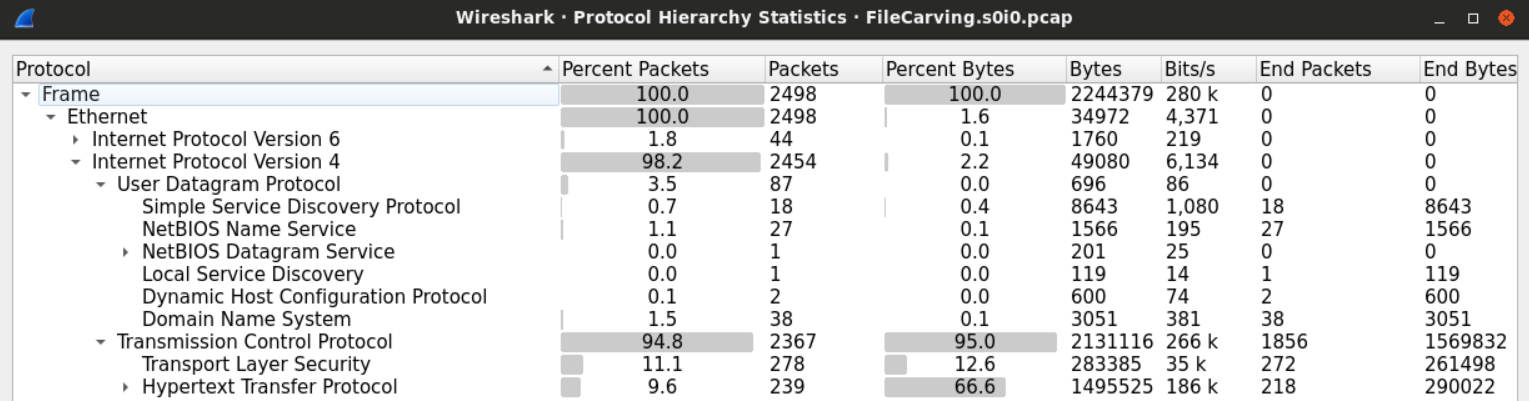
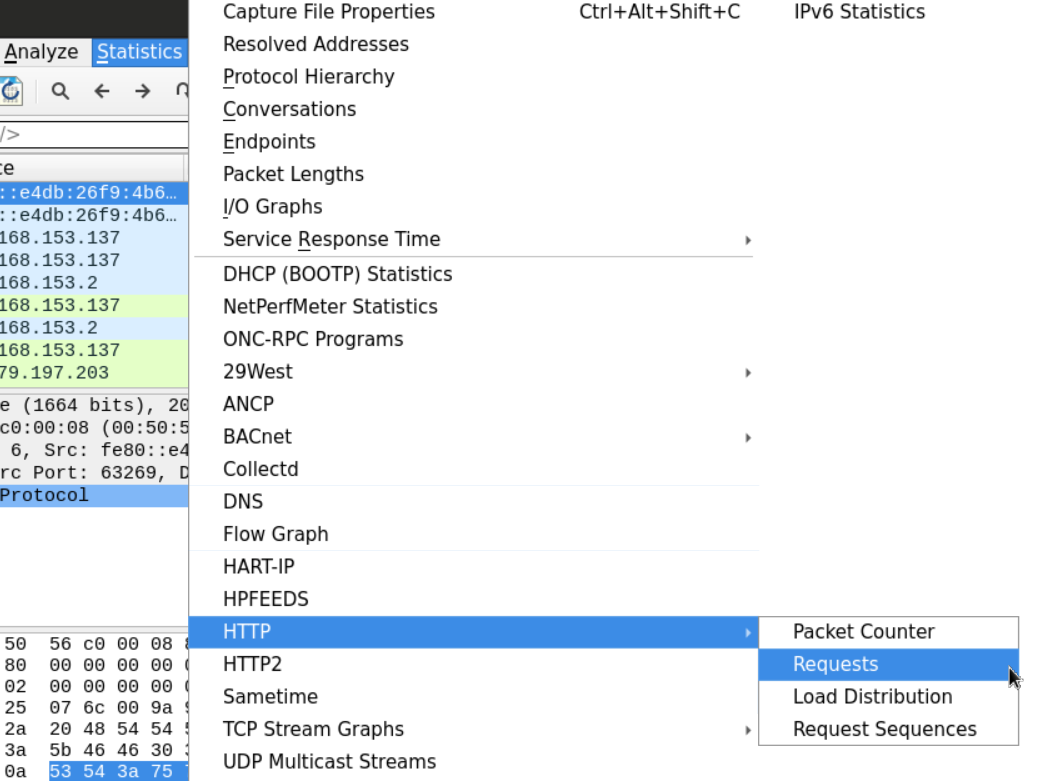
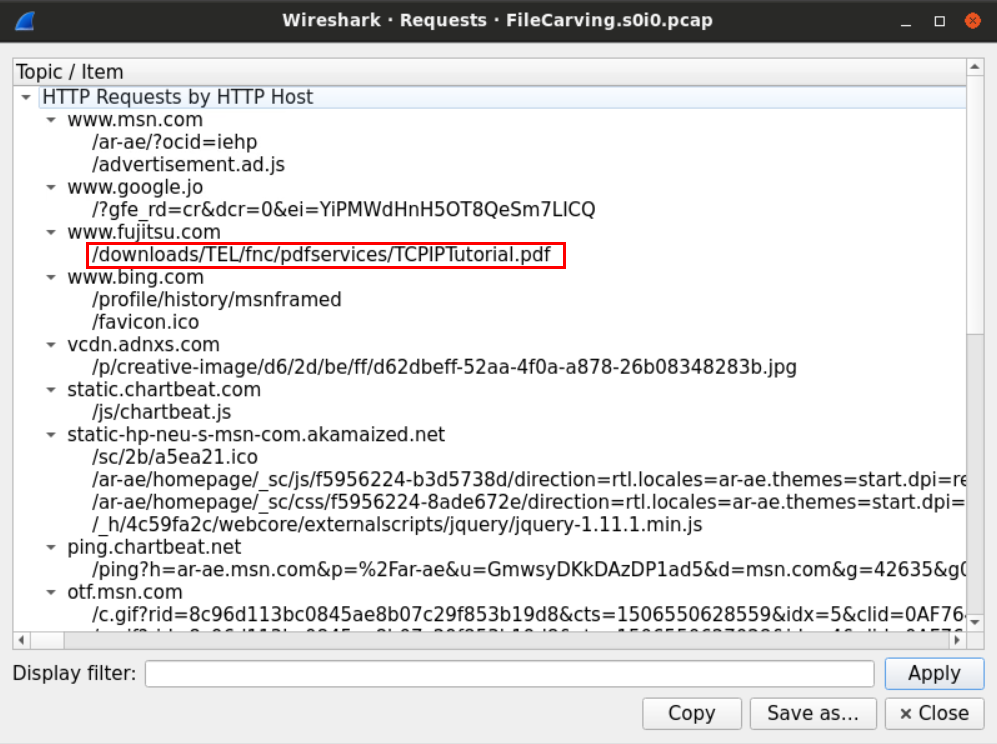
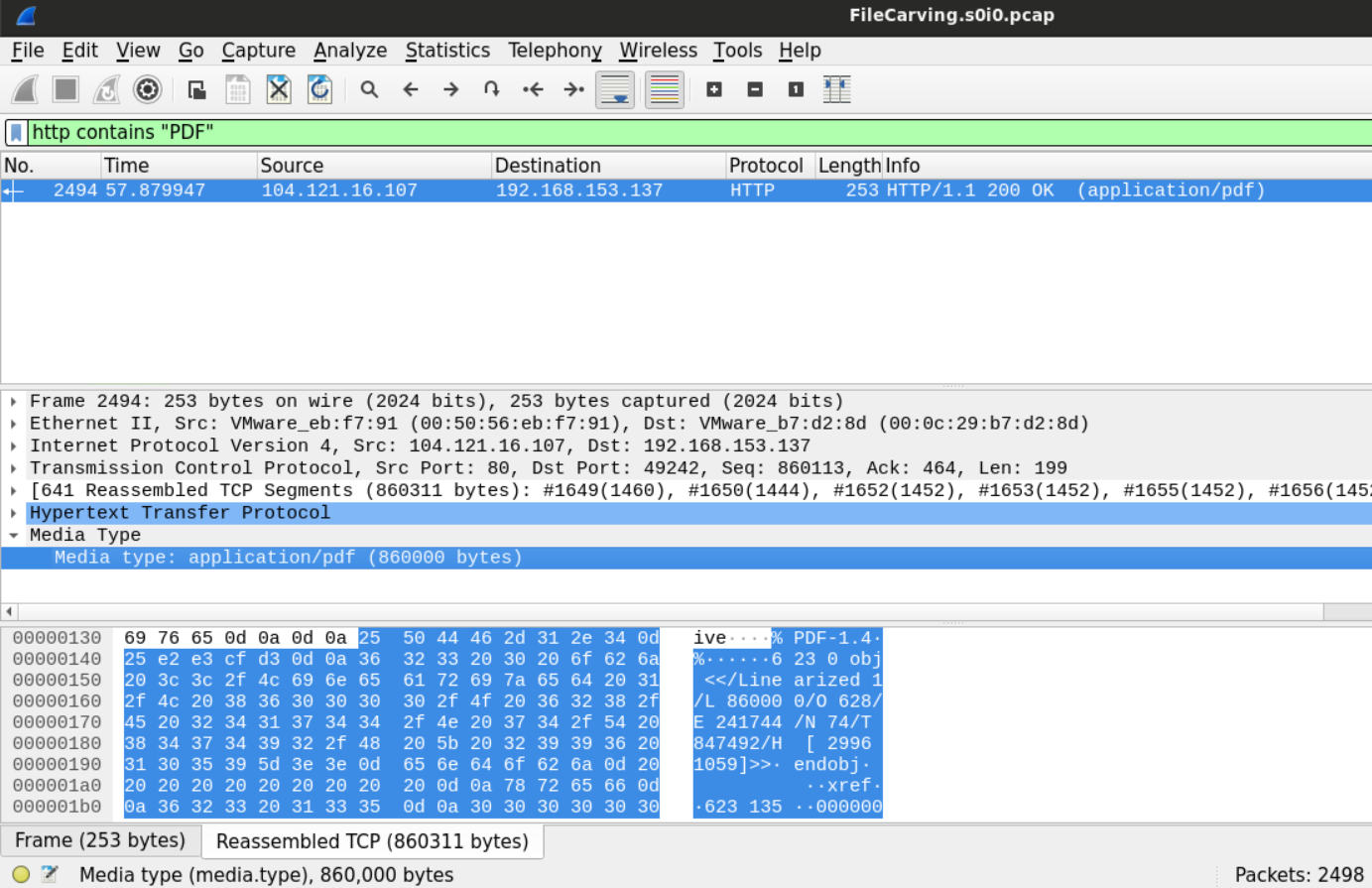
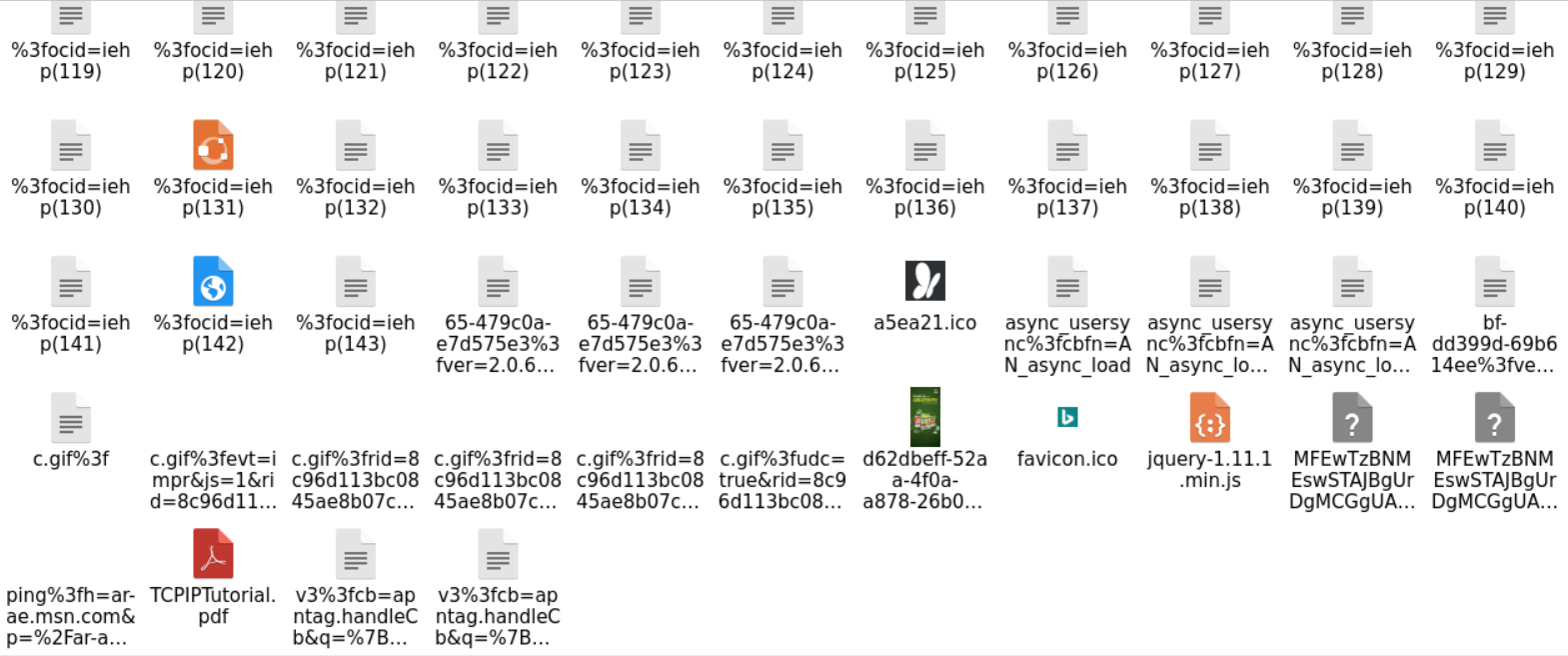
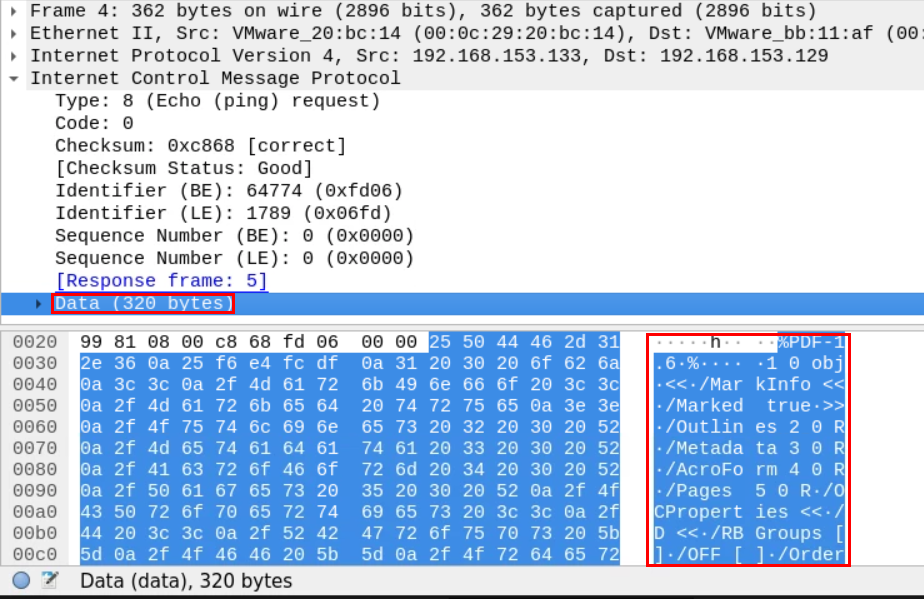
    "solutions": "# Solutions\n\n## Task 1: IDENTIFY THE PROTOCOL AND THE DOMAIN THROUGH WHICH THE FILE WAS DOWNLOADED USING WIRESHARK\n\nAs usual, start by taking a look at the file's statistics is always a good place to begin.\n\n![1](https://assets.ine.com/content/ptp/lab_20_network_file_carving/1.png)\n\nFrom the protocol hierarchy figure, it seems that HTTP is the protocol which the file we're looking for was downloaded through.\n\nIt may be a good idea to look at the HTTP requests made.\n\n![2](https://assets.ine.com/content/ptp/lab_20_network_file_carving/2.png)\n\nExamining the requests made can help us know what type of file we're looking for.\n\n![3](https://assets.ine.com/content/ptp/lab_20_network_file_carving/3.png)\n\nNow we know that it is a PDF file.\n\n## Task 2: EXTRACT THE DOWNLOADED FILE USING WIRESHARK\n\nTo extract the downloaded file, we need to find the network streams which contain that file and extract those bytes into an independent file to open later.\n\nOne way to look for the file is using its magic number. Recall how each format has a unique header that can be used to identify that file.\n\nWe know from the previous example that the user has downloaded a PDF file from the BBC website using HTTP protocol.\n\nWe can use that knowledge to our advantage and look for the PDF signature within the PDF HTTP stream. Using the filter `http contains \"PDF\"`.\n\n![4](https://assets.ine.com/content/ptp/lab_20_network_file_carving/4.png)\n\nAfter we've found the file and highlighted its bytes, we can use the Wireshark extraction feature to dump those bytes into a separate unique file.\n\n![5](https://assets.ine.com/content/ptp/lab_20_network_file_carving/5.png)\n\nThe new file will be saved as a .bin file, all we need to do is to change the extension and open the file with a PDF reader.\n\n![6](https://assets.ine.com/content/ptp/lab_20_network_file_carving/6.png)\n\nAnother way to do this would be to export all the objects downloaded through HTTP.\n\n![7](https://assets.ine.com/content/ptp/lab_20_network_file_carving/7.png)\n\nThis will give us the list of the objects which we can pick from\n\n![8](https://assets.ine.com/content/ptp/lab_20_network_file_carving/8.png)\n\nAfter sorting the files at the destination folder, we can examine the extensions and open the files that look interesting to us.\n\n![9](https://assets.ine.com/content/ptp/lab_20_network_file_carving/9.png)\n\n## Task 3: EXAMINE THE SECOND FILE AND TRY TO EXTRACT THE DOWNLOADED FILE FROM IT\n\nFirst, let's load the PCAP file located at **Desktop/Module7/Lab20/file2.pcap** on Wireshark.\n\nThe protocol hierarchy for this cap file looks a little different than the other files we examined.\n\n![10](https://assets.ine.com/content/ptp/lab_20_network_file_carving/10.png)\n\nThe amount of ICMP traffic within the file is more than normal.\n\nThings get even weirder when we examine the first ICMP packet in the file.\n\n![11](https://assets.ine.com/content/ptp/lab_20_network_file_carving/11.png)\n\nUnlike the normal ICMP ping packets, these seem bigger.\n\nThe Data section seems 10 times larger than the normal, and it contains something familiar.\n\n**%PDF-1.5** is the string we find at the beginning of the PDF files. This looks suspicious.",
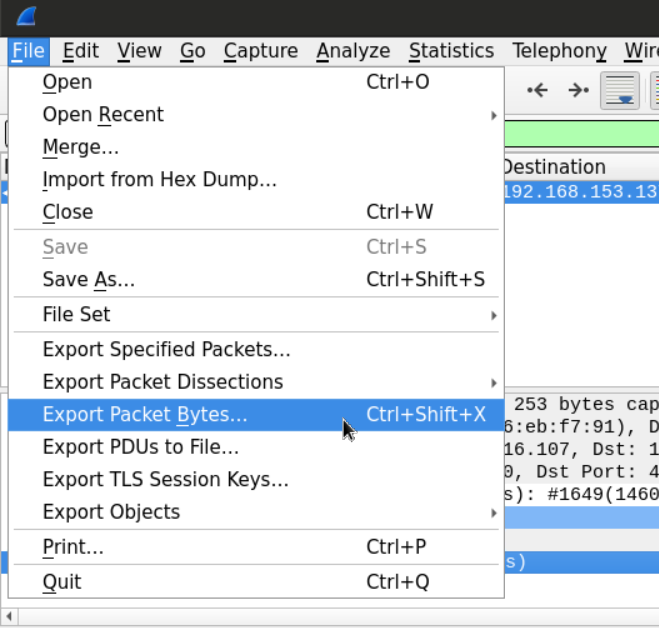
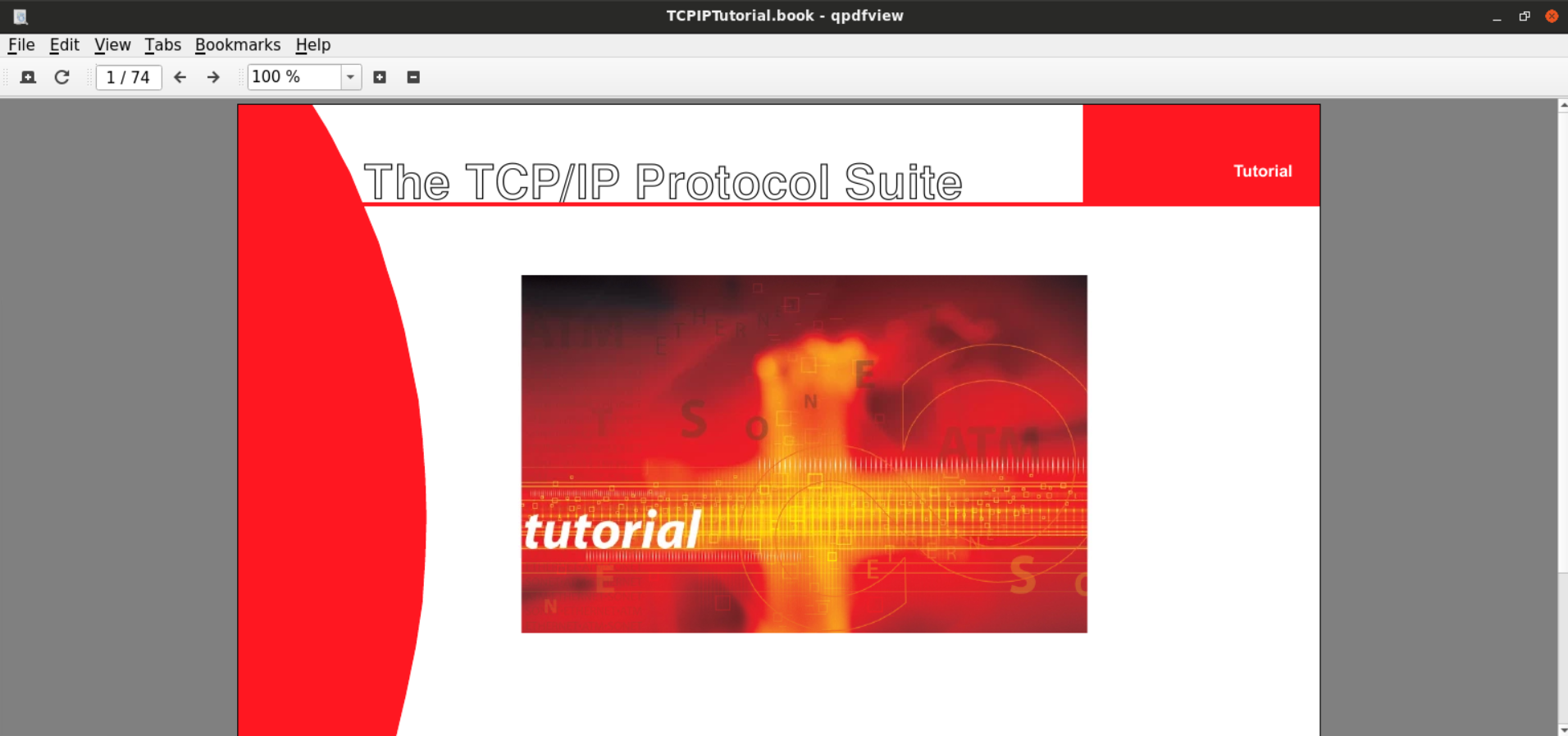
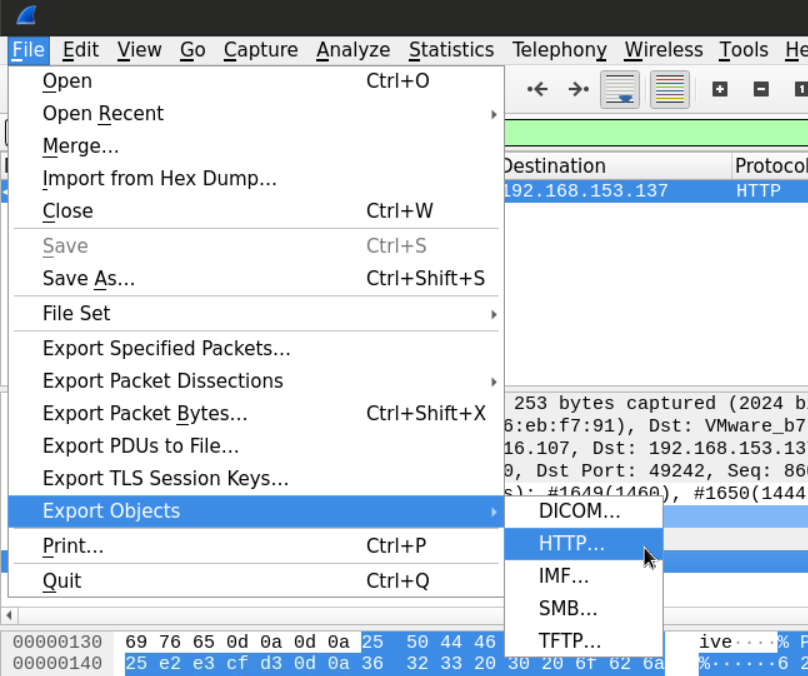
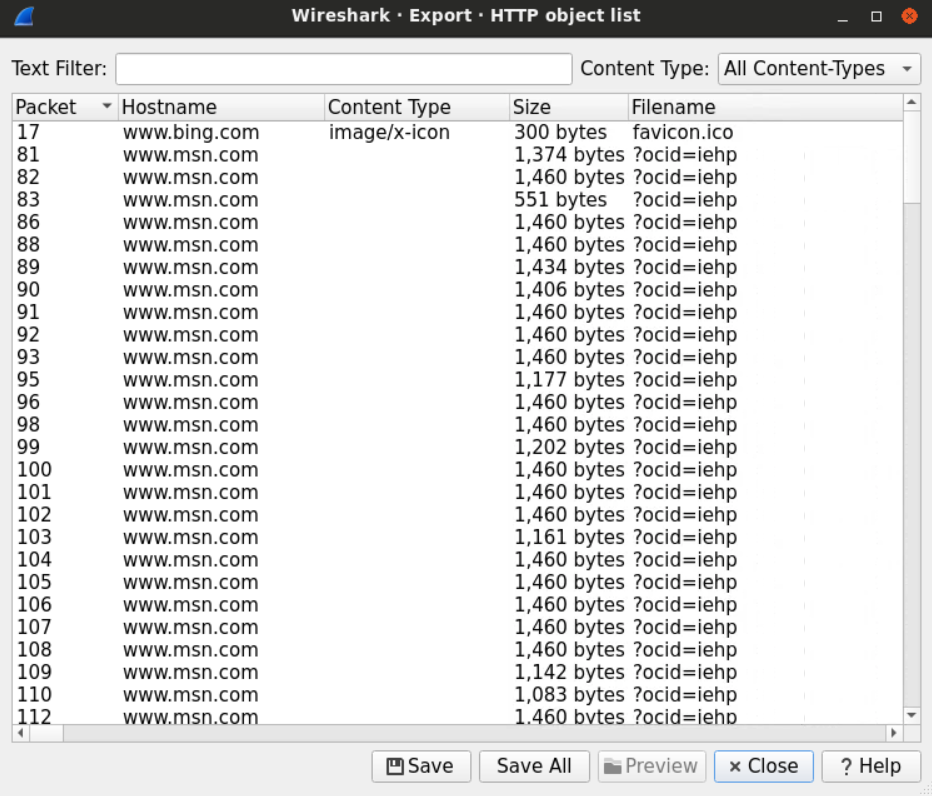

    "solutions_html": "<h1>Solutions</h1>\n<h2>Task 1: IDENTIFY THE PROTOCOL AND THE DOMAIN THROUGH WHICH THE FILE WAS DOWNLOADED USING WIRESHARK</h2>\n<p>As usual, start by taking a look at the file's statistics is always a good place to begin.</p>\n<p><img alt=\"1\" src=\"https://assets.ine.com/content/ptp/lab_20_network_file_carving/1.png\" /></p>\n<p>From the protocol hierarchy figure, it seems that HTTP is the protocol which the file we're looking for was downloaded through.</p>\n<p>It may be a good idea to look at the HTTP requests made.</p>\n<p><img alt=\"2\" src=\"https://assets.ine.com/content/ptp/lab_20_network_file_carving/2.png\" /></p>\n<p>Examining the requests made can help us know what type of file we're looking for.</p>\n<p><img alt=\"3\" src=\"https://assets.ine.com/content/ptp/lab_20_network_file_carving/3.png\" /></p>\n<p>Now we know that it is a PDF file.</p>\n<h2>Task 2: EXTRACT THE DOWNLOADED FILE USING WIRESHARK</h2>\n<p>To extract the downloaded file, we need to find the network streams which contain that file and extract those bytes into an independent file to open later.</p>\n<p>One way to look for the file is using its magic number. Recall how each format has a unique header that can be used to identify that file.</p>\n<p>We know from the previous example that the user has downloaded a PDF file from the BBC website using HTTP protocol.</p>\n<p>We can use that knowledge to our advantage and look for the PDF signature within the PDF HTTP stream. Using the filter <code>http contains \"PDF\"</code>.</p>\n<p><img alt=\"4\" src=\"https://assets.ine.com/content/ptp/lab_20_network_file_carving/4.png\" /></p>\n<p>After we've found the file and highlighted its bytes, we can use the Wireshark extraction feature to dump those bytes into a separate unique file.</p>\n<p><img alt=\"5\" src=\"https://assets.ine.com/content/ptp/lab_20_network_file_carving/5.png\" /></p>\n<p>The new file will be saved as a .bin file, all we need to do is to change the extension and open the file with a PDF reader.</p>\n<p><img alt=\"6\" src=\"https://assets.ine.com/content/ptp/lab_20_network_file_carving/6.png\" /></p>\n<p>Another way to do this would be to export all the objects downloaded through HTTP.</p>\n<p><img alt=\"7\" src=\"https://assets.ine.com/content/ptp/lab_20_network_file_carving/7.png\" /></p>\n<p>This will give us the list of the objects which we can pick from</p>\n<p><img alt=\"8\" src=\"https://assets.ine.com/content/ptp/lab_20_network_file_carving/8.png\" /></p>\n<p>After sorting the files at the destination folder, we can examine the extensions and open the files that look interesting to us.</p>\n<p><img alt=\"9\" src=\"https://assets.ine.com/content/ptp/lab_20_network_file_carving/9.png\" /></p>\n<h2>Task 3: EXAMINE THE SECOND FILE AND TRY TO EXTRACT THE DOWNLOADED FILE FROM IT</h2>\n<p>First, let's load the PCAP file located at <strong>Desktop/Module7/Lab20/file2.pcap</strong> on Wireshark.</p>\n<p>The protocol hierarchy for this cap file looks a little different than the other files we examined.</p>\n<p><img alt=\"10\" src=\"https://assets.ine.com/content/ptp/lab_20_network_file_carving/10.png\" /></p>\n<p>The amount of ICMP traffic within the file is more than normal.</p>\n<p>Things get even weirder when we examine the first ICMP packet in the file.</p>\n<p><img alt=\"11\" src=\"https://assets.ine.com/content/ptp/lab_20_network_file_carving/11.png\" /></p>\n<p>Unlike the normal ICMP ping packets, these seem bigger.</p>\n<p>The Data section seems 10 times larger than the normal, and it contains something familiar.</p>\n<p><strong>%PDF-1.5</strong> is the string we find at the beginning of the PDF files. This looks suspicious.</p>",
    "flags": [],
    "min_points_to_pass": null,
    "access_type": "default",
    "user_status": "unstarted",
    "user_lab_status": null,
    "user_status_modified": null,
    "user_flags": [],
    "global_running_session": null
}