
A company's internal network is under serious attacks. The IDS at every Department are throwing various alerts of unknown network attacks. You are called to find out what's going on, explain what type of attacks are being conducted and how it may be possible to mitigate them.
\nThe network engineers at each department installed a packet capturing device and presented you with the captured files.
\nExamine the PCAP file containing traffic from the HR Department [located at Desktop/Module7/Lab22/1.HR_Dept.pcapng]
\nThe users are complaining about the slow network performance.
\nWhat type of attack is being carried? What is the impact of this attack?
\nExamine the PCAP file containing traffic from the IT Department [located at Desktop/Module7/Lab22/2.IT_Dept.pcapng]
\nUsers are complaining about not being able to access the internet at all, even though the router (192.168.153.2) is pingable. What type of attack is being conducted? How can such an attack be stopped?
\nExamine the PCAP file containing traffic from the Web Server [located at Desktop/Module7/Lab22/3.WebServer.pcapng]
\nYou try to access the site, and you find out that it takes ages to load. Examine the traffic that was captured and try to determine what is happening and the attacker's IP address, if possible.
\nExamine the PCAP file containing traffic from the Legal Department [located at Desktop/Module7/Lab22/4.Legal_Dept.pcapng]
\nWhat sort of attack is being conducted here? Can you determine the source? How can it be stopped?
\nExamine the PCAP file containing traffic from the Management Department [located at Desktop/Module7/Lab22/5.MGT_Dept.pcapng]
\nThis sounds suspicious since it doesn't make sense for a group of attackers to attack the whole network and leave that department untouched. Examine the captured traffic you have and see if you can spot anything unusual.
", "published_date": "2020-10-20T15:32:26Z", "solutions": "# Solutions\n\n## Task 1: Examine the Captured Traffic of the HR Department\n\nWe can tell from the first look at the peak of the file, without any in-depth analysis, that something is not right. We have many IP packets that are not carrying any content, and most of them don't belong to the network segment we sniffed the data from.\n\n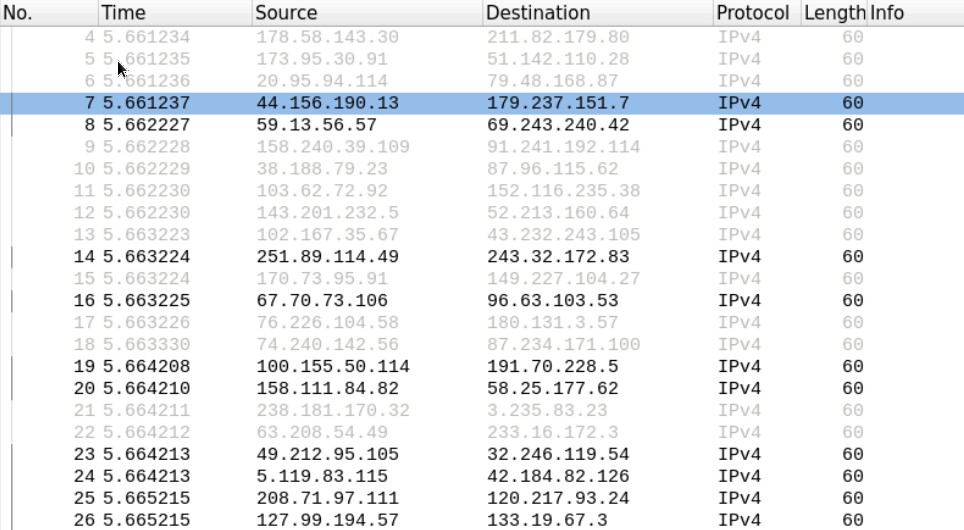\n\nThis suggests that someone is crafting those packets and sending them on the network to cause the switch to throw its cam table and work as a hub.\n\nWe can safely assume we are dealing with Mac flooding here.\n\n## Task 2: Examine the Captured Traffic of the IT Department\n\nLet's examine the protocol hierarchy in this PCAP file.\n\nEverything may seem normal at first glance; however, we know from our study that internet disconnection on a network can be caused by an attacker conducting ARP poisoning attacks.\n\nLet's filter out the traffic, display only the ARP packets and scroll down to view the ARP replies to verify that hypotheses.\n\n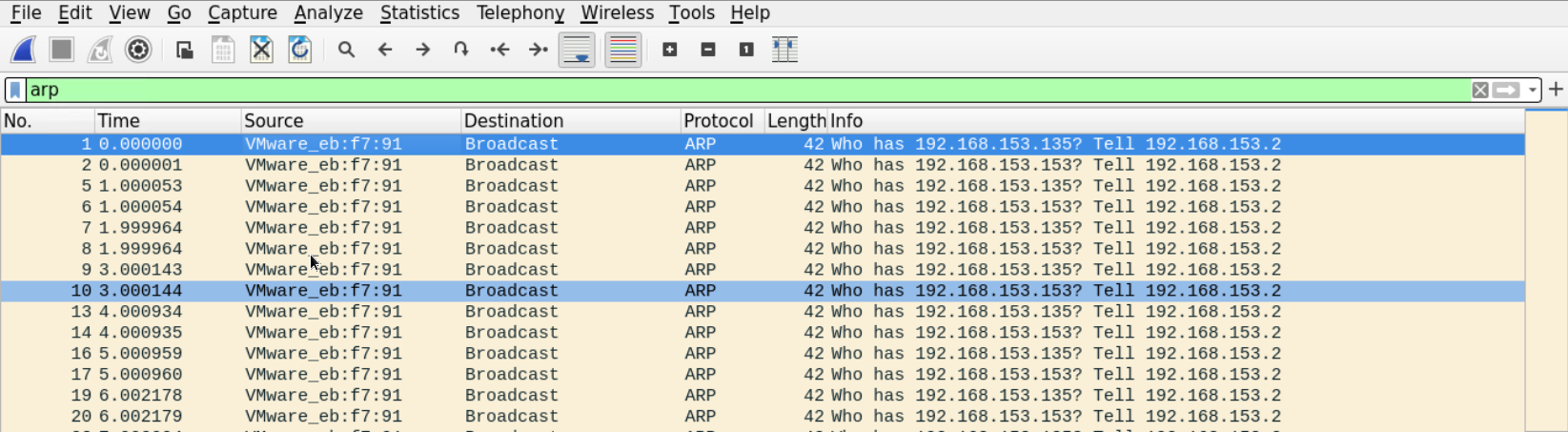\n\nHere is the first ARP reply which has the router's IP address.\n\n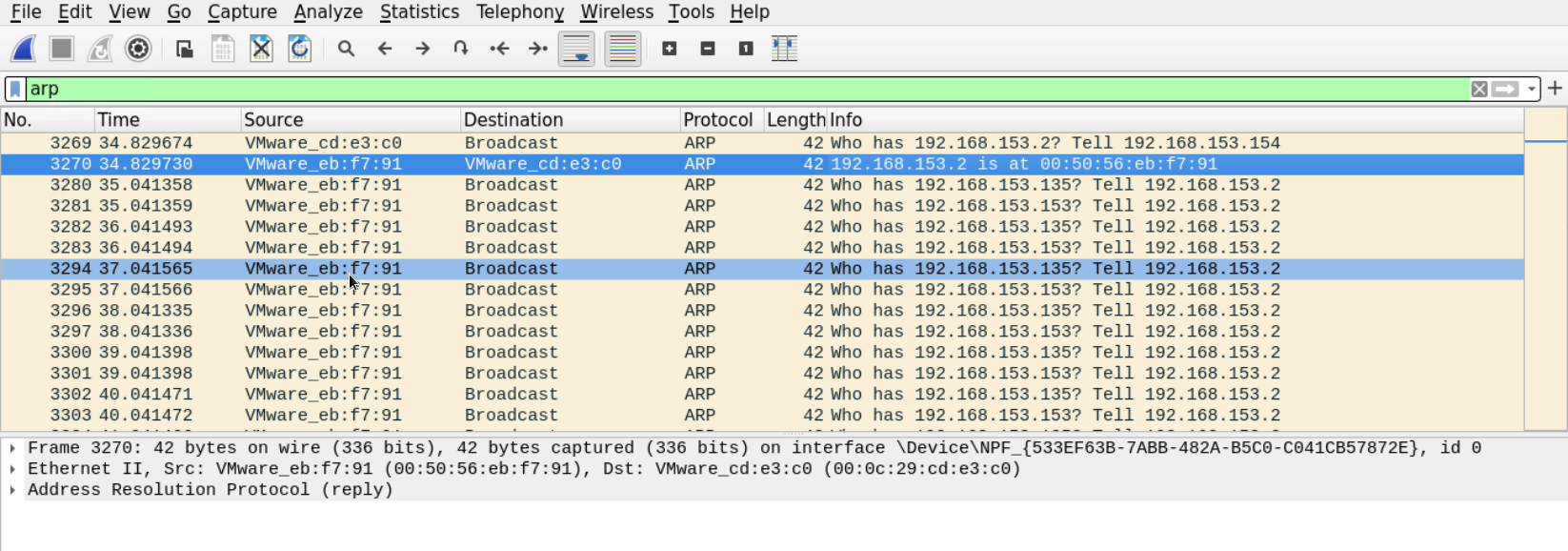\n\nThe reply claims that the router's physical address is **00:50:56:eb:f7:91.** Let's look at more replies.\n\nDown there, something defiantly doesn't look right.\n\nThere is one device that keeps sending gracious ARP replies, telling that the default gateway MAC address is **00:0c:29:20:bc:14** (which is different from the one we saw earlier) even though no one sent a request about it.\n\n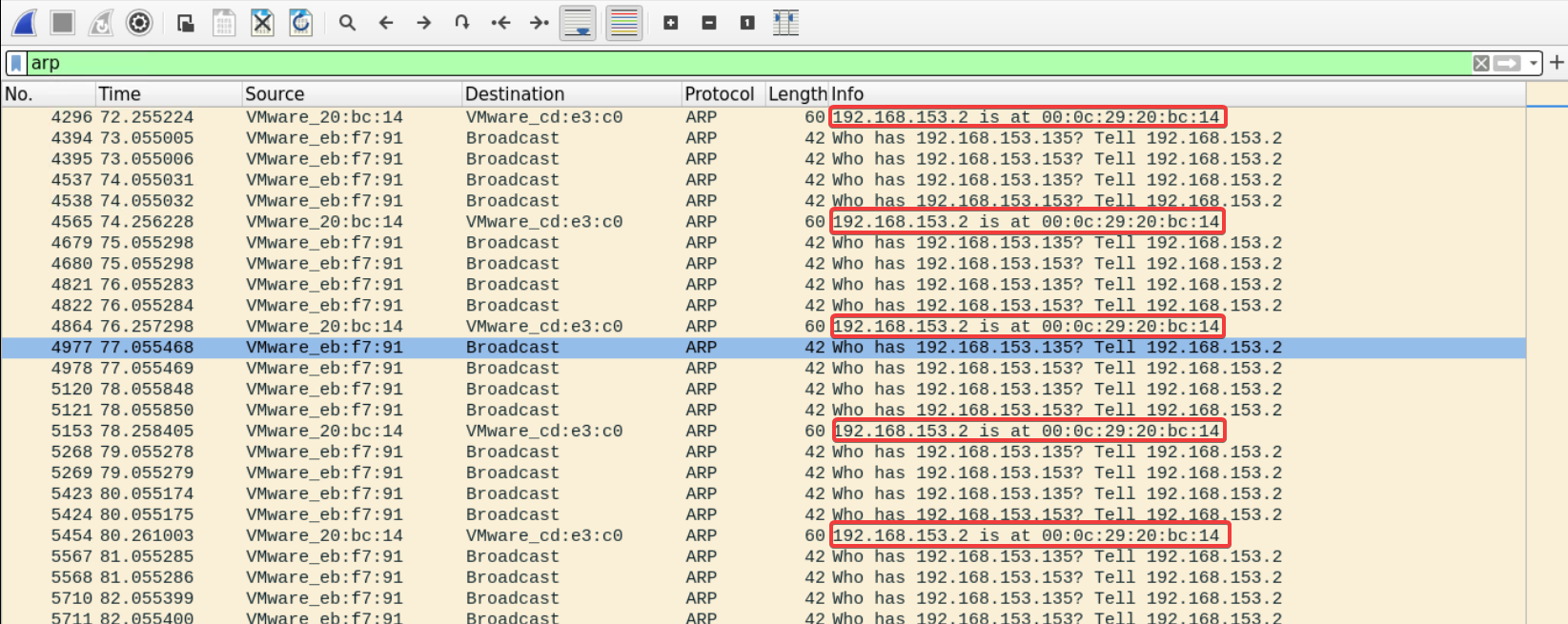\n\nThis looks very much like poisoning attacks where the attacker keeps sending spoofed ARP replies, telling everyone that he or she is the default gateway.\n\nThe good thing about this is that the MAC address that is being populated by those ARP frames is supposed to be the MAC address of the attacker.\n\nLet's filter the traffic looking for frames that holds that MAC address.\n\n\n\nThis is interesting; we can see the ARP answers we saw earlier in addition to an ACK segment coming from **192.168.153.154** which contains the suspect's MAC address we got earlier.\n\nThis attack may be stopped by implementing dynamic ARP inspection feature in the network.\n\n## Task 3: You Get a Call from a Client Complaining About Not Being Able to Access the Web Server (192.168.153.154). Try to Figure Out What Is the Case.\n\nThe client's description mentioned that the web server is not functioning well. Most of the attacks that cause web servers to slow down or denial of service rely on sending too many requests.\n\nTo get an overview of the packets going to our web server let's use Wireshark filters to display packets that are destined to our web server on port 80.\n\n```\nip.addr==192.168.153.154 and tcp.dstport==80\n```\n\n\n\nWe can see that our server is receiving many (maybe too many) SYN segments on port 80. This may suggest that this is a SYN flooding attack.\n\nOne way to tell if those SYN request are coming from real users or not is to view the rest of the communication.\n\nWe can see that the supposed clients are terminating the connection right after sending the SYN.\n\nAnother way is to perform reverse DNS on those IP addresses. We can also ping those IP addresses and compare the TTL and the TCP window size values from their reply with the values we have on the request we received.\n\nHowever, since this seems to be a blind DOS attack, it may be hard to determine the attacker's IP address based on the traffic alone.\n\n## Task 4: Employees At the Legal Department Cannot Connect to the Network At All. Try to Figure Out What Is the Case.\n\nThis is an APIPA IP address which a client assigns to itself when it is unable to reach the DHCP within the network.\n\nIt seems that there is no need to filter out DHCP packets to verify whether the DHCP is active on that Network or not because the number of DHCP discover packets is enormous. See *Statistics > DHCP (BOOTP) Statistics*\n\n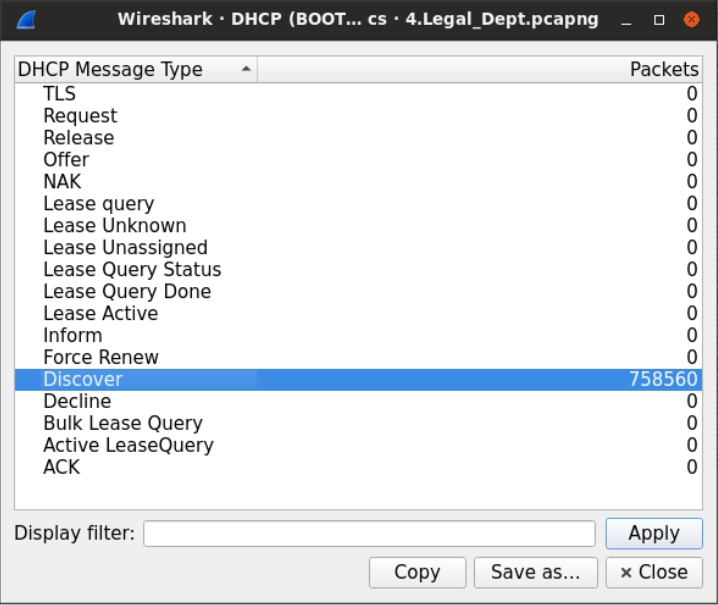\n\nWe can see that DHCP offer messages are going on that Network.\n\n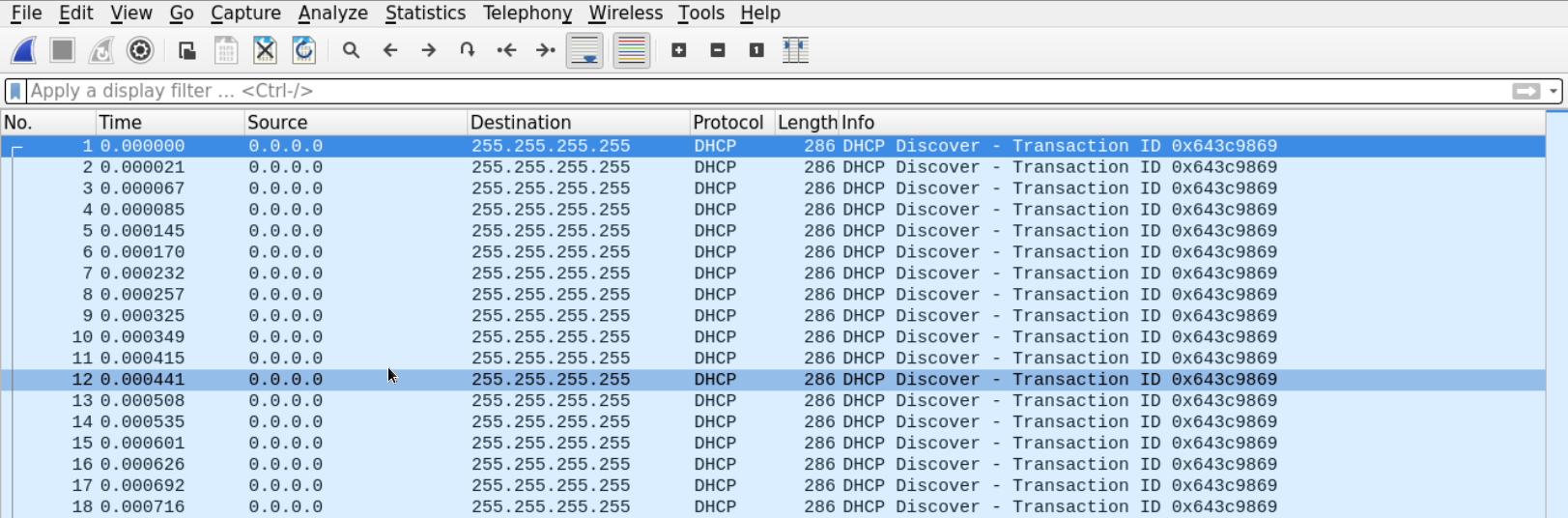\n\nThis rules out the possibility of a problem in the connection between the clients and the DHCP and makes us believe that someone is performing a DHCP starvation attack.\n\nUnfortunately, we may not be able to determine the source of the attack by analyzing the PCAP file alone. However, we can stop it by enabling DHCP messages rate limiting on the switch's port.\n\n## Task 5: The Management Department Was the Only Department Which You Didn't Get Any Complaints From. Try to Figure Out If They Have Also Been Attacked.\n\nSince we have doubts, let's start with examining the protocol hierarchy of the file capture. See *Statistics > Protocol Hierarchy*\n\n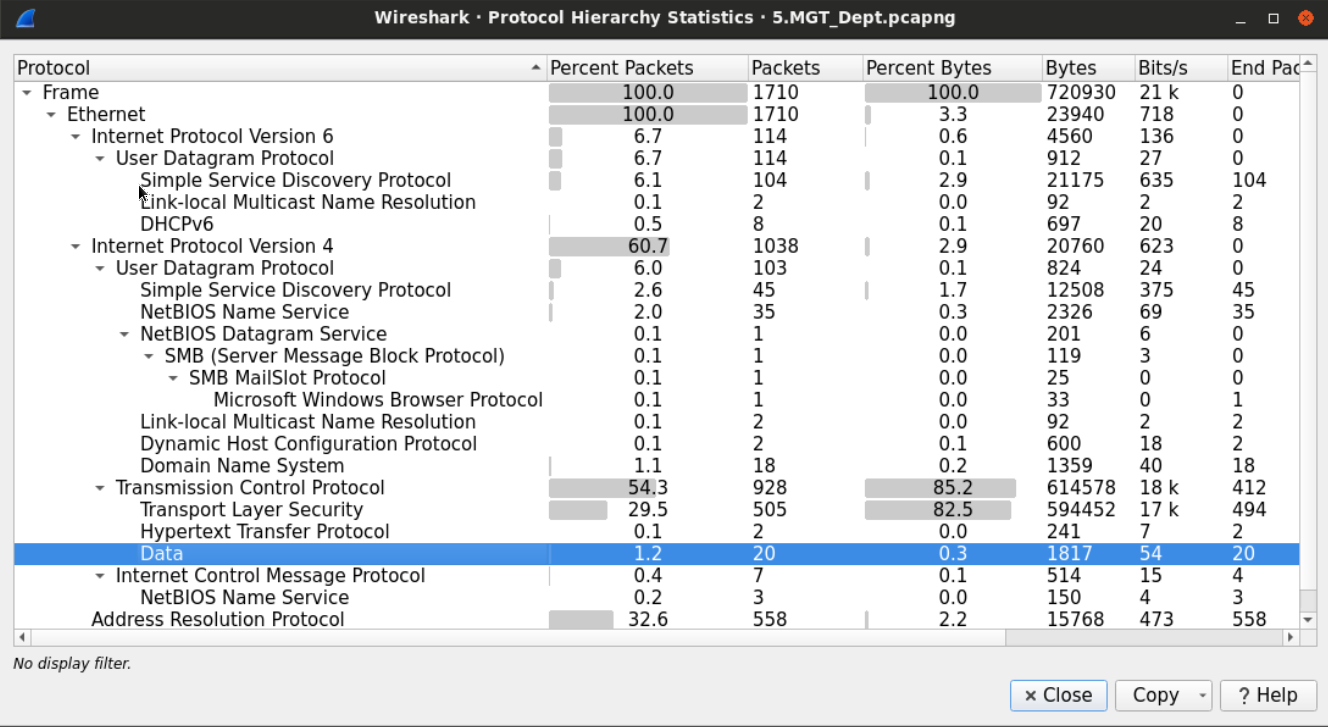\n\nWe can see that there are many seemingly normal protocols running. However, down on the bottom of the TCP application, alongside HTTP and HTTPS we notice that there is an unknown protocol running under the name _Data_.\n\nThe name or tag data suggests that Wireshark couldn't recognize the protocol used for the connection.\n\nLet's filter the traffic looking for those packets by typing the word _data_ in the filter box.\n\n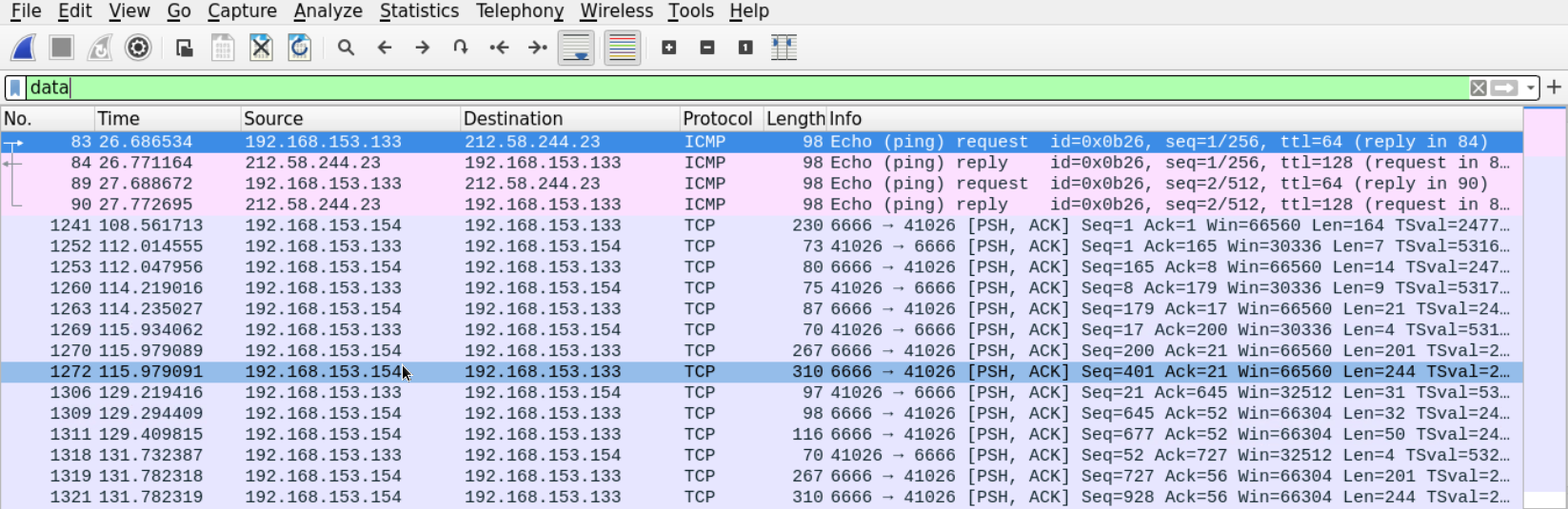\n\nWe are now left with a few ICMP messages and unknown TCP messages carrying data. The data section of the ICMP packet doesn't seem to be carrying anything interesting.\n\n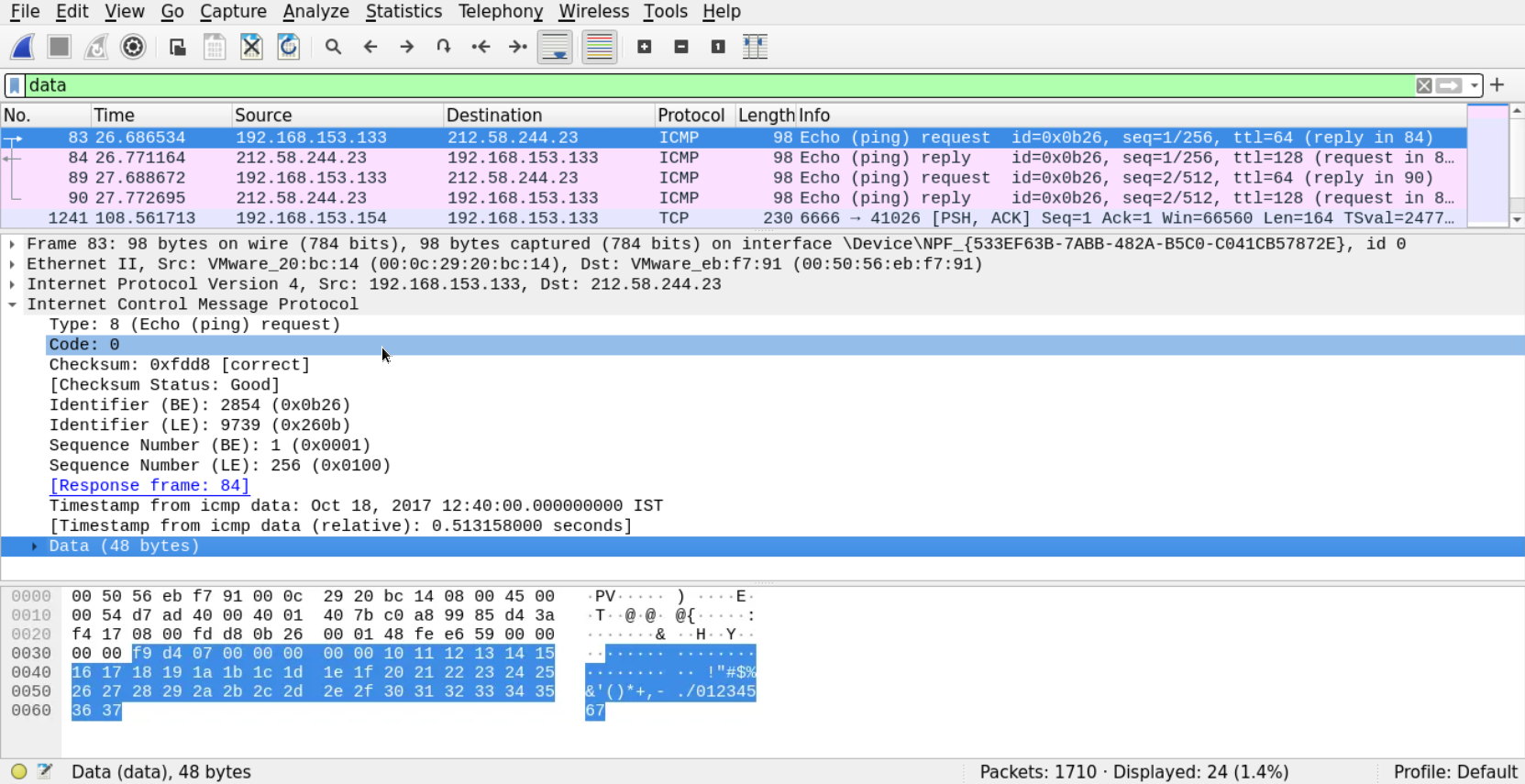\n\nSo, let's follow the stream of the other connection we found (the unknown protocol in the TCP)\n\nFrom the output, we can see that someone has connected to the **192.168.153.154** machine on port 6666 to a remote shell, created a new user named **Manager** and added it to the **Administrators** group.", "solutions_html": "We can tell from the first look at the peak of the file, without any in-depth analysis, that something is not right. We have many IP packets that are not carrying any content, and most of them don't belong to the network segment we sniffed the data from.
\n
This suggests that someone is crafting those packets and sending them on the network to cause the switch to throw its cam table and work as a hub.
\nWe can safely assume we are dealing with Mac flooding here.
\nLet's examine the protocol hierarchy in this PCAP file.
\nEverything may seem normal at first glance; however, we know from our study that internet disconnection on a network can be caused by an attacker conducting ARP poisoning attacks.
\nLet's filter out the traffic, display only the ARP packets and scroll down to view the ARP replies to verify that hypotheses.
\n
Here is the first ARP reply which has the router's IP address.
\n
The reply claims that the router's physical address is 00:50:56:eb:f7:91. Let's look at more replies.
\nDown there, something defiantly doesn't look right.
\nThere is one device that keeps sending gracious ARP replies, telling that the default gateway MAC address is 00:0c:29:20:bc:14 (which is different from the one we saw earlier) even though no one sent a request about it.
\n
This looks very much like poisoning attacks where the attacker keeps sending spoofed ARP replies, telling everyone that he or she is the default gateway.
\nThe good thing about this is that the MAC address that is being populated by those ARP frames is supposed to be the MAC address of the attacker.
\nLet's filter the traffic looking for frames that holds that MAC address.
\n
This is interesting; we can see the ARP answers we saw earlier in addition to an ACK segment coming from 192.168.153.154 which contains the suspect's MAC address we got earlier.
\nThis attack may be stopped by implementing dynamic ARP inspection feature in the network.
\nThe client's description mentioned that the web server is not functioning well. Most of the attacks that cause web servers to slow down or denial of service rely on sending too many requests.
\nTo get an overview of the packets going to our web server let's use Wireshark filters to display packets that are destined to our web server on port 80.
\nip.addr==192.168.153.154 and tcp.dstport==80
We can see that our server is receiving many (maybe too many) SYN segments on port 80. This may suggest that this is a SYN flooding attack.
\nOne way to tell if those SYN request are coming from real users or not is to view the rest of the communication.
\nWe can see that the supposed clients are terminating the connection right after sending the SYN.
\nAnother way is to perform reverse DNS on those IP addresses. We can also ping those IP addresses and compare the TTL and the TCP window size values from their reply with the values we have on the request we received.
\nHowever, since this seems to be a blind DOS attack, it may be hard to determine the attacker's IP address based on the traffic alone.
\nThis is an APIPA IP address which a client assigns to itself when it is unable to reach the DHCP within the network.
\nIt seems that there is no need to filter out DHCP packets to verify whether the DHCP is active on that Network or not because the number of DHCP discover packets is enormous. See Statistics > DHCP (BOOTP) Statistics
\n
We can see that DHCP offer messages are going on that Network.
\n
This rules out the possibility of a problem in the connection between the clients and the DHCP and makes us believe that someone is performing a DHCP starvation attack.
\nUnfortunately, we may not be able to determine the source of the attack by analyzing the PCAP file alone. However, we can stop it by enabling DHCP messages rate limiting on the switch's port.
\nSince we have doubts, let's start with examining the protocol hierarchy of the file capture. See Statistics > Protocol Hierarchy
\n
We can see that there are many seemingly normal protocols running. However, down on the bottom of the TCP application, alongside HTTP and HTTPS we notice that there is an unknown protocol running under the name Data.
\nThe name or tag data suggests that Wireshark couldn't recognize the protocol used for the connection.
\nLet's filter the traffic looking for those packets by typing the word data in the filter box.
\n
We are now left with a few ICMP messages and unknown TCP messages carrying data. The data section of the ICMP packet doesn't seem to be carrying anything interesting.
\n
So, let's follow the stream of the other connection we found (the unknown protocol in the TCP)
\nFrom the output, we can see that someone has connected to the 192.168.153.154 machine on port 6666 to a remote shell, created a new user named Manager and added it to the Administrators group.
", "flags": [], "min_points_to_pass": null, "access_type": "default", "user_status": "unstarted", "user_lab_status": null, "user_status_modified": null, "user_flags": [], "global_running_session": null }