{
    "id": "2fa836f2-5950-4d9f-af9d-b6c4c1465c78",
    "name": "Analyzing SSL TLS Certificates & Traffic",
    "slug": "analyzing-ssl-tls-certificates-traffic",
    "status": "published",
    "lab_type": "pta",
    "is_sample": false,
    "duration_in_seconds": 1800,
    "metadata": {
        "courses": [
            "6901a2fd-eadf-4a59-a417-5cf6a720328d",
            "cd60ce4a-1b83-48c4-8d38-7e6bfeab4a1e"
        ],
        "pta_sdn": "58",
        "collections": [],
        "pta_namespace": "my.ine",
        "learning_paths": [],
        "has_published_parent": true
    },
    "session": null,
    "company": "a491bc32-c056-4946-9169-cc053387bada",
    "created": "2022-03-30T03:13:54.795148Z",
    "modified": "2024-05-28T14:30:05.248581Z",
    "is_beta": false,
    "lab_objectives": [],
    "main_learning_area": "3e1aa06f-2e9f-4789-b50d-aa027ad8dcfa",
    "learning_areas": [
        {
            "id": "3e1aa06f-2e9f-4789-b50d-aa027ad8dcfa",
            "name": "Cyber Security",
            "slug": "cyber-security"
        }
    ],
    "categories": [],
    "tags": [],
    "difficulty": null,
    "is_web_access": false,
    "is_lab_experience": false,
    "is_featured": false,
    "cve": null,
    "severity": null,
    "year": null,
    "classification": null,
    "external_url": "",
    "solution_video": null,
    "explanation_video": null,
    "description": "# Scenario\n\nYou're presented with a capture file which contains encrypted traffic; you need to add the proper certificate using Wireshark and examine the traffic unencrypted.\n\n# Goals\n\n- Understand the basic anatomy of an SSL certificate\n- Work with Certificates and Network Analyzers\n- Examine unencrypted traffic\n\n# What you will learn\n\n- How to Examine Certificates\n- How to add a private key to Wireshark\n- How to decrypt SSL traffic and examine the data.\n\n# Recommended tools\n\n- **Wireshark**\n- **Openssl**",
    "description_html": "<h1>Scenario</h1>\n<p>You're presented with a capture file which contains encrypted traffic; you need to add the proper certificate using Wireshark and examine the traffic unencrypted.</p>\n<h1>Goals</h1>\n<ul>\n<li>Understand the basic anatomy of an SSL certificate</li>\n<li>Work with Certificates and Network Analyzers</li>\n<li>Examine unencrypted traffic</li>\n</ul>\n<h1>What you will learn</h1>\n<ul>\n<li>How to Examine Certificates</li>\n<li>How to add a private key to Wireshark</li>\n<li>How to decrypt SSL traffic and examine the data.</li>\n</ul>\n<h1>Recommended tools</h1>\n<ul>\n<li><strong>Wireshark</strong></li>\n<li><strong>Openssl</strong></li>\n</ul>",
    "tasks": "# Tasks\n\n## Task 1: Examine The Provided Certificate\n\nThe certificate can be found at **Desktop/Module7/Lab24/certname.pem**\n\nWhat is the certificate serial number?\n\nWho issued that certificate and for whom?\n\nWhat is the start and expiration date? What are the used algorithms and key lengths?\n\n## Task 2: Examine The First TLS Packet Sent By The Client (the client hello message)\n\nThe provided PCAP file can be found at **Desktop/Module7/Lab24/SSL.pcapng**\n\nWhat are the ciphers that the client supports?\n\n## Task 3: Examine The Server Hello Message\n\nWhat is the suite that the server chose to encrypt the data with?\n\n## Task 4: Add The Private Key You Have To Wireshark And Make Sure The Traffic Is Decrypted\n\nNavigate to Preferences -- Protocols for this task. You can make sure that you added the private key correctly by being able to see some previously unknown SSL packets changing into a known protocol.\n\n## Task 5: What Is The Content Of The page Which The User Visited Using SSL?\n\nYou can complete this task by following the streams that were converted to a known protocol.",
    "tasks_html": "<h1>Tasks</h1>\n<h2>Task 1: Examine The Provided Certificate</h2>\n<p>The certificate can be found at <strong>Desktop/Module7/Lab24/certname.pem</strong></p>\n<p>What is the certificate serial number?</p>\n<p>Who issued that certificate and for whom?</p>\n<p>What is the start and expiration date? What are the used algorithms and key lengths?</p>\n<h2>Task 2: Examine The First TLS Packet Sent By The Client (the client hello message)</h2>\n<p>The provided PCAP file can be found at <strong>Desktop/Module7/Lab24/SSL.pcapng</strong></p>\n<p>What are the ciphers that the client supports?</p>\n<h2>Task 3: Examine The Server Hello Message</h2>\n<p>What is the suite that the server chose to encrypt the data with?</p>\n<h2>Task 4: Add The Private Key You Have To Wireshark And Make Sure The Traffic Is Decrypted</h2>\n<p>Navigate to Preferences -- Protocols for this task. You can make sure that you added the private key correctly by being able to see some previously unknown SSL packets changing into a known protocol.</p>\n<h2>Task 5: What Is The Content Of The page Which The User Visited Using SSL?</h2>\n<p>You can complete this task by following the streams that were converted to a known protocol.</p>",
    "published_date": "2020-10-20T15:32:26Z",
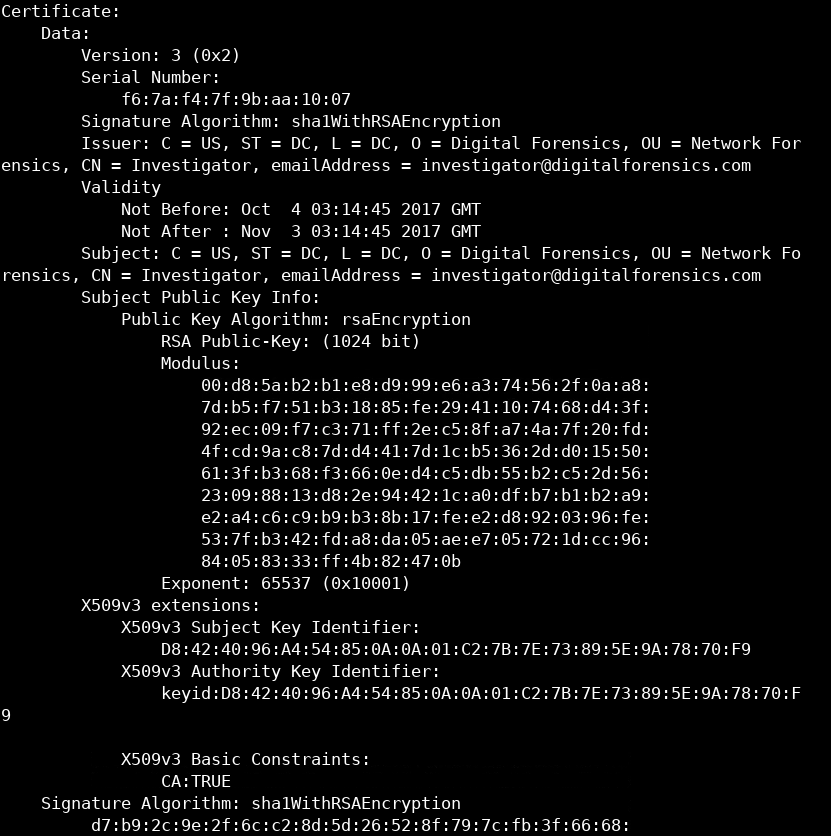
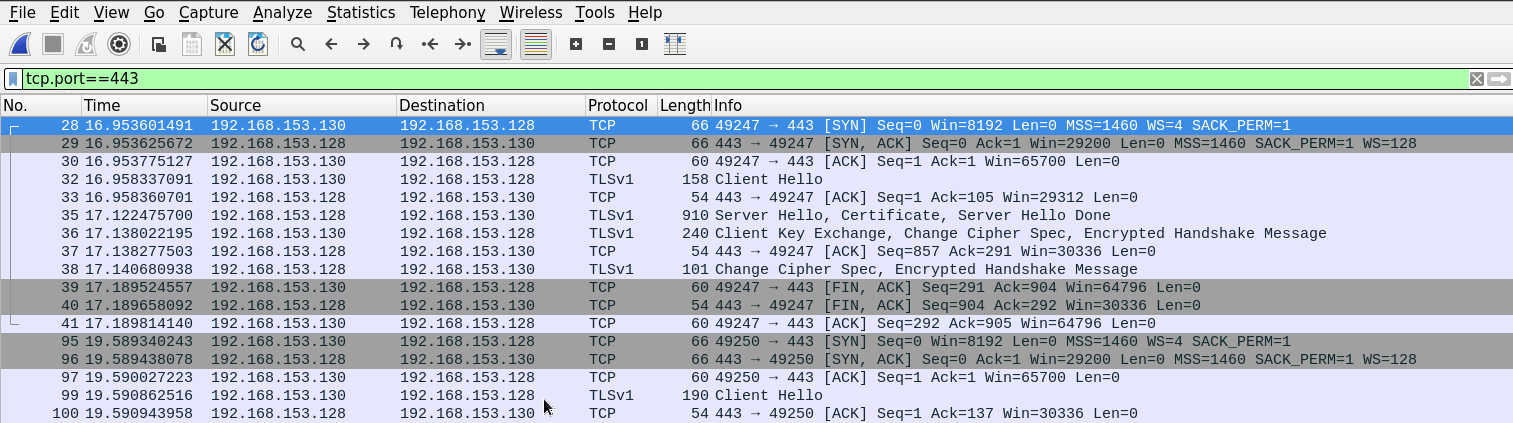
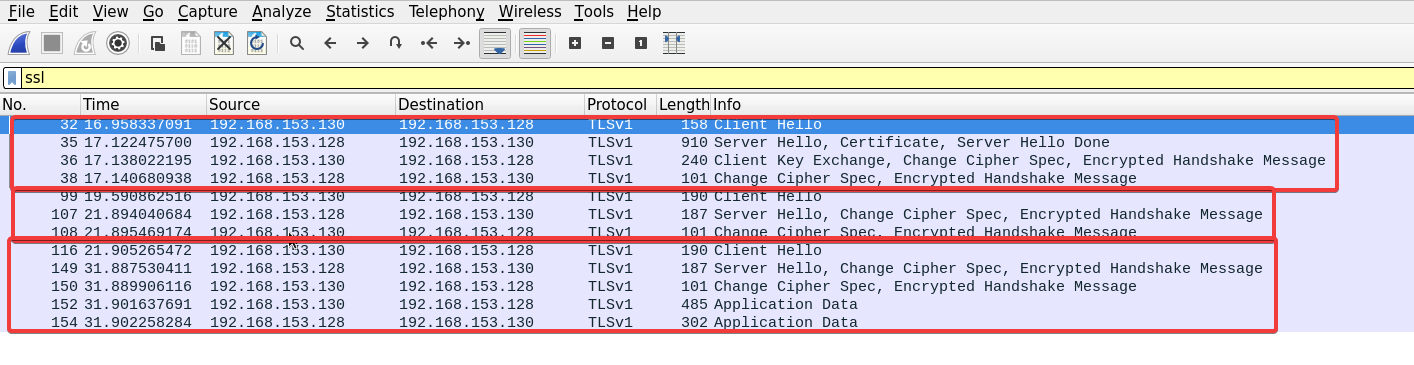
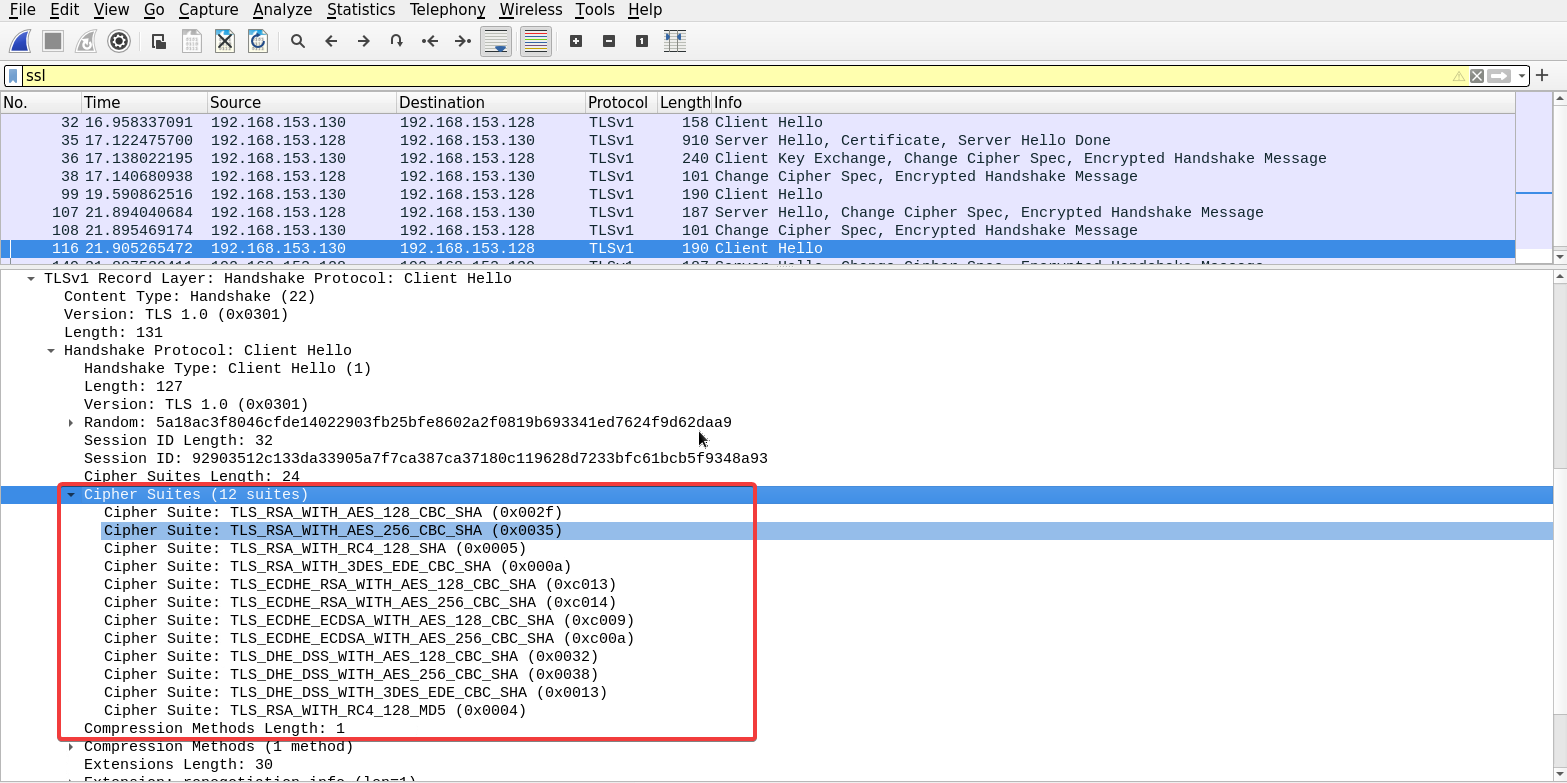
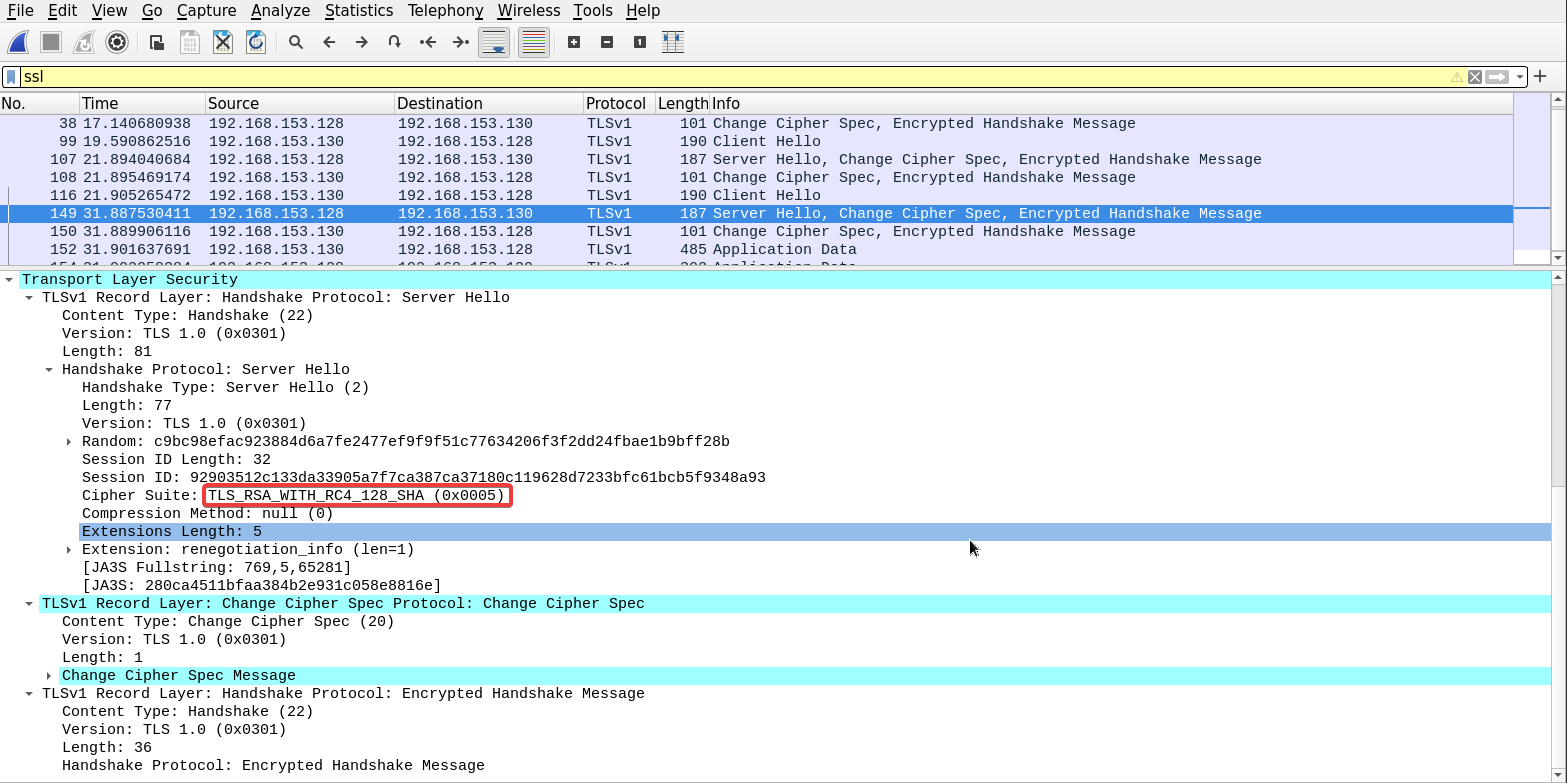
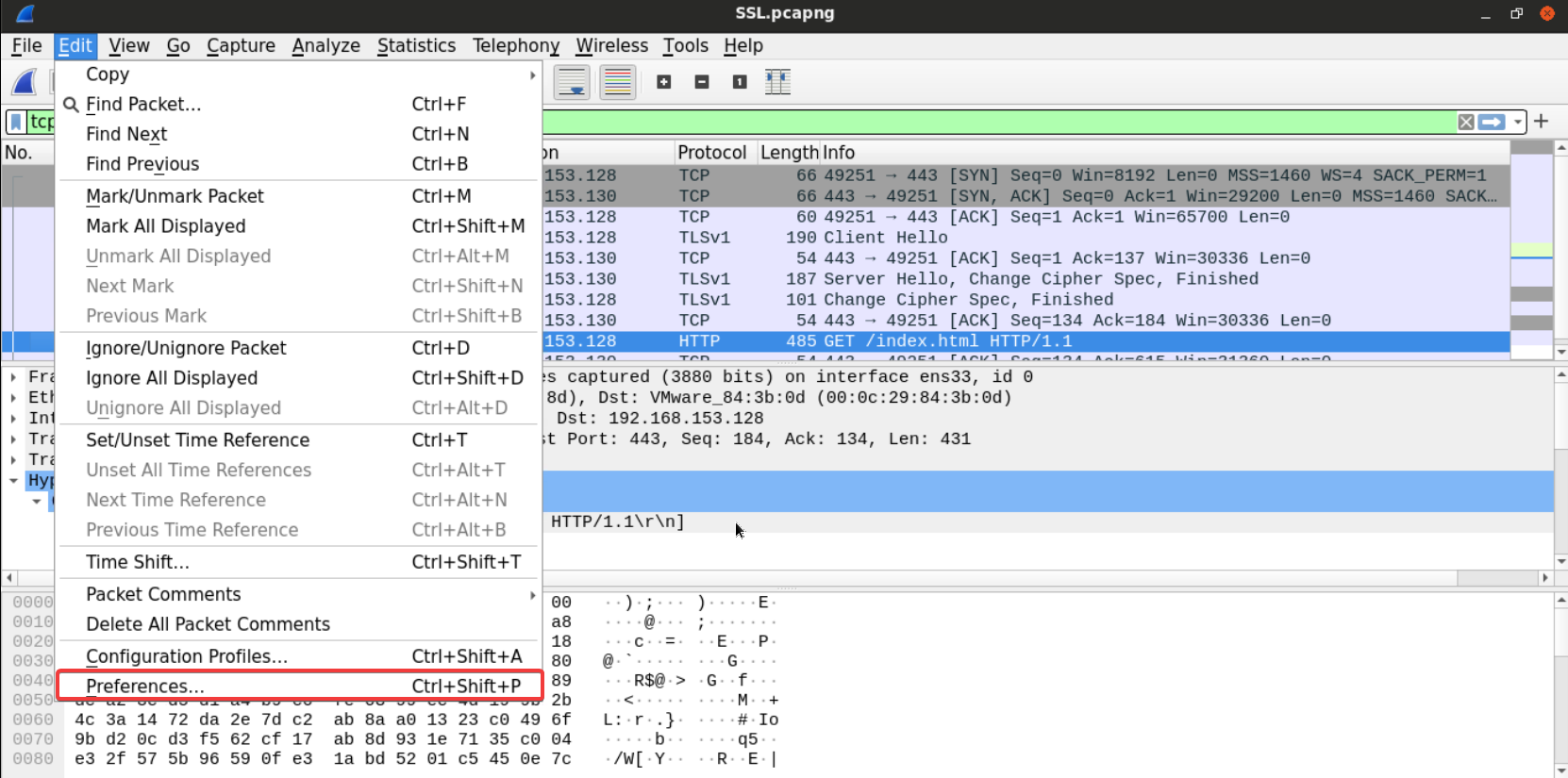
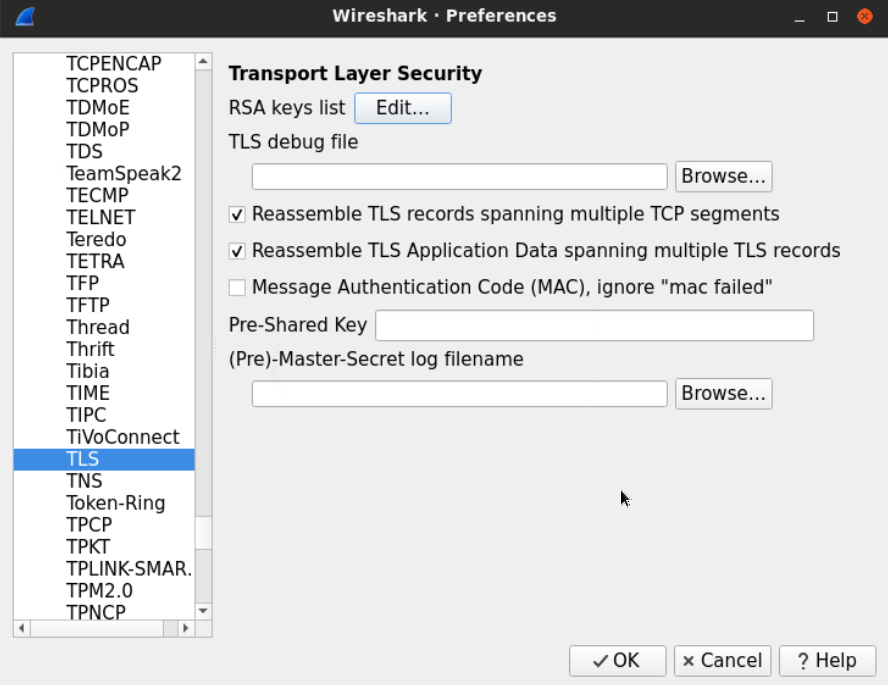
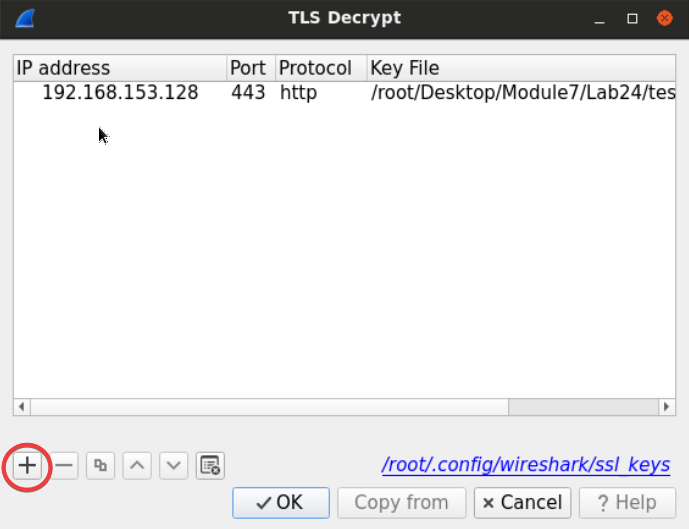
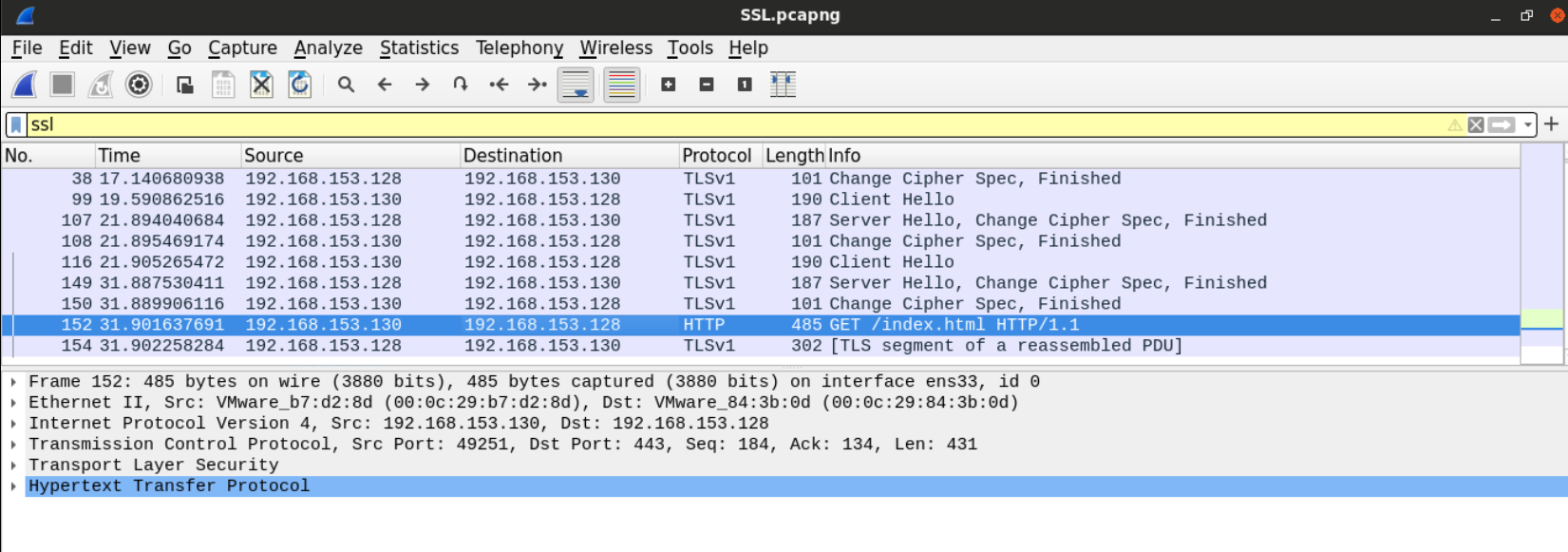
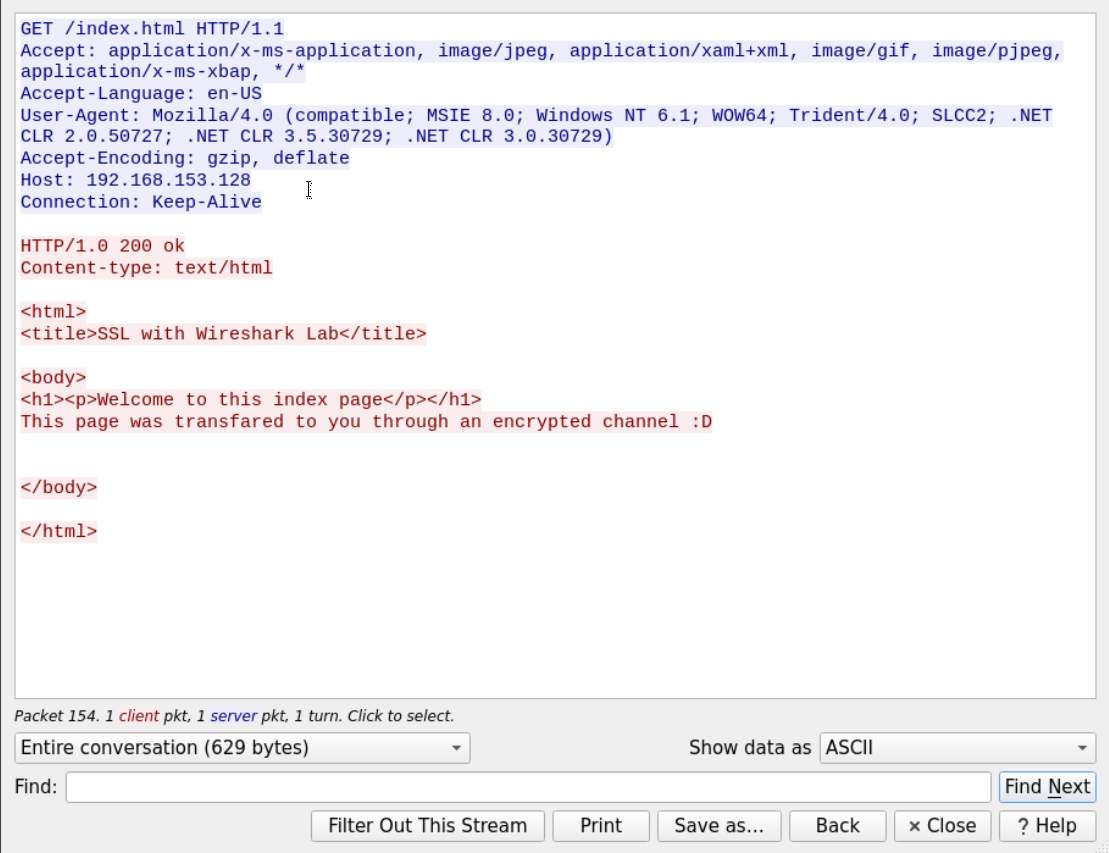
    "solutions": "# Solutions\n\n## Task 1: Examine The Provided Certificate\n\nWe can examine the certificate with **openssl** using the following command:\n\n```\nopenssl x509 -in certname.pem -text -noout\n```\n\n![0](https://assets.ine.com/content/ptp/lab_24_analyzing_ssl_tls_certificates_and_traffic/0.png)\n\nThe Certificate serial number is **f6:7a:f4:7f:9b:aa:10:07.** The signature algorithm is SHA1. The certificate country is the **US,** and the organization name is **Digital Forensics** and issued to **Investigator.** The public key of the RSA algorithm is 1024 bit long.\n\n## Task 2: Examine The First TLS Packet Sent By The Client (the client hello message)\n\nFirst, we need to filter unwanted packets so that we can examine the SSL traffic. We can do that by examining the traffic going to and from TCP port 443 since it is the default port for SSL. Using filter `tcp.port==443`.\n\n![1](https://assets.ine.com/content/ptp/lab_24_analyzing_ssl_tls_certificates_and_traffic/1.png)\n\nSince the filter we're using displays everything going through 443, Wireshark will also display the three-way-handshake and other TCP segments.\n\nWe can use another way to filter out TCP segments by using the **SSL** filter to display only relevant packets.\n\n![2](https://assets.ine.com/content/ptp/lab_24_analyzing_ssl_tls_certificates_and_traffic/2.png)The SSL client hello message can usually be found right after the three-way handshake.\n\nBefore we examine the client hello message, we should notice from the picture above; we can see that there were many attempts to start the SSL session.\n\n![3](https://assets.ine.com/content/ptp/lab_24_analyzing_ssl_tls_certificates_and_traffic/3.png)\n\nOnly one of those attempts is followed by data exchange.\n\nAfter examining the client hello message of the third connection, we can see the full list of ciphers sent by the clients to the server. Under the *Transport Layer Security* dropdown. \n\n![4](https://assets.ine.com/content/ptp/lab_24_analyzing_ssl_tls_certificates_and_traffic/4.png)\n\n## Task 3: Examine The Server Hello Message\n\nUsing the same method, we can examine the Server hello message to find out which algorithm did the server choose to use to secure the connection.\n\n![5](https://assets.ine.com/content/ptp/lab_24_analyzing_ssl_tls_certificates_and_traffic/5.png)\n\n## Task 4: Add The Private Key You Have To Wireshark And Make Sure The Traffic Is Decrypted\n\nFrom the **preference** option under the **edit** tab...\n\n![6](https://assets.ine.com/content/ptp/lab_24_analyzing_ssl_tls_certificates_and_traffic/6.png)\n\nSelect the **TLS** option under the **protocols.**\n\n![7](https://assets.ine.com/content/ptp/lab_24_analyzing_ssl_tls_certificates_and_traffic/7.png)\n\nEdit the RSA keys list, and add the private key file named **testkey2.pem,** which can be found at **Desktop/Module7/Lab24/testkey2.pem.**\n\n![9](https://assets.ine.com/content/ptp/lab_24_analyzing_ssl_tls_certificates_and_traffic/9.png)\n\nAdd the IP Address of the server, port (443), the protocol we're tunneling (which is HTTP) and the file of the key.\n\n- IP Address: 192.168.153.128\n- Port: 443\n- Protocol: http\n- Key File: test2key.pem\n\n**[Note:]** sometimes you will have to restart Wireshark for this to be effective!\n\nWe can follow the traffic of any TLS connection to make sure the key is working.\n\nAfter adding the RSA key, you'll notice that some packets have changed from unknown SSL packets to some known protocol since the data got decrypted.\n\n![8](https://assets.ine.com/content/ptp/lab_24_analyzing_ssl_tls_certificates_and_traffic/8.png)\n\n## Task 5: What Is The Content Of The page Which The User Visited Using SSL?\n\nNow that we've decrypted the traffic, we can follow the SSL traffic and see that the client was requesting the serve default index page.\n\n![10](https://assets.ine.com/content/ptp/lab_24_analyzing_ssl_tls_certificates_and_traffic/10.png)",
    "solutions_html": "<h1>Solutions</h1>\n<h2>Task 1: Examine The Provided Certificate</h2>\n<p>We can examine the certificate with <strong>openssl</strong> using the following command:</p>\n<pre class=\"codehilite\"><code>openssl x509 -in certname.pem -text -noout</code></pre>\n\n<p><img alt=\"0\" src=\"https://assets.ine.com/content/ptp/lab_24_analyzing_ssl_tls_certificates_and_traffic/0.png\" /></p>\n<p>The Certificate serial number is <strong>f6:7a:f4:7f:9b:aa:10:07.</strong> The signature algorithm is SHA1. The certificate country is the <strong>US,</strong> and the organization name is <strong>Digital Forensics</strong> and issued to <strong>Investigator.</strong> The public key of the RSA algorithm is 1024 bit long.</p>\n<h2>Task 2: Examine The First TLS Packet Sent By The Client (the client hello message)</h2>\n<p>First, we need to filter unwanted packets so that we can examine the SSL traffic. We can do that by examining the traffic going to and from TCP port 443 since it is the default port for SSL. Using filter <code>tcp.port==443</code>.</p>\n<p><img alt=\"1\" src=\"https://assets.ine.com/content/ptp/lab_24_analyzing_ssl_tls_certificates_and_traffic/1.png\" /></p>\n<p>Since the filter we're using displays everything going through 443, Wireshark will also display the three-way-handshake and other TCP segments.</p>\n<p>We can use another way to filter out TCP segments by using the <strong>SSL</strong> filter to display only relevant packets.</p>\n<p><img alt=\"2\" src=\"https://assets.ine.com/content/ptp/lab_24_analyzing_ssl_tls_certificates_and_traffic/2.png\" />The SSL client hello message can usually be found right after the three-way handshake.</p>\n<p>Before we examine the client hello message, we should notice from the picture above; we can see that there were many attempts to start the SSL session.</p>\n<p><img alt=\"3\" src=\"https://assets.ine.com/content/ptp/lab_24_analyzing_ssl_tls_certificates_and_traffic/3.png\" /></p>\n<p>Only one of those attempts is followed by data exchange.</p>\n<p>After examining the client hello message of the third connection, we can see the full list of ciphers sent by the clients to the server. Under the <em>Transport Layer Security</em> dropdown. </p>\n<p><img alt=\"4\" src=\"https://assets.ine.com/content/ptp/lab_24_analyzing_ssl_tls_certificates_and_traffic/4.png\" /></p>\n<h2>Task 3: Examine The Server Hello Message</h2>\n<p>Using the same method, we can examine the Server hello message to find out which algorithm did the server choose to use to secure the connection.</p>\n<p><img alt=\"5\" src=\"https://assets.ine.com/content/ptp/lab_24_analyzing_ssl_tls_certificates_and_traffic/5.png\" /></p>\n<h2>Task 4: Add The Private Key You Have To Wireshark And Make Sure The Traffic Is Decrypted</h2>\n<p>From the <strong>preference</strong> option under the <strong>edit</strong> tab...</p>\n<p><img alt=\"6\" src=\"https://assets.ine.com/content/ptp/lab_24_analyzing_ssl_tls_certificates_and_traffic/6.png\" /></p>\n<p>Select the <strong>TLS</strong> option under the <strong>protocols.</strong></p>\n<p><img alt=\"7\" src=\"https://assets.ine.com/content/ptp/lab_24_analyzing_ssl_tls_certificates_and_traffic/7.png\" /></p>\n<p>Edit the RSA keys list, and add the private key file named <strong>testkey2.pem,</strong> which can be found at <strong>Desktop/Module7/Lab24/testkey2.pem.</strong></p>\n<p><img alt=\"9\" src=\"https://assets.ine.com/content/ptp/lab_24_analyzing_ssl_tls_certificates_and_traffic/9.png\" /></p>\n<p>Add the IP Address of the server, port (443), the protocol we're tunneling (which is HTTP) and the file of the key.</p>\n<ul>\n<li>IP Address: 192.168.153.128</li>\n<li>Port: 443</li>\n<li>Protocol: http</li>\n<li>Key File: test2key.pem</li>\n</ul>\n<p><strong>[Note:]</strong> sometimes you will have to restart Wireshark for this to be effective!</p>\n<p>We can follow the traffic of any TLS connection to make sure the key is working.</p>\n<p>After adding the RSA key, you'll notice that some packets have changed from unknown SSL packets to some known protocol since the data got decrypted.</p>\n<p><img alt=\"8\" src=\"https://assets.ine.com/content/ptp/lab_24_analyzing_ssl_tls_certificates_and_traffic/8.png\" /></p>\n<h2>Task 5: What Is The Content Of The page Which The User Visited Using SSL?</h2>\n<p>Now that we've decrypted the traffic, we can follow the SSL traffic and see that the client was requesting the serve default index page.</p>\n<p><img alt=\"10\" src=\"https://assets.ine.com/content/ptp/lab_24_analyzing_ssl_tls_certificates_and_traffic/10.png\" /></p>",
    "flags": [],
    "min_points_to_pass": null,
    "access_type": "default",
    "user_status": "unstarted",
    "user_lab_status": null,
    "user_status_modified": null,
    "user_flags": [],
    "global_running_session": null
}