{
    "id": "84e8da8c-861f-4040-ada2-9d1f41ccd581",
    "name": "Effectively Using Zeek (Bro)",
    "slug": "effectively-using-zeek-bro",
    "status": "published",
    "lab_type": "pta",
    "is_sample": false,
    "duration_in_seconds": 1800,
    "metadata": {
        "courses": [
            "b5802190-6f90-46d1-ae57-58e74ed8832f"
        ],
        "pta_sdn": "237",
        "pta_namespace": "my.ine",
        "learning_paths": [],
        "has_published_parent": true
    },
    "session": null,
    "company": "a491bc32-c056-4946-9169-cc053387bada",
    "created": "2022-06-27T18:44:03.357022Z",
    "modified": "2023-10-03T18:58:49.577147Z",
    "is_beta": false,
    "lab_objectives": [],
    "main_learning_area": "3e1aa06f-2e9f-4789-b50d-aa027ad8dcfa",
    "learning_areas": [
        {
            "id": "3e1aa06f-2e9f-4789-b50d-aa027ad8dcfa",
            "name": "Cyber Security",
            "slug": "cyber-security"
        }
    ],
    "categories": [],
    "tags": [],
    "difficulty": null,
    "is_web_access": false,
    "is_lab_experience": false,
    "is_featured": false,
    "cve": null,
    "severity": null,
    "year": null,
    "classification": null,
    "external_url": "",
    "solution_video": null,
    "explanation_video": null,
    "description": "# Effectively Using Zeek (Bro)\n\n***NOTE: Bro is now Zeek!***\n\n## LAB 6\n\n# Scenario\n\nThe organization you work for is considering deploying [Zeek](https://www.zeek.org/) (now known as Bro) to enhance its traffic inspection capabilities. Your IT Security manager tasked you with thoroughly analyzing zeek's capabilities. He also provided you with PCAP files containing malicious traffic, so that you can experiment with writing zeek detection scripts and signatures.\n\nA test instance of zeek has already been set up and is waiting for you!\n\n# Learning Objectives\n\nThe learning objective of this lab is to not only get familiar with the detection capabilities of zeek but also to learn effective zeek scripting.\n\nSpecifically, you will learn how to use zeek's capabilities in order to:\n\n-   Have better visibility over a network\n\n-   Respond to incidents timely and effectively\n\n-   Proactively hunt for threats\n\n# Introduction To Zeek\n\nZeek's creators describe it as an open-source traffic analyzer. It is typically used to inspect all traffic on a link (in depth) for signs of malicious or suspicious activity. That being said, Zeek can also be used for network troubleshooting and various measurements within a network. By deploying Zeek, blue teams can immediately access a variety of log files that contain all kinds of network activity, at a high level. More specifically, those logs contain not only detailed records of every connection on the wire but also application-layer transcripts (for example - DNS requests and the respective replies, whole HTTP sessions, etc.). Zeek does a lot more than just keeping track of the aforementioned. It is also shipped with a whole range of analysis and detection capabilities/functions.\n\nWhat is important to know is that Zeek exposes an extremely capable scripting language to its users (to develop Zeek scripts, the equivalent of Suricata rules). This key feature makes Zeek a fully customizable and extensible platform, based on which blue team members can create their own analysis and detection logic/posture.\n\nIf we combine that fact that Zeek runs on commodity hardware with its capable scripting language, we can easily conclude that we are not dealing with yet another signature-based IDS. Zeek is a platform that could also facilitate semantic misuse detection, anomaly detection, and behavioral analysis.\n\n**The most important Zeek features and capabilities are**:\n\n-   Comprehensive logging of network activity\n\n-   Analysis of application-layer protocols (regardless of the port, covering protocols like HTTP, DNS, FTP, SMTP, SSH, SSL, etc.)\n\n-   Ability to look into file content exchanged over application-layer protocols\n\n-   IPv6 support\n\n-   Tunnel detection and analysis\n\n-   Ability to perform sanity checks during protocol analysis\n\n-   IDS-like pattern matching\n\n-   Scripting Language\n\n    -   Facilitates the expression of arbitrary analysis tasks\n\n    -   Event-based programming model\n\n    -   Domain-aware\n\n    -   Can facilitate tracking and managing network state over time\n\n-   Interfacing\n\n    -   Outputs to well-structured ASCII logs, by default\n\n    -   Alternative backends for ElasticSearch and DataSeries\n\n    -   External input can be integrated into analyses, in real-time\n\n    -   External C library for exchanging Bro events with external programs\n\n    -   Ability to trigger arbitrary external processes from within the scripting language\n\n**Zeek operation modes:**\n\n-   Fully passive traffic analysis\n\n-   libpcap interface for capturing packets\n\n-   Real-time and offline (for example, PCAP-based) analysis\n\n-   Cluster-support for large-scale deployments\n\n**Zeek architecture and events:**\n\n![https://docs.zeek.org/en/stable/_images/architecture.png](https://assets.ine.com/cybersecurity-lab-images/d67706a9-d983-44d3-b1e2-6bef49c6cc33/image3.png)\n\nZeek consists of two main components, the *event engine* (or core) and the *script interpreter*.\n\n-   The event engine \"transforms\" an incoming packet stream into a series of high-level *events*. In Zeek language, these *events* lay any network activity out in policy-neutral terms; this means that they inform us of what has been spotted, but not if it requires attention or how/why it got there in the first place. For example, all spotted HTTP requests will be \"transformed\" into *http_request* events. These events carry every request detail/component, but they don't include any level of *interpretation*, e.g., of whether a port corresponds to a known port used by malware.\n\n-   Such *interpretation* is offered through Zeek's second main component, the *script interpreter*. Under the hood, the *script interpreter* executes a set of *event handlers* written in Zeek's scripting language (Zeek scripts); this is actually how a site's security policy is expressed when Zeek is used. By security policy we mean, for example, the actions to occur immediately after detection.\n\nEvents generated by Zeek core are placed into an ordered \"event queue\" to be handled in a first-come-first-serve order.\n\n| **Event Name** | **Event Description** |\n| ---------------- | ------------------------ |\n| rdp_begin_encryption |Generated when an RDP session becomes encrypted |\n|rdp_client_core_data | Generated for MCS client request |\n| rdp_connect_request | Generated for X.224 client requests |\n| rdp_gcc_server_create_response | Generated for MCS server responses |\n| rdp_negotiation_failure | Generated for RDP Negotiation Failure messages |\n| rdp_negotiation_response | Generated for RDP Negotiation Response messages |\n| rdp_server_certificate | Generated for a server certificate section |\n| rdp_server_security |  Generated for MCS server responses |\n\nFor a more comprehensive list, refer to the following resource: <https://docs.zeek.org/en/stable/scripts/base/bif/>\n\n**Zeek logs:**\n\n<u>When we use Zeek for offline analysis of a PCAP file though, Zeek logs will be stored in the current directory.</u>\n\n<u>Some</u> known Zeek logs are:\n\n**conn.log**: IP, TCP, UDP, and ICMP connection details\n\n**dns.log**: DNS query/response details\n\n**http.log**: HTTP request/reply details\n\n**ftp.log**: FTP request/reply details\n\n**smtp.log**: SMTP transactions, e.g., sender and receiver\n\nIf we take, for example, the **http.log** Bro log, it includes numerous useful information such as:\n\n-   host: HTTP domain/IP\n\n-   uri: HTTP URI\n\n-   referrer: HTTP request referrer\n\n-   user_agent: Client user agent\n\n-   status_code: HTTP status code\n\nNote that in its default setup, Zeek will gzip compress log files every passing hour. The old logs will be moved into a directory with a YYYY-MM-DD format. In the case of dealing with compressed logs, you can use alternative tools such as gzcat to print logs or zgrep to search in them.\n\nFor zeek examples, use cases and the basics of writing Bro scripts, refer to the following link: <https://docs.zeek.org/en/stable/examples/index.html>\n\nFor a quick start guide, refer to the following link: <https://docs.zeek.org/en/stable/quickstart/index.html>\n\n**Spend time studying the resources above before proceeding to the lab's tasks.**\n\n# Recommended tools\n\n-   Zeek (Already installed on the lab setup)",
    "description_html": "<h1>Effectively Using Zeek (Bro)</h1>\n<p><strong><em>NOTE: Bro is now Zeek!</em></strong></p>\n<h2>LAB 6</h2>\n<h1>Scenario</h1>\n<p>The organization you work for is considering deploying <a href=\"https://www.zeek.org/\">Zeek</a> (now known as Bro) to enhance its traffic inspection capabilities. Your IT Security manager tasked you with thoroughly analyzing zeek's capabilities. He also provided you with PCAP files containing malicious traffic, so that you can experiment with writing zeek detection scripts and signatures.</p>\n<p>A test instance of zeek has already been set up and is waiting for you!</p>\n<h1>Learning Objectives</h1>\n<p>The learning objective of this lab is to not only get familiar with the detection capabilities of zeek but also to learn effective zeek scripting.</p>\n<p>Specifically, you will learn how to use zeek's capabilities in order to:</p>\n<ul>\n<li>\n<p>Have better visibility over a network</p>\n</li>\n<li>\n<p>Respond to incidents timely and effectively</p>\n</li>\n<li>\n<p>Proactively hunt for threats</p>\n</li>\n</ul>\n<h1>Introduction To Zeek</h1>\n<p>Zeek's creators describe it as an open-source traffic analyzer. It is typically used to inspect all traffic on a link (in depth) for signs of malicious or suspicious activity. That being said, Zeek can also be used for network troubleshooting and various measurements within a network. By deploying Zeek, blue teams can immediately access a variety of log files that contain all kinds of network activity, at a high level. More specifically, those logs contain not only detailed records of every connection on the wire but also application-layer transcripts (for example - DNS requests and the respective replies, whole HTTP sessions, etc.). Zeek does a lot more than just keeping track of the aforementioned. It is also shipped with a whole range of analysis and detection capabilities/functions.</p>\n<p>What is important to know is that Zeek exposes an extremely capable scripting language to its users (to develop Zeek scripts, the equivalent of Suricata rules). This key feature makes Zeek a fully customizable and extensible platform, based on which blue team members can create their own analysis and detection logic/posture.</p>\n<p>If we combine that fact that Zeek runs on commodity hardware with its capable scripting language, we can easily conclude that we are not dealing with yet another signature-based IDS. Zeek is a platform that could also facilitate semantic misuse detection, anomaly detection, and behavioral analysis.</p>\n<p><strong>The most important Zeek features and capabilities are</strong>:</p>\n<ul>\n<li>\n<p>Comprehensive logging of network activity</p>\n</li>\n<li>\n<p>Analysis of application-layer protocols (regardless of the port, covering protocols like HTTP, DNS, FTP, SMTP, SSH, SSL, etc.)</p>\n</li>\n<li>\n<p>Ability to look into file content exchanged over application-layer protocols</p>\n</li>\n<li>\n<p>IPv6 support</p>\n</li>\n<li>\n<p>Tunnel detection and analysis</p>\n</li>\n<li>\n<p>Ability to perform sanity checks during protocol analysis</p>\n</li>\n<li>\n<p>IDS-like pattern matching</p>\n</li>\n<li>\n<p>Scripting Language</p>\n<ul>\n<li>\n<p>Facilitates the expression of arbitrary analysis tasks</p>\n</li>\n<li>\n<p>Event-based programming model</p>\n</li>\n<li>\n<p>Domain-aware</p>\n</li>\n<li>\n<p>Can facilitate tracking and managing network state over time</p>\n</li>\n</ul>\n</li>\n<li>\n<p>Interfacing</p>\n<ul>\n<li>\n<p>Outputs to well-structured ASCII logs, by default</p>\n</li>\n<li>\n<p>Alternative backends for ElasticSearch and DataSeries</p>\n</li>\n<li>\n<p>External input can be integrated into analyses, in real-time</p>\n</li>\n<li>\n<p>External C library for exchanging Bro events with external programs</p>\n</li>\n<li>\n<p>Ability to trigger arbitrary external processes from within the scripting language</p>\n</li>\n</ul>\n</li>\n</ul>\n<p><strong>Zeek operation modes:</strong></p>\n<ul>\n<li>\n<p>Fully passive traffic analysis</p>\n</li>\n<li>\n<p>libpcap interface for capturing packets</p>\n</li>\n<li>\n<p>Real-time and offline (for example, PCAP-based) analysis</p>\n</li>\n<li>\n<p>Cluster-support for large-scale deployments</p>\n</li>\n</ul>\n<p><strong>Zeek architecture and events:</strong></p>\n<p><img alt=\"https://docs.zeek.org/en/stable/_images/architecture.png\" src=\"https://assets.ine.com/cybersecurity-lab-images/d67706a9-d983-44d3-b1e2-6bef49c6cc33/image3.png\" /></p>\n<p>Zeek consists of two main components, the <em>event engine</em> (or core) and the <em>script interpreter</em>.</p>\n<ul>\n<li>\n<p>The event engine \"transforms\" an incoming packet stream into a series of high-level <em>events</em>. In Zeek language, these <em>events</em> lay any network activity out in policy-neutral terms; this means that they inform us of what has been spotted, but not if it requires attention or how/why it got there in the first place. For example, all spotted HTTP requests will be \"transformed\" into <em>http_request</em> events. These events carry every request detail/component, but they don't include any level of <em>interpretation</em>, e.g., of whether a port corresponds to a known port used by malware.</p>\n</li>\n<li>\n<p>Such <em>interpretation</em> is offered through Zeek's second main component, the <em>script interpreter</em>. Under the hood, the <em>script interpreter</em> executes a set of <em>event handlers</em> written in Zeek's scripting language (Zeek scripts); this is actually how a site's security policy is expressed when Zeek is used. By security policy we mean, for example, the actions to occur immediately after detection.</p>\n</li>\n</ul>\n<p>Events generated by Zeek core are placed into an ordered \"event queue\" to be handled in a first-come-first-serve order.</p>\n<table>\n<thead>\n<tr>\n<th><strong>Event Name</strong></th>\n<th><strong>Event Description</strong></th>\n</tr>\n</thead>\n<tbody>\n<tr>\n<td>rdp_begin_encryption</td>\n<td>Generated when an RDP session becomes encrypted</td>\n</tr>\n<tr>\n<td>rdp_client_core_data</td>\n<td>Generated for MCS client request</td>\n</tr>\n<tr>\n<td>rdp_connect_request</td>\n<td>Generated for X.224 client requests</td>\n</tr>\n<tr>\n<td>rdp_gcc_server_create_response</td>\n<td>Generated for MCS server responses</td>\n</tr>\n<tr>\n<td>rdp_negotiation_failure</td>\n<td>Generated for RDP Negotiation Failure messages</td>\n</tr>\n<tr>\n<td>rdp_negotiation_response</td>\n<td>Generated for RDP Negotiation Response messages</td>\n</tr>\n<tr>\n<td>rdp_server_certificate</td>\n<td>Generated for a server certificate section</td>\n</tr>\n<tr>\n<td>rdp_server_security</td>\n<td>Generated for MCS server responses</td>\n</tr>\n</tbody>\n</table>\n<p>For a more comprehensive list, refer to the following resource: <a href=\"https://docs.zeek.org/en/stable/scripts/base/bif/\">https://docs.zeek.org/en/stable/scripts/base/bif/</a></p>\n<p><strong>Zeek logs:</strong></p>\n<p><u>When we use Zeek for offline analysis of a PCAP file though, Zeek logs will be stored in the current directory.</u></p>\n<p><u>Some</u> known Zeek logs are:</p>\n<p><strong>conn.log</strong>: IP, TCP, UDP, and ICMP connection details</p>\n<p><strong>dns.log</strong>: DNS query/response details</p>\n<p><strong>http.log</strong>: HTTP request/reply details</p>\n<p><strong>ftp.log</strong>: FTP request/reply details</p>\n<p><strong>smtp.log</strong>: SMTP transactions, e.g., sender and receiver</p>\n<p>If we take, for example, the <strong>http.log</strong> Bro log, it includes numerous useful information such as:</p>\n<ul>\n<li>\n<p>host: HTTP domain/IP</p>\n</li>\n<li>\n<p>uri: HTTP URI</p>\n</li>\n<li>\n<p>referrer: HTTP request referrer</p>\n</li>\n<li>\n<p>user_agent: Client user agent</p>\n</li>\n<li>\n<p>status_code: HTTP status code</p>\n</li>\n</ul>\n<p>Note that in its default setup, Zeek will gzip compress log files every passing hour. The old logs will be moved into a directory with a YYYY-MM-DD format. In the case of dealing with compressed logs, you can use alternative tools such as gzcat to print logs or zgrep to search in them.</p>\n<p>For zeek examples, use cases and the basics of writing Bro scripts, refer to the following link: <a href=\"https://docs.zeek.org/en/stable/examples/index.html\">https://docs.zeek.org/en/stable/examples/index.html</a></p>\n<p>For a quick start guide, refer to the following link: <a href=\"https://docs.zeek.org/en/stable/quickstart/index.html\">https://docs.zeek.org/en/stable/quickstart/index.html</a></p>\n<p><strong>Spend time studying the resources above before proceeding to the lab's tasks.</strong></p>\n<h1>Recommended tools</h1>\n<ul>\n<li>Zeek (Already installed on the lab setup)</li>\n</ul>",
    "tasks": "# Tasks\n\n## Task 1: Write a zeek script to alert you on any RDP connection initiated by a user different than \"admin\"\n\nConsider the *RDP-004.pcap* file stored in the */root/Desktop/PCAPs* directory.Write a Zeek script that will extract the username(s) that initiated the RDP connection attempts and alert you in case a username is different than \"*admin*\".\n\n**Hints**: Locate and analyze the *rdp_connect_request* event.\n\n**Resources**:\n\n1.  <https://docs.zeek.org/en/stable/scripts/base/bif/plugins/Bro_RDP.events.bif.bro.html>\n\n2.  <https://docs.zeek.org/en/stable/examples/scripting/index.html>\n\n3.  <https://docs.zeek.org/en/stable/frameworks/notice.html?highlight=notice>\n\n## Task 2: Analyze the provided incident_1.pcap PCAP file leveraging Zeek native functionality and identify any suspicious or abnormal activity\n\nAnalyze the *incident_1.pcap* PCAP file (stored in the *~/Desktop/PCAPs* directory) leveraging Zeek native functionality. Try to identify any abnormalities by going through all created Zeek logs.\n\n**Hint**: Malware can leverage unencrypted SSL components for their nefarious purposes.\n\n## Task 3: Analyze the provided incident_2.pcap PCAP file leveraging Zeek native functionality and identify any suspicious or abnormal activity\n\nAnalyze the *incident_2.pcap* PCAP file (stored in the *~/Desktop/PCAPs* directory) leveraging Zeek native functionality. Try to identify any abnormalities by going through all created Zeek logs. <u>Note that the *incident_2.pcap* PCAP file was captured inside a sandbox.</u>\n\n**Hint**: Malware are known to oftentimes abuse the flexible infrastructure of the Domain Name System (DNS); specifically, numerous new domain names are being produced by malware authors, and each one of them can play the role of the botmaster, should the occasion requires so. For more information, refer to the following link: <https://blogs.akamai.com/2017/05/spotlight-on-malware-dga-communication-technique.html>\n\n## Task 4: Analyze the provided incident_3.pcap PCAP file leveraging Zeek native functionality and identify any suspicious or abnormal activity\n\nAnalyze the *incident_3.pcap* PCAP file (stored in the *~/Desktop/PCAPs* directory) leveraging Zeek native functionality. Try to identify any abnormalities by going through all created Zeek logs.\n\n**Hint**: Malware doesn't always keep a single TCP session alive during their operation. As a matter of fact, the new age of RATs prefers beaconing at regular intervals, rather than keeping a single TCP session alive. Beaconing can help evade certain methods of detection that are based on spotting long-running connections.\n\n## Task 5: The incident_4.pcap PCAP file contains traffic of a RAT that kept a single TCP session alive during its operation. Develop a Zeek script to detect such long-running connections.\n\nYou knew from the beginning that the *incident_4.pcap* PCAP file (stored in the *~/Desktop/PCAPs* directory) is related to a known RAT that prefers keeping a single TCP session alive during its operation. Develop a Zeek script to detect such long-running connections.\n\n## Task 6: The ZeroAccess.pcap PCAP file contains malicious traffic that derives from the notorious ZeroAccess rootkit. Leverage Zeek's signature framework to create a signature for this rootkit.\n\nAccording to Zeek docs regarding its [Signature Framework](https://docs.zeek.org/en/stable/frameworks/signatures.html?highlight=.sig), \"Zeek relies primarily on its extensive scripting language for defining and analyzing detection policies. Additionally, however, Zeek also provides an independent signature language for doing low-level, Snort-style pattern matching\".\n\nBased on the following analysis, create a Zeek signature to detect ZeroAccess on the wire. <http://malforsec.blogspot.com/2013/02/zeroaccess-analysis-part-i-network.html>",
    "tasks_html": "<h1>Tasks</h1>\n<h2>Task 1: Write a zeek script to alert you on any RDP connection initiated by a user different than \"admin\"</h2>\n<p>Consider the <em>RDP-004.pcap</em> file stored in the <em>/root/Desktop/PCAPs</em> directory.Write a Zeek script that will extract the username(s) that initiated the RDP connection attempts and alert you in case a username is different than \"<em>admin</em>\".</p>\n<p><strong>Hints</strong>: Locate and analyze the <em>rdp_connect_request</em> event.</p>\n<p><strong>Resources</strong>:</p>\n<ol>\n<li>\n<p><a href=\"https://docs.zeek.org/en/stable/scripts/base/bif/plugins/Bro_RDP.events.bif.bro.html\">https://docs.zeek.org/en/stable/scripts/base/bif/plugins/Bro_RDP.events.bif.bro.html</a></p>\n</li>\n<li>\n<p><a href=\"https://docs.zeek.org/en/stable/examples/scripting/index.html\">https://docs.zeek.org/en/stable/examples/scripting/index.html</a></p>\n</li>\n<li>\n<p><a href=\"https://docs.zeek.org/en/stable/frameworks/notice.html?highlight=notice\">https://docs.zeek.org/en/stable/frameworks/notice.html?highlight=notice</a></p>\n</li>\n</ol>\n<h2>Task 2: Analyze the provided incident_1.pcap PCAP file leveraging Zeek native functionality and identify any suspicious or abnormal activity</h2>\n<p>Analyze the <em>incident_1.pcap</em> PCAP file (stored in the <em>~/Desktop/PCAPs</em> directory) leveraging Zeek native functionality. Try to identify any abnormalities by going through all created Zeek logs.</p>\n<p><strong>Hint</strong>: Malware can leverage unencrypted SSL components for their nefarious purposes.</p>\n<h2>Task 3: Analyze the provided incident_2.pcap PCAP file leveraging Zeek native functionality and identify any suspicious or abnormal activity</h2>\n<p>Analyze the <em>incident_2.pcap</em> PCAP file (stored in the <em>~/Desktop/PCAPs</em> directory) leveraging Zeek native functionality. Try to identify any abnormalities by going through all created Zeek logs. <u>Note that the <em>incident_2.pcap</em> PCAP file was captured inside a sandbox.</u></p>\n<p><strong>Hint</strong>: Malware are known to oftentimes abuse the flexible infrastructure of the Domain Name System (DNS); specifically, numerous new domain names are being produced by malware authors, and each one of them can play the role of the botmaster, should the occasion requires so. For more information, refer to the following link: <a href=\"https://blogs.akamai.com/2017/05/spotlight-on-malware-dga-communication-technique.html\">https://blogs.akamai.com/2017/05/spotlight-on-malware-dga-communication-technique.html</a></p>\n<h2>Task 4: Analyze the provided incident_3.pcap PCAP file leveraging Zeek native functionality and identify any suspicious or abnormal activity</h2>\n<p>Analyze the <em>incident_3.pcap</em> PCAP file (stored in the <em>~/Desktop/PCAPs</em> directory) leveraging Zeek native functionality. Try to identify any abnormalities by going through all created Zeek logs.</p>\n<p><strong>Hint</strong>: Malware doesn't always keep a single TCP session alive during their operation. As a matter of fact, the new age of RATs prefers beaconing at regular intervals, rather than keeping a single TCP session alive. Beaconing can help evade certain methods of detection that are based on spotting long-running connections.</p>\n<h2>Task 5: The incident_4.pcap PCAP file contains traffic of a RAT that kept a single TCP session alive during its operation. Develop a Zeek script to detect such long-running connections.</h2>\n<p>You knew from the beginning that the <em>incident_4.pcap</em> PCAP file (stored in the <em>~/Desktop/PCAPs</em> directory) is related to a known RAT that prefers keeping a single TCP session alive during its operation. Develop a Zeek script to detect such long-running connections.</p>\n<h2>Task 6: The ZeroAccess.pcap PCAP file contains malicious traffic that derives from the notorious ZeroAccess rootkit. Leverage Zeek's signature framework to create a signature for this rootkit.</h2>\n<p>According to Zeek docs regarding its <a href=\"https://docs.zeek.org/en/stable/frameworks/signatures.html?highlight=.sig\">Signature Framework</a>, \"Zeek relies primarily on its extensive scripting language for defining and analyzing detection policies. Additionally, however, Zeek also provides an independent signature language for doing low-level, Snort-style pattern matching\".</p>\n<p>Based on the following analysis, create a Zeek signature to detect ZeroAccess on the wire. <a href=\"http://malforsec.blogspot.com/2013/02/zeroaccess-analysis-part-i-network.html\">http://malforsec.blogspot.com/2013/02/zeroaccess-analysis-part-i-network.html</a></p>",
    "published_date": "2020-10-20T15:32:25Z",
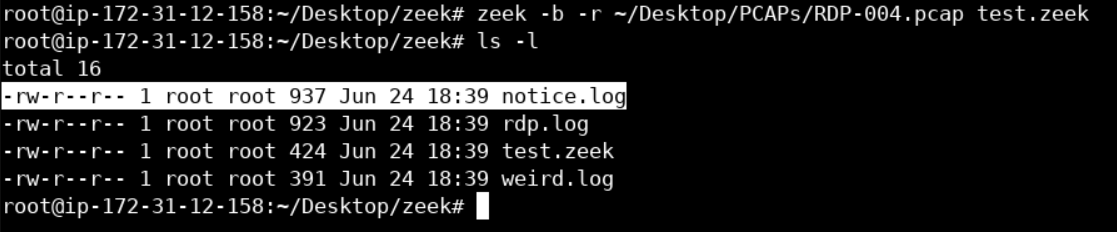
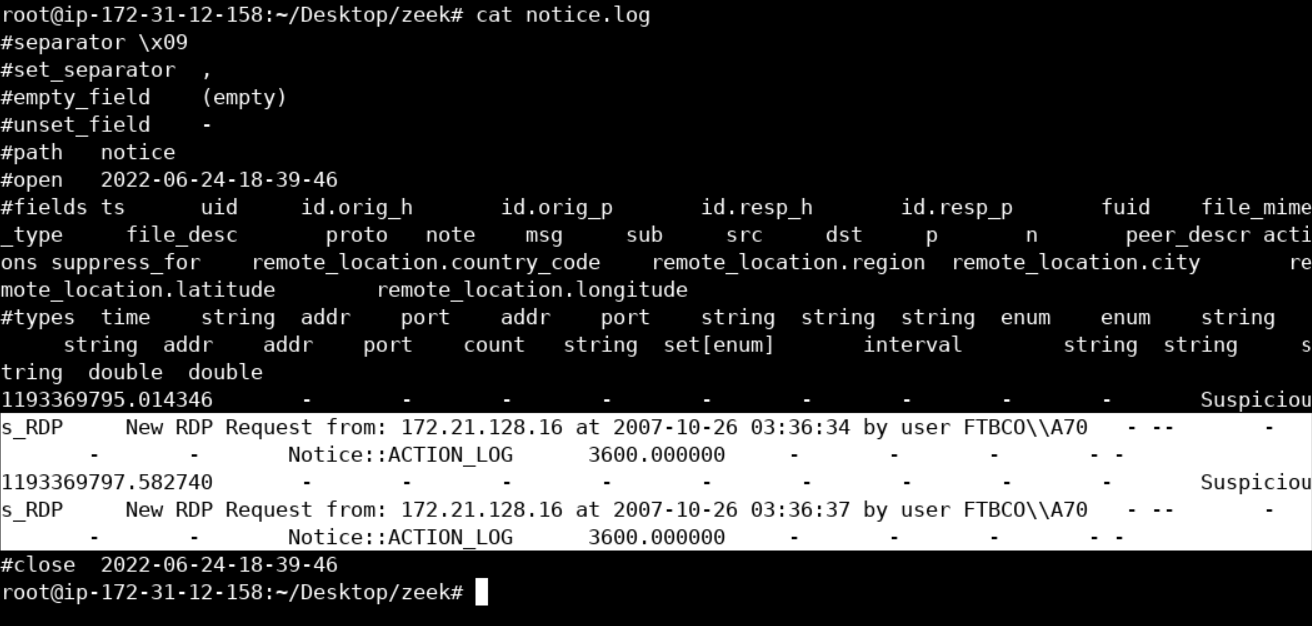
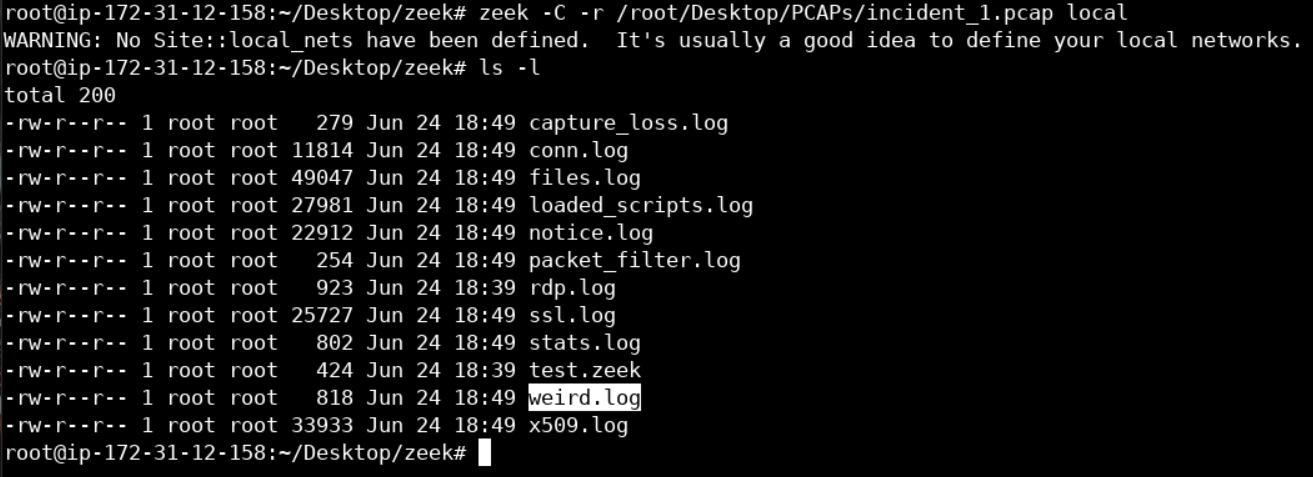
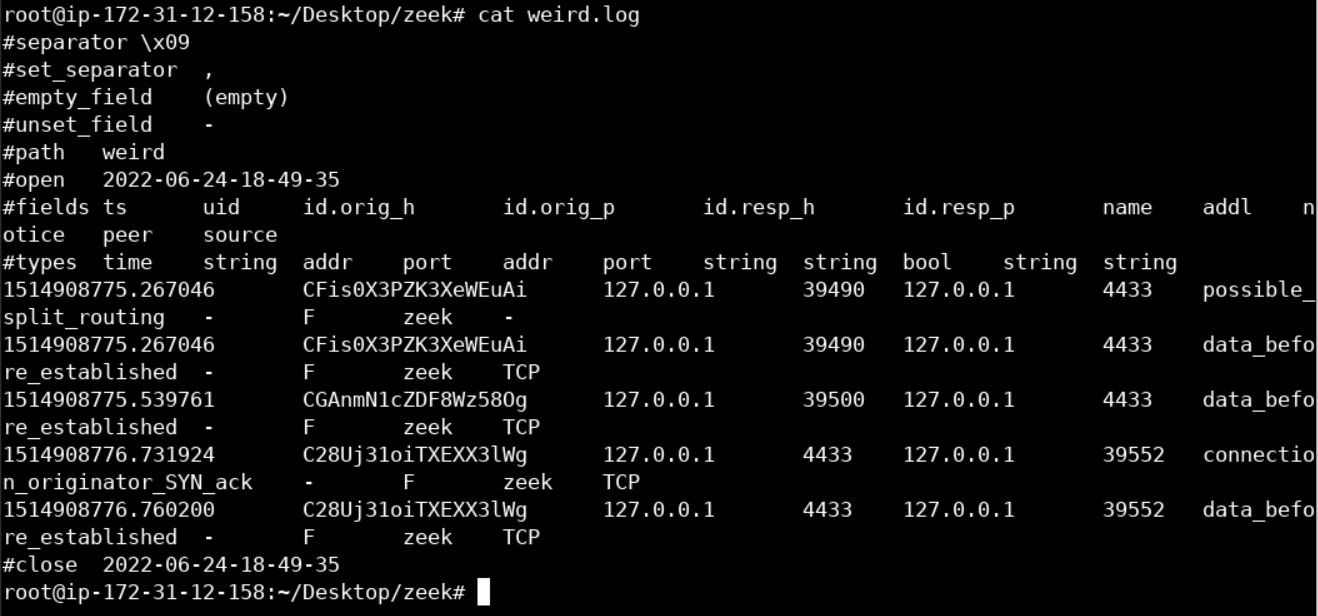
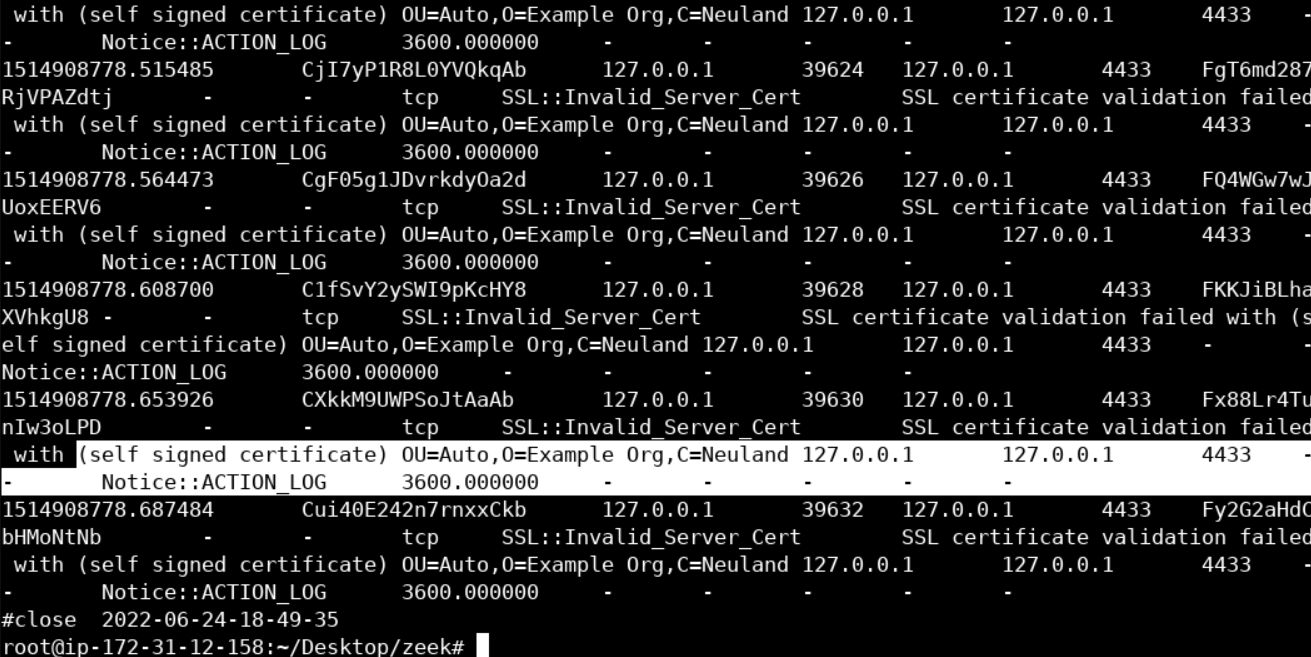
    "solutions": "# SOLUTIONS\n\nBelow, you can find solutions for every task of this lab. Remember though, that you can follow your own strategy (which may be different from the one explained in the following lab.\n\n## Task 1: Write a zeek script to alert you on any RDP connection initiated by a user different than \"admin\"\n\n#\n\nLet's first set zeek's path as environment variable so that we can access it globally. We can do so with the help of following command -\n\n```\nexport PATH=/opt/zeek/bin/:$PATH\n```\n\n***NOTE: If you are closing this lab, you need to run the above mentioned command again in order to set the zeek's path.***\n\nNow, let's introduce a script file to handle the *rdp_connect_request* event, according to the requirements of Task 1\n\n```\ncd ~/Desktop\nmkdir zeek\ncd zeek\nnano test.zeek\n```\n\nInside nano (in 'test.zeek'), type the below code-\n\n```\n@load base/protocols/rdp\nevent rdp_connect_request(c: connection, cookie:string)\n{\n\tprint cookie;\n}\n```\n\nIn the first line, we simply imported all of the base functionality already implemented in Zeek, regarding RDP analysis. Then, we defined the event handler, instructing it to only print the cookie of the request. What is important to remember, is that the event declaration should be identical to the one shown in the Zeek *rdp_connect_request*.\n\nNow, let's execute Zeek and specify the *RDP-004.pcap* PCAP file as well as the script we just created.\n\n```\nzeek -b -r ~/Desktop/PCAPs/RDP-004.pcap test.zeek\n```\n\nThe -b flag is used so as to **not** automatically load all scripts under *base* (which is the default behavior).\n\nThe -r flag is used to execute Zeek for offline analysis of a provided traffic capture file.\n\nPlacing a Zeek script at the end of the command will load the specified Zeek script.\n\nYou should see something similar to the following.\n\n![](https://assets.ine.com/content/threat-hunting-professional/effectively_using_zeek/image1.png)\n\nWhat if we wanted some more information from the connection request, such as the source address and the start time (in Unix time), all printed in one line?\n\nWe could do so, by extending our Zeek script (*nano test.zeek* again), as follows.\n\n```\n@load base/protocols/rdp\nevent rdp_connect_request(c:connection, cookie:string)\n{\n    local start_time = strftime(\"%Y-%m-%d %H:%M:%S\", c$start_time );\n    print fmt(\"New RDP Requst from: %s at %s by user %s\", c$id$orig_h, start_time , cookie);\n}\n```\n\nNow, let's execute Zeek and specify the *RDP-004.pcap* PCAP file as well as the extended script we just created.\n\n```\nzeek -b -r ~/Desktop/PCAPs/RDP-004.pcap test.zeek\n```\n\nYou should see something similar to the following.\n\n![](https://assets.ine.com/content/threat-hunting-professional/effectively_using_zeek/image2.png)\n\nTo make our Zeek script fulfill the requirements of Task 1 (alert us on any RDP connection initiated by a user different than \"admin\"), we have to implement two additional things.\n\n1.  Instead of just printing the log into standard output, we would like the Zeek output to be logged into a file for better and more effective monitoring; this is where Zeek's \"*notice*\" framework comes into play. The \"*notice*\" framework is used when we want Zeek to alert us on suspicious or malicious activity. When writing a Zeek script, we can raise such an alert by simply calling the NOTICE function.\n\n2.  We should also introduce functionality that compares the observed username in the RDP connection to the username \"admin\" and alerts us in case of a mismatch.\n\nBoth the above can be easily implemented, as follows (below is the final version of our Zeek script).\n\n- Write (Copy-Paste) the below mentioned script into your *test.zeek* file.\n\n```\n@load base/protocols/rdp\n@load base/frameworks/notice\nexport { redef enum Notice::Type += {Suspicious_RDP}; }\nevent rdp_connect_request(c: connection, cookie:string){\n\tif (cookie != \"admin\"){\n\t\tlocal start_time = strftime(\"%Y-%m-%d %H:%M:%S\", c$start_time );\n\t\tlocal message = fmt(\"New RDP Request from: %s at %s by user %s\", c$id$orig_h, start_time , cookie);\n\t\tNOTICE([$note= Suspicious_RDP, $msg=message]);\n\t}\n}\n```\n\nFinally, let's execute Zeek and specify the *RDP-004.pcap* PCAP file as well as the final version of our script.\n\n```\nzeek -b -r ~/Desktop/PCAPs/RDP-004.pcap test.zeek\n```\n\nYou should see nothing in the standard output, but you will find a new Zeek log named **notice.log** in the current directory.\n\n![](https://assets.ine.com/content/threat-hunting-professional/effectively_using_zeek/image3.png)\n\n**notice.log** contains the alert messages we specified in the final version of our Zeek script.\n\n- Run the following command -\n```\ncat notice.log\n```\n\n![](https://assets.ine.com/content/threat-hunting-professional/effectively_using_zeek/image4.png)\n\n\n## Task 2: Analyze the provided PCAP file leveraging Bro native functionality and identify any suspicious or abnormal activity\n\nFirst, delete any previously generated logs in the current directory.\n\nRun -\n```\ncd ..\nrm -r zeek\nmkdir zeek\ncd zeek\n```\n\nLet's start our analysis, by executing Zeek as follows.\n\n```\nzeek -C -r /root/Desktop/PCAPs/incident_1.pcap local\n```\n\n-C is used to ignore invalid TCP checksums.\n\nYou should see nothing important in the standard output, but various Zeek logs being created, as follows.\n\nNow run ``` ls -l ```\n\n![](https://assets.ine.com/content/threat-hunting-professional/effectively_using_zeek/image5.png)\n\nLet's take a look at **weird.log**. weird.log contains unusual/exceptional activity that can indicate malformed connections, traffic that doesn't conform to a particular protocol or even a malicious actor trying to evade or confuse a sensor.\n\n```\ncat weird.log\n```\n\nYou should see something similar to the below.\n\n![](https://assets.ine.com/content/threat-hunting-professional/effectively_using_zeek/image6.png)\n\nNothing conclusive. Let's move on.\n\nLet's now inspect the contents of **notice.log**, as follows.\n\n```\ncat notice.log\n```\nYou should see something similar to the below.\n\n![](https://assets.ine.com/content/threat-hunting-professional/effectively_using_zeek/image7.png)\n\nFirst of all, notice that even though we see port 4433 (TCP), Zeek was still able to identify that what it sees is SSL traffic. **Disregard 127.0.0.1, the PCAP is from a run using local loopback.**\n\nWhat you should also notice, are those \"self signed certificate\" messages. Unfortunately, self-signed certificates are quite common, even nowadays. So, nothing suspicious yet. Those \"default\" values on the SSL certificates (marked in yellow) are interesting!\n\nWe should not forget that malicious actors are known for both using self-signed SSL certificates and being lazy, so, let's take a closer look.\n\nSSL certificates are quite valuable when it comes to responding to SSL-powered malware; this is because they are transmitted unencrypted. Unfortunately, Zeek doesn't extract every observed SSL certificate, by default. Let's configure it, so that it does, as follows.\n\n```\nnano /opt/zeek/share/zeek/site/local.zeek\n```\n\nInside nano, append the following at the end of the **local.zeek** file.\n(Already present in the lab setup, just verify it is there or not.)\n\n```\n@load protocols/ssl/extract-certs-pem\nredef SSL::extract_certs_pem = ALL_HOSTS;\n```\n\nThis will extract all observed SSL certificates and store them inside a big **certs-remote.pem** file.\n\nIf you run zeek once again, you will notice this big **certs-remote.pem** file, in the current directory.\n\nRun -\n\n```\nzeek -C -r /root/Desktop/PCAPs/incident_1.pcap local\nls\n```\n\n![](https://assets.ine.com/content/threat-hunting-professional/effectively_using_zeek/image8.png)\n\nNow, let's move that **certs-remote.pem** file in a temp directory and split it into all the separate .pem files that constructed it. This can be done as follows.\n\n```\nmkdir temp\nmv certs-remote.pem temp\ncd temp\nawk ' split_after == 1 {close(n\".pem\"); n++;split_after=0} /-----END CERTIFICATE-----/ {split_after=1} { print > n\".pem\"}' <certs-remote.pem\n```\nYou should be able to see something similar to the below, if you list the temp directory.\n\nRun-\n```\nls\n```\n\n![](https://assets.ine.com/content/threat-hunting-professional/effectively_using_zeek/image9.png)\n\nLet's continue, by inspecting 1.pem, we can do so through the openssl binary, as follows.\n\n```\nopenssl x509 -in 1.pem -text -noout\n```\n\nYou should see the below.\n\n![](https://assets.ine.com/content/threat-hunting-professional/effectively_using_zeek/image10.png)\n\n![](https://assets.ine.com/content/threat-hunting-professional/effectively_using_zeek/image11.png)If you go further down the certificate, you will notice an overly large *X509v3 Subject Key Identifier* section.\n\nSuch an overly large *X509v3 Subject Key Identifier* and subsequently such an overly large .pem file is not common. Additionally, the whole section seems like hex values (including NULL ones) and that *4D5A* part, in the beginning, looks scary because it is the equivalent of the *MZ* in ASCII and MZ is known to be a magic value to identify a [Portable Executable file format](https://blog.kowalczyk.info/articles/pefileformat.html).\n\nLet's make sure, by executing the following.\n\n```\necho \"copy-paste the whole X509v3 Subject Key Identifier section here\" | sed 's/://g'\n```\nThe command above will strip off any \":\" characters from the x509v3 Subject Key Identification section.\n\nThen, take the stripped output and execute the following.\n\n```\necho \"copy-paste the stripped X509v3 Subject Key Identifier section here\" | xxd -r -p\n```\n\nYou should see the following.\n\n![](https://assets.ine.com/cybersecurity-lab-images/d67706a9-d983-44d3-b1e2-6bef49c6cc33/image17.png)\n\n**The above means that a binary was stealthily being transferred, masked as an *X509v3 Subject Key Identifier*.**\n\nPCAP was taken from: <https://github.com/fideliscyber/x509/>\n\nFor more on the attacking technique being used, check out the following link: https://www.fidelissecurity.com/threatgeek/threat-intelligence/x509-vulnerabilities>\n\n## Task 3: Analyze the provided incident_2.pcap PCAP file leveraging Zeek native functionality and identify any suspicious or abnormal activity\n\nFirst, delete any previously generated logs in the current directory.\n\nRun -\n```\ncd ../..\nrm -r zeek\nmkdir zeek\ncd zeek\n```\n\nNow, let's start our analysis, by executing Zeek as follows.\n\n```\nzeek -C -r /root/Desktop/PCAPs/incident_2.pcap local\n```\n\nFor a summary of the connections in *incident_2.pcap* you can refer to Zeek's **conn.log**, as follows.\n\n```\ncat conn.log\n```\n\nYou should see something similar to the below.\n\n![](https://assets.ine.com/content/threat-hunting-professional/effectively_using_zeek/image12.png)\n\nFor a more straightforward representation, we can execute the following.\n\n```\ncat conn.log | zeek-cut id.orig_h id.orig_p id.resp_h id.resp_p proto conn_state\n```\nYou should see the below.\n\n![](https://assets.ine.com/content/threat-hunting-professional/effectively_using_zeek/image13.png)\n\nRemember that traffic was captured inside a sandbox; this is why you see some inconsistent connection attempts on port 80. Some of them got rejected (REJ), some of them had no reply (S0), and others left the connection half-open (SH).\n\nPort 80 means that HTTP traffic occurred. Let's take a closer look by inspecting Zeek's **http.log**, as follows.\n\n```\ncat http.log | zeek-cut id.orig_h id.orig_p id.resp_h id.resp_p host uri referrer\n```\n\nYou should see the below.\n\n![](https://assets.ine.com/content/threat-hunting-professional/effectively_using_zeek/image14.png)\n\nThe host field looks quite abnormal.\n\nIf we take a look at zeek's **dns.log**, the same story continues.\n\n```\ncat dns.log | zeek-cut query\n```\n\n![](https://assets.ine.com/content/threat-hunting-professional/effectively_using_zeek/image15.png)\n\nLet's now analyze the requested domains. First, let's get rid of the TLDs, as follows.\n\n```\ncat dns.log | zeek-cut query | cut -d . -f1 > stripped_domains\n```\nNow, let's calculate the length of each stripped domains, as follows.\n\n```\nfor i in `cat stripped_domains`; do echo \"${#i}\"; done\n```\n\n![](https://assets.ine.com/content/threat-hunting-professional/effectively_using_zeek/image16.png)\n\nThe stripped domains seems to be random strings of character between some range.\n\n**We are most probably dealing with a DGA-equipped malware.**\n\nPCAP was taken from: [http://blog.opensecurityresearch.com](http://blog.opensecurityresearch.com/)\n\n## Task 4: Analyze the provided incident_3.pcap PCAP file leveraging Zeek native functionality and identify any suspicious or abnormal activity\n\nFirst, delete any previously generated logs in the current directory.\n\nRun -\n```\ncd ..\nrm -r zeek\nmkdir zeek\ncd zeek\n```\n\nNow, let's start our analysis, by executing Bro as follows.\n\n```\nzeek -C -r /root/Desktop/PCAPs/incident_3.pcap local\n```\n\nFor a summary of the connections in *incident_3.pcap* you can refer to Zeek's **conn.log**, as follows.\n\n```\ncat conn.log\n```\n\nYou should see the below.\n\n![](https://assets.ine.com/content/threat-hunting-professional/effectively_using_zeek/image17.png)\n\nWe notice that Zeek identified SSL on port 80; this is quite strange.\n\nLet's take a look at Zeek's **ssl.log** as well.\n\n```\ncat ssl.log\n```\n\nYou should see the following.\n\n![](https://assets.ine.com/content/threat-hunting-professional/effectively_using_zeek/image18.png)\n\nOf course, we notice the presence of self-signed SSL certificates, but this is just the tip of the iceberg. If we carefully look at the timestamps of both **conn.log** and **ssl.log**, we notice that communication with the remote server occurs every 5 seconds. **We are most probably dealing with a beaconing malware.**\n\n## Task 5: The incident_4.pcap PCAP file contains traffic of a RAT that kept a single TCP session alive during its operation. Develop a Zeek script to detect such long-running connections.\n\nFirst, delete any previously generated logs in the current directory.\n\nRun -\n```\ncd ..\nrm -r zeek\nmkdir zeek\ncd zeek\n```\n\nNow, let's start our analysis, by executing Zeek as follows.\n\n```\nzeek -C -r /root/Desktop/PCAPs/incident_4.pcap local\n```\n\nFor a summary of the connections in *incident_4.pcap* you can refer to Zeek's **conn.log**, as follows.\n\n```\ncat conn.log\n```\n\nYou should see the below.\n\n![](https://assets.ine.com/content/threat-hunting-professional/effectively_using_zeek/image19.png)\n\nFurther down Zeek's **conn.log**, we can see that there are some long-running connections with a remote machine. Find out which, as an exercise.\n\nA viable Zeek script to detect such long-running connections can be found below. Create it through nano and save it in current directory as *detect-long-connections.zeek*.\n\n```\n@load base/protocols/conn\n@load base/utils/time\n# This is probably not so great to reach into the Conn namespace..\nmodule Conn;\nexport {\nfunction set_conn_log_data_hack(c: connection)\n\t{\n\tConn::set_conn(c, T);\n\t}\n}\n# Now onto the actual code for this script\\...\nmodule LongConnection;\nexport {\n\tredef enum Log::ID += { LOG };\n\t## Aliasing vector of interval values as\n\t## \"Durations\"\n\ttype Durations: vector of interval;\n\t##The default duration that you are locally\n\t##considering a connection to be \"long\".\n\tconst default_durations = Durations(10min, 30min, 1hr, 12hr, 24hrs, 3days) &redef;\n\t## These are special cases for particular hosts or subnets\n\t## that you may want to watch for longer or shorter\n\t## durations than the default.\n\tconst special_cases: table[subnet] of Durations = {} &redef;\n}\nredef record connection += {\n\t##Offset of the currently watched connection duration by the long-connections script.\n\tlong_conn_offset: count &default=0;\n};\nevent zeek_init() &priority=5\n\t{\n\tLog::create_stream(LOG, [$columns=Conn::Info, $path=\"conn_long\"]);\n\t}\nfunction get_durations(c: connection): Durations\n\t{\n\tlocal check_it: Durations;\n\tif ( c$id$orig_h in special_cases )\n\t\tcheck_it = special_cases[c$id$orig_h];\n\telse if ( c$id$resp_h in special_cases )\n\t\tcheck_it = special_cases[c$id$resp_h];\n\telse\n\t\tcheck_it = default_durations;\n\treturn check_it;\n}\nfunction long_callback(c: connection, cnt: count): interval\n\t{\n\tlocal check_it = get_durations(c);\n\tif ( c$long_conn_offset < |check_it| && c$duration >= check_it[c$long_conn_offset] )\n\t\t{\n\t\tConn::set_conn_log_data_hack(c);\n\t\tLog::write(LongConnection::LOG, c$conn);\n\t\tlocal message = fmt(\"%s -> %s:%s remained alive for longer than %s\",\n                       c$id$orig_h,     c$id$resp_h,        c$id$resp_p, duration_to_mins_secs(c$duration));\n\t++c$long_conn_offset;\n\t}\n\t# Keep watching if there are potentially more thresholds.\n\tif ( c$long_conn_offset < |check_it| )\n\t\treturn check_it[c$long_conn_offset];\n\telse\n\t\treturn -1sec;\n\t}\nevent connection_established(c: connection)\n\t{\n\tlocal check = get_durations(c);\n\tif ( |check| > 0 )\n\t\t{\n\t\tConnPolling::watch(c, long_callback, 1, check[0]);\n\t\t}\n}\n```\n\nLet's test the script above, as follows.\n\n```\nzeek -C -b -r ~/Desktop/PCAPs/incident_4.pcap detect-long-connections.zeek\n```\n\nYou should now be able to see a new log **conn_long.log** created in the current directory, with the below contents.\n\n![](https://assets.ine.com/content/threat-hunting-professional/effectively_using_zeek/image20.png)\n\nIndeed, those were the longest-running connections inside **conn.log**. It is way better to have a Zeek script automating this procedure for us, don't you think?\n\n## Task 6: The ZeroAccess.pcap PCAP file contains malicious traffic that derives from the notorious ZeroAccess rootkit. Leverage Zeek's signature framework to create a signature for this rootkit.\n\nBy studying the ZeroAccess analysis, we come across the following part.\n\n![](https://assets.ine.com/cybersecurity-lab-images/d67706a9-d983-44d3-b1e2-6bef49c6cc33/image27.png)\n\nFirst, delete any previously generated logs in the current directory.\n\nRun -\n```\ncd ..\nrm -r zeek\nmkdir zeek\ncd zeek\n```\n\nNow, we could easily make a Zeek signature based on this fingerprint, as follows.\n\n```\nnano zeroaccess.sig\n```\n\nInside nano, type the following.\n\n```\nsignature zeroaccess {\n\tip-proto == udp\n\tpayload /....\\x28\\x94\\x8d\\xab.*/\n\tevent \"zeroaccess\"\n}\n```\n\n```\nnano zeroaccess.zeek\n```\n\nInside nano, type the following.\n\n```\n@load base/frameworks/notice\n@load base/frameworks/signatures/main\n@load base/utils/addrs\n@load base/utils/directions-and-hosts\n@load-sigs ./zeroaccess.sig\nredef Signatures::ignored_ids += /zeroaccess/;\nmodule ZeroAccess;\nexport {\n\tredef enum Notice::Type += {\n\t\t##Raised when a host doing Bitcoin mining is found.\n\t\tZeroAccess_Client,\n\t\t##Raised when a host is serving work to Bitcoin miners.\n\t\tZeroAccess_Server\n\t};\n\t##Type of ZeroAccessHost which, on discovery, should raise a notice.\n\tconst notice_zeroaccess_hosts = LOCAL_HOSTS &redef;\n\tconst notice_zeroaccess_hosts = LOCAL_HOSTS &redef;\n\tconst zeroaccess_timeout = 60 mins &redef;\n\tglobal zeroaccess_tracker: set[addr];\n}\nevent signature_match(state: signature_state, msg: string, data: string)\n\t&priority=-5\n{\n\tif ( /zeroaccess/ !in state$sig_id ) return;\n\tif ( state$conn$id$orig_h !in zeroaccess_tracker )\n\t{\n\t\tadd zeroaccess_tracker[state$conn$id$orig_h];\n\t\tNOTICE([$note=ZeroAccess::ZeroAccess_Client,\n\t\t\t$msg=fmt(\"Probably ZeroAccess P2P Client Access: \"),\n\t\t\t$sub=data,\n\t\t\t$conn=state$conn,\n\t\t\t$identifier=fmt(\"%s%s\", state$conn$id$orig_h,\nstate$conn$id$resp_h)]);\n\t}\n\t}\n```\n\nLet's now put the Zeek signature and the accompanying Zeek script to the test, as follows.\n\n```\nzeek -C -b -r ~/Desktop/PCAPs/ZeroAccess.pcap zeroaccess.zeek\n```\n\nYou should now be able to find a **notice.log** file in the current directory, having the following content.\n\nRun -\n```\ncat notice.log\n```\n\n![](https://assets.ine.com/content/threat-hunting-professional/effectively_using_zeek/image21.png)\n\n**Credits to Liam Randall (Critical Stack) for the Zeek script.** \n\n## End of the Lab!",



    "solutions_html": "<h1>SOLUTIONS</h1>\n<p>Below, you can find solutions for every task of this lab. Remember though, that you can follow your own strategy (which may be different from the one explained in the following lab.</p>\n<h2>Task 1: Write a zeek script to alert you on any RDP connection initiated by a user different than \"admin\"</h2>\n<h1></h1>\n<p>Let's first set zeek's path as environment variable so that we can access it globally. We can do so with the help of following command -</p>\n<pre class=\"codehilite\"><code>export PATH=/opt/zeek/bin/:$PATH</code></pre>\n\n<p><strong><em>NOTE: If you are closing this lab, you need to run the above mentioned command again in order to set the zeek's path.</em></strong></p>\n<p>Now, let's introduce a script file to handle the <em>rdp_connect_request</em> event, according to the requirements of Task 1</p>\n<pre class=\"codehilite\"><code>cd ~/Desktop\nmkdir zeek\ncd zeek\nnano test.zeek</code></pre>\n\n<p>Inside nano (in 'test.zeek'), type the below code-</p>\n<pre class=\"codehilite\"><code>@load base/protocols/rdp\nevent rdp_connect_request(c: connection, cookie:string)\n{\n    print cookie;\n}</code></pre>\n\n<p>In the first line, we simply imported all of the base functionality already implemented in Zeek, regarding RDP analysis. Then, we defined the event handler, instructing it to only print the cookie of the request. What is important to remember, is that the event declaration should be identical to the one shown in the Zeek <em>rdp_connect_request</em>.</p>\n<p>Now, let's execute Zeek and specify the <em>RDP-004.pcap</em> PCAP file as well as the script we just created.</p>\n<pre class=\"codehilite\"><code>zeek -b -r ~/Desktop/PCAPs/RDP-004.pcap test.zeek</code></pre>\n\n<p>The -b flag is used so as to <strong>not</strong> automatically load all scripts under <em>base</em> (which is the default behavior).</p>\n<p>The -r flag is used to execute Zeek for offline analysis of a provided traffic capture file.</p>\n<p>Placing a Zeek script at the end of the command will load the specified Zeek script.</p>\n<p>You should see something similar to the following.</p>\n<p><img alt=\"\" src=\"https://assets.ine.com/content/threat-hunting-professional/effectively_using_zeek/image1.png\" /></p>\n<p>What if we wanted some more information from the connection request, such as the source address and the start time (in Unix time), all printed in one line?</p>\n<p>We could do so, by extending our Zeek script (<em>nano test.zeek</em> again), as follows.</p>\n<pre class=\"codehilite\"><code>@load base/protocols/rdp\nevent rdp_connect_request(c:connection, cookie:string)\n{\n    local start_time = strftime(\"%Y-%m-%d %H:%M:%S\", c$start_time );\n    print fmt(\"New RDP Requst from: %s at %s by user %s\", c$id$orig_h, start_time , cookie);\n}</code></pre>\n\n<p>Now, let's execute Zeek and specify the <em>RDP-004.pcap</em> PCAP file as well as the extended script we just created.</p>\n<pre class=\"codehilite\"><code>zeek -b -r ~/Desktop/PCAPs/RDP-004.pcap test.zeek</code></pre>\n\n<p>You should see something similar to the following.</p>\n<p><img alt=\"\" src=\"https://assets.ine.com/content/threat-hunting-professional/effectively_using_zeek/image2.png\" /></p>\n<p>To make our Zeek script fulfill the requirements of Task 1 (alert us on any RDP connection initiated by a user different than \"admin\"), we have to implement two additional things.</p>\n<ol>\n<li>\n<p>Instead of just printing the log into standard output, we would like the Zeek output to be logged into a file for better and more effective monitoring; this is where Zeek's \"<em>notice</em>\" framework comes into play. The \"<em>notice</em>\" framework is used when we want Zeek to alert us on suspicious or malicious activity. When writing a Zeek script, we can raise such an alert by simply calling the NOTICE function.</p>\n</li>\n<li>\n<p>We should also introduce functionality that compares the observed username in the RDP connection to the username \"admin\" and alerts us in case of a mismatch.</p>\n</li>\n</ol>\n<p>Both the above can be easily implemented, as follows (below is the final version of our Zeek script).</p>\n<ul>\n<li>Write (Copy-Paste) the below mentioned script into your <em>test.zeek</em> file.</li>\n</ul>\n<pre class=\"codehilite\"><code>@load base/protocols/rdp\n@load base/frameworks/notice\nexport { redef enum Notice::Type += {Suspicious_RDP}; }\nevent rdp_connect_request(c: connection, cookie:string){\n    if (cookie != \"admin\"){\n        local start_time = strftime(\"%Y-%m-%d %H:%M:%S\", c$start_time );\n        local message = fmt(\"New RDP Request from: %s at %s by user %s\", c$id$orig_h, start_time , cookie);\n        NOTICE([$note= Suspicious_RDP, $msg=message]);\n    }\n}</code></pre>\n\n<p>Finally, let's execute Zeek and specify the <em>RDP-004.pcap</em> PCAP file as well as the final version of our script.</p>\n<pre class=\"codehilite\"><code>zeek -b -r ~/Desktop/PCAPs/RDP-004.pcap test.zeek</code></pre>\n\n<p>You should see nothing in the standard output, but you will find a new Zeek log named <strong>notice.log</strong> in the current directory.</p>\n<p><img alt=\"\" src=\"https://assets.ine.com/content/threat-hunting-professional/effectively_using_zeek/image3.png\" /></p>\n<p><strong>notice.log</strong> contains the alert messages we specified in the final version of our Zeek script.</p>\n<ul>\n<li>Run the following command -\n<pre class=\"codehilite\"><code>cat notice.log</code></pre></li>\n</ul>\n<p><img alt=\"\" src=\"https://assets.ine.com/content/threat-hunting-professional/effectively_using_zeek/image4.png\" /></p>\n<h2>Task 2: Analyze the provided PCAP file leveraging Bro native functionality and identify any suspicious or abnormal activity</h2>\n<p>First, delete any previously generated logs in the current directory.</p>\n<p>Run -\n<pre class=\"codehilite\"><code>cd ..\nrm -r zeek\nmkdir zeek\ncd zeek</code></pre></p>\n<p>Let's start our analysis, by executing Zeek as follows.</p>\n<pre class=\"codehilite\"><code>zeek -C -r /root/Desktop/PCAPs/incident_1.pcap local</code></pre>\n\n<p>-C is used to ignore invalid TCP checksums.</p>\n<p>You should see nothing important in the standard output, but various Zeek logs being created, as follows.</p>\n<p>Now run <code>ls -l</code></p>\n<p><img alt=\"\" src=\"https://assets.ine.com/content/threat-hunting-professional/effectively_using_zeek/image5.png\" /></p>\n<p>Let's take a look at <strong>weird.log</strong>. weird.log contains unusual/exceptional activity that can indicate malformed connections, traffic that doesn't conform to a particular protocol or even a malicious actor trying to evade or confuse a sensor.</p>\n<pre class=\"codehilite\"><code>cat weird.log</code></pre>\n\n<p>You should see something similar to the below.</p>\n<p><img alt=\"\" src=\"https://assets.ine.com/content/threat-hunting-professional/effectively_using_zeek/image6.png\" /></p>\n<p>Nothing conclusive. Let's move on.</p>\n<p>Let's now inspect the contents of <strong>notice.log</strong>, as follows.</p>\n<p><pre class=\"codehilite\"><code>cat notice.log</code></pre>\nYou should see something similar to the below.</p>\n<p><img alt=\"\" src=\"https://assets.ine.com/content/threat-hunting-professional/effectively_using_zeek/image7.png\" /></p>\n<p>First of all, notice that even though we see port 4433 (TCP), Zeek was still able to identify that what it sees is SSL traffic. <strong>Disregard 127.0.0.1, the PCAP is from a run using local loopback.</strong></p>\n<p>What you should also notice, are those \"self signed certificate\" messages. Unfortunately, self-signed certificates are quite common, even nowadays. So, nothing suspicious yet. Those \"default\" values on the SSL certificates (marked in yellow) are interesting!</p>\n<p>We should not forget that malicious actors are known for both using self-signed SSL certificates and being lazy, so, let's take a closer look.</p>\n<p>SSL certificates are quite valuable when it comes to responding to SSL-powered malware; this is because they are transmitted unencrypted. Unfortunately, Zeek doesn't extract every observed SSL certificate, by default. Let's configure it, so that it does, as follows.</p>\n<pre class=\"codehilite\"><code>nano /opt/zeek/share/zeek/site/local.zeek</code></pre>\n\n<p>Inside nano, append the following at the end of the <strong>local.zeek</strong> file.\n(Already present in the lab setup, just verify it is there or not.)</p>\n<pre class=\"codehilite\"><code>@load protocols/ssl/extract-certs-pem\nredef SSL::extract_certs_pem = ALL_HOSTS;</code></pre>\n\n<p>This will extract all observed SSL certificates and store them inside a big <strong>certs-remote.pem</strong> file.</p>\n<p>If you run zeek once again, you will notice this big <strong>certs-remote.pem</strong> file, in the current directory.</p>\n<p>Run -</p>\n<pre class=\"codehilite\"><code>zeek -C -r /root/Desktop/PCAPs/incident_1.pcap local\nls</code></pre>\n\n<p><img alt=\"\" src=\"https://assets.ine.com/content/threat-hunting-professional/effectively_using_zeek/image8.png\" /></p>\n<p>Now, let's move that <strong>certs-remote.pem</strong> file in a temp directory and split it into all the separate .pem files that constructed it. This can be done as follows.</p>\n<p><pre class=\"codehilite\"><code>mkdir temp\nmv certs-remote.pem temp\ncd temp\nawk ' split_after == 1 {close(n\".pem\"); n++;split_after=0} /-----END CERTIFICATE-----/ {split_after=1} { print &gt; n\".pem\"}' &lt;certs-remote.pem</code></pre>\nYou should be able to see something similar to the below, if you list the temp directory.</p>\n<p>Run-\n<pre class=\"codehilite\"><code>ls</code></pre></p>\n<p><img alt=\"\" src=\"https://assets.ine.com/content/threat-hunting-professional/effectively_using_zeek/image9.png\" /></p>\n<p>Let's continue, by inspecting 1.pem, we can do so through the openssl binary, as follows.</p>\n<pre class=\"codehilite\"><code>openssl x509 -in 1.pem -text -noout</code></pre>\n\n<p>You should see the below.</p>\n<p><img alt=\"\" src=\"https://assets.ine.com/content/threat-hunting-professional/effectively_using_zeek/image10.png\" /></p>\n<p><img alt=\"\" src=\"https://assets.ine.com/content/threat-hunting-professional/effectively_using_zeek/image11.png\" />If you go further down the certificate, you will notice an overly large <em>X509v3 Subject Key Identifier</em> section.</p>\n<p>Such an overly large <em>X509v3 Subject Key Identifier</em> and subsequently such an overly large .pem file is not common. Additionally, the whole section seems like hex values (including NULL ones) and that <em>4D5A</em> part, in the beginning, looks scary because it is the equivalent of the <em>MZ</em> in ASCII and MZ is known to be a magic value to identify a <a href=\"https://blog.kowalczyk.info/articles/pefileformat.html\">Portable Executable file format</a>.</p>\n<p>Let's make sure, by executing the following.</p>\n<p><pre class=\"codehilite\"><code>echo \"copy-paste the whole X509v3 Subject Key Identifier section here\" | sed 's/://g'</code></pre>\nThe command above will strip off any \":\" characters from the x509v3 Subject Key Identification section.</p>\n<p>Then, take the stripped output and execute the following.</p>\n<pre class=\"codehilite\"><code>echo \"copy-paste the stripped X509v3 Subject Key Identifier section here\" | xxd -r -p</code></pre>\n\n<p>You should see the following.</p>\n<p><img alt=\"\" src=\"https://assets.ine.com/cybersecurity-lab-images/d67706a9-d983-44d3-b1e2-6bef49c6cc33/image17.png\" /></p>\n<p><strong>The above means that a binary was stealthily being transferred, masked as an <em>X509v3 Subject Key Identifier</em>.</strong></p>\n<p>PCAP was taken from: <a href=\"https://github.com/fideliscyber/x509/\">https://github.com/fideliscyber/x509/</a></p>\n<p>For more on the attacking technique being used, check out the following link: https://www.fidelissecurity.com/threatgeek/threat-intelligence/x509-vulnerabilities&gt;</p>\n<h2>Task 3: Analyze the provided incident_2.pcap PCAP file leveraging Zeek native functionality and identify any suspicious or abnormal activity</h2>\n<p>First, delete any previously generated logs in the current directory.</p>\n<p>Run -\n<pre class=\"codehilite\"><code>cd ../..\nrm -r zeek\nmkdir zeek\ncd zeek</code></pre></p>\n<p>Now, let's start our analysis, by executing Zeek as follows.</p>\n<pre class=\"codehilite\"><code>zeek -C -r /root/Desktop/PCAPs/incident_2.pcap local</code></pre>\n\n<p>For a summary of the connections in <em>incident_2.pcap</em> you can refer to Zeek's <strong>conn.log</strong>, as follows.</p>\n<pre class=\"codehilite\"><code>cat conn.log</code></pre>\n\n<p>You should see something similar to the below.</p>\n<p><img alt=\"\" src=\"https://assets.ine.com/content/threat-hunting-professional/effectively_using_zeek/image12.png\" /></p>\n<p>For a more straightforward representation, we can execute the following.</p>\n<p><pre class=\"codehilite\"><code>cat conn.log | zeek-cut id.orig_h id.orig_p id.resp_h id.resp_p proto conn_state</code></pre>\nYou should see the below.</p>\n<p><img alt=\"\" src=\"https://assets.ine.com/content/threat-hunting-professional/effectively_using_zeek/image13.png\" /></p>\n<p>Remember that traffic was captured inside a sandbox; this is why you see some inconsistent connection attempts on port 80. Some of them got rejected (REJ), some of them had no reply (S0), and others left the connection half-open (SH).</p>\n<p>Port 80 means that HTTP traffic occurred. Let's take a closer look by inspecting Zeek's <strong>http.log</strong>, as follows.</p>\n<pre class=\"codehilite\"><code>cat http.log | zeek-cut id.orig_h id.orig_p id.resp_h id.resp_p host uri referrer</code></pre>\n\n<p>You should see the below.</p>\n<p><img alt=\"\" src=\"https://assets.ine.com/content/threat-hunting-professional/effectively_using_zeek/image14.png\" /></p>\n<p>The host field looks quite abnormal.</p>\n<p>If we take a look at zeek's <strong>dns.log</strong>, the same story continues.</p>\n<pre class=\"codehilite\"><code>cat dns.log | zeek-cut query</code></pre>\n\n<p><img alt=\"\" src=\"https://assets.ine.com/content/threat-hunting-professional/effectively_using_zeek/image15.png\" /></p>\n<p>Let's now analyze the requested domains. First, let's get rid of the TLDs, as follows.</p>\n<p><pre class=\"codehilite\"><code>cat dns.log | zeek-cut query | cut -d . -f1 &gt; stripped_domains</code></pre>\nNow, let's calculate the length of each stripped domains, as follows.</p>\n<pre class=\"codehilite\"><code>for i in `cat stripped_domains`; do echo \"${#i}\"; done</code></pre>\n\n<p><img alt=\"\" src=\"https://assets.ine.com/content/threat-hunting-professional/effectively_using_zeek/image16.png\" /></p>\n<p>The stripped domains seems to be random strings of character between some range.</p>\n<p><strong>We are most probably dealing with a DGA-equipped malware.</strong></p>\n<p>PCAP was taken from: <a href=\"http://blog.opensecurityresearch.com/\">http://blog.opensecurityresearch.com</a></p>\n<h2>Task 4: Analyze the provided incident_3.pcap PCAP file leveraging Zeek native functionality and identify any suspicious or abnormal activity</h2>\n<p>First, delete any previously generated logs in the current directory.</p>\n<p>Run -\n<pre class=\"codehilite\"><code>cd ..\nrm -r zeek\nmkdir zeek\ncd zeek</code></pre></p>\n<p>Now, let's start our analysis, by executing Bro as follows.</p>\n<pre class=\"codehilite\"><code>zeek -C -r /root/Desktop/PCAPs/incident_3.pcap local</code></pre>\n\n<p>For a summary of the connections in <em>incident_3.pcap</em> you can refer to Zeek's <strong>conn.log</strong>, as follows.</p>\n<pre class=\"codehilite\"><code>cat conn.log</code></pre>\n\n<p>You should see the below.</p>\n<p><img alt=\"\" src=\"https://assets.ine.com/content/threat-hunting-professional/effectively_using_zeek/image17.png\" /></p>\n<p>We notice that Zeek identified SSL on port 80; this is quite strange.</p>\n<p>Let's take a look at Zeek's <strong>ssl.log</strong> as well.</p>\n<pre class=\"codehilite\"><code>cat ssl.log</code></pre>\n\n<p>You should see the following.</p>\n<p><img alt=\"\" src=\"https://assets.ine.com/content/threat-hunting-professional/effectively_using_zeek/image18.png\" /></p>\n<p>Of course, we notice the presence of self-signed SSL certificates, but this is just the tip of the iceberg. If we carefully look at the timestamps of both <strong>conn.log</strong> and <strong>ssl.log</strong>, we notice that communication with the remote server occurs every 5 seconds. <strong>We are most probably dealing with a beaconing malware.</strong></p>\n<h2>Task 5: The incident_4.pcap PCAP file contains traffic of a RAT that kept a single TCP session alive during its operation. Develop a Zeek script to detect such long-running connections.</h2>\n<p>First, delete any previously generated logs in the current directory.</p>\n<p>Run -\n<pre class=\"codehilite\"><code>cd ..\nrm -r zeek\nmkdir zeek\ncd zeek</code></pre></p>\n<p>Now, let's start our analysis, by executing Zeek as follows.</p>\n<pre class=\"codehilite\"><code>zeek -C -r /root/Desktop/PCAPs/incident_4.pcap local</code></pre>\n\n<p>For a summary of the connections in <em>incident_4.pcap</em> you can refer to Zeek's <strong>conn.log</strong>, as follows.</p>\n<pre class=\"codehilite\"><code>cat conn.log</code></pre>\n\n<p>You should see the below.</p>\n<p><img alt=\"\" src=\"https://assets.ine.com/content/threat-hunting-professional/effectively_using_zeek/image19.png\" /></p>\n<p>Further down Zeek's <strong>conn.log</strong>, we can see that there are some long-running connections with a remote machine. Find out which, as an exercise.</p>\n<p>A viable Zeek script to detect such long-running connections can be found below. Create it through nano and save it in current directory as <em>detect-long-connections.zeek</em>.</p>\n<pre class=\"codehilite\"><code>@load base/protocols/conn\n@load base/utils/time\n# This is probably not so great to reach into the Conn namespace..\nmodule Conn;\nexport {\nfunction set_conn_log_data_hack(c: connection)\n    {\n    Conn::set_conn(c, T);\n    }\n}\n# Now onto the actual code for this script\\...\nmodule LongConnection;\nexport {\n    redef enum Log::ID += { LOG };\n    ## Aliasing vector of interval values as\n    ## \"Durations\"\n    type Durations: vector of interval;\n    ##The default duration that you are locally\n    ##considering a connection to be \"long\".\n    const default_durations = Durations(10min, 30min, 1hr, 12hr, 24hrs, 3days) &amp;redef;\n    ## These are special cases for particular hosts or subnets\n    ## that you may want to watch for longer or shorter\n    ## durations than the default.\n    const special_cases: table[subnet] of Durations = {} &amp;redef;\n}\nredef record connection += {\n    ##Offset of the currently watched connection duration by the long-connections script.\n    long_conn_offset: count &amp;default=0;\n};\nevent zeek_init() &amp;priority=5\n    {\n    Log::create_stream(LOG, [$columns=Conn::Info, $path=\"conn_long\"]);\n    }\nfunction get_durations(c: connection): Durations\n    {\n    local check_it: Durations;\n    if ( c$id$orig_h in special_cases )\n        check_it = special_cases[c$id$orig_h];\n    else if ( c$id$resp_h in special_cases )\n        check_it = special_cases[c$id$resp_h];\n    else\n        check_it = default_durations;\n    return check_it;\n}\nfunction long_callback(c: connection, cnt: count): interval\n    {\n    local check_it = get_durations(c);\n    if ( c$long_conn_offset &lt; |check_it| &amp;&amp; c$duration &gt;= check_it[c$long_conn_offset] )\n        {\n        Conn::set_conn_log_data_hack(c);\n        Log::write(LongConnection::LOG, c$conn);\n        local message = fmt(\"%s -&gt; %s:%s remained alive for longer than %s\",\n                       c$id$orig_h,     c$id$resp_h,        c$id$resp_p, duration_to_mins_secs(c$duration));\n    ++c$long_conn_offset;\n    }\n    # Keep watching if there are potentially more thresholds.\n    if ( c$long_conn_offset &lt; |check_it| )\n        return check_it[c$long_conn_offset];\n    else\n        return -1sec;\n    }\nevent connection_established(c: connection)\n    {\n    local check = get_durations(c);\n    if ( |check| &gt; 0 )\n        {\n        ConnPolling::watch(c, long_callback, 1, check[0]);\n        }\n}</code></pre>\n\n<p>Let's test the script above, as follows.</p>\n<pre class=\"codehilite\"><code>zeek -C -b -r ~/Desktop/PCAPs/incident_4.pcap detect-long-connections.zeek</code></pre>\n\n<p>You should now be able to see a new log <strong>conn_long.log</strong> created in the current directory, with the below contents.</p>\n<p><img alt=\"\" src=\"https://assets.ine.com/content/threat-hunting-professional/effectively_using_zeek/image20.png\" /></p>\n<p>Indeed, those were the longest-running connections inside <strong>conn.log</strong>. It is way better to have a Zeek script automating this procedure for us, don't you think?</p>\n<h2>Task 6: The ZeroAccess.pcap PCAP file contains malicious traffic that derives from the notorious ZeroAccess rootkit. Leverage Zeek's signature framework to create a signature for this rootkit.</h2>\n<p>By studying the ZeroAccess analysis, we come across the following part.</p>\n<p><img alt=\"\" src=\"https://assets.ine.com/cybersecurity-lab-images/d67706a9-d983-44d3-b1e2-6bef49c6cc33/image27.png\" /></p>\n<p>First, delete any previously generated logs in the current directory.</p>\n<p>Run -\n<pre class=\"codehilite\"><code>cd ..\nrm -r zeek\nmkdir zeek\ncd zeek</code></pre></p>\n<p>Now, we could easily make a Zeek signature based on this fingerprint, as follows.</p>\n<pre class=\"codehilite\"><code>nano zeroaccess.sig</code></pre>\n\n<p>Inside nano, type the following.</p>\n<pre class=\"codehilite\"><code>signature zeroaccess {\n    ip-proto == udp\n    payload /....\\x28\\x94\\x8d\\xab.*/\n    event \"zeroaccess\"\n}</code></pre>\n\n<pre class=\"codehilite\"><code>nano zeroaccess.zeek</code></pre>\n\n<p>Inside nano, type the following.</p>\n<pre class=\"codehilite\"><code>@load base/frameworks/notice\n@load base/frameworks/signatures/main\n@load base/utils/addrs\n@load base/utils/directions-and-hosts\n@load-sigs ./zeroaccess.sig\nredef Signatures::ignored_ids += /zeroaccess/;\nmodule ZeroAccess;\nexport {\n    redef enum Notice::Type += {\n        ##Raised when a host doing Bitcoin mining is found.\n        ZeroAccess_Client,\n        ##Raised when a host is serving work to Bitcoin miners.\n        ZeroAccess_Server\n    };\n    ##Type of ZeroAccessHost which, on discovery, should raise a notice.\n    const notice_zeroaccess_hosts = LOCAL_HOSTS &amp;redef;\n    const notice_zeroaccess_hosts = LOCAL_HOSTS &amp;redef;\n    const zeroaccess_timeout = 60 mins &amp;redef;\n    global zeroaccess_tracker: set[addr];\n}\nevent signature_match(state: signature_state, msg: string, data: string)\n    &amp;priority=-5\n{\n    if ( /zeroaccess/ !in state$sig_id ) return;\n    if ( state$conn$id$orig_h !in zeroaccess_tracker )\n    {\n        add zeroaccess_tracker[state$conn$id$orig_h];\n        NOTICE([$note=ZeroAccess::ZeroAccess_Client,\n            $msg=fmt(\"Probably ZeroAccess P2P Client Access: \"),\n            $sub=data,\n            $conn=state$conn,\n            $identifier=fmt(\"%s%s\", state$conn$id$orig_h,\nstate$conn$id$resp_h)]);\n    }\n    }</code></pre>\n\n<p>Let's now put the Zeek signature and the accompanying Zeek script to the test, as follows.</p>\n<pre class=\"codehilite\"><code>zeek -C -b -r ~/Desktop/PCAPs/ZeroAccess.pcap zeroaccess.zeek</code></pre>\n\n<p>You should now be able to find a <strong>notice.log</strong> file in the current directory, having the following content.</p>\n<p>Run -\n<pre class=\"codehilite\"><code>cat notice.log</code></pre></p>\n<p><img alt=\"\" src=\"https://assets.ine.com/content/threat-hunting-professional/effectively_using_zeek/image21.png\" /></p>\n<p><strong>Credits to Liam Randall (Critical Stack) for the Zeek script.</strong> </p>\n<h2>End of the Lab!</h2>",
    "flags": [],
    "min_points_to_pass": null,
    "access_type": "default",
    "user_status": "unstarted",
    "user_lab_status": null,
    "user_status_modified": null,
    "user_flags": [],
    "global_running_session": null
}